
If you have a back catalogue of clips already on your hard drive, FTP is the fastest way to get them onto Lewdden. This guide walks you through requesting an FTP account, connecting with your client of choice, organising your uploads, and turning each uploaded file into a published clip.
1) When to use FTP instead of the web uploader
- You are moving very large files (multi-GB each) straight from an editing rig or NAS, or want a server-to-server transfer. For a normal back catalogue, the new browser bulk uploader is easier — drop many clips and trailers at once, no client setup.
- Your individual files are large (multi-GB). FTP is more reliable than browser uploads for files over a couple of GB.
- You want to upload from a server (e.g. transferring straight from your editing rig or a NAS). Almost any FTP-capable tool can talk to our endpoint.
- You’re uploading overnight and want it to keep going if your laptop sleeps. Most FTP clients resume aborted transfers.
For one or a few clips, the web uploader on the Add Clip page is fastest. For a whole back catalogue without FTP, use the browser bulk uploader (clips and trailers, resumable).
2) Requesting your FTP account
FTP accounts are activated per creator after your identity verification is approved. The activation isn’t automatic — open a quick ticket to ask for it:
- Verify your identity if you haven’t already (see What identity verification checks (and why)).
- Open a ticket at Contacting support under Clips with subject “Activate my FTP upload account”.
- We provision the account and reply when it’s ready (usually within one working day).
Once the account is provisioned, your Add clip page shows an “FTP account for this creator” panel with the credentials in plain code text. Until then, the panel reads “FTP login details will appear here after support activates the creator upload account.”
3) The credentials panel — what each field means
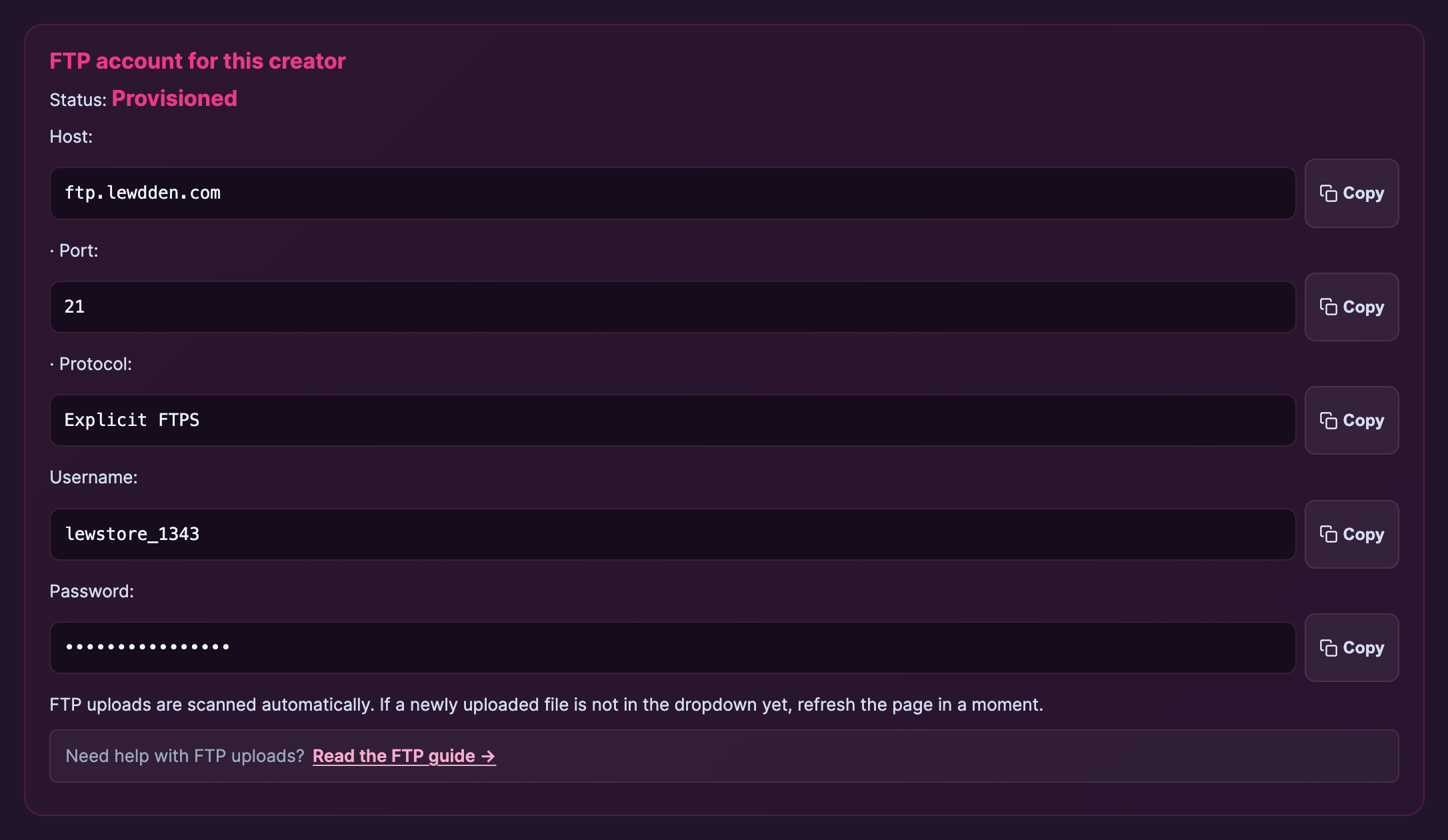
Once activated, the panel shows:
- Status — “Provisioned” (green light, you’re good to go), “Pending provisioning” (still waiting), or “Suspended” (account temporarily disabled — open a support ticket to find out why).
- Host — the FTP server hostname. Looks like
ftp.lewdden.com. - Port — the connection port. Default is the standard one your FTP client expects.
- Protocol — typically
FTPS(FTP over TLS, the secure variant). Use this in your client’s connection settings, not plain unencrypted FTP. - Username — your assigned FTP login. Usually derived from your storefront name.
- Password — a unique random password generated for your account. Copy it once into your FTP client; the panel keeps showing it for reference but treat it like any password.
The panel’s helper line reads: “FTP uploads are scanned automatically. If a newly uploaded file is not in the dropdown yet, refresh the page in a moment.” — that’s how you know an FTP-uploaded file is ready to be turned into a clip.
4) Connecting with an FTP client
Any FTPS-capable client works. Common picks:
- FileZilla (Windows / Mac / Linux, free) — the de-facto choice for most creators. File → Site Manager → New Site, fill in Host / Port / Protocol “FTP – File Transfer Protocol” → Encryption “Require explicit FTP over TLS” / User / Password.
- Cyberduck (Mac / Windows, free) — simpler UI, drag-and-drop friendly. Open Connection → choose “FTP-SSL (Explicit AUTH TLS)” → enter the four fields.
- Transmit (Mac, paid) — fast, polished, handles batches well.
- WinSCP (Windows, free) — popular on Windows. Choose “FTP” + “TLS Explicit” in the New Site dialog.
- Command-line lftp (any OS, terminal) — for scripting / overnight transfers.
lftp ftps://USER:PASS@HOST -e "set ssl:verify-certificate yes; put -O / *.mp4; bye".
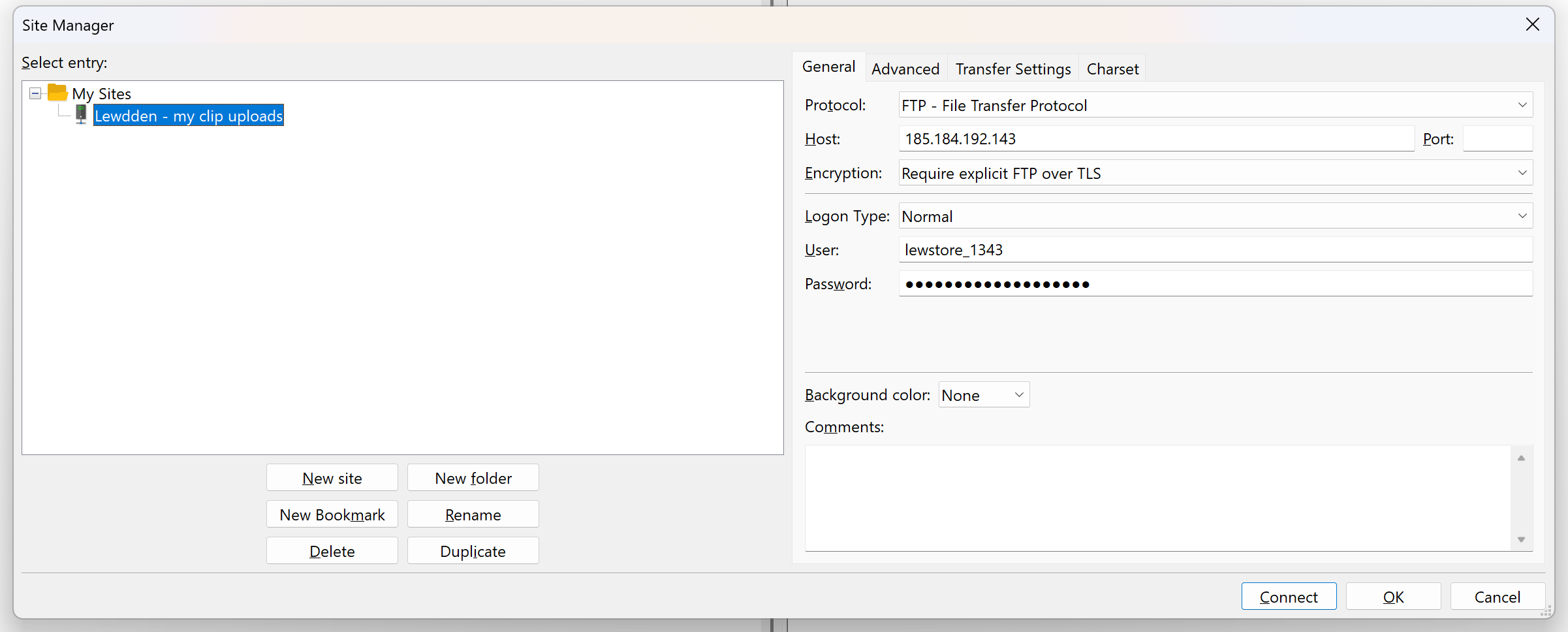
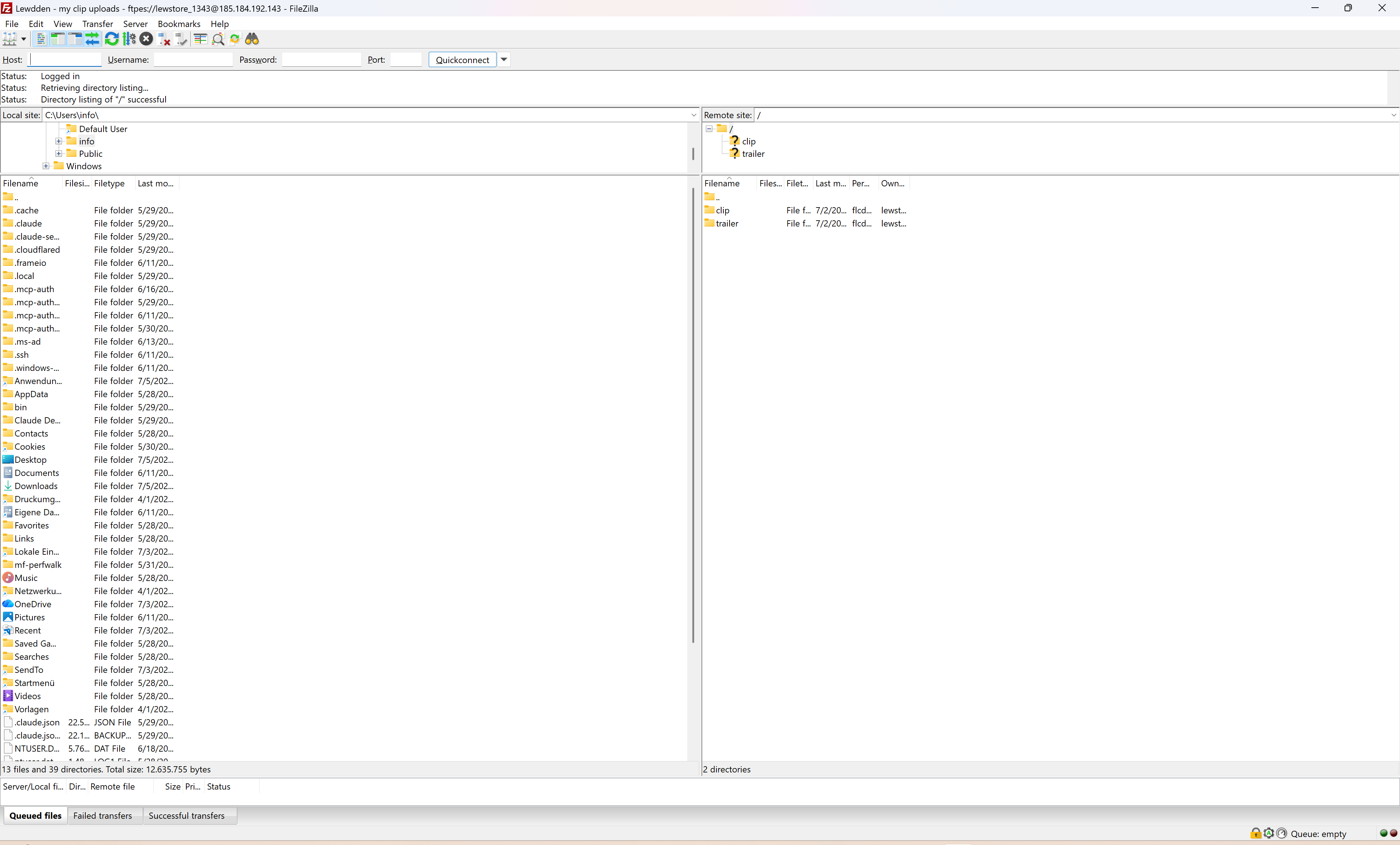
If your client offers separate “FTP” and “SFTP” options, use the FTP with explicit TLS branch — that’s the FTPS protocol our server runs. SFTP (which uses SSH on port 22) is a different protocol and won’t connect.
5) What to upload, and what to call the files
- Main clips — MP4 / MOV / WebM / M4V / general video files. Just drop them in the root of your FTP directory.
- Trailers / teasers — same formats. Some creators name them clearly (e.g.
trailer-clip-001.mp4) so they’re easy to pick later. The cap on trailer file size is 150 MB. - Naming. File names don’t have to follow any specific pattern, but using descriptive names (
2024-08-vegas-bedroom.mp4, notIMG_8392.mov) makes the dropdown pickers much easier to use later. - Folders. You can create subfolders if it helps you organise. The auto-scan walks the whole directory, so files in subfolders get picked up too.
- Files to skip. Don’t upload posters, raw images you’ll add later, or unrelated videos — they’ll appear in the dropdown as candidates and clutter your view.
6) After upload — turning files into clips
- FTP-uploaded files are auto-scanned every 5 minutes. After your transfer finishes, give it up to 5 minutes for the file to appear in the platform’s dropdown.
- Open Add clip. The “Main clip file” picker now lists every FTP-uploaded file alongside the upload button.
- Select your file from the dropdown for the Main clip file. If you uploaded a separate trailer, pick it from the Trailer / teaser file picker too.
- Fill in title, description, price, categories, and tags as normal.
- Click Submit clip for review. Standard moderation kicks in.
- Repeat for each file. The same FTP-uploaded file can only be used for one clip — once you submit, it’s tied to that clip and disappears from the dropdown.
You can absolutely upload 50 files in one FTP session and then create 50 clip drafts over the next hour using the dropdown — that’s exactly the workflow this is built for.
7) Common issues and fixes
- If your FTP client reports a connection-refused or authentication-failure error — double-check the four fields against the credentials panel. The username is case-sensitive. If passwords keep failing, generate a new one via support (we can rotate it without affecting your storefront).
- If your FTP client reports an SSL/TLS handshake failure — it might be set to plain FTP. Switch to “FTPS explicit” / “Require explicit FTP over TLS”.
- Upload stalls partway through — could be your network, your client, or our endpoint. Most clients have a Resume option — use it. If a specific file always fails, try transferring it twice (it’s nearly always a network blip).
- File uploaded but not in dropdown — wait 5 minutes (the scan cadence), then reload the Add-clip page. If it’s still missing after 15 minutes, open a support ticket with the file name and we’ll look at the scan log.
- Trailer uploaded over 150 MB — the auto-scan accepts it but the form rejects it as a trailer. Re-encode the trailer to under 150 MB or use it as the main clip + record a separate trailer.
- If your FTP client reports the disk quota was exceeded — there’s a per-creator soft quota that’s much larger than typical use (multi-hundred-GB). If you’ve genuinely hit it, ask support to raise it for your account.
8) Security notes
- Treat your FTP password like any password — don’t share it, don’t paste it into chats, don’t commit it to repos. If anyone else has seen it, ask support to rotate it.
- FTPS is encrypted end-to-end; plain FTP is not. Always use the FTPS / “explicit TLS” option in your client.
- Use a strong client. Free clients are fine, but stick to well-known ones (FileZilla, Cyberduck, WinSCP, Transmit). Avoid clients you’ve never heard of.
9) FAQ
Q: Can I get FTP before identity verification?
No. The whole point of the verification gate is that creator-specific resources (FTP, payouts, public storefront) only unlock after verification approval.
Q: Does FTP cost extra?
No. FTP access is included for verified creators at no additional charge.
Q: Can I have multiple FTP users for one storefront?
One FTP account per creator account. If you have multiple people uploading on your team, share the credentials securely (a password manager) — and remember to rotate the password if anyone leaves.
Q: I need to delete files from the FTP directory.
Your FTP client can delete files like any folder. Files used for already-published clips don’t need to be kept on the FTP server after the clip is created — you can clear them out to keep the directory tidy.
Q: Will FTP-uploaded clips skip moderation?
No. Every clip goes through moderation regardless of upload method. FTP only changes how the media files arrive — once they’re in the dropdown, the rest of the flow is identical to the web upload.
Q: Can I upload to FTP from a phone?
Technically yes (apps like FTPManager exist) but for a back catalogue you almost certainly want a desktop client.
Q: My FTP account is suspended. What happened?
Open a support ticket — we suspend FTP only if there’s an active issue (typically: too many failed login attempts triggering an automatic lockout, or a content-rules issue with a recently uploaded file). We can usually re-enable it within a working day after a quick check.
Need more help
To request your FTP account, ask for a password rotation, or troubleshoot a connection issue, open a ticket under Clips at Contacting support. Include your storefront name (or creator account email) and a one-line description of what you’re trying to do — we typically reply within one working day.
Once your back catalogue is up, the next things you’ll likely want are Scheduling a clip (drip-release across the week), Pricing your clips, and Why was my clip rejected if anything bounces from moderation.







