
Everything you’ve paid for on Lewdden — every clip, every subscriber-only video, every live VOD you bought a ticket to — lives in one place: your My Library page. The library auto-organises items by how you got them, lets you re-watch and re-download anything, and lets you build private playlists that auto-play through a queue. This guide walks through the four tabs on My Library, how playlists work, what happens when access changes (a subscription ends, a clip is removed), and a few practical tips on getting more out of the page.
1. Where the library lives
Sign in and go to /my-account/. The left sidebar has a tab called My Library. Click it. The page header reads My Library.
If you’ve never bought anything or subscribed to anyone, the page shows an empty-state message: “Your library is empty. Purchase clips or subscribe to creators to build your collection.”
The direct URL is /my-account/my-library/ — bookmark it if you visit it often.
2. The library tabs
The library splits everything you have access to into tabs across the top. Tabs only appear if you have content in them.
Clips
One-off clip purchases. Each row shows the clip’s poster, title, the creator’s name, and the buttons to play, re-download, or open the public clip page. Clips you bought stay in this tab forever — even if you cancel a subscription, your one-off purchases never expire.
Subscribed
Clips and feed videos you have access to through an active subscription. These are different from purchased clips in one critical way: when your subscription to that creator ends, these items disappear from the tab. That’s not a bug — it’s the contract of a subscription. While the subscription is active, you have full playback access; when it ends, the content goes back to “for subscribers only” for everyone, including you.
VODs
Live-stream recordings you have access to. These come from two sources: streams whose ticket you bought (the recording stays available to you indefinitely), and creators you’re subscribed to who marked their VODs as subscriber-accessible (those follow the subscription contract — if the sub ends, you lose access).
Playlists
The playlists tab is the queue-builder. Each playlist you create is a private collection of items from any of the three tabs above, in any order you like, with autoplay-next between items. See §4.
3. Playing and re-downloading
Every row has at minimum a play button. Click it and the video plays inline in the library — same playback experience as the public clip / VOD page. Each playback is access-checked on the server, so subscriptions that expire mid-playlist are caught instantly and the item is skipped rather than served.
For clips you bought outright, you usually also see a download button — the creator decides whether downloads are enabled on each clip. If the button isn’t there, downloads are off for that specific clip. (The clip is still re-watchable in the browser without limit.)
For subscribed items and VODs you accessed via a subscription, downloads are typically off — you stream them while your sub is active. If you want a permanent copy, the path is to buy the clip outright (if the creator sells it that way separately).
4. Playlists — building one
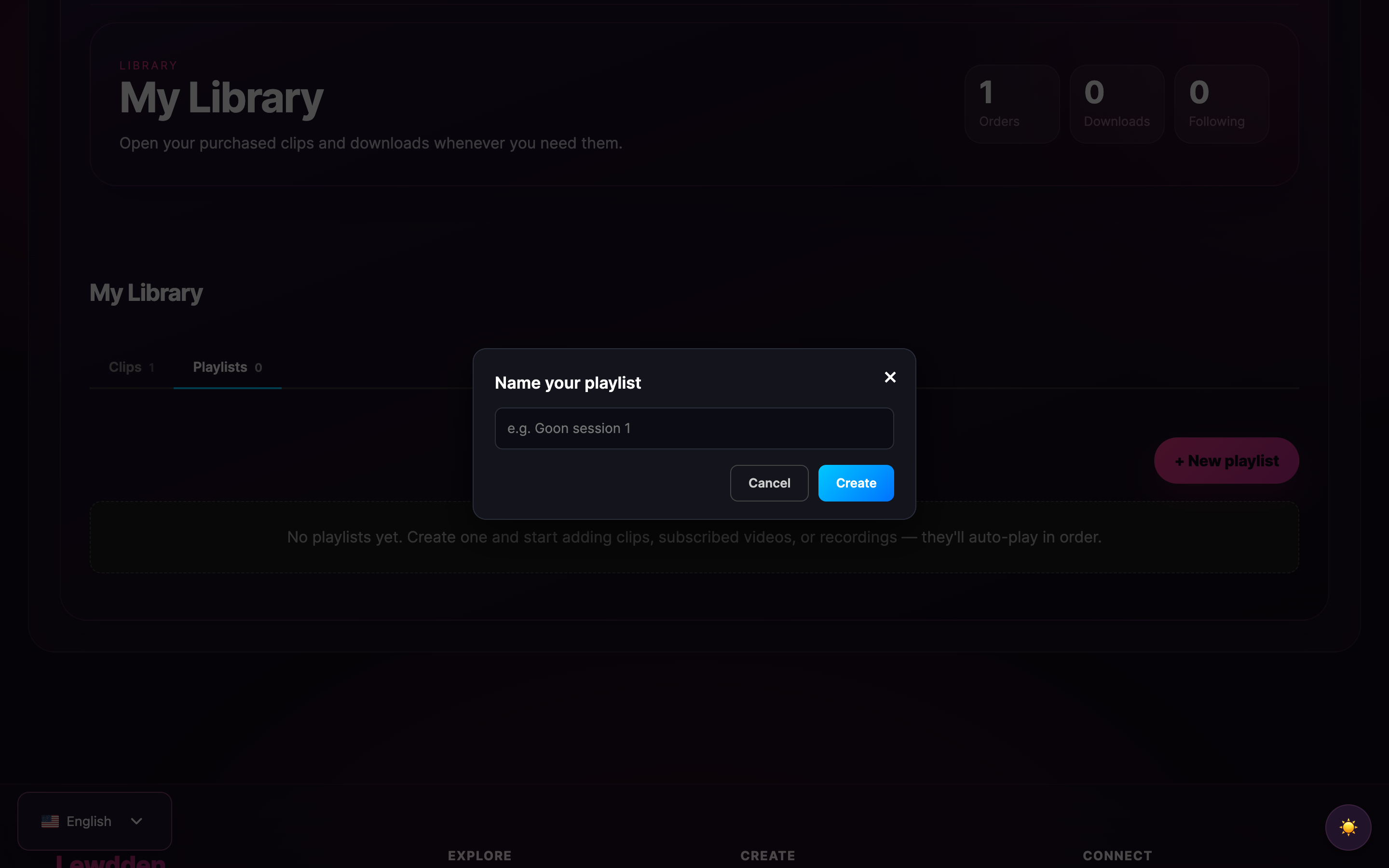
Open the Playlists tab. If you’ve never made one, you’ll see the empty state:
“No playlists yet. Create one and start adding clips, subscribed videos, or recordings — they’ll auto-play in order.”
To create a playlist:
- Click + New playlist.
- Enter a name. Anything you want — this is private, only you see it.
- Save. The playlist appears as a card on the grid with a count of 0 items.
To add items to a playlist:
- Open the playlist by clicking Edit on its card. The detail view opens.
- Use the Add to playlist modal to pick items from your Clips, Subscribed, or VODs tabs.
- Each picked item lands at the bottom of the playlist. Reorder using the up/down buttons on each row.
To play a playlist:
- Click Play all on the playlist card. The first item starts playing.
- When it finishes, the next item auto-plays. And the next. And so on.
- You can pause, skip, or jump back at any time.
5. What playlists can hold
Three source types are allowed in a single playlist, mixed in any order:
- Clips — your purchased clips.
- Subscribed videos — items from your active subscriptions.
- VODs — live recordings you have access to.
What playlists can’t hold: anything you don’t have access to. You can’t browse the public catalogue from the playlist add modal and pull items in — the picker is scoped to your library only. To add a clip you haven’t bought yet, you’d first need to buy it, then add it to a playlist.
6. What happens when access changes mid-playlist
Subscriptions cancel, content gets removed, things change. Three behaviours to know:
- A subscription ends while you’re playing a subscribed video. The current item finishes normally. The next time the playlist tries to play a subscribed-only item, the server-side access check fails and the playlist quietly skips it, moving to the next playable item.
- A clip gets removed by the creator or moderation. Same — the playlist tries to play it, the source check fails, the item is silently skipped. Removed clips don’t disappear from the playlist UI immediately (they may still show as rows), but they won’t play. We auto-prune unplayable items on the next refresh.
- You re-subscribe to a creator whose items were unplayable. Their items become playable again automatically. No need to re-add them to your playlists.
The principle is: the platform re-validates access at every play, every time. Your playlist is just an ordered list of references; access is decided fresh each time the play button is hit.
7. Editing, renaming, deleting
From the playlist card on the Playlists tab:
- Click Edit to open the detail view, where you can rename the playlist, reorder items, or remove individual items.
- Click the × button on the card to delete the playlist entirely (with a confirmation prompt). Deleting a playlist removes the playlist itself but leaves the underlying items in your library — nothing you’ve paid for is touched.
You can have as many playlists as you want. They’re private — no other fan, creator, or anyone else sees them.
8. Sharing
Playlists are private to you. There’s no public URL for a playlist, no way to share it with a friend, no profile-page playlist exposure. The playlist is a personal queue, not a public collection. If you want to recommend specific clips to someone else, the right action is to share the individual clip’s public URL — they can decide whether to buy it.
This is a deliberate design choice. Public playlists would invite gaming the discovery rails; private playlists keep the feature purely about your own watch experience.
9. Common questions
“Can I have a playlist that’s just my favourite clips from one creator?” Yes — there’s no rule that a playlist has to mix creators. Build it however you like.
“Will a playlist auto-loop when it reaches the end?” The schema supports a loop flag (and a default-shuffle flag) on each playlist, but the UI controls for them may not be exposed yet on every surface. If you don’t see the toggle, the current default behaviour is to stop at the end. We may surface the loop / shuffle controls more prominently in a later release.
“Can a playlist autoplay while I’m doing something else on the site?” Yes — the playback continues as long as the playlist tab is open. If you navigate to another Lewdden page in the same browser tab, the playlist pauses (because the player is destroyed by navigation). Open the library in its own browser tab if you want to keep playback going while you browse elsewhere.
“What happens if a clip in my playlist gets re-encoded by the creator?” The playlist re-resolves the asset on every play, so you automatically get the latest version. Old playlist entries don’t break.
“Can I export my library to a list I can keep offline?” Not as a self-serve export yet. The closest is the receipts / invoices in Receipts and VAT invoices — those record every paid transaction. Your downloadable clips themselves can be saved to your own machine where the download button is enabled.
“Why doesn’t a clip I subscribed to show up in my Subscribed tab?” Three things to check: (1) Is your subscription to that creator still active? (2) Did the creator include that clip in their subscription bundle? (3) Has the clip been removed by moderation? The Subscribed tab only lists items currently included in your active subscriptions.
“Can I add a free clip preview / trailer to a playlist?” No — playlists hold full clips, not trailers. The trailer is the preview surface on the public clip page; the playlist plays the full content.
Related
- Buying a clip — the purchase flow that adds items to your Clips tab.
- Subscribing to a creator — how the Subscribed tab gets populated.
- Watching a live stream — ticket purchases that flow into the VODs tab.
- Cancelling a subscription — what happens to your Subscribed tab when you cancel.
- Receipts and VAT invoices — the financial record of everything in your library.







