
A subscription is the simplest way to support a creator on Lewdden and the easiest way to unlock everything they put out. One payment, one period, and the creator’s locked clips, recordings, subscriber-only feed posts, and (when the creator allows it) direct messages all open up. When the period ends, your subscription renews automatically using the payment method you used at checkout — and you can cancel at any time, in which case your access stays active until the period you’ve already paid for ends.
This guide walks you through finding the Subscribe button, picking a plan, completing checkout, and getting to the things you’ve just unlocked. For ending a subscription you no longer want, see Cancelling a subscription. For everything that uses your wallet rather than your subscription (clip purchases, paid messages, ticketed shows), see How the wallet works and Topping up your wallet.
1. What you get when you subscribe
A subscription unlocks five things on the creator you subscribe to:
The included clips — every clip the creator has marked as part of their subscription.
The exact count is shown right on the Subscribe button and in the modal — “Access to 24 included clips,” for example. These play from your subscriber unlock; you don’t pay for them again individually.
Their livestream recordings — the on-demand archive of past streams the creator has kept available to subscribers.
Same idea: the count is shown in the Subscribe modal. You can rewatch them as long as your subscription is active.
The subscriber-only feed — the creator’s posts that aren’t visible to non-subscribers.
Photos, videos, voice notes, polls — whatever they post to subscribers — show up in their feed for you alongside the public posts.
Direct messaging (where the creator allows it) — some creators set their inbox to subscribers-only.
If that’s the case, subscribing is what unlocks the Message button on their store. Other creators take messages from anyone — your subscription doesn’t change anything for those.
Discounted prices on the creator’s other clips (sometimes) — some creators give their subscribers a discount on every clip in their store, including the ones that aren’t in the subscription bundle.
If the creator has set this up, you’ll see a discounted price on each clip’s buy button when you’re signed in as an active subscriber. If the clip is also on sale, you pay whichever is lower (subscriber-discounted or sale-discounted).
A subscription is per-creator. Subscribing to one creator doesn’t subscribe you to another, and unsubscribing from one doesn’t affect any others.
2. Where to find the Subscribe button
The Subscribe button shows up everywhere the creator’s content lives:
- On their store page —
/store/<creator>/. There’s a big purple Subscribe button on the storefront with the plan length(s) shown as chips next to it. - On any of their clip pages —
/product/<clip-name>/. The Subscribe button sits near the price, alongside the “Buy clip” option. - On their live stream page — when they’re broadcasting, the Subscribe button is in the live-room sidebar so you can subscribe without leaving the stream.
- From a “Subscribe to message” prompt — if a creator’s inbox is subscribers-only, attempting to message them surfaces a Subscribe button right there.
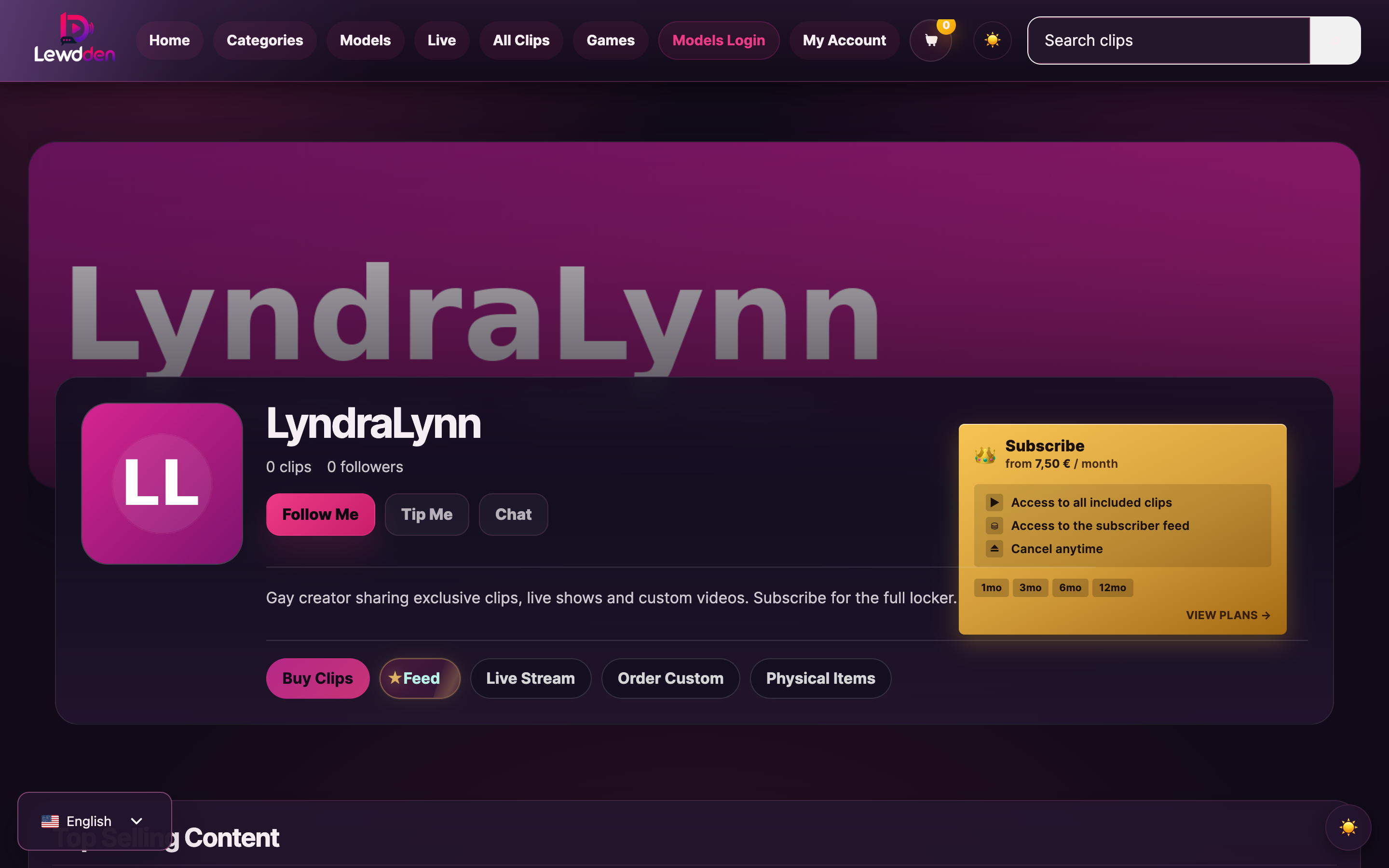
Click the Subscribe button and the subscription modal opens directly on the page — you don’t navigate away.
3. Pick a plan
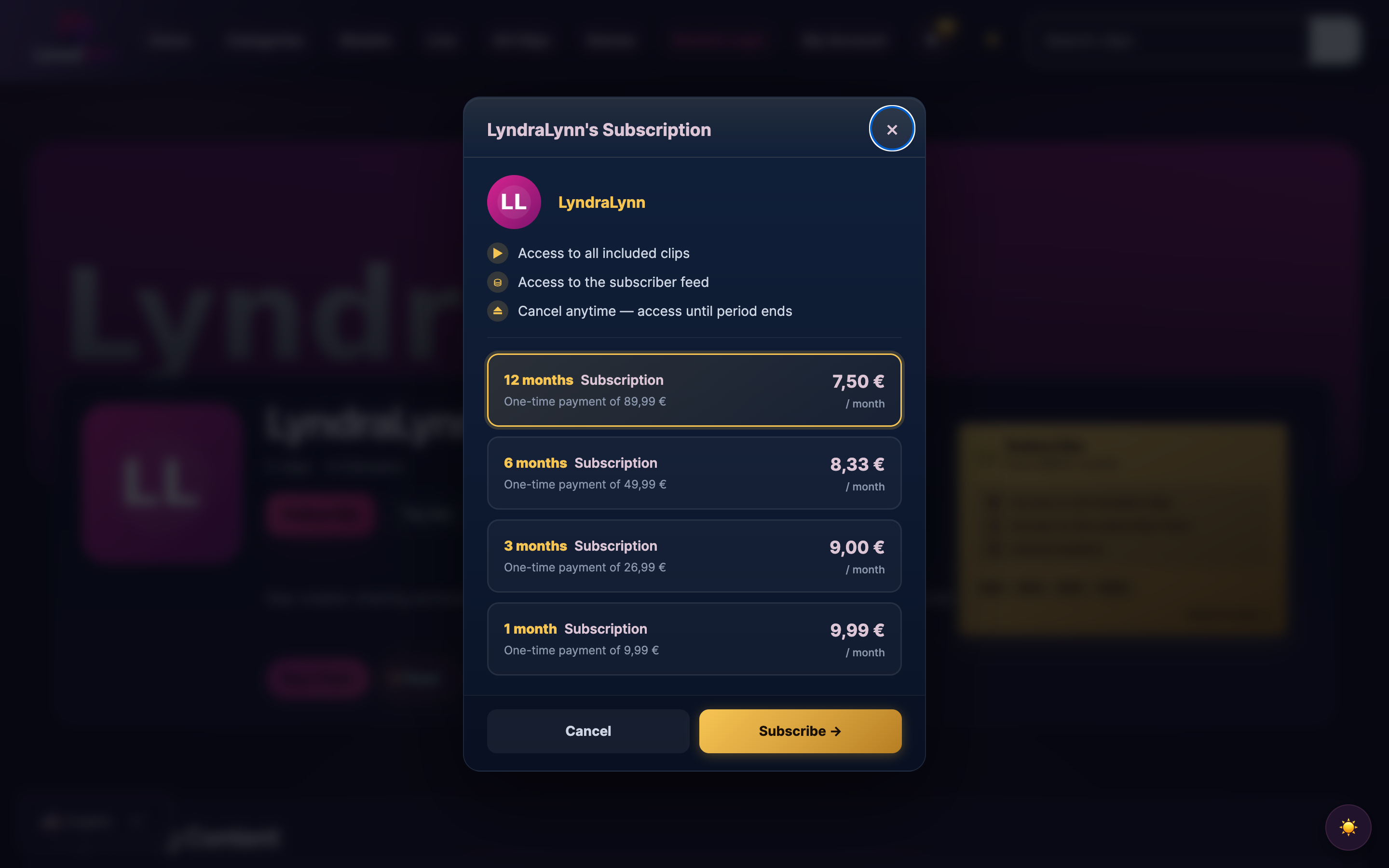
The modal lists every plan the creator has enabled, longest first. If the creator only offers one length, that’s the only option you see; if they offer 1-month, 3-month, 6-month and 12-month plans, you see all four with the longest pre-selected.
Each plan shows two numbers:
- The total price for the period — what you pay at checkout. For example, “One-time payment of €50 for 6 months.”
- The monthly equivalent — what that works out to per month. Longer plans usually have a lower per-month rate.
Pick the plan you want. The modal updates the consent line to match.
4. Complete checkout
Below the plan list:
- Tick the terms and conditions checkbox to confirm you accept the terms and authorise Lewdden to bill the amount shown.
- Click Subscribe →. The modal hands you off to the secure checkout for the selected plan.
- At checkout, enter your payment details — credit/debit card, SEPA, or any of the other payment methods supported on Lewdden. Whatever you select here becomes the saved payment method that future renewals will use.
- Confirm the charge. You’ll see an order-confirmation page once the payment is successful.
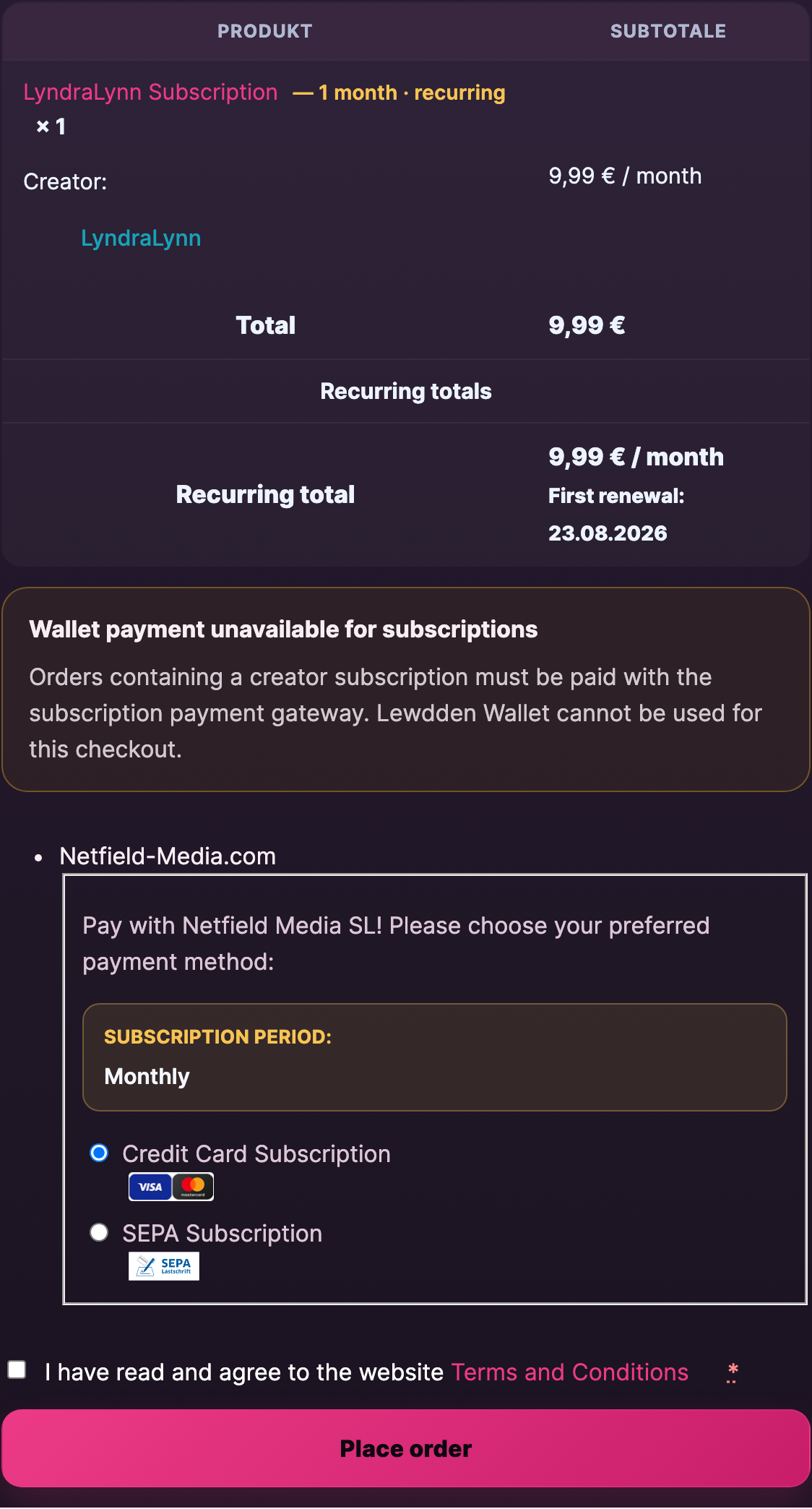
You’re now a subscriber. The order confirmation page links you straight back to the creator’s store — refresh and you’ll see the locked content open up.
5. What happens next
Right after the payment goes through:
- The creator’s subscriber-only content unlocks for you immediately.
- A confirmation email lands in your inbox with the subscription details (start date, plan, and the date your subscription renews).
- The subscription appears in your My Account → Subscriptions tab. You can come back to it any time to check the dates, see your payment history, or cancel.
If anything in your account didn’t update right away (e.g. a clip still looks locked), refresh the page once. The unlock is set on the server side at the moment payment confirms; the page just needs to re-fetch.
6. How renewals work
Subscriptions on Lewdden are recurring. At the end of each period, Lewdden charges the payment method you used at checkout for the same plan length and price, and your access continues without a gap.
Example — you subscribe to a 1-month plan on the 12th. Each subsequent 12th, your card gets charged for the same plan and your subscription continues for another month. You don’t have to do anything for the renewal to happen.
A few practical points:
- The renewal date is shown on the subscription page in My Account, labelled Next payment date.
- The price stays the same at renewal as the price you saw at checkout. We don’t change subscription prices on existing subscribers without notice.
- If a renewal payment fails (expired card, insufficient funds, etc.), Lewdden retries a couple of times and emails you to update your payment method. If it can’t take payment after the retries, the subscription goes on hold and your access pauses until you fix the payment method.
- You’re not locked in. You can cancel any time, and the cancellation just stops the next renewal — your access continues until the end of the current paid period.
To stop a subscription before the next renewal, see Cancelling a subscription.
7. Where to manage your subscription
Sign in and go to My Account → Subscriptions. The link is also in the account-overview dashboard.
You’ll see one row per active subscription, with the creator’s name, the plan, the next payment date, and a View action to open the details. From the details page you can:
- Check the status (Active / Pending cancellation / Cancelled / On hold).
- See the next payment date and amount.
- See past renewal orders.
- Cancel the subscription with a single click (see Cancelling a subscription for what happens next).
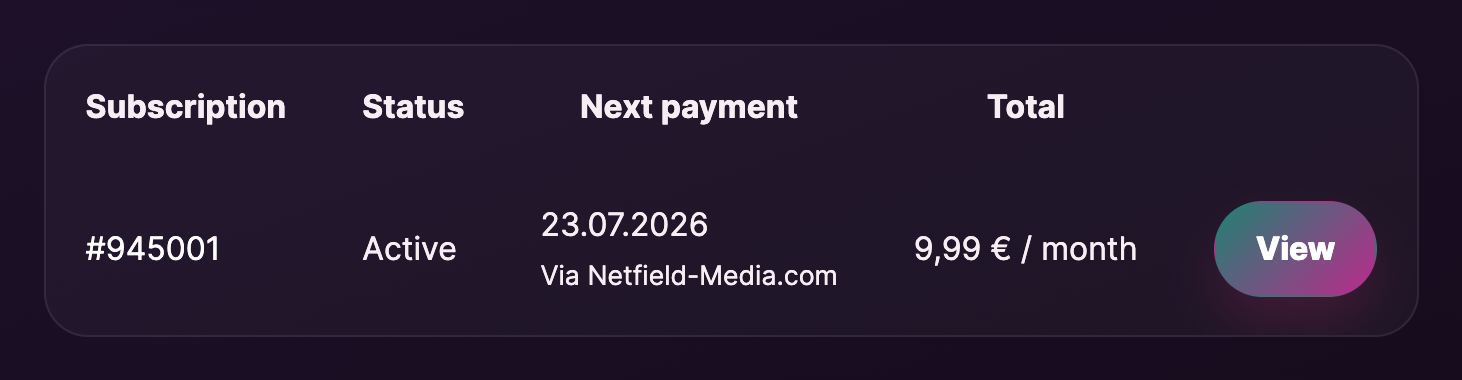
If you have just one active subscription, the menu item is labelled My Subscription. If you have multiple, it’s Subscriptions.
Common questions
Q: Is the price I pay at checkout the only payment, or am I charged again later?
You’re charged again — subscriptions renew automatically at the end of each period. The phrase “One-time payment of X” in the modal means the amount you pay at this checkout transaction (no instalments, no hidden upsells). At the end of the period you’ve paid for, you’re billed again for the next period. To stop renewing, cancel from My Account → Subscriptions; your access stays active until the current period ends.
Q: How quickly does my access activate after I pay?
Immediately, as soon as the payment confirms. Refresh the creator’s page once and locked content opens up.
Q: Does subscribing to one creator cost me anything on another creator’s content?
No. Subscriptions are per-creator. Subscribing to creator A unlocks creator A’s subscriber content, nothing else. To support another creator, you’d subscribe to them separately.
Q: Can I subscribe to multiple creators at the same time?
Yes — there’s no limit. Each subscription is its own row in My Account → Subscriptions, with its own renewal date and payment method.
Q: I see a 1-month, 3-month, 6-month and 12-month option. Are they all paid up-front?
Yes. Each plan length is a single up-front payment for that whole period — there are no instalments. Longer plans typically have a lower monthly equivalent, which is why creators offer them. The renewal then matches the plan you chose: a 6-month subscription renews every 6 months at the same price.
Q: What payment methods are supported?
The full list of methods available at Lewdden checkout is:
- Credit Card — Visa, Mastercard.
- Giropay — direct online bank transfer for German bank accounts.
- Sofort — direct online bank transfer (Sofortüberweisung), DE/AT/CH banks.
- SEPA direct debit (Lastschrift) — pay by SEPA mandate.
- EPS — direct online bank transfer for Austrian bank accounts.
- CashtoCode — pay in cash at a participating shop using a barcode.
- iDEAL — direct online bank transfer for Dutch bank accounts.
- CoinPay — pay with Bitcoin via our crypto partner.
- Bank transfer (advance payment) — also called Vorkasse. Wire the amount manually to the bank details shown.
Whatever you select at the first checkout becomes the saved payment method that future renewals will use. See Topping up your wallet for more on the same list of methods.
Q: Can I change my saved payment method later?
Yes — open the subscription in My Account → Subscriptions and you’ll see an option to update the payment method on file. The new method takes effect from the next renewal.
Q: Can I see what I’m getting before I subscribe?
The modal shows the count of included clips and recordings up-front. The creator’s subscriber feed posts and inbox unlock at the moment you subscribe; there’s no preview of those before purchase.
Q: Does my subscription get me into ticketed shows or 1:1 private shows?
No. Ticketed shows are individually purchased per show; 1:1 privates are paid per-minute from your wallet. A subscription is the unlock for clips, recordings, the subscriber feed, and (sometimes) messaging. See Public, ticketed and 1:1 private shows for how those work.
Q: I subscribed to the wrong creator by accident — what can I do?
Subscriptions are digital products and aren’t refundable, so a wrong-creator subscription can’t be reversed for a refund. Cancel it right away from My Account → Subscriptions — that stops the next renewal so you’re not charged again. Your access to that creator stays active until the period you’ve paid for ends, then closes. To support the creator you intended, subscribe to them separately.
Q: My subscription says “On hold” — what does that mean?
The renewal payment couldn’t be taken (usually an expired card or insufficient funds). Open the subscription in My Account → Subscriptions and update the payment method — the subscription resumes once a renewal payment succeeds. If you’d rather end it, cancel from the same page.
Q: How does my subscription show on my bank statement?
Every transaction on Lewdden — subscriptions, wallet top-ups, clip purchases — shows on your bank statement as Netfield Media S.L, not under the creator’s name or “Lewdden“. When you’re scanning your statement, look for Netfield Media. Receipt and renewal emails also reference Netfield Media S.L on the line items, so if a charge ever looks unfamiliar, cross-checking the email is the fastest way to confirm it’s from us.







