
Your wallet is a small balance you keep on Lewdden that lets you buy clips, send tips, unlock paid messages and pay for live show extras with one click — no need to type your card details every time.
This guide explains what the wallet is, where to find it, what you can use it for, and what you’ll see on the page.
1. Where to find your wallet
- Sign in to your account.
- Go to My account → Wallet (or open it directly at /my-account/wallet/).
That’s the page you’ll come back to whenever you want to add funds, check your balance, or see what you’ve spent.

2. What you’ll see on the page
The wallet page has three areas, top to bottom:
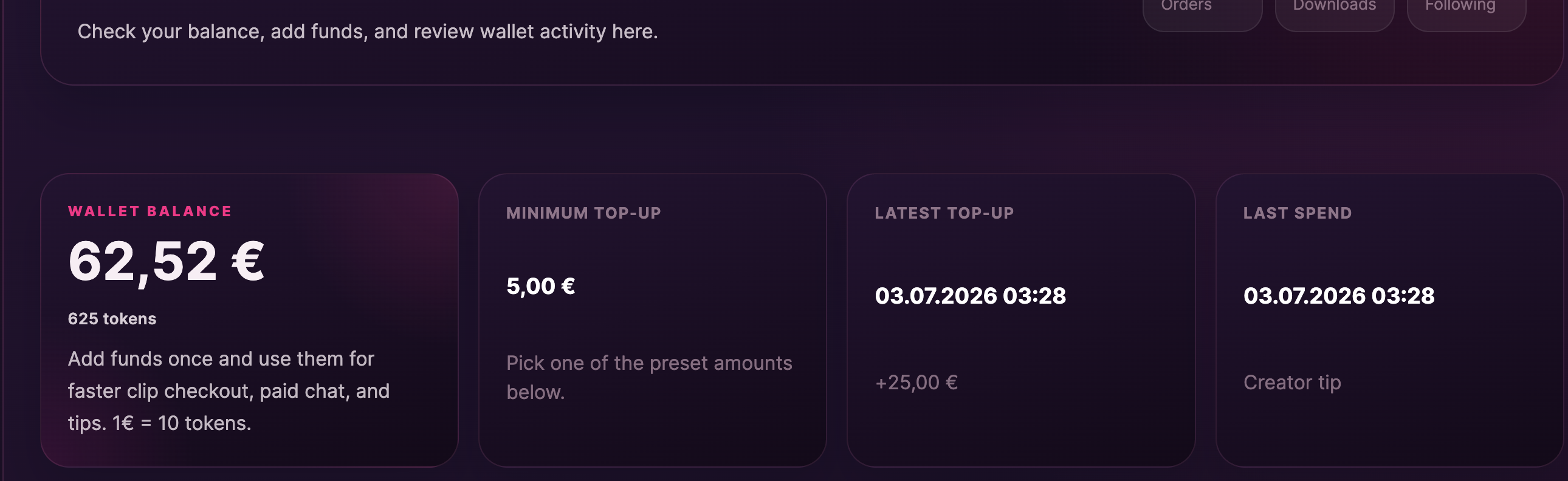
The four cards at the top
| Card | What it shows |
|---|---|
| Wallet balance | How much you have available right now, in EUR. |
| Minimum top-up | The smallest amount you can add — currently €10. |
| Latest top-up | When you last added funds, and how much. |
| Last spend | The last thing your wallet was used for. |
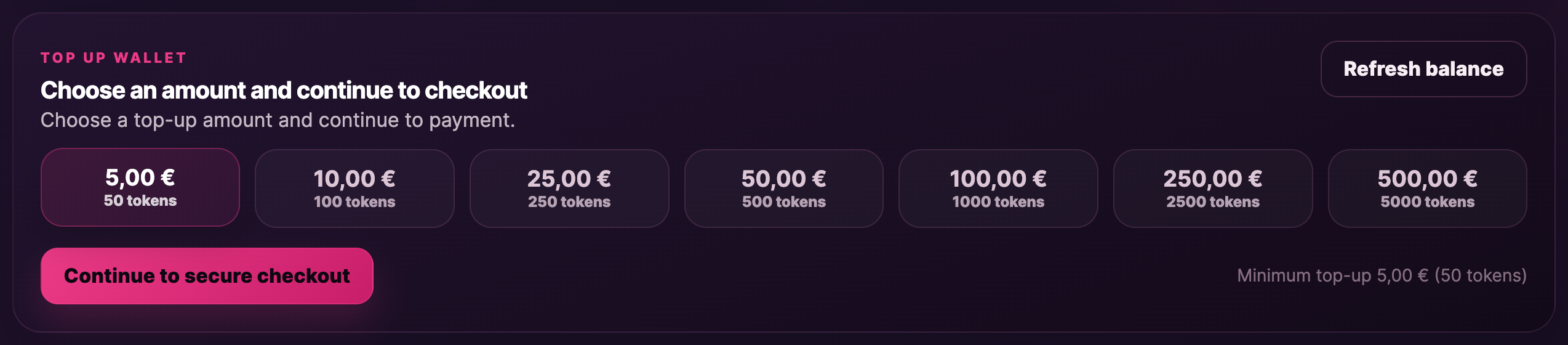
Top up wallet
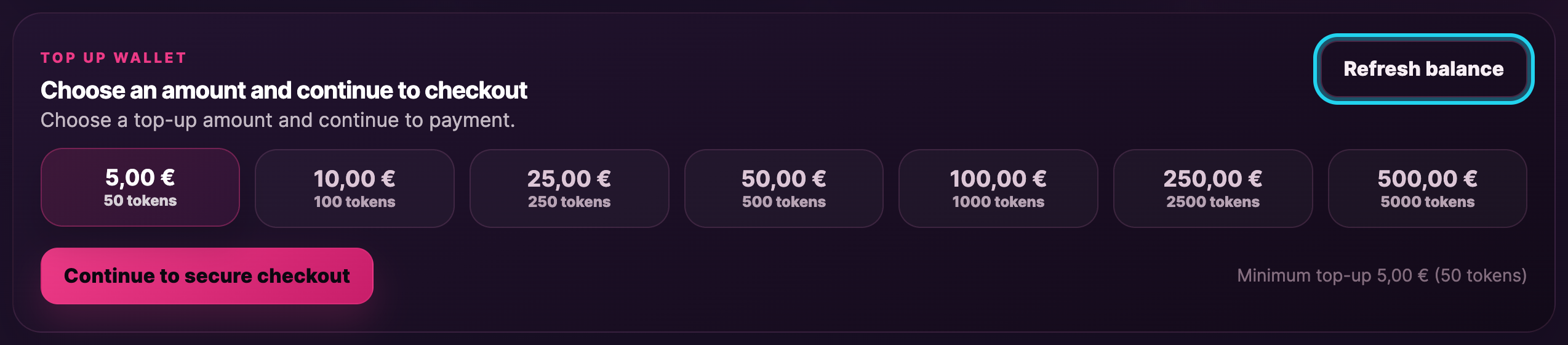
Below the cards is the area where you add funds. Pick one of the preset amounts and click Continue to secure checkout.
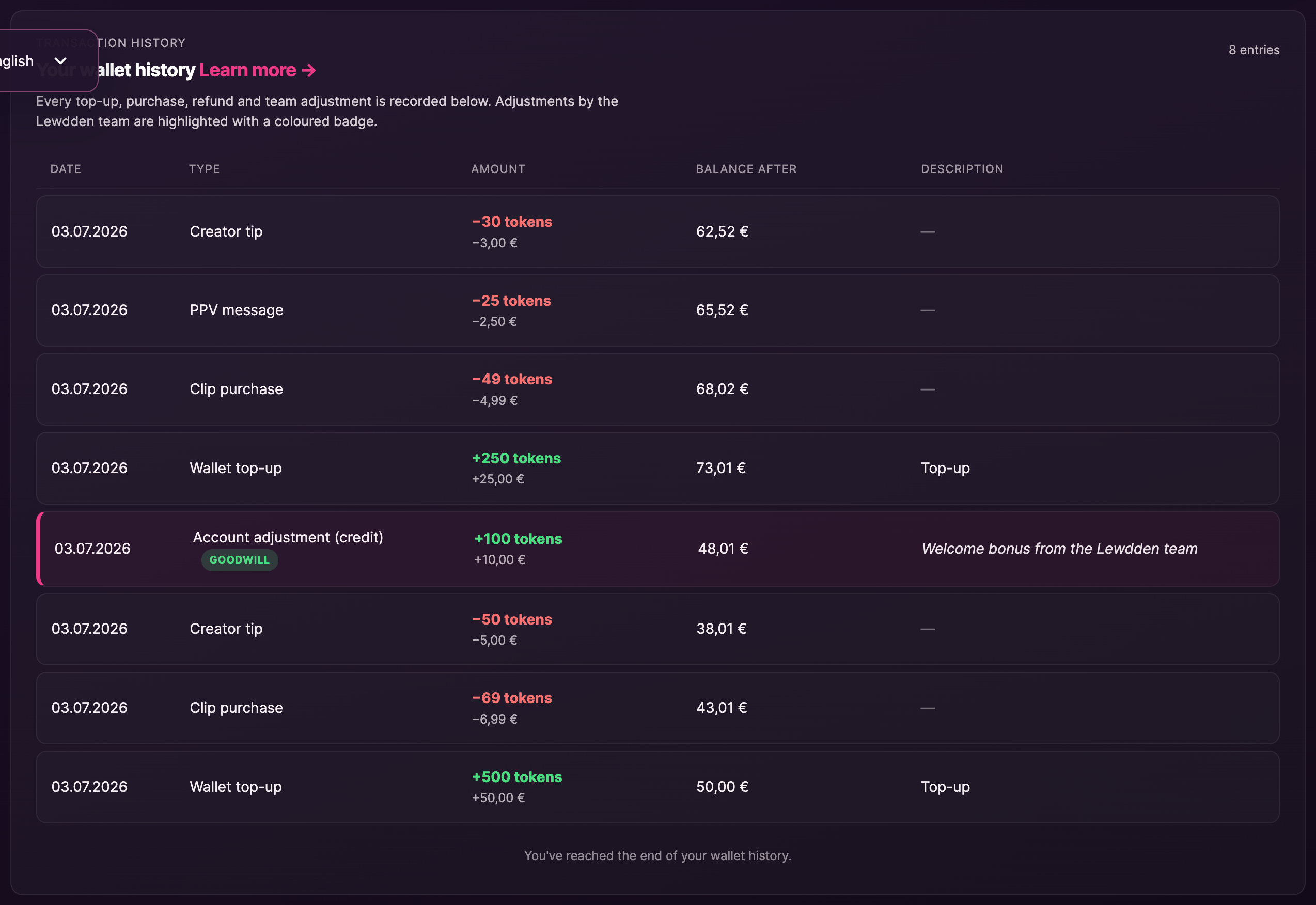
Wallet activity & Spend history
At the bottom, two side-by-side panels:
- All wallet entries — every credit and debit, newest first.
- Where wallet funds are spent — only the debits, so you can see what you’ve been buying.
Each entry shows the date, what it was for (e.g. Clip purchase, PPV message, Creator tip), and the amount.
3. Adding funds (top-up)
Topping up takes about a minute:
- Pick one of the preset amounts: €10, €25, €50, €100, €200 or €500.
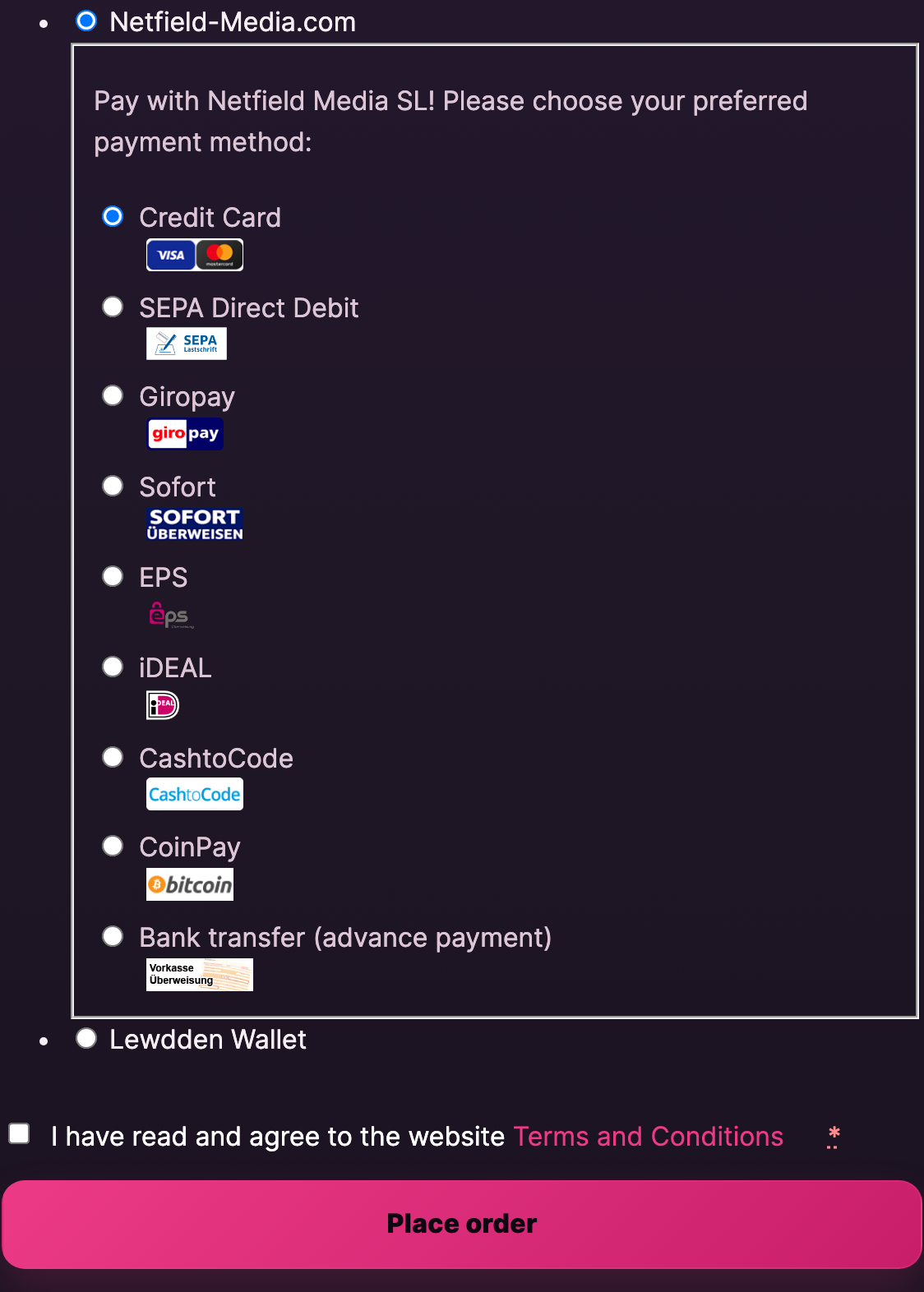
- Click Continue to secure checkout. A secure checkout panel slides into the page, handled by our third-party payment partner. Pick your method and complete the payment — you can also click Open checkout in a new tab if you prefer a separate window.
- Pick the payment method you’d like to use and complete the payment.
- As soon as the payment is confirmed, your balance goes up. Refresh the wallet page if it doesn’t update instantly.
Available payment methods
In the secure checkout you can pay with:
- Credit Card
- Giropay
- Sofort
- SEPA direct debit (Lastschrift)
- EPS
- CashtoCode
- iDEAL
- CoinPay (Bitcoin)
- Bank transfer (advance payment) (Vorkasse)
Pick whichever is most convenient — they all credit your wallet the same way. For a step-by-step walkthrough of each method, see the Topping up your wallet guide.
4. What you can spend your wallet on
Your wallet works for almost everything you do on the site:
- Buying clips
- Sending tips to a creator during a live show
- Unlocking paid messages (PPV) in the messenger — clips, photos and voice notes that creators send with a price tag
- Paying for live show extras — like buying into a ticketed show
- Buying physical merchandise from a creator’s store
- Paying for custom video orders
Whenever you check out and there’s enough in your wallet, you’ll see Lewdden Wallet as a payment option. Pick it and the order is charged against your balance instantly.
One thing the wallet can’t pay for
Subscriptions. Recurring monthly subscriptions to a creator are charged directly through our subscription payment gateway, so they don’t pull from your wallet balance. You’ll see a small notice on the checkout page if you try.
This is so your subscription keeps renewing automatically each month, even if your wallet is empty.
5. Common questions
Q: Does my wallet balance expire?
No. Funds you top up stay there until you spend them.
Q: Can I get my balance paid out to my bank?
The wallet is for spending on Lewdden — it isn’t a bank account and balances aren’t paid out. If you topped up by mistake, contact support.
Q: Can I use my wallet on more than one creator?
Yes. Your balance is yours and works across the whole site — every creator, every clip, every tip.
Q: What’s the minimum I can top up?
€10. The next presets up are €25, €50, €100, €200 and €500.
Q: Why doesn’t my wallet pay for subscriptions?
Subscriptions auto-renew each month — for that to work, the system needs a payment method that can be charged on a schedule (your card or SEPA mandate). Wallet balances can’t do that, so subscriptions go through the subscription gateway directly.
Q: Why does the checkout show a different brand name?
We use a secure third-party payment processor for cards, SEPA, and bank-transfer routing. They handle the payment on our behalf and don’t see what you’re buying — only the order amount and your billing details. The same partner’s name shows up on your bank statement.
Q: I topped up but my balance hasn’t updated.
Click Refresh balance at the top of the top-up section, or refresh the page. If it still hasn’t updated after a minute, check your inbox for a payment confirmation, then open a support ticket.
Need more help?
If something looks wrong or you have a question we haven’t covered, open a support ticket from your account and we’ll sort it out.
See also: Why did my wallet balance change? — a quick read explaining what manual balance adjustments are, where to see them, and what to do if one looks wrong.







