
This guide walks you through adding funds to your Lewdden wallet — picking an amount, paying through our secure checkout, and confirming the balance has been credited. It takes about a minute.
If you haven’t read the basics yet, start with How the wallet works.
1. Open your wallet
- Sign in to your account.
- Go to My account → Wallet (or open it directly at /my-account/wallet/).

2. Pick an amount
Below the four hero cards (Wallet balance, Minimum top-up, Latest top-up, Last spend) you’ll see the Top up wallet section, with the heading Choose an amount and continue to checkout.
Pick one of the preset amounts:
- €10 (the minimum)
- €25
- €50
- €100
- €200
- €500
Click an amount to select it — the active button is highlighted in your account accent colour.
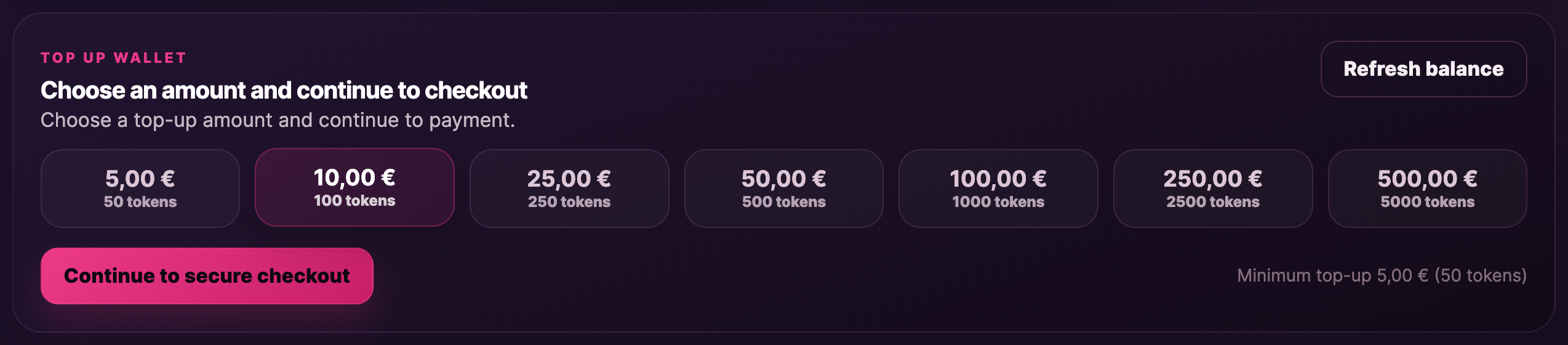
Why presets only? Lewdden doesn’t take custom amounts. Each preset is a complete top-up — pick the smallest one that covers what you want to spend, then top up again later if you need more. Whatever you don’t use stays in your wallet and never expires.
3. Continue to secure checkout
When you’ve picked an amount, click Continue to secure checkout.
A secure checkout panel slides into the wallet page, just below the amount picker. The actual payment is handled by our third-party payment partner inside an embedded checkout window. You stay on Lewdden the whole time.
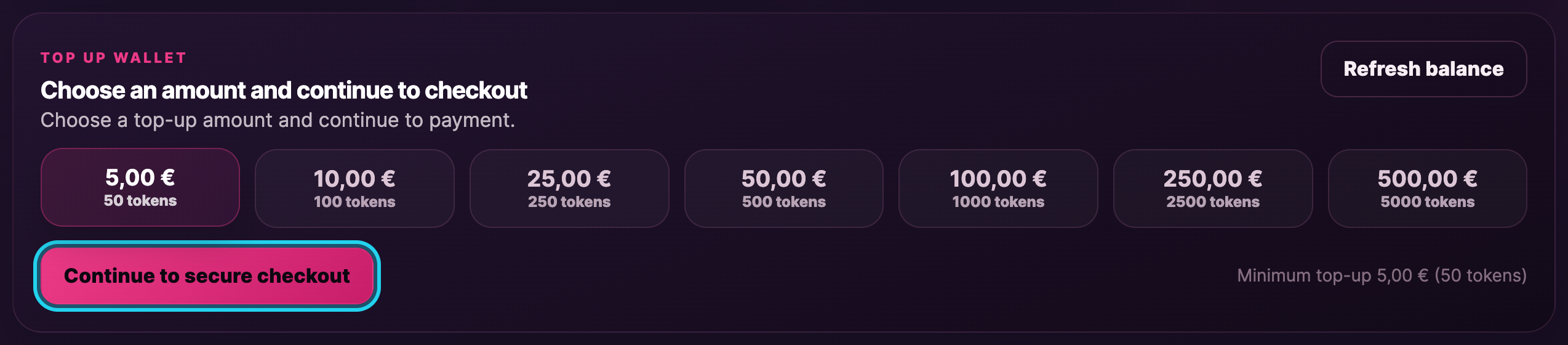
If you’d rather pay in a separate browser tab, the panel toolbar has an Open checkout in a new tab button — useful if your browser is fussy about embedded payment forms. Close checkout dismisses the panel without charging anything.
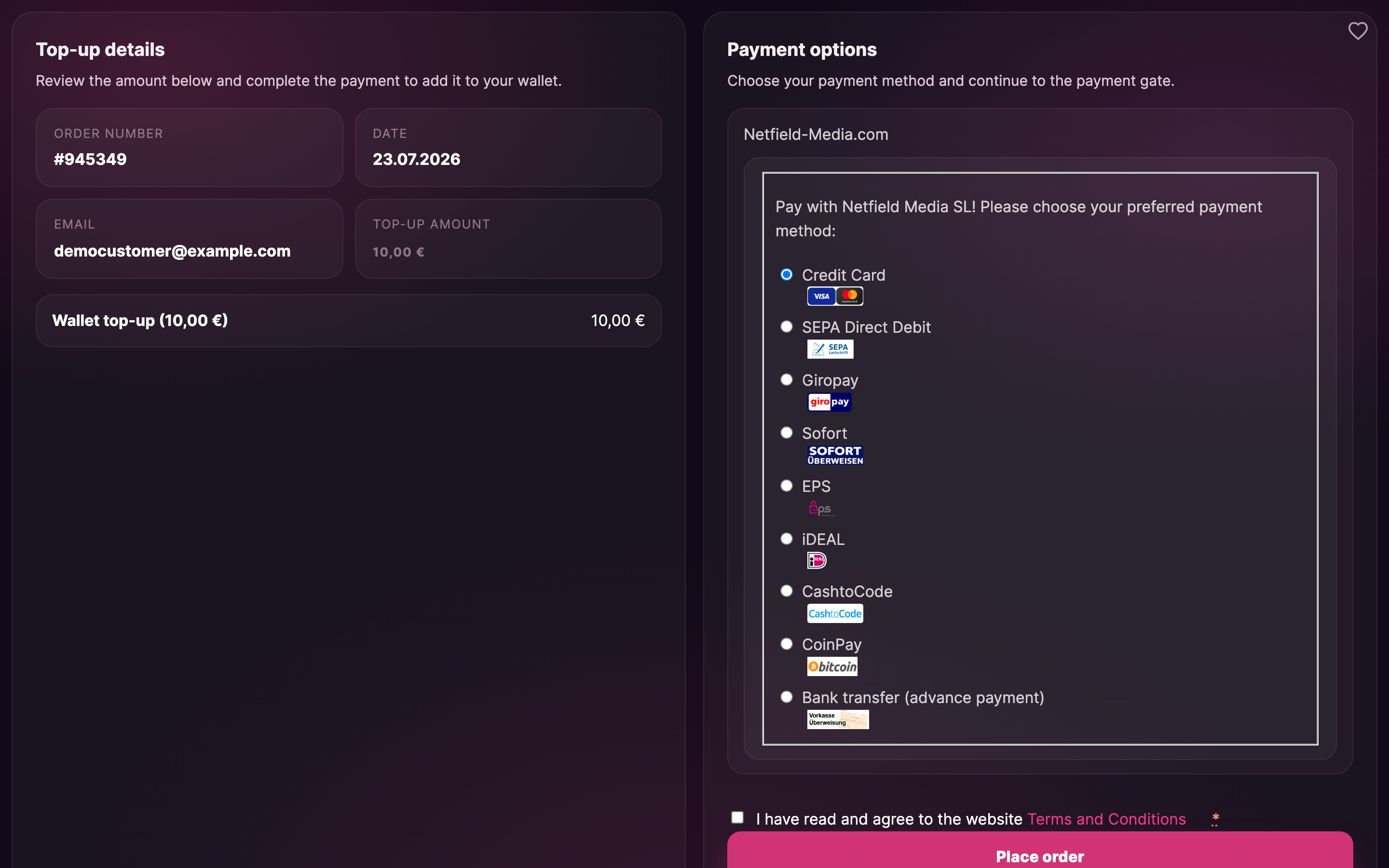
4. Pick a payment method
Inside the secure checkout you’ll see a list of payment methods. Pick the one you’d like to use:
- Credit Card — Visa, Mastercard, the usual cards.
- Giropay — direct online bank transfer for German bank accounts.
- Sofort — direct online bank transfer (Sofortüberweisung), works across most German, Austrian and Swiss banks.
- SEPA direct debit (Lastschrift) — pay by giving us a SEPA mandate, common for German bank accounts.
- EPS — direct online bank transfer for Austrian bank accounts.
- CashtoCode — pay in cash at a participating shop using a barcode you generate during checkout.
- iDEAL — direct online bank transfer for Dutch bank accounts.
- CoinPay — pay with Bitcoin via our crypto partner.
- Bank transfer (advance payment) — also called Vorkasse. Wire the amount manually from your bank to the bank details shown; your wallet credits as soon as the transfer arrives, usually within 1–2 business days.
Pick whichever is most convenient — they all credit the same wallet, in EUR.
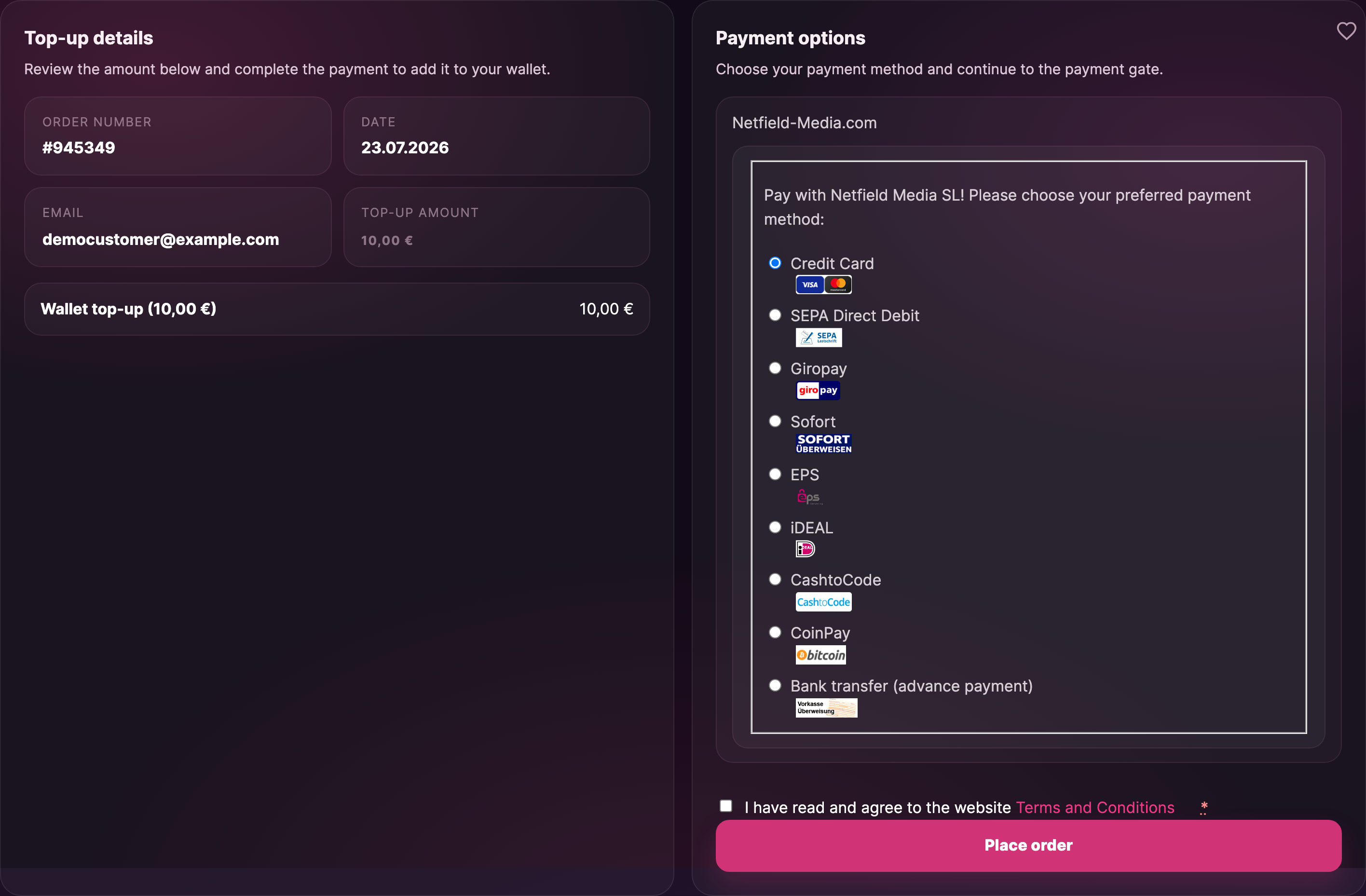
5. Complete the payment
Each method has its own short flow — a card form, a bank login redirect, a barcode to take to a shop, or bank-transfer details to copy.
- Card / Giropay / Sofort / EPS / iDEAL / SEPA / CoinPay / CashtoCode — once you confirm the payment, your wallet is credited as soon as the payment partner confirms the transaction (usually within seconds).
- Bank transfer (advance payment) — your wallet only credits once the money arrives in our account. This typically takes 1–2 business days for SEPA-zone transfers. You’ll see the top-up listed as Pending in your wallet activity until it lands.

6. Confirm your balance
Back on the wallet page:
- The Wallet balance card at the top updates automatically.
- The Latest top-up card shows the date and amount of the top-up you just made.
- A new entry appears at the top of All wallet entries with the label Wallet top-up and the amount in green.
If the balance hasn’t updated, click Refresh balance at the top of the top-up section, or refresh the page.

Common questions
Q: Why €10 minimum?
The €10 floor keeps payment-processor fees low as a share of each top-up, which is why Lewdden absorbs all top-up fees and never charges you extra. If you only need a couple of euros’ worth, the rest stays in your wallet for next time.
Q: Can I top up €15 or €30?
No — only the six preset amounts work. We’re not adding custom amounts.
Q: Do top-ups expire?
No. Once your balance is credited, it stays there until you spend it.
Q: Are there any top-up fees?
No. The amount you pick is exactly what credits to your wallet. Any payment-processor fees are absorbed by Lewdden.
Q: Bank transfer is taking a while — is something wrong?
SEPA transfers usually take 1–2 business days. If it’s been longer than three working days since you sent the wire, open a support ticket and include the date and amount you sent.
Q: My payment was declined — what now?
Try a different method from the list. If your card keeps getting declined, your bank may be blocking adult-content merchants — try a SEPA direct debit, Sofort/Giropay, or iDEAL instead. Some banks block adult merchants quietly without telling the cardholder.
Q: Can I get a refund on a top-up?
No. Wallet top-ups are non-refundable — they aren’t paid back to your card or bank account once credited. The balance never expires, so unused funds stay in your wallet until you spend them. If you topped up the wrong amount, the simplest fix is to use the existing balance against your next purchase rather than trying to return it.
Q: Why does the checkout show a different brand name?
We use a secure third-party payment processor for cards, SEPA, and bank-transfer routing. They handle the payment on our behalf and don’t see what you’re buying — only the order amount and your billing details.
Q: Is my card data stored on Lewdden?
No. All card details go straight to the third-party payment system. Lewdden never sees the card number.
Need more help?
If something looks wrong or your top-up hasn’t credited after the expected window, open a support ticket from your account and include the date, amount, and method you used.
See also: Why did my wallet balance change? — a quick read explaining what manual balance adjustments are, where to see them, and what to do if one looks wrong.







