
A collab is a livestream where two creators share the same room and split the revenue. One of you is the host (whose room everyone joined), the other is the guest who accepts an invite mid-stream. Tips, ticket sales, per-minute earnings and post-show VOD revenue all split between you at a percentage you both agreed on before the guest accepted. Default is 50/50; the slider goes from 10/90 to 90/10 in 5% steps.
If you haven’t run a stream solo yet, read How to go live — pre-flight checklist and Public, ticketed and 1:1 private shows first. Collabs sit on top of those — you still pick a show mode (Public free, Premium per-minute, etc.) and the collab just splits whatever that mode earns.
1. Setting your invite policy first
Before anyone can invite you to a collab, you need to decide who’s allowed to send you invites. Find this in your studio’s pre-show settings panel under Co-creator collab invites. The tooltip reads:
“Decide who can invite you to a livestream collab. Friends are managed under Friends in your store dashboard.”
It’s a three-up toggle with these buttons:
- Don’t allow invites — nobody can invite you. Other creators trying to invite you will see “This creator is not currently accepting collab invites.”
- Only my friends — only creators you’ve added as friends can invite you. Non-friends will see “This creator only accepts collab invites from friends. Send a friend request first.” Manage your friends list at /store-manager/friends/ — see Adding creator friends for how requests, accepts, and the rate limits work. (This is the default for new creators.)
- Anyone can invite me — any verified creator who’s currently live can invite you.
Pick your level, save the panel, and you’re ready to either invite or be invited.

2. Sending an invite — the host flow
You’re already live in your room and you want to bring another creator in. From the studio toolbar, click:
Invite co-creator
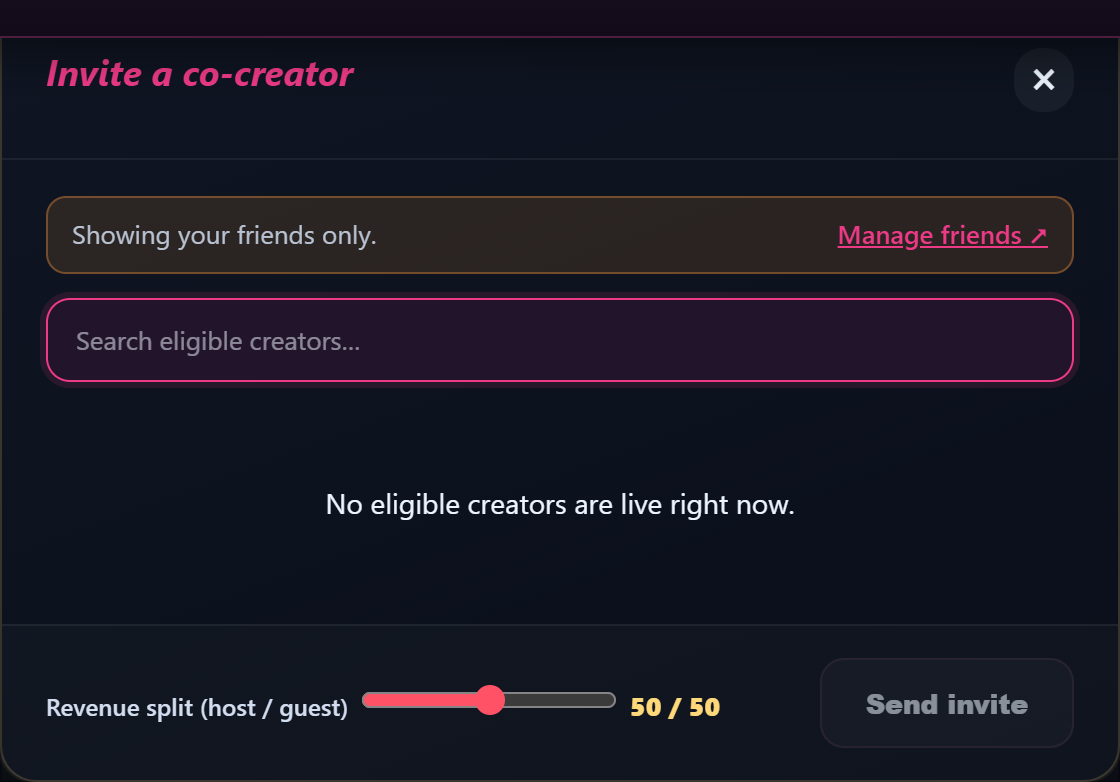
This opens the Invite a co-creator modal. It contains:
- A search field labelled “Search eligible creators…”.
- A list of creators who are currently live AND have a collab policy that lets you invite them.
- If your collab policy is set to “Only my friends”, the modal shows a banner at the top: “Showing your friends only.” with a “Manage friends ↗” link to your friends page. The list is restricted to your friends regardless of who else is live.
- If nobody matches: “No eligible creators are live right now.”
- A Revenue split (host / guest) slider at the bottom — range 10–90, step 5, default 50. The output next to it updates live: “50 / 50”, “55 / 45”, etc.
- An Invite button next to each creator in the list.
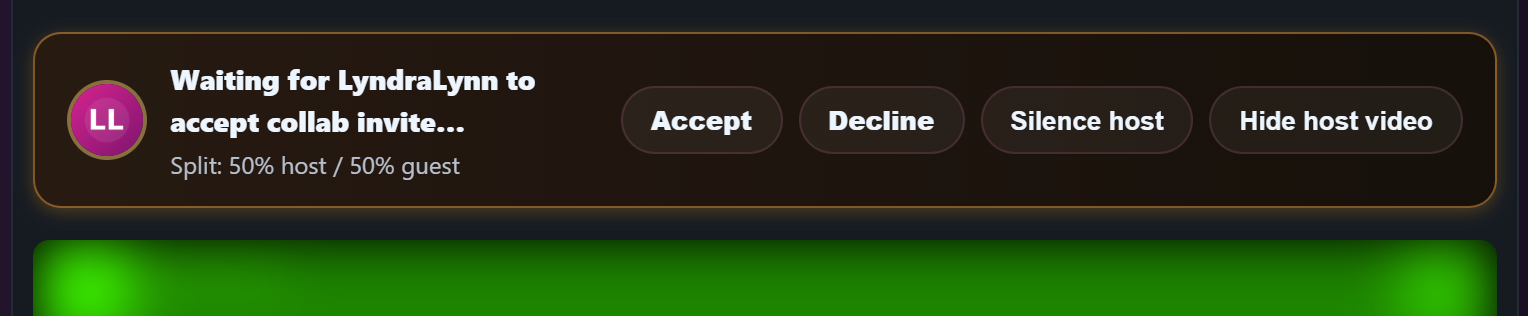
Pick a creator, set the split, hit Invite. The modal closes and a banner appears across your studio:
“Waiting for [creator name] to accept collab invite…”
That banner stays orange until they accept. If they decline, the banner clears. If they don’t respond at all, the invite expires after a short window and the system cleans it up automatically.
3. Receiving an invite — the guest flow
If another creator invites you, a banner appears across your studio (you don’t need to be live yet — the system polls for invites every few seconds). The banner shows the host’s avatar, their store name, and two buttons:
- Accept — joins the host’s room as the guest. If you were already live in your own room, the system handles the handoff automatically.
- Decline — clears the invite. You’ll be asked to confirm: “Decline this collab invite?”
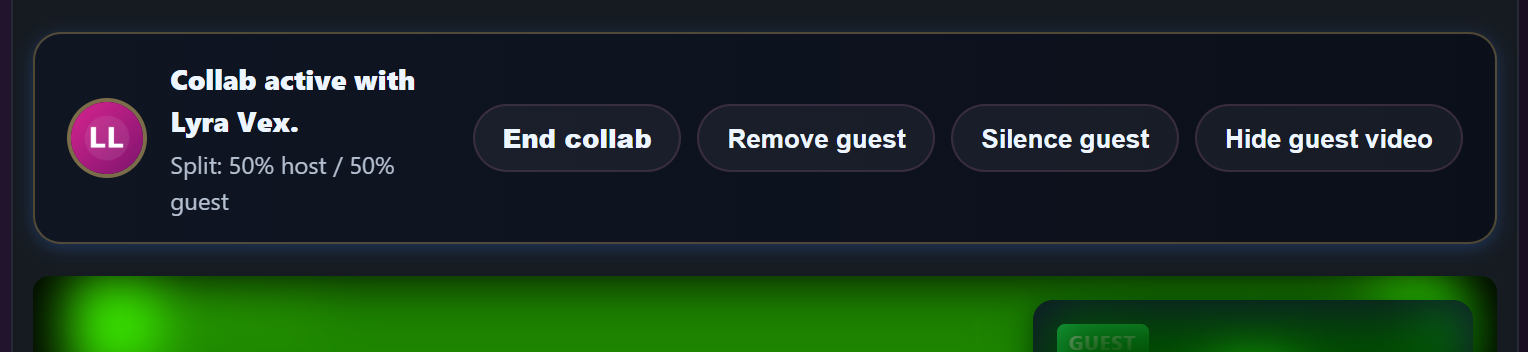
When you accept, the banner flips colour and the text changes to:
“Collab active with [host name].”
Your video and audio now publish into the host’s room. Their room URL is what viewers see; your storefront also shows that you’re collaborating on someone else’s stream. Tips, ticket sales and the per-minute meter (if any) start splitting at the percentage the host set when they invited you.
4. The revenue split — how it actually works
The split percentage is locked in at the moment the guest accepts. It applies to every revenue line during the collab session:
- Tips from chat — split host/guest by the agreed percentage.
- Premium per-minute meter — every minute charged is split.
- Ticket sales if the host runs a ticketed segment during the collab.
- 1:1 Private bookings the host accepts — same split. (Only the host can start a private during a collab; see Section 5.)
- Lovense reactions tied to tip events — the tip splits, so the corresponding earning splits.
The split is recorded in the platform’s billing tables as two commission rows per event — one for the host, one for the guest — with explicit _collab_host and _collab_guest source tags. That means each side sees their own line items in their payout statement, not a single combined row that has to be unpicked later.
Step granularity is 5 percentage points. So you can do 50/50, 55/45, 60/40, 65/35, … all the way to 90/10 or 10/90. There’s no way to go finer-grained than 5%.
You can not change the split after the guest accepts. If you want a different ratio, end the current collab and start a new one with the new slider value.
5. What can the host vs guest do during a collab?
The host runs the show; the guest performs alongside but doesn’t drive the room.
| Action | Host | Guest |
|---|---|---|
| Start a ticketed segment | Yes | No |
| Accept a 1:1 Private request | Yes | No |
| Switch room mode (Free ↔ Premium) | End-stream-only as usual; even then, locked while the collab is active | No |
| Manage chat (mods, ban, mute) | Yes (host’s room, host’s mods) | Read-only chat unless host mods promote them |
| Tip menu | Host’s tip menu is the menu in the room | Tips go to the room and split by the agreed percentage |
| End the show | Yes — ends the whole room | Can leave the collab; the host’s solo room continues |
If the guest tries to start a ticketed or private show during the collab, they’ll get a 409 error explaining that “Only the host can start ticket or private shows during a collab.” If they try to start a separate solo session of their own, the same guard fires:
“You are currently committed to an active collab session. End the collab before starting a new session.”
6. Ending or leaving a collab
The banner across the studio offers different buttons depending on which side you’re on:
- Host: End collab — confirms with “End this collab now? Any in-flight tips or meters will finalize their split first.” The collab closes, the guest’s feed stops publishing into your room, and you’re back to a solo show. The room stays live; the guest gets a toast and is dropped.
- Host: Remove guest (kick) — removes a guest who’s misbehaving or unresponsive. Confirm with “Remove the guest from this collab?”
- Guest: Leave collab — confirms with “Leave this collab? The host can re-invite you later.” Your feed stops publishing; the host’s solo room continues without you.
When the collab ends successfully, both sides see a toast:
“Collab ended.”
Any tips or meter ticks that were already in flight at the moment of ending finalise at the agreed split — you don’t lose money to a race condition.
7. Recordings and post-show revenue
The collab is recorded as a single VOD just like any solo stream — but the VOD has two owners. Both creators get a row in the VOD ownership table at the split percentage frozen from the collab row. That means:
- The VOD shows up in both creators’ VOD libraries.
- Either creator can publish it as a clip (or as a subscriber-only feed post) from their own dashboard.
- Any post-show revenue the VOD earns — as a clip purchase, as part of an inclusion bundle, as a subscriber-only post — splits to both creators at the same percentage.
Either side can hide their copy from their library if they want — that doesn’t affect the other side’s copy or revenue. For the wider VOD picture, see Recording your livestreams.
8. Common errors and what they mean
| Message | What it means |
|---|---|
| “This creator is not currently accepting collab invites.” | Their Co-creator collab invites setting is Don’t allow invites. Ask them to flip it before you try again. |
| “This creator only accepts collab invites from friends. Send a friend request first.” | Their setting is Only my friends. Open /store-manager/friends/, send a friend request, wait for them to accept, then re-open the invite modal. |
| “No eligible creators are live right now.” | Nobody who matches your invite criteria is currently broadcasting. Wait, refresh the search, or message them out-of-band to coordinate timing. |
| “You are currently committed to an active collab session. End the collab before starting a new session.” | You’re trying to start a solo session while still inside another collab. End the existing one first. |
| “Host cannot invite themselves.” | Self-invite is blocked at the platform level. (You shouldn’t see this in normal use — it’d require manually crafting an invite request.) |
9. FAQ
Q: Can I run a collab with more than one guest?
No. Collabs are strictly two creators — one host and one guest. If you want a three-way, you’d have to end-and-restart with a different pairing.
Q: Does the guest see chat moderation tools?
The guest sees chat but doesn’t have moderation buttons unless the host’s mods promote them. Banning, muting, and pinning live with the host.
Q: Can the guest run their own per-minute meter?
No — there’s one room, one meter (the host’s). The split applies to that one meter; the guest doesn’t bring a separate price tag.
Q: What if the guest disconnects mid-show?
There’s a short grace period for the guest to reconnect. If they don’t, the system cleans up the orphaned collab automatically and the host returns to a solo session — any earnings already in flight finalise at the agreed split.
Q: Can I see all my past collabs and what each one earned?
Yes — your sales/earnings dashboard breaks out the _collab_host and _collab_guest source tags so you can see exactly which sessions split revenue and how much you earned per side. The platform also has an admin reconciliation page that staff can use to dig into the numbers if anything looks off.
Q: What about cam2cam in a collab?
Cam2cam is an Exclusive Private feature, and the host is the one running private sessions during a collab — so cam2cam during a collab is the host’s call, on a private the host accepted. See Cam2cam in private shows.
Q: Can I block a specific creator from inviting me?
Not directly per-creator. The toggle is global (Don’t allow invites / Only my friends / Anyone can invite me). If a specific person keeps inviting you and you don’t want them to, switch to Only my friends and don’t accept their friend request.
Need more help?
For payout splits that don’t look right, contact support under the Payouts category with the session date and your collab partner’s username. We have full reconciliation logs of every collab event and can usually identify discrepancies in the same conversation.







