
Video guide
Prefer to watch? This short guide walks your stream schedule — the week-at-a-glance calendar, planning a stream with a title, time and duration, and editing or cancelling a planned stream.
You can publish your upcoming live streams on a calendar so fans know what’s coming and can hit Notify me to get a reminder before you go live. Planned streams appear on your storefront, in the Upcoming tab of the live discovery page, and feed each subscribed fan a heads-up notification about 30 minutes before the planned start. This guide walks through the creator-side calendar (Stream schedule), the four lifecycle states a planned stream moves through, and what fans see on the other side.
1. Where the creator-side calendar lives
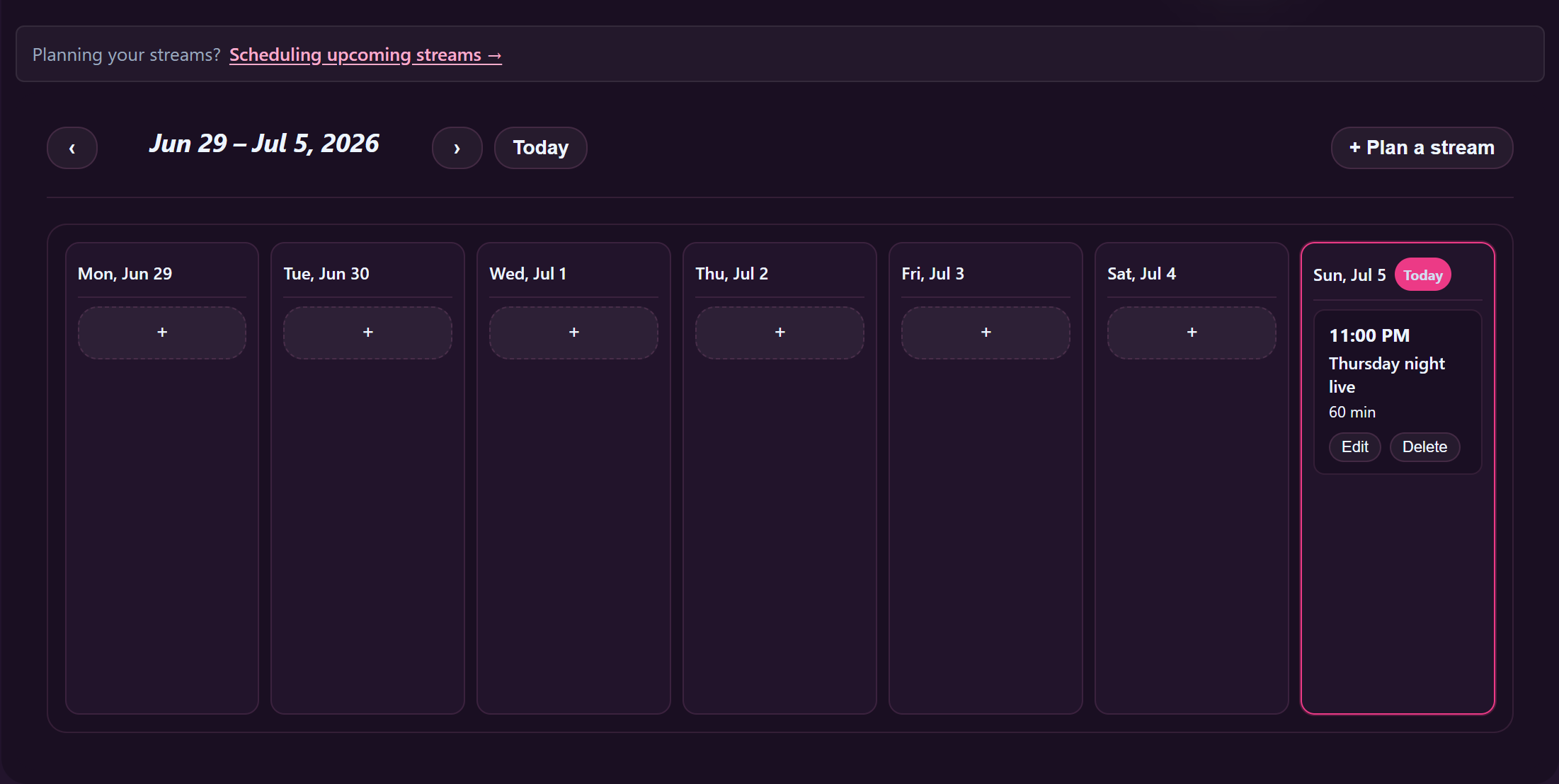
Sign in and open /store-manager/stream-schedule/. The page header reads Stream schedule. It shows a calendar-week grid for the current week with a Today button to jump back if you’ve scrolled forward, and a + Plan a stream button to add a new entry.
If you’ve never planned a stream, the grid is empty. As you add plans they appear as cards on the grid, anchored to their planned date and time.
2. Planning a stream
- Click + Plan a stream. A modal opens with four fields.
- Title — what fans see in the upcoming-streams list. Keep it short and concrete (the topic, theme, or the show type).
- When (your local time) — date + time picker. Uses your device’s local time zone; the server stores the moment in UTC and re-renders it back to each fan’s local zone when they view the schedule.
- Duration (minutes) — optional rough length. Doesn’t enforce anything when you go live; just sets expectations for fans (e.g. “30 minutes” tells them this isn’t an all-night marathon).
- Description (optional) — a short paragraph explaining what you’re planning. Visible to fans on the upcoming-stream card.
- Click Save. The plan appears on the calendar grid immediately. Cancel closes the modal without saving.
You can plan as many streams as you want, days or weeks in advance. There’s no cap; the schedule grid auto-scrolls forward as you fill it.
3. Editing or cancelling a plan
Click a card on the grid to open it. Same modal, pre-filled. Edit any field and save, or click the delete control to remove the plan entirely. Both edit and delete are available until the plan transitions to a non-cancellable state — see §4.
If you change the date/time of a plan that fans have already opted in to be notified about, those reminders re-target the new time automatically. The fans don’t need to re-opt-in.
4. The four lifecycle states
Every planned stream moves through up to four states automatically. You don’t have to touch anything — the platform handles the transitions.
Planned
The default state right after you save. The plan sits on your calendar and on fan-side surfaces (storefront upcoming list, /live/ Upcoming tab) until either you go live or 30 minutes after the planned time passes with no live session.
Live
When you actually start a live session within ±15 minutes of the planned time, the platform notices and flips the plan’s state to Live, linking the plan to the actual live session. The card updates on fan-side surfaces to show you’re live now (not just upcoming). If you’re using the schedule to drive fan attention, going live close to the planned time is the whole point — the link only happens within that 15-minute window on either side.
Completed
When the live session ends (you click Stop, or the platform ends it automatically), the plan flips from Live to Completed. The card stays visible on the calendar but greyed out so you (and fans) can see it happened.
Missed
If 30 minutes pass past the planned time with no live session linked, the plan flips to Missed. The card stays on the calendar but tagged so it doesn’t look like an active upcoming stream anymore. Fans don’t get a “creator missed it” notification — the plan just quietly retires. If something came up and you want to reschedule, plan a fresh stream rather than reviving the missed one.
5. The reminder — what fans get and when
Each planned stream has a Notify me button (🔔) on its card. A fan who clicks it opts in to a single reminder for that specific stream. The reminder fires about 30 minutes before the planned start (the platform sweeps for due reminders every 5 minutes in a 25-to-35-minute-out window).
Reminders are sent in two channels:
- In-app notification — always sent if the fan opted in.
- Email reminder — sent if the fan has the per-user email opt-in turned on. (It’s off by default; fans turn it on from their notification preferences.)
The reminder is one-shot per plan per fan — they don’t get spam if you happen to plan multiple streams the same day, only one reminder per planned stream they opted into.
6. Where fans see your upcoming streams
- On your storefront. The “live now” zone on your storefront includes an Upcoming streams section under the offline banner when you’re not currently live. Each card shows title, time, duration, and the 🔔 Notify me button.
- In the live discovery rail. The /live/ page has an Upcoming tab next to the segments (Couples / VR / Tickets / Privates). It surfaces planned streams across all creators sorted by closest-first. Fans use it to discover scheduled creators they haven’t followed yet.
- In their followed-creators feed. A fan who follows you sees your scheduled streams when they next browse, and gets a notification when the reminder is due.
7. Tips for getting value out of the schedule
- Plan a few days ahead. A plan that goes up the morning of the stream catches almost no opt-ins. A plan two or three days out collects them as fans browse during that window.
- Be specific in the title. “Tuesday night” tells fans nothing. “Cock + voice — long Q&A, requests open” tells them whether to opt in or not.
- Stick to the planned time within ±15 min. The plan only auto-links to your actual live session within that window. Starting an hour early means the plan flips to Missed at the original time even though you’re already live; starting an hour late means the plan flips to Missed before you go on.
- Don’t over-plan. A schedule with five streams a day that you only show up to twice trains fans to ignore your Notify me button. One or two plans per week that you actually run beats seven that you skip.
- Use Duration honestly. Setting “30 minutes” and streaming 4 hours is fine — fans appreciate it. Setting “4 hours” and bailing at 20 minutes makes the next plan less trusted.
8. Common questions
“What if I want to go live without planning ahead?” No problem — you can always go live straight from the studio without any scheduled plan. The schedule is optional, designed for creators who want to build anticipation. Spontaneous lives still appear in the live discovery rail as “Live now”.
“Can I copy a plan to another date?” Not from the calendar UI directly. The fastest workflow is to open the plan, write down the title + description, delete it, and create a new one for the new date. Copy/paste support is a tracked enhancement.
“If I plan a stream and the reminder fires while my account is suspended, does the fan still get the reminder?” No — suspended accounts don’t dispatch fan-side notifications. Once your account is reinstated, future plans resume normally.
“How are time zones handled?” You enter the time in your device’s local zone. The platform stores UTC internally and renders the time back to each fan in their local zone. So a 10pm-Berlin plan looks like 10pm to a fan in Berlin, 1pm to a fan in San Francisco, and 4am to a fan in Sydney — same actual moment, different displayed time.
“Does the reminder also fire when I actually start the stream?” The 30-min-out reminder is the planned one. When you actually go live, fans who follow you (or who opted in to your storefront notifications) get a separate “<creator> is live” notification on the live-start event. The two are distinct and a fan can receive both for the same stream.
“My plan flipped to Missed but I did go live, just a bit late. What now?” If you went live more than 15 minutes after the planned time, the plan flipped to Missed before the live session could be linked. The live session itself still ran normally — just not under the plan’s umbrella. Plan with a bit more buffer next time, or accept the Missed label and move on.
Related
- How to go live — pre-flight checklist — the actual live-start flow that the schedule auto-links to.
- Public, ticketed and 1:1 private shows — the three kinds of stream you can plan.
- Streaming from your phone — useful if you’re planning streams while away from your desk.
- Following a creator — the fan-side counterpart; following you is how fans see your upcoming streams in their own feed.







