
Video guide
Prefer to watch? This studio tour walks the five ways your live room earns — public, premium per-minute, ticketed, one-on-one private, and exclusive — and shows exactly where you set each one up.
Lewdden gives you several ways to monetise a stream. Most show modes are picked before you go live and stay fixed for that stream — the main mid-show mechanic is the 1:1 private booking, which pulls you into a private with a paying viewer and returns you to the public room afterwards. To switch any other mode you end the current stream, change the setting, and start a new one. This guide walks through each show type, how money flows, what the viewer sees, and when each one makes sense.
If you haven’t been live before, start with the Pre-flight checklist first — set up gear and profile before you worry about pricing.
The five show types at a glance
| Show type | Cost to viewer | When it makes sense |
|---|---|---|
| Public (free) | Free entry; tips welcome | Building an audience, casual hangs, marketing for paid streams |
| Premium per-minute | Per-minute meter, open to all | Steady earnings during a regular live show |
| Ticketed show | One-time entry pass | Special performances, milestone shows, anything worth a flat-fee entry |
| 1:1 Private show | Per-minute, just you and one viewer | Direct attention, custom requests |
| Exclusive private (1:1 + cam2cam) | Higher per-minute, no voyeurs allowed | Premium 1:1 with cam2cam, full privacy |
You can also let other paying viewers voyeur (peek) on a 1:1 private show at a reduced per-minute rate — see Section 6.
1. Public (free)
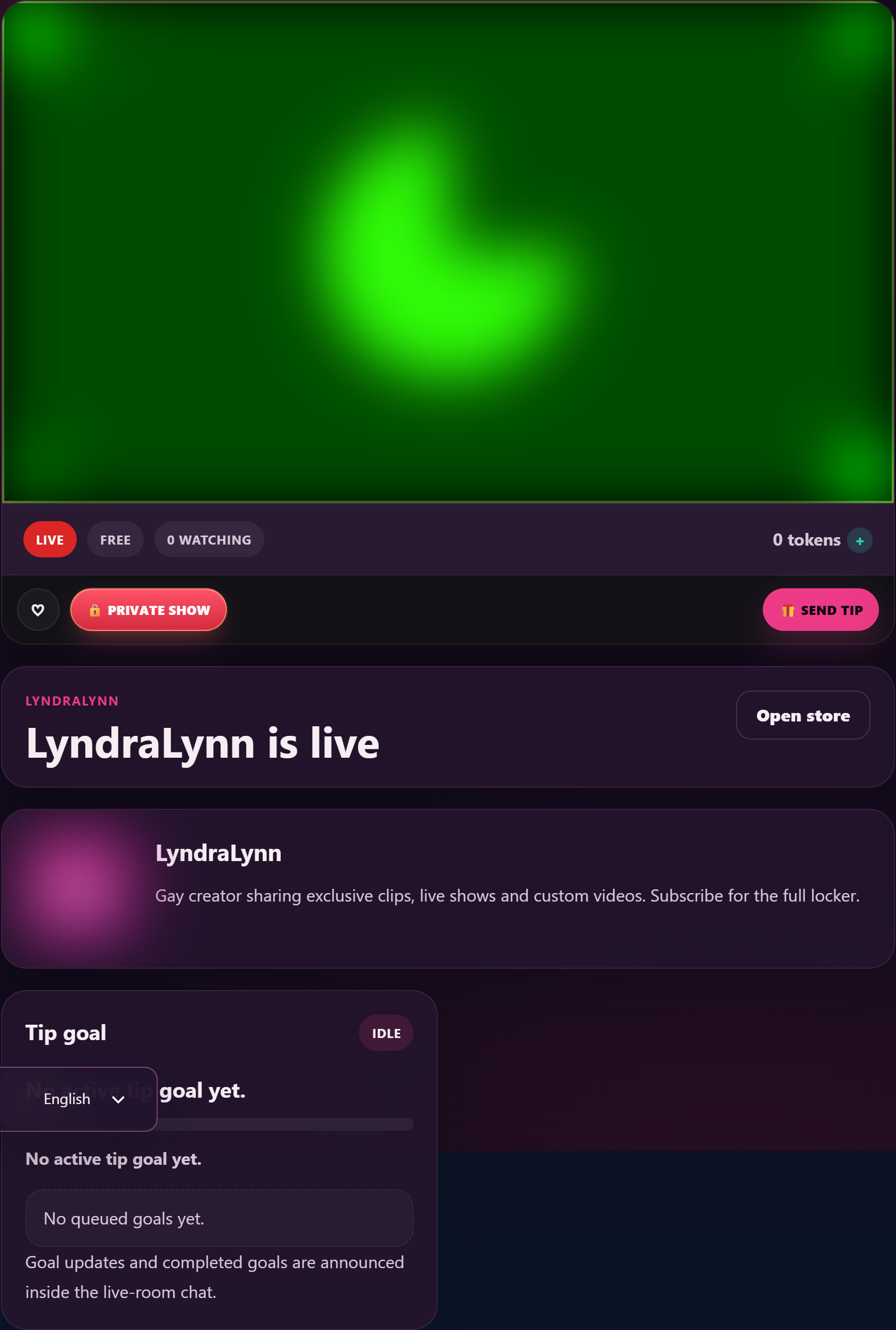
Default mode for new creators. Anyone visiting your room watches free. You earn from:
- Tips in chat — viewers send token amounts using your tip menu or a custom amount.
- Tip-goal contributions — if you’ve set a goal (e.g. “1000 tokens for [thing]”), every tip ticks the bar up.
- Lovense reactions — if you’re paired, viewer tips trigger toy reactions automatically.
- Paid messages — viewers PM you with paid attachments / paid messages alongside the stream.
- Clip sales / subscriptions — every fan watching is a fan you can convert.
There’s no per-minute meter, no entry fee, no shutter. The room is fully open.
Choose Public when: you’re new and building reach, you’re running a short hangout, or you’re warming up before flipping to Premium per-minute.
2. Premium per-minute
The room is still openly visible on the browse page, but watching costs tokens per minute. Viewers see a “Pay to watch” prompt before the video unmutes.
How the meter works:
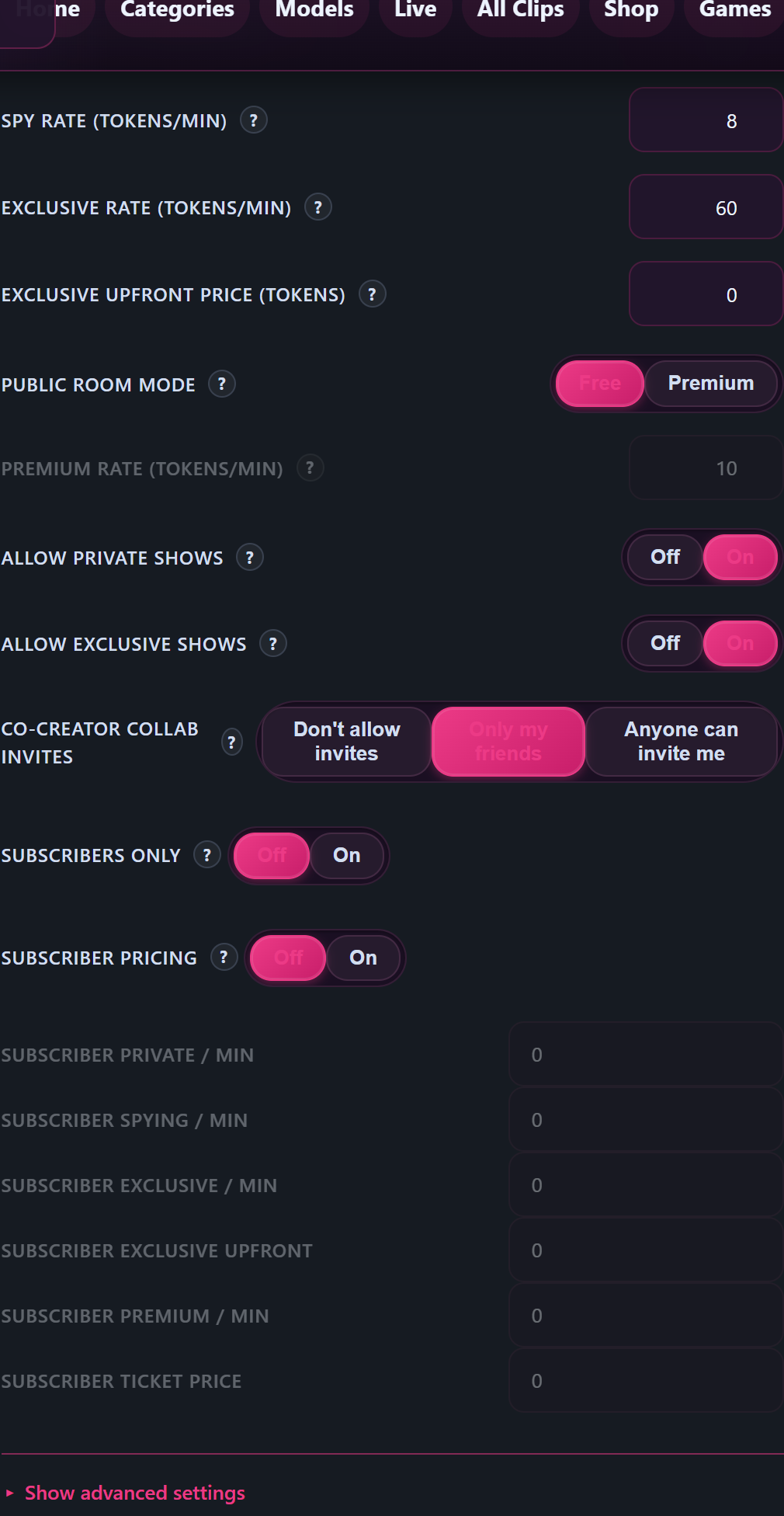
- You set a rate per minute (default 10 tokens/min, configurable in studio Settings → Pricing).
- A viewer entering pays the first minute upfront (a prepaid minute), then renews automatically every minute they stay connected.
- The moment a viewer’s wallet runs out of tokens, they’re disconnected — no surprise charges.
- Tips, paid messages, and Lovense reactions all still work on top of the per-minute meter.
Setting it before you go live: Free vs Premium is a toggle in studio Settings → Pricing → Public room mode. Pick the one you want, then go live. Once you’ve started a stream, the toggle is locked — the in-product hint reads “Takes effect on your next stream start.” If you want to flip from Public to Premium (or back), end your current stream, change the toggle, and start a new one.
Choose Premium when: you’ve got a returning audience, you’re doing a focused show that warrants paying for, or you want steady earnings without scheduling.

3. Ticketed shows
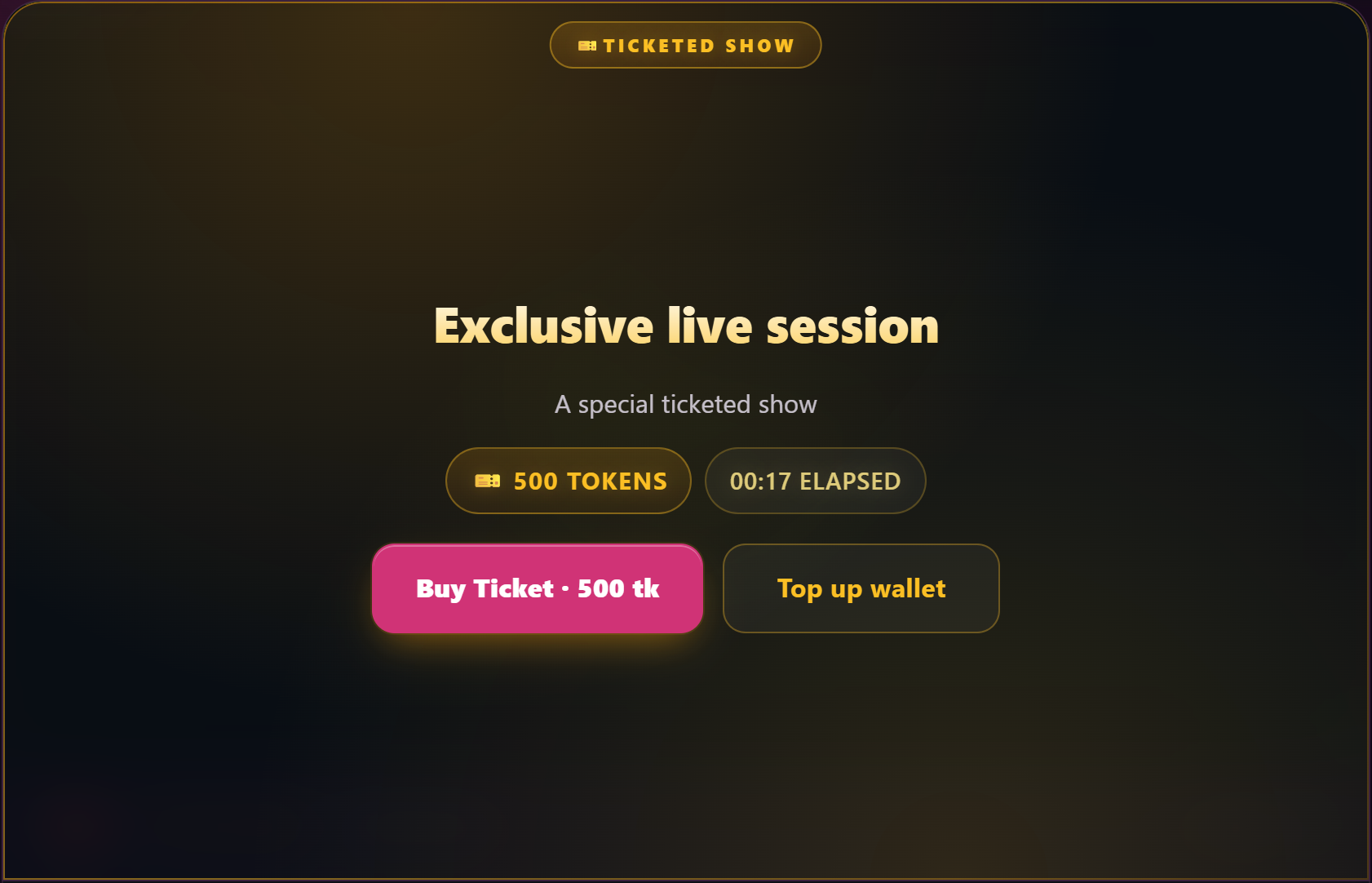
A flat-fee entry pass to your live show. You start the ticket show whenever you’re ready — viewers who buy a ticket walk in, anyone without one stays on the buy-ticket prompt.
How it works:
- During a live session, switch into Ticketed mode from the room-mode picker. The room is now ticket-gated.
- Set the ticket price, title, and description for this show. The default price is 500 tokens, configurable per show.
- Viewers in your room see a “Buy ticket” CTA — they buy, they walk in. Anyone who already had a ticket walks in automatically.
- Tickets stay on sale while the show is running, so latecomers can still buy in.
- There’s no minimum or maximum length — you run the show as long as you want and end it whenever you’re done.
- After the show, the recording is delivered to ticket-holders (if you’ve enabled Record tickets in Settings).
A ticket is a single-use entry pass for that specific show — one ticket per viewer per show. Tickets aren’t a subscription or a season pass.
Choose ticketed when: you’re running a special performance worth a flat fee, you’d rather have one-off entry revenue than a per-minute meter, or you want a clear “this is the paid event” frame for a longer or higher-production show.
4. 1:1 Private show
A viewer requests a one-on-one show; you accept; the room shutters for everyone else (or stays open to voyeurs — see Section 6). Pricing is per-minute, paid by the requesting viewer.
How it works:
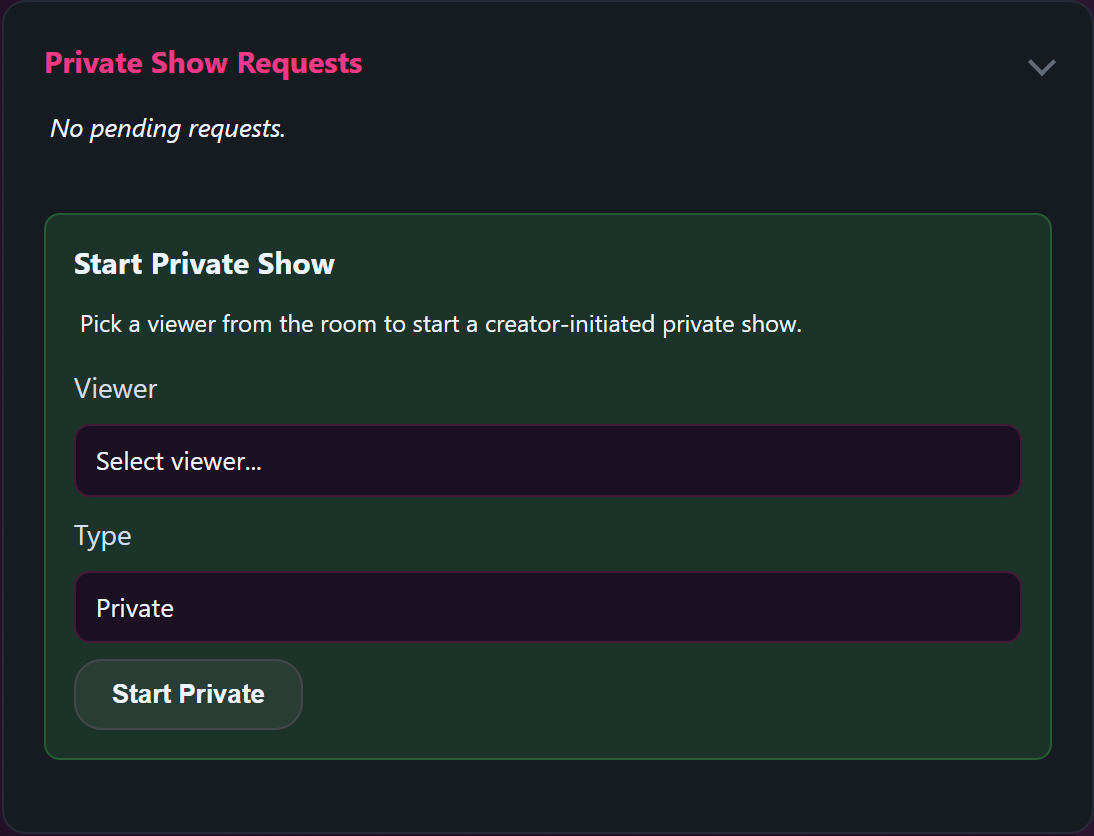
- A viewer hits Request private on your live room. Their request lands in your Private requests inbox in the studio.
- You see who’s requesting, decide to Accept or Decline, and the show starts.
- Pricing: default 24 tokens/min (configurable in Settings → Pricing → Private rate). The viewer pre-pays the first 5 minutes (the minimum duration) on accept.
- A 60-second grace period runs at the start so neither side is charged for the connection setup.
- Either side can end the show at any time after the minimum.
- Tips and Lovense reactions still work; the meter runs underneath.
Choose 1:1 Private when: a viewer has been tipping consistently and asks for more, or you want to offer a higher-touch tier above your public/premium room.
5. Exclusive Private (1:1 + cam2cam, no voyeurs)
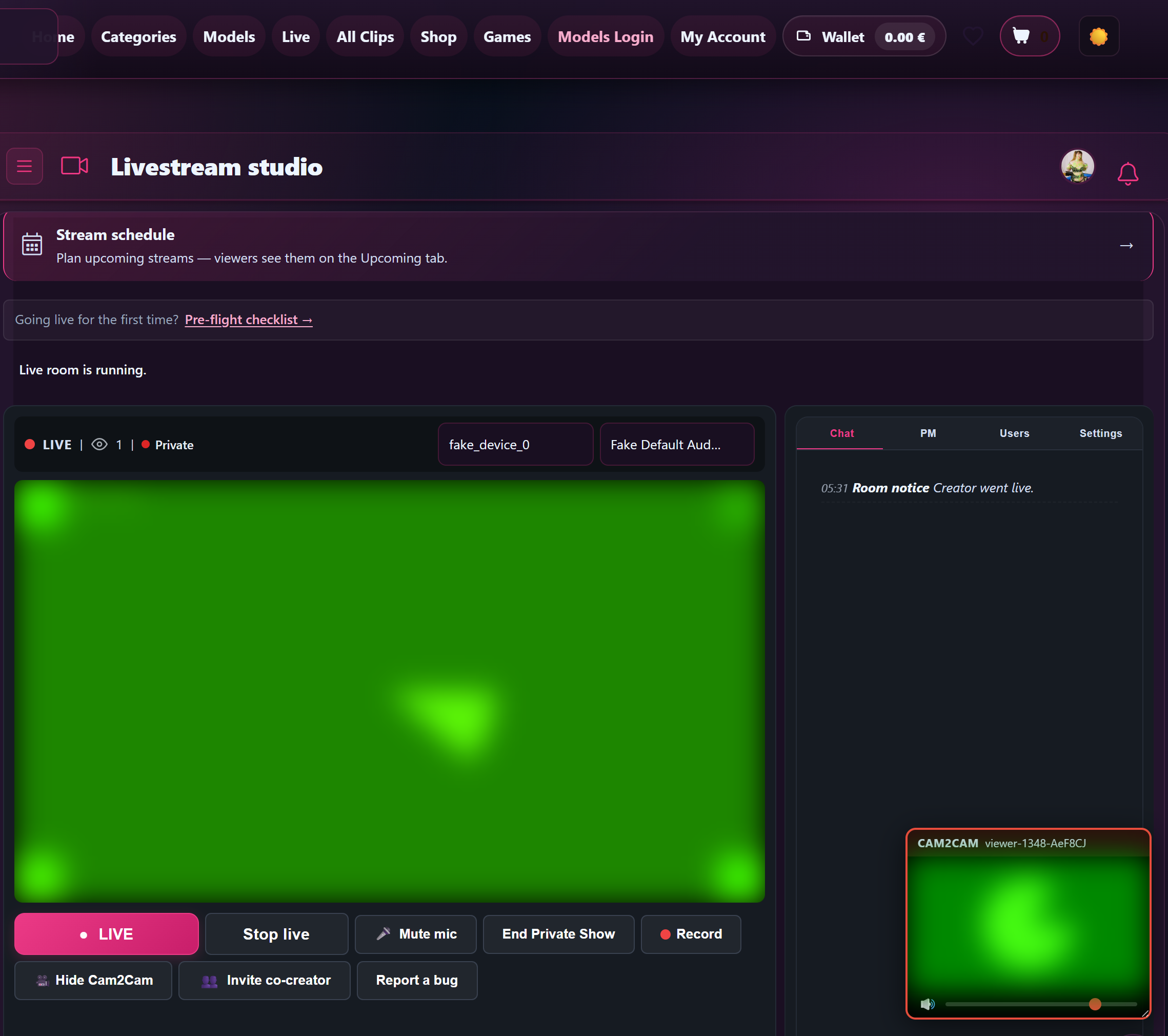
Same shape as a regular Private, but higher rate, fully private (no voyeurs), and cam2cam is on by default — meaning you also see the viewer’s camera.
How it differs from regular Private:
- Default rate 60 tokens/min (vs 24 for regular Private). Configurable.
- Optional one-time entry fee on top of the per-minute rate (default 0).
- No voyeurs allowed — the room is completely shuttered to anyone except the requesting viewer.
- Cam2cam is enabled by default — the viewer’s camera streams to a small picture-in-picture inside the studio, draggable and volume-adjustable.
Choose Exclusive when: a viewer asks for cam2cam or full privacy, or you want a top-tier 1:1 priced higher than your regular private rate.
6. Voyeur (peeking on a private show)
While you’re in a 1:1 Private show, other paying viewers can peek at a discounted per-minute rate — if you’ve enabled it. They can see and hear the show but can’t talk, and the requesting viewer in the private always has their own private chat channel that voyeurs can’t see.
How it works:
- Voyeur access is enabled per private show (or as a default in Settings).
- Default voyeur rate 8 tokens/min (“Spying / min” in Settings → Pricing).
- Voyeurs are silent: they can’t send chat messages or tips during the private (tips still work but go through a separate path; chat is read-only).
- Voyeurs are NOT allowed in Exclusive Private shows.
Choose voyeur-on when: the requesting viewer doesn’t mind, you want bonus revenue from the rest of the room while a private is going, and the show isn’t sensitive enough to need full privacy.
Choose voyeur-off when: the requesting viewer wants the room locked, the show is intimate / requested-as-private, or you’re in Exclusive (where voyeurs are blocked anyway).
7. Subscriber pricing (optional discount)
If you offer a subscription tier on your store, you can give your subscribers discounted per-minute rates and ticket prices. Configure these in studio Settings → Pricing → Subscriber pricing:
- Subscriber private / min
- Subscriber spying (voyeur) / min
- Subscriber exclusive / min
- Subscriber premium / min
- Subscriber ticket price
Each field has its own override — leaving a field empty falls back to the public rate. Subscribers don’t have to do anything; the discount applies automatically once they hit the per-minute meter.
Choose subscriber discounts when: you’re trying to push fans toward subscribing, your sub pool is growing, or you want subscribers to have a clear ongoing perk on top of feed and clip access.
What about voyeur-only public rooms?
There are also two niche room modes — voyeur_per_minute and voyeur_flat — that are technical artefacts of how private/voyeur sessions work under the hood. You don’t pick them yourself; they’re set automatically when you start a 1:1 with voyeurs allowed. You’ll never need to touch them directly.
Recording
Each show type has its own recording toggle in studio Settings:
- Record shows — your public / premium streams.
- Record privates — your 1:1 private shows.
- Record tickets — your ticketed shows. Recording is sent to ticket-holders after the show.
Recording is off by default. Turn on whichever you want. See Every stream is recorded — where your VODs live for what happens to the recordings afterwards.
Choosing what to run when
Rough rule of thumb:
- First few weeks live — Public only. Build a regular audience.
- Once you have repeat viewers — switch to Premium per-minute for your scheduled shows; keep Public for warm-ups.
- A special show worth a flat-fee entry — Ticketed (start it from the studio when you’re ready).
- A regular tipper asks for more attention — accept their Private request.
- Someone wants cam2cam or full privacy — switch them to Exclusive.
You don’t have to commit to one mode forever. Most creators run a Public warm-up → Premium for the meat of the show → take a Private request or two before signing off.
Common questions
Q: Can I be in a private and someone else’s show at the same time?
No — you can only be live in one room at a time, including as a guest in a collab. Privates and exclusives lock you to that single show until it ends.
Q: What happens if a viewer’s wallet runs out mid-private?
They’re disconnected. The minimum duration is already paid up front, so they can’t be cut off in the first few minutes. After that, every minute renews — when their balance hits zero, the connection drops and they bounce back to your room (or get a “top up” prompt).
Q: Can I refuse a private request?
Yes — every request is Accept or Decline on your side. Declining doesn’t charge the viewer.
Q: Can a viewer change their mind during a private?
Yes — either side can end the show at any time after the minimum duration is up. The viewer is charged only for the time they were connected (pro-rated by minute).
Q: How much do I actually keep per token?
Your rev-share rate (set per creator) applies to all token earnings — tips, per-minute meter, ticket sales, paid messages, the lot. See How creator payouts work for the rev-share details and how tokens convert to euros.
Q: Can I switch between Public and Premium during a single stream?
No — Public room mode (Free or Premium) is a pre-stream setting that’s locked once you’ve started a stream. The in-product hint reads “Takes effect on your next stream start.” If you want to flip from Free to Premium (or back), end the current stream, change the Public room mode toggle in studio Settings → Pricing, and start a new stream. Restarting a stream is the whole switch — there’s no separate mid-stream flip on the way.
Q: Do tickets keep selling after I’ve started the ticket show?
Yes — viewers can buy a ticket and walk in any time until you end the show. One ticket per viewer per show.
Q: Where do I set all these prices?
Studio Settings → Pricing tab. Most creators set them once and never touch them again. The defaults (10/24/60/8/500) are fine starting points.
Going deeper into streaming
For specific streaming features, these companion guides cover everything in detail:
- Cam2cam in 1:1 private shows — when it’s available, how to set the default before you go live, and what each side sees during an Exclusive Private.
- Multi-creator collabs and revenue splits — inviting a co-creator into your room, the host/guest split slider (10/90 to 90/10 in 5% steps), and how the split applies to tips, tickets, privates, and post-show VOD revenue.
- Subscriber-only streams — locking your live room to people who are subscribed to one of your subscription plans, what subscribers vs non-subscribers see, and how it stacks with ticketed and private shows.
Need more help?
If a private request didn’t show up in your inbox or a ticket purchase didn’t go through, open a support ticket from your account with the date, time, and viewer username (if you have it).







