
Subscriber-only mode locks your live room to people who are subscribed to one of your subscription plans. When it’s on, anyone who isn’t a current subscriber gets a paywall card with a Subscribe button instead of your stream. Tickets, privates, voyeurs — none of them grant access. Only an active subscription does.
If you haven’t set up a subscription plan yet, do that first — read Setting up your subscription tier. Subscriber-only mode and a subscription plan are paired: the platform won’t let you turn one on without the other.
1. What subscriber-only mode actually does
When the toggle is on:
- Active subscribers see your live room normally. They join, watch, chat, tip — same as any other show. No extra payment.
- Everyone else hits a paywall before the player connects. The error code returned is
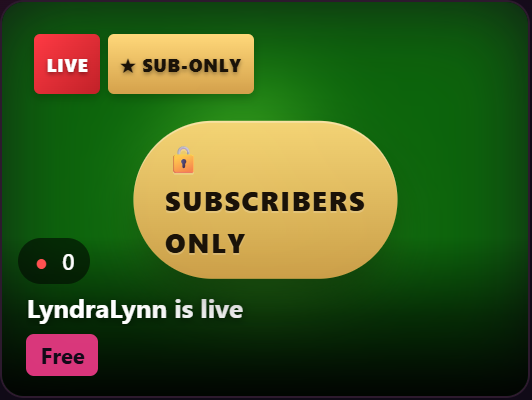
gc_subscribers_onlywith the message “This room is for subscribers only.” - On your browse-page card, the room shows a gold lock badge: 🔒 SUBSCRIBERS ONLY. Non-subscribers can see the card and your headline, but they can’t open the room until they subscribe.
This is a creator-wide setting, not a per-show pick. When you turn it on, every public stream you start is subscriber-only until you turn it back off. Privates and tickets sit on top of the public room and inherit the gate — a non-subscriber can’t ticket-buy or private-request their way in either, because the room itself rejects them before any of those flows start.
2. Turning it on
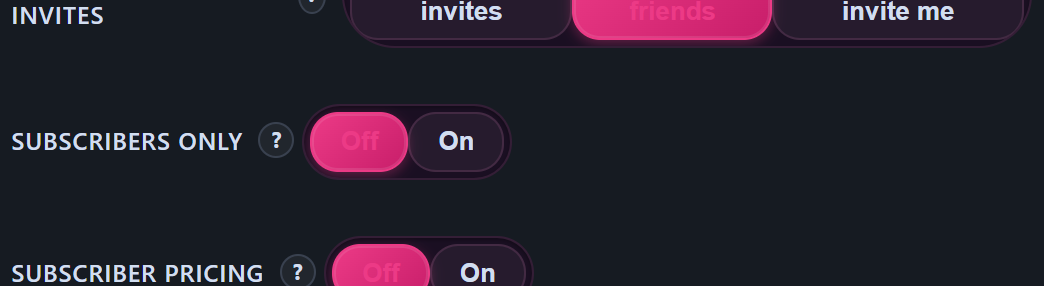
In your studio’s pre-show settings panel, find the field labelled Subscribers only. It’s a two-up toggle (Off / On).
- Off (default) — your room is open to whoever your room mode normally allows (free if Public, per-minute if Premium, etc.).
- On — only your active subscribers can watch.
Save the panel. The next time you go live (and every stream after that), the room is gated.
If you currently have no active subscription plan and you try to flip the toggle on, the save will be rejected with this error:
“Enable at least one subscription plan before turning on Subscribers Only — otherwise viewers will not be able to subscribe.”
The reason is straightforward: if there’s no plan to subscribe to, anyone who hits the paywall has no way through. Set up at least one subscription plan first (Setting up your subscription tier), then come back and flip Subscribers only on.
3. What subscribers see
Nothing different from your usual room. They open the room, the player connects, they watch and chat. There’s a small SUB indicator on the studio state pill so you know the room is in subscribers-only mode, but the viewer-side experience is unchanged from a regular Public or Premium room.
If you’ve also enabled Premium per-minute mode in addition to Subscribers only, your subscribers still pay the per-minute meter. Subscribers only is an access gate, not a price gate — it doesn’t make your show free, it just narrows who can come in. If you want subscribers to watch free, set the room to Public mode and rely on the subscription itself as the entry payment.
4. What non-subscribers see
A paywall card appears in place of the player. The card explains that the room is for subscribers only and links them to your subscription page. Once they subscribe, they reload (or click into the room again) and they’re in.
From a billing standpoint:
- Subscriptions renew at the price set on your tier — see Setting up your subscription tier.
- Once they’re subscribed, they get whatever your tier promises — your subscriber feed posts, any subscriber clip discount, plus access to your subscriber-only streams.
- If their subscription lapses (they cancel, or a renewal fails), the gate closes again immediately on the next room request.
For the customer side of the subscription experience, see Subscribing to a creator.
5. Interaction with ticketed and private shows
Subscribers-only sits at the room level — every other gate sits inside it.
| Show type during a Subscribers-only stream | What happens |
|---|---|
| You’re running a Public free room | Only subscribers can join. Inside the room, it’s free as usual. |
| You’re running a Premium per-minute room | Only subscribers can join, AND once inside they pay the per-minute meter. Two paywalls stacked. |
| You start a Ticketed segment | Only subscribers in the room can buy a ticket. Non-subscribers don’t even see the buy-ticket prompt because they couldn’t enter the room. |
| You accept a 1:1 Private request | The requesting viewer must be a subscriber. Voyeurs (paying peekers on a regular Private) must also be subscribers. |
If you want to gate access by subscription and charge a per-show ticket on top, that’s a valid pattern: subscribers-only public room with a ticketed segment inside means the ticket revenue comes from your most loyal viewers and excludes drive-by traffic.
6. Recordings — VODs inherit the gate
If you record your subscribers-only stream (and you usually do — see Recording your livestreams), the resulting VOD inherits the subscribers-only flag.
That means:
- The VOD shows a SUBSCRIBERS ONLY badge in your library.
- If you publish it as a clip from the post-show editor, the clip is locked to subscribers by default — non-subscribers see the locked card with a Subscribe CTA.
- Tickets bought during the live show still grant their owners access to the recording (if you had Record tickets enabled), even if those ticket-holders later let their subscription lapse.
For the wider clip-publish flow — including how to unlock a recording for general sale instead of subscribers — see Recording your livestreams and How to add a clip.
7. Turning it off
Flip the Subscribers only toggle back to Off in the pre-show panel and save. The next time you go live, the room is open to whoever your room mode normally allows.
Streams you already recorded under subscribers-only remain subscribers-only — turning the toggle off doesn’t retroactively republish old VODs. If you want to expose an old subscriber-only recording to the broader audience, edit it from your VOD library or publish it as a non-subscriber-locked clip.
8. FAQ
Q: Can I make this work for one specific stream and then turn it off?
Yes — just toggle it on, go live, then toggle it back off after. It’s a creator-wide flag, but you control when to flip it. Just remember every future stream is gated until you turn it off again.
Q: What about people who used to be subscribers but cancelled?
The gate checks subscription status on every room request. If their subscription has lapsed, they’re treated as non-subscribers — they hit the paywall card. They keep access to anything they bought outright (tickets, individual clips), just not new subscribers-only streams.
Q: Can a non-subscriber tip me from outside the room?
No — tipping happens inside the live room, and they can’t get in without subscribing. They can buy individual clips from your storefront or DM you (paid messaging works regardless of subscription), but live-room tipping requires being in the room.
Q: Does this affect my friend creators in collabs?
A guest creator entering your subscribers-only room as your collab guest is allowed in (they’re publishing into your room, not consuming it as a viewer). Their viewers don’t follow them in — your subscribers-only gate applies to whoever lands on your live URL, regardless of how they heard about it. If you want to learn how collabs interact with everything else, see Multi-creator collabs.
Q: I just turned on a subscription plan — why is the toggle still rejecting me?
Make sure the plan is active, not draft. The save guard checks for at least one published, active subscription plan tied to your store. If you’ve got one and the error still fires, contact support under the Streaming category.
Q: Can I use Subscribers only and Cam2cam in the same show?
Cam2cam lives on the Exclusive Private side; Subscribers only is the public room gate. They don’t conflict — a subscriber can request an Exclusive Private from your subscribers-only public room, and cam2cam works inside it as normal. See Cam2cam in private shows.
Need more help?
If a viewer reports they should have access but the gate is rejecting them, ask them to confirm their subscription is currently active on your store, then contact support with their username and the time they tried — we can pull the gate decision from the audit log and figure out what tripped.







