
Once you’re live, you can pull a creator friend into your room as a co-host — they show up as a second video tile next to yours, the room’s earnings split the way you agreed when you sent the invite, and you can end or remove the guest at any time. Both creators have to be live at the same moment, so this is a real-time hand-off, not a scheduled feature.
This guide is for creators inviting another creator into a live show. For the broader picture of how multi-creator collabs and revenue splits work end-to-end, see Multi-creator collabs and revenue splits. For the friends list itself (sending requests, accepting, removing), see Adding creator friends in this Help Center.
1. Before you invite anyone
Three things need to be true before the invite button does anything:
- You’re live. The invite is only available from inside an active room. If you haven’t started yet, the studio offers no invite button.
- The other creator’s collab visibility allows you in. Each creator decides who can invite them on their Co-creator collab invites setting. Three options exist: Don’t allow invites, Only my friends (the default), and Anyone can invite me. If they’re on “Only my friends,” you have to be on each other’s friends list before they show up in your invite picker.
- The other creator is signed in and can accept. They don’t have to already be live — they just need to be in their store dashboard or studio when the invite arrives. Their studio polls for incoming invites every few seconds.
To see your own setting and change it: open your studio settings panel and find Co-creator collab invites — the tooltip reads “Decide who can invite you to a livestream collab. Friends are managed under Friends in your store dashboard.”
2. Send the invite
- Start your stream the normal way (set the room mode, tap Start live, wait for “Live room is running.”).
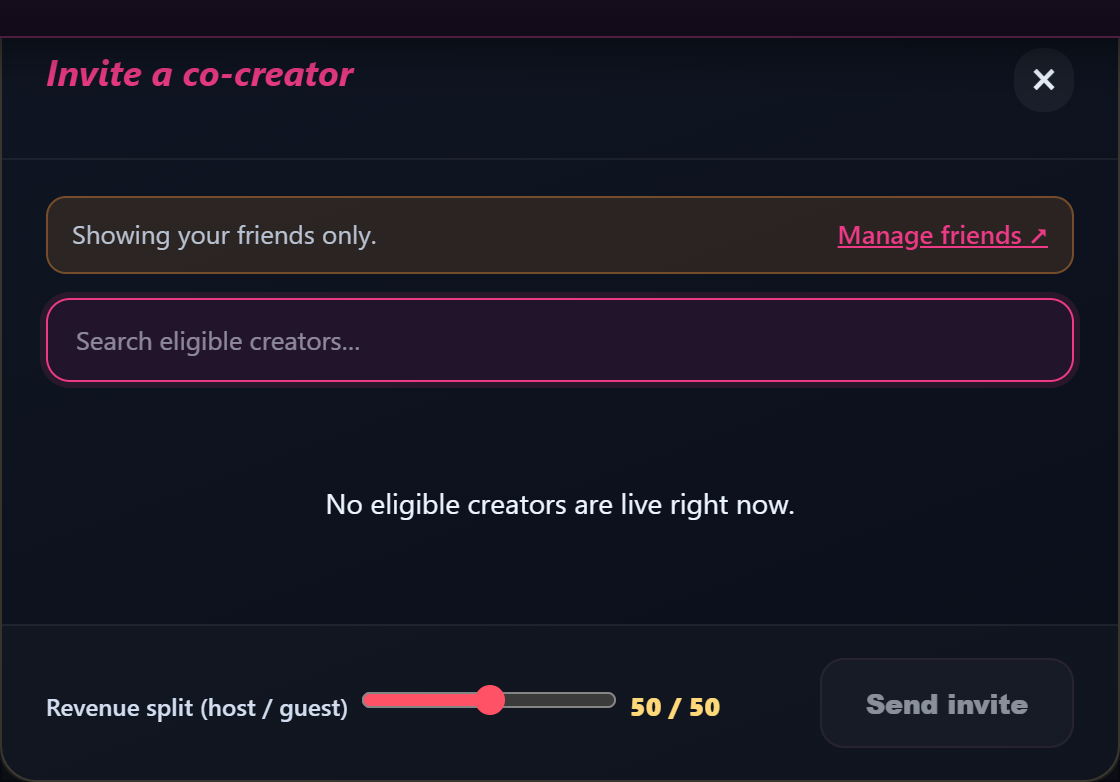
- Open the collab invite picker from the studio toolbar. The picker shows the friends who are eligible right now — filtered by their collab visibility setting. If a friend’s set to “Don’t allow invites,” they won’t appear in the list.
- Pick the guest and tap Invite. A split slider appears.
- Set the revenue split using the slider. Default is 50 / 50. The split applies to the rest of the show — every tip, ticket, private/exclusive minute, and premium-mode revenue from the moment the guest accepts. Earnings before the guest joined stay 100% yours.
- Confirm. The invite goes out and your studio shows a pending banner: “Waiting for {their name} to accept…”. The guest’s studio shows an Accept / Decline prompt within a few seconds.
If the invite couldn’t go through, you’ll see “Could not send invite.”. Usual cause: the other creator just changed their collab visibility, or your active session ended in the same moment. Check the room status, then try again.
3. What the guest sees
The guest’s studio (or fan-side dashboard if they’re not in their studio) shows an inline prompt:
- Accept — joins your room as a guest. Their camera and microphone are published into your room within a few seconds. Status banner becomes “Collab active with {your name}.” on both sides, with the agreed split shown underneath: “Split: {host}% host / {guest}% guest”.
- Decline — sends the invite away. They’ll see a confirmation prompt first: “Decline this collab invite?”. You’ll get a quick notification that the invite was declined; the pending banner clears.
If their join hits a snag, they see “Failed to join the host room. Please try again.” — usually a short network blip. They tap Accept again and it almost always works the second time.
4. Running the show with a guest in the room
Once the guest accepts, both creators have new controls in the studio toolbar:
Host controls (your side):
- Silence guest / Hear guest — local mute of the guest’s audio in your monitor. This is your private mute — viewers still hear the guest. Use it when you want to talk to fans without the guest hearing themselves echo back.
- Hide guest video / Show guest video — same idea, your private hide.
- Remove guest — kicks the guest out of your room. Confirmation prompt: “Remove the guest?”. After confirm, the banner clears and you keep streaming solo.
- End collab — ends the collab cleanly for both sides. Confirmation: “End this collab now?”. The room stays live; only the collab ends.
Guest controls (their side):
- Silence host / Hear host and Hide host video / Show host video — same local-only monitoring controls as the host has.
- Leave collab — exits cleanly. Confirmation: “Leave this collab? The host can re-invite you later.”. Their stream goes back to solo on their own room (if they had one running) or simply disconnects.
Both sides see the same banner: “Collab active with {other name}.” with the split line below.
5. The revenue split — what it covers
The split applies from the moment the guest accepts, not the moment you sent the invite, and to every revenue source for the rest of the show:
- Tips (single tips, tip-menu rows, tip-goal contributions)
- Ticket sales while the collab is active
- Private-show per-minute billing
- Exclusive private upfront and per-minute
- Spying / voyeur per-minute
- Premium-mode per-minute
Earnings logged before the guest joined stay 100% yours. Earnings after the guest leaves (if you keep streaming solo) also stay 100% yours.
Splits are recorded against the session, not against the room. So if the same guest joins twice in one show with different splits, each segment is split at its own agreed rate — there’s nothing to reconcile manually.
For the full breakdown of how splits land on each creator’s payout, see Multi-creator collabs and revenue splits.
6. Ending the collab
Three ways the collab ends:
- You tap End collab. Confirmation prompt, then the banner clears for both sides. Your room stays live solo.
- You tap Remove guest. Confirmation prompt; the guest is kicked but their device gets a clean notification. Your room stays live solo.
- The guest taps Leave collab. Confirmation on their side. Your banner clears and you’re back to solo.
If either creator’s room drops or they close the studio tab, the collab ends within a few seconds — both sides go back to solo and the banner clears. The host can re-invite the guest right after if you want to pick up where you left off.
7. Troubleshooting
- The friend I want to invite isn’t in the picker. Their Co-creator collab invites setting is probably Don’t allow invites, OR you’re not on each other’s friends list yet. Both fixable — they can update the setting in their studio, and you can send a friend request from their store page.
- “Could not send invite.” — your session likely just ended (an unexpected disconnect, or the room was stopped right as you tapped Invite). Refresh the studio, confirm the room is live, try again.
- “Could not accept invite.” (guest side) — the host’s session ended before they could accept. The host has to be live for the join to succeed. Confirm the host is still live and re-send the invite.
- “Could not decline invite.” / “Could not remove guest. Try again.” — short connection hiccup. Wait a couple of seconds and tap again; it almost always succeeds the second time.
- The guest’s audio comes back when I switch tabs. The Silence guest button mutes locally only — viewers still hear the guest. If you want viewers to stop hearing them, use Remove guest or End collab.
- I muted the guest but my own mic still picks up their voice in the room. If you’re in the same physical room, that’s two people in front of one mic — local mute doesn’t help. Either use separate rooms or move the mic away from the second voice.
8. Limits and gotchas
- One guest at a time. A collab is a 2-creator setup. To bring in a third, end the current collab first, then send a new invite.
- Guests must be verified creators. Friends-list contacts who haven’t passed identity verification yet can’t be invited into a live show.
- Mobile broadcasting works for both sides, but the smaller screen makes the dual-tile layout cramped. A laptop or tablet is more comfortable for the guest position especially.
- No retroactive split changes. The split you set when sending the invite is locked for that segment. To change it, end the current collab and re-invite at the new split.
- The collab visibility default is “Only my friends.” New creators only see invites from their friends until they change it. Reach out via DM first if you want to invite someone you haven’t friended yet — or send a friend request.
9. FAQ
Q: Can I schedule a collab in advance?
No — the invite has to be sent from inside an active live room. The way to coordinate ahead is to agree on a time, then the host goes live and sends the invite while the guest is in their studio waiting. The guest’s studio polls for incoming invites every few seconds, so the prompt arrives quickly.
Q: What happens to my fans’ subscriptions while a guest is in the room?
Subscriptions stay attached to the host’s storefront. Subscriber-only modes still apply on the host’s terms — if you set the room to subscribers-only, only your subscribers can enter, regardless of who the guest’s subscribers are. The split applies to revenue earned in the room; it doesn’t merge subscriber lists.
Q: Can the guest see my fan list or DMs?
No. The collab gives the guest a video and audio feed into your room, plus the room’s chat. They can’t see who your subscribers are, your DMs, your earnings dashboard, or anything else outside the live room.
Q: My split slider went past 100% — what does that mean?
It can’t. The slider is constrained to 0–100 with the other side mirroring (60 / 40, 30 / 70, etc.). If you see a confusing value, refresh the studio and reopen the picker.
Q: Can the guest tip me during the collab? Can fans tip the guest?
The collab is a revenue-sharing setup, not a tipping setup. Fans tip the room, and the tip splits at the agreed rate. There’s no mechanism for the guest to tip the host (or vice versa) within the collab itself.
See also: Multi-creator collabs and revenue splits · How to go live — pre-flight checklist · Public, ticketed and 1:1 private shows.







