
Video guide
Prefer to watch? This short guide shows how to decline a custom order safely — where to find the request, how to review it, and what the customer sees.
A custom order request you can’t or won’t fulfil isn’t a failure — it’s a normal part of running the service. The platform gives you a one-click Decline button on every pending order, and the customer is automatically told what happened. Done well, a decline costs you nothing and leaves the door open for a different request next time. Done badly — silent declines, declines after acceptance, declines without explanation — it costs you the customer and damages your storefront. This guide walks through when to decline, exactly how to do it, what the customer sees, and the safer alternatives to declining outright.
1. Where the Decline button lives
- Sign in.
- Open /store-manager/custom-orders/ — your custom-orders inbox, page titled Custom Orders.
- Find the request you want to decline (status will show Pending Review).
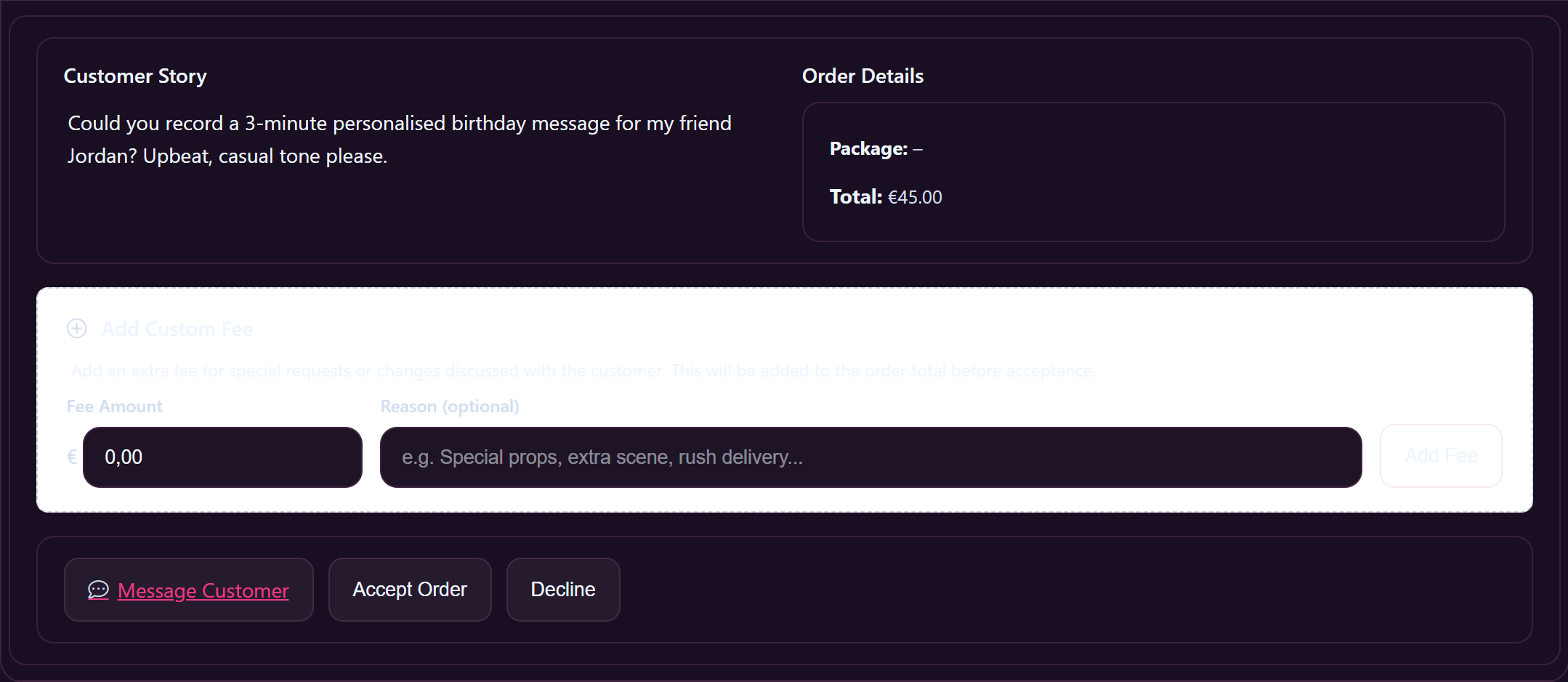
- Click Details on the row to expand it. The action buttons appear at the bottom of the expanded panel.
- Click Decline (the red one, next to Accept Order).
- Confirm the dialog: “Are you sure you want to decline this order?”
That’s the whole flow on the technical side. The order’s status flips to Cancelled immediately and the page reloads.
2. When you can decline — and when you can’t
Decline is only available while the order is at Pending Review. Once you’ve clicked Accept Order — even if the customer hasn’t paid yet — the Decline button is gone.
This means: read the brief carefully before clicking Accept. If anything in the brief gives you pause, decline first or message the customer to clarify; never accept thinking “I’ll cancel later if it’s not for me.” After acceptance you’re committed to the work, and walking away costs you (and them) much more.
The status flow:
| Status | Decline available? |
|---|---|
| Pending Review | Yes — Decline button shown. |
| Pending Payment (after you accepted) | No. The button is replaced with “Waiting for Customer Payment”. |
| Paid / In Progress / Delivered / Completed | No self-serve cancel. Contact support if you need to back out — see Cancelling a custom order. |
3. What the customer sees
The moment you click Decline:
- The custom order’s status flips to Cancelled in their My Account → Orders view.
- The underlying order is moved to a cancelled state with the system note “Creator declined this custom order request.”
- The customer gets an email / in-app notification that the request was declined.
- They were never charged for a declined request — the order parks unpaid until you either accept or decline. There’s no payment to refund.
That’s it. They don’t see your reason unless you wrote one — the standard system notice is brief and impersonal. If you want them to understand why, that’s on you to put in a message before you click Decline (see §5).
4. Reasons to decline — common scenarios
- The brief is outside what you film. Your Custom Order Description said no costumes; they asked for a specific costume. You film solo; they want a partner scene. Decline.
- The brief is something the platform doesn’t allow. See Prohibited content — anything in there is an automatic decline (and you should not message the customer to “negotiate” it).
- You’re booked out / on holiday. Either turn off the service via Custom Order Settings → Accept Custom Orders for the duration, or decline incoming requests with a quick message saying when you’ll reopen.
- The customer’s brief is unclear and you’ve already gone back and forth twice. If you can’t get a clear picture of what they want, decline — accepting an ambiguous brief leads to a finished clip the customer won’t accept and a refund argument later.
- The price is wrong and they refuse a Custom Fee. If the brief realistically needs a fee on top of the package and the customer balks at adding one, decline rather than do the work at a loss.
- Gut feeling. Trust it. A creator who feels off about a request after reading it once should decline. The customer base is bigger than any single request.
5. Decline well — soften the blow without overpromising
The platform’s default decline notification is impersonal. If the brief was thoughtful — even if you can’t fulfil it — leaving the customer with a one-line system notice is colder than it needs to be. Use the Message Customer button (in the same expanded order panel) to send a quick DM before you click Decline.
A good decline message is three lines:
- Thank them for the request. Even if you can’t film it, they put time into the brief.
- Tell them why you can’t do it. Honest and specific beats vague — “this is outside what I film” / “I’m booked through the end of the month” / “your brief includes [thing] which is against the platform rules” / “the prep would need a custom fee that doubles the price; I don’t think it’s worth it for either of us”.
- If applicable, suggest what you can do. “Would you be interested in [variant brief]?” or “I’m reopening for customs in two weeks if you’d like to re-send then.”
Send the message, then click Decline. The customer gets both — the personal note, and the system cancellation — and walks away thinking better of you, not worse.
Keep the message short. Walls of text read as defensive. Three lines is plenty.
6. Alternatives to declining outright
Before you click Decline, consider whether one of these is a better fit:
- Negotiate, then add a Custom Fee. Most rejections are really price disagreements: the brief asks for something extra, your standard packages don’t cover it, you don’t want to do it for the listed price. Message the customer (“I can do that if we add €X for [thing] — that work?”), wait for their yes, then use Add Custom Fee on the order’s expanded panel to set the agreed amount and reason. The customer sees the new total + your reason on their order before they pay. The fee is editable any number of times during Pending Review, so back-and-forth is fine. Then accept. See Pricing a custom order §8 for the negotiation walkthrough.
- Message first, decide later. Pending Review is open-ended — there’s no countdown. Use Message Customer to clarify the brief before you commit either way. A 24-hour back-and-forth is normal; longer is fine if the brief warrants it.
- Counter with a different package. If they ordered the 10-minute package but the brief realistically needs 30, message them to suggest re-ordering at the larger size. (You can’t change the package on their behalf.)
- Pause the service. If you’re getting a flood of requests you can’t handle, flip the Accept Custom Orders toggle off in Custom Order Settings. The Order Custom tab on your storefront shows fans “This creator is not currently accepting custom orders.” Existing pending requests stay open; only new ones are blocked.
7. Things not to do
- Don’t accept then ghost. Accepting and not delivering is much worse than declining. The customer paid; they’re entitled to the clip or a refund. If you can’t film it after acceptance, contact support.
- Don’t decline silently. The default decline notice is generic. A customer who’s never heard from you and just sees “Cancelled” is a customer who won’t try again.
- Don’t argue about the brief in the decline message. If the brief is something you won’t film, “I won’t film this” is enough. You don’t have to explain platform rules, your personal limits, or why their request is outside the norm. Keep it factual and brief.
- Don’t decline en masse from a buyer who’s sent multiple briefs. If a customer is sending repeated bad-faith requests, decline once, then report them via the report flow. Don’t get into a back-and-forth.
- Don’t promise to do the work “off-platform” instead. That violates platform terms and you lose all the protections (payment processing, dispute resolution, DMCA enforcement) the platform provides. Decline cleanly and move on.
8. Common questions
Q: Will declining hurt my storefront?
No. Declines aren’t visible to other customers and don’t count against your stats. The only thing that hurts is accepting a brief you can’t deliver — which leads to delays, refund tickets, and bad reviews. A clean decline is reputationally neutral.
Q: Can I decline an order after the customer has paid?
Not from the inbox. The Decline button only appears at Pending Review. Once an order is paid or further along, you need to contact support to back out — see Cancelling a custom order.
Q: Can I un-decline a request if I change my mind?
No. Decline is final. If the customer still wants the clip, they need to place a new request.
Q: I want to decline because the customer is asking me to break platform rules. What should I do?
Decline first, then report the customer via the standard Report flow on their profile. Pick the appropriate reason — usually Harassment / hate / threats for repeat bad-faith requests, or Illegal / minor / non-consensual content if the brief crosses serious lines. See Reporting a creator or content.
Q: How long do I have to respond to a pending request?
There’s no hard deadline. But customers do drop off — most expect a response within a day or two. If you’re going to be slow, message them with a quick “Got it, will reply in [timeframe]” so they don’t bail before you’ve decided.
Q: A request looks borderline-okay but I’m not sure. What do I do?
Message the customer to clarify before deciding. The expanded order has a Message Customer button right next to Accept and Decline. There’s no penalty for a slow response; there is a penalty for accepting a brief you regret.
Related guides
- How custom orders work — the end-to-end overview, including what happens after acceptance.
- Pricing a custom order — including the Custom Fee tool that’s often the right answer instead of declining.
- Cancelling a custom order — what to do when an order is past Pending Review and either side needs to back out.
- Prohibited content — auto-decline list.
- Reporting a creator or content — for customers who push past a polite no.







