
A clip on Lewdden is a one-off purchase — you pay once and keep access (streaming AND a download option) for as long as the clip stays on the platform. This guide walks you through finding clips to buy, completing checkout (with your wallet balance or a card), and finding your purchased clips later in My Library. There’s no membership fee for buying clips; you pay only for the clips you choose.
If you haven’t read the basics yet, start with How the wallet works — wallet checkout is the fastest path on subsequent buys.
1. Finding clips to buy
There are several ways to land on a clip:
- A creator’s storefront. Open
/store/<creator>/and scroll to their Clips section. Every clip the creator has approved is listed with its title, price, length, and a thumbnail. - The platform-wide clips archive at /clips/. Browse every clip on the platform, filter by category, sexuality, tags, body type, and other attributes. Sort by newest, most popular, or price.
- The platform-wide /sales archive at /sales/. Aggregates every clip currently on a timed sale across all creators — useful for finding discounted clips you might not otherwise see.
- Search. Use the search bar at the top of any page; results include clips matching the title, description, or tags.
- Subscription suggestions. If you subscribe to a creator (see Subscribing to a creator), the clips they’ve included in the subscription are free to stream — no purchase needed. The “Included in subscription” badge marks those.
Every clip card shows the regular price, any active sale price (struck-through regular price + the sale price next to it), and (for subscribers) the “Included in subscription” badge if applicable.
2. Buying a clip
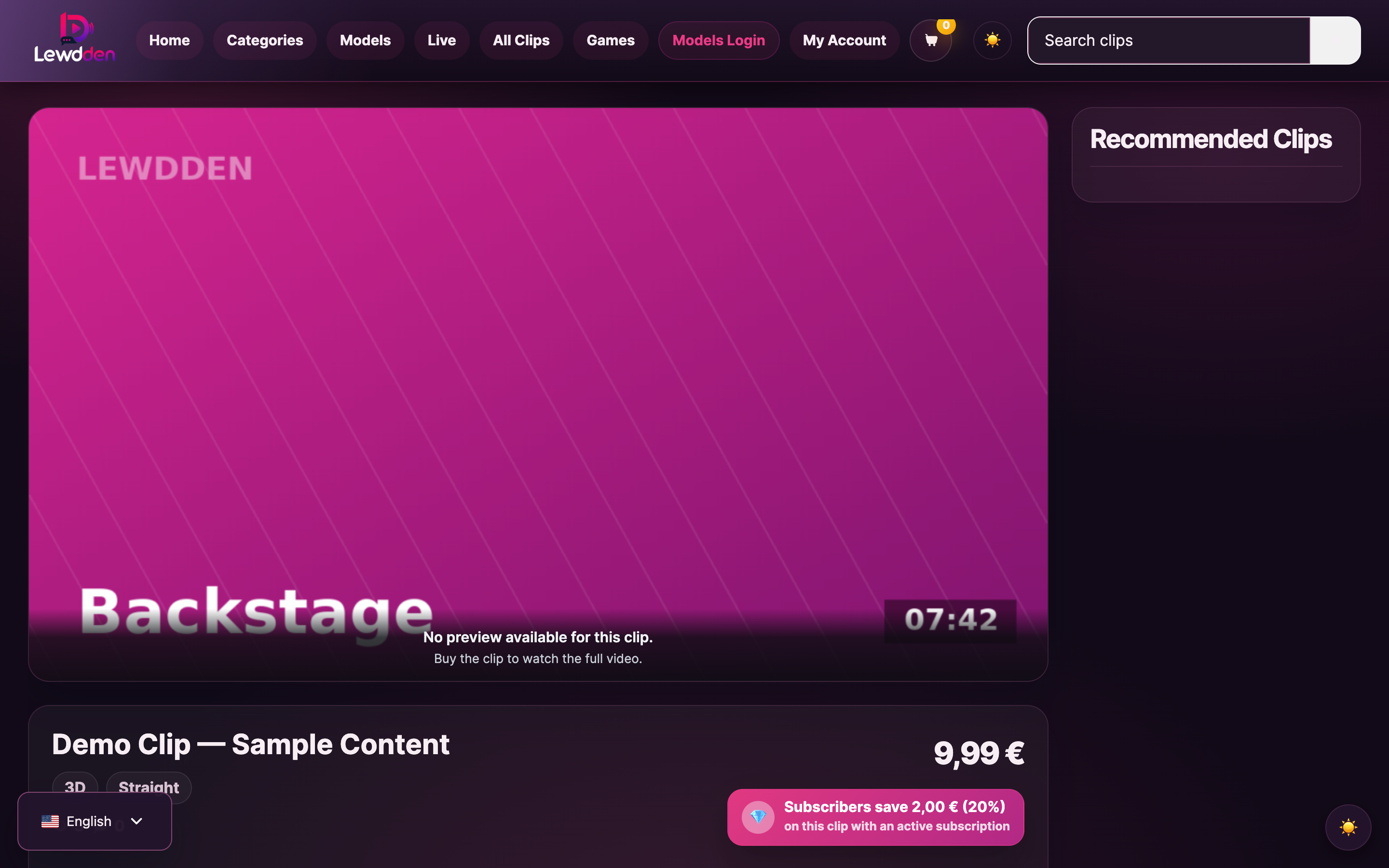
- Click the clip’s thumbnail or title to open its product page.
- Read the description, scroll through any preview frames or trailer, and check the price.
- Click Buy (or Add to cart depending on the layout).
- You go to checkout.
At checkout you have two payment options:
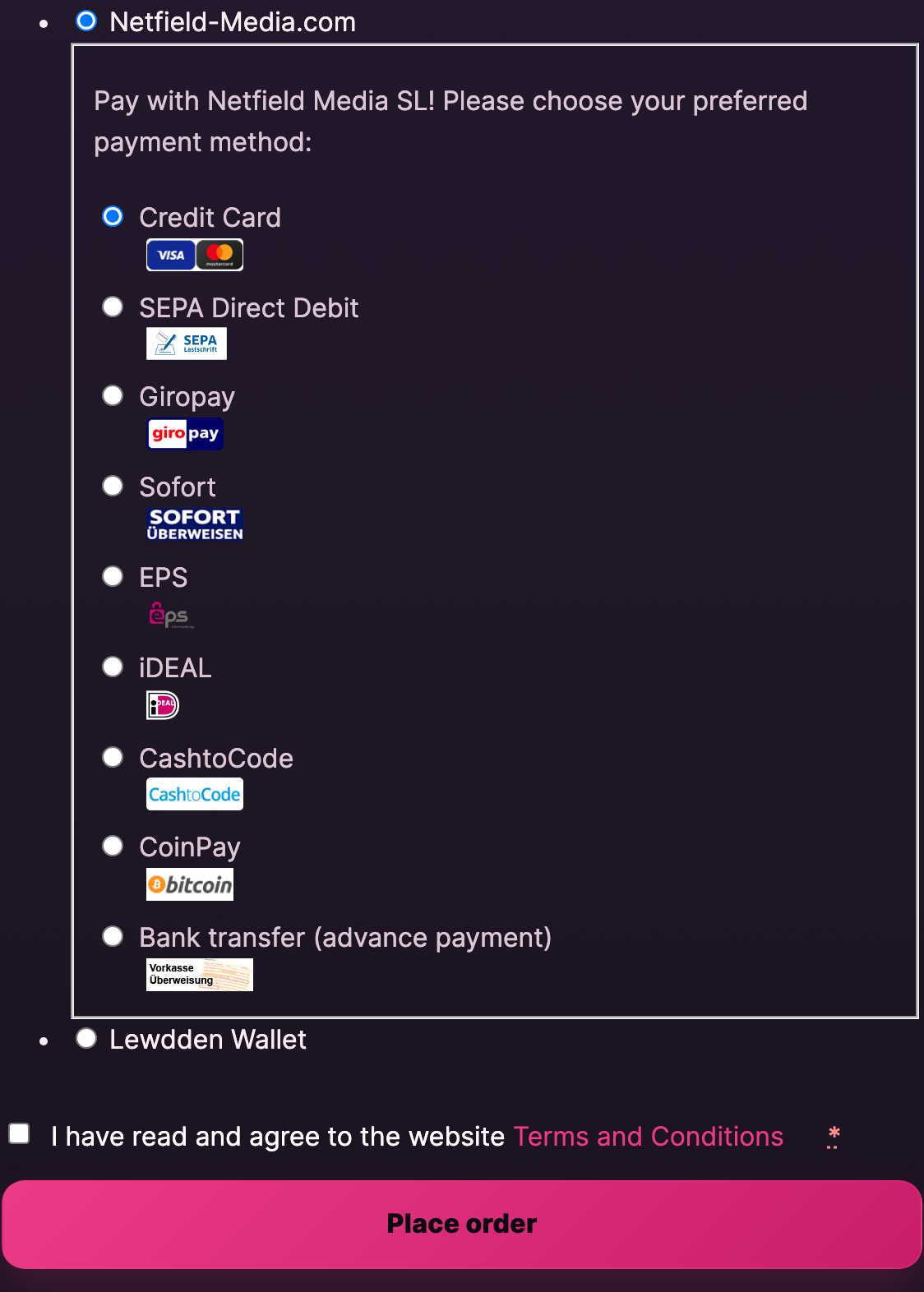
- Pay with your wallet balance — if you have enough credit on your wallet, this is one click. The amount is debited from your wallet immediately and the clip becomes accessible right away. No card details to enter, no extra confirmation.
- Pay through the card / SEPA / bank-transfer flow — if your wallet is empty (or you’d rather pay directly), you go through the secure checkout panel handled by our payment partner. Card, Giropay, Sofort, SEPA direct debit, EPS, iDEAL, CashtoCode, CoinPay, or bank transfer (advance payment) are all available.
The wallet-pay path is the fastest on repeat purchases. If you top up once with a larger amount (see Topping up your wallet), every subsequent clip purchase is one click.
3. Where your purchased clips live
For the dedicated walkthrough — search, sort, the four tabs, building playlists, and what happens when a creator removes a clip — see Your library and playlists. The summary below covers what you need right after a purchase.
Every clip you buy is added to My Library. Open it from the top-right account menu or directly at /my-account/my-library/. Whatever you have access to — purchased clips, subscription-included clips, VOD recordings, custom videos a creator made for you — lives here, organised across four tabs.
The four tabs and what’s in each
- Clips. Every clip you’ve purchased one-off appears here, plus any custom video a creator made for you and assigned to your account. Each card shows the title, length, the creator’s name, and a Play button. Cards have a Download button too — see §4 for how that works. Clips are sorted newest-first by default.
- Subscribed. Clips that are free to stream because they’re included in an active creator subscription you have. These don’t take up purchase budget — they’re available as long as the subscription is active. If you subscribe to multiple creators, this tab merges all the subscribed-included clips together. When a subscription ends or you cancel, the corresponding entries leave this tab automatically (see Cancelling a subscription). The full subscription mechanic is in Subscribing to a creator.
- VODs. Stream recordings you have access to: ticketed-show recordings, the privates you were in, subscribers-only VODs from creators you subscribe to, and any VODs you bought as one-off purchases. The mechanics of how VODs are created and how long they’re kept are in Recording your livestreams — where your VODs live. The same download-vs-streaming rules from §4 apply: VODs you’ve purchased are downloadable, VODs you have access to via subscription are streaming-only.
- Playlists. Custom playlists you can build from clips you have access to (any combination of purchased + subscribed). Reorder, rename, and share with yourself across devices. Useful for grouping a long-running clip series or building a watchlist for a creator you’ve just subscribed to.
Finding a specific clip inside a tab
Each tab has its own search and sort. Type a keyword to filter the cards in the active tab to titles or creator names matching it. The sort dropdown gives you newest, oldest, longest, and shortest. Filters and search reset when you switch tabs — they don’t carry over.
Click any clip card to open the player. Playback starts immediately; there’s a fullscreen button, volume control, and seek bar. Your viewing position isn’t shared with anyone else.
Cross-device — your library follows you
My Library is tied to your account, not to a specific device. Sign in on a different browser, on your phone, or on a friend’s laptop and the same purchases, subscriptions, and VOD entitlements appear. There’s no per-device cap — you can stream the same clip on your laptop in the morning and your phone in the afternoon. The download links are also reusable: open the clip on whichever device you want the file on, and click Download there.
Mobile My Library
On a phone, the four tabs scroll horizontally at the top of the page (Clips → Subscribed → VODs → Playlists), and clip cards stack vertically beneath them. Everything else works the same — search, sort, Play, Download. If a tab is cut off at the right edge, swipe the tab strip to scroll. There’s no separate mobile app to install — you reach My Library from your phone’s regular browser at the same /my-account/my-library/ URL (Chrome on Android, Safari on iPhone).
What’s not in My Library
Two things you might expect here aren’t:
- Purchase history with prices and dates. That’s in My account → Orders (see /my-account/orders/). Every clip purchase, wallet top-up, ticket buy, private-show charge, and subscription renewal appears there with date, amount, and order number. My Library is about content access; Orders is about what you paid for and when.
- Tips you’ve sent. Tips appear in My account → Orders as wallet transactions, not in My Library — there’s no “Tipped streams” tab. (You’ll see the per-minute charges, ticket buys, and tips alongside everything else from your wallet.)
If a clip has been removed by the creator or by moderation, the entry leaves your library and the streaming access ends with the takedown. The order itself stays in Orders as a record of the purchase, and a copy you’ve already downloaded stays on your device — see §5 for the full edge-case treatment.
When a purchase doesn’t show up immediately
A clip should appear in Clips within a few seconds of checkout completing. If it’s been a couple of minutes and the card isn’t there, check My account → Orders — if the order status is Completed, the entitlement landed; refresh My Library and it should now show. If the order is On hold or Failed, the payment didn’t go through and there’s nothing to show yet. Open a support ticket if the order is Completed but the clip stays missing for more than a few minutes.
4. What you can do with a clip you’ve bought
A clip you’ve bought can be both streamed and downloaded. Open the clip in My Library → Clips and you’ll see a Download button on the card. Clicking it gives you a one-shot download link that’s good for about 5 minutes — long enough to start the download. If the link expires before the download finishes, click Download again for a fresh link. The file is yours to keep on your device once you’ve saved it.
Streaming and downloading work side by side: you can re-stream the clip on the platform as often as you want, on any device you sign in on, AND you can keep a local copy of the file.
Important — what you DON’T get a download for:
- Clips included in a creator’s subscription (the ones with the “Included in subscription” badge in your My Library → Subscribed tab). Those are streaming-only — no Download button. The reason is straightforward: a subscription is time-limited access, and a downloaded file would keep content available past the end of the subscription period. The Download button only shows for clips you’ve explicitly purchased.
- Livestream VOD recordings that you have access to via a creator subscription (rather than via a one-off VOD purchase). Same rule — subscription-bound access is streaming-only. VODs you’ve explicitly bought DO have a Download option.
If a clip is later taken down — by the creator, or by moderation under Prohibited content rules — the streaming access ends with the takedown. A copy you’ve already downloaded to your device stays on your device, but the platform doesn’t re-issue download links for removed clips.
5. Removed clips, failed payments, and other edge cases
Refunds. No. Clip purchases are not refundable — they’re digital products, delivered the moment you pay. The platform’s policy mirrors the subscription side (see Cancelling a subscription): once the clip is delivered, the purchase is final.
Clip removed by the creator. If a creator removes a clip you purchased, your access ends with the removal. The purchase is not refunded — the creator made an editorial decision and you bought what was available at the time. The clip stays in your purchase history (My account → Orders) as a record.
Clip removed by moderation (rules violation). If a clip is taken down because it violates the Prohibited content rules, your access ends along with everyone else’s. The purchase is not refunded; the platform’s enforcement decisions are final and the digital-product rule still applies.
Payment failed mid-purchase. If your card was declined or the bank transfer didn’t go through, the clip stays not-bought and your wallet/card is not charged. Try a different payment method or top up the wallet first; see Topping up your wallet for the methods available.
Bought the wrong clip. Be sure of what you’re buying before you pay — clip purchases are final. Read the description, watch the trailer, and check the price. If a clip’s content doesn’t match its description in a material way, that’s a content-issue (not a billing one): open a support ticket with the order number and the team will investigate the listing.
Common questions
Q: Do I have to top up my wallet before buying a clip?
No. You can pay directly at checkout with a card, SEPA direct debit, Sofort, Giropay, EPS, iDEAL, CashtoCode, crypto, or bank transfer (advance payment). Wallet is just the fastest option on repeat purchases — top up once, and every subsequent clip purchase is one click.
Q: Can I download a clip I’ve bought?
Yes. Click the Download button on the clip card in My Library → Clips. The download URL is a 5-minute one-shot link — long enough to start the download. If it expires before you finish, click Download again for a fresh link. Note: only clips you’ve purchased are downloadable. Clips you have access to through a creator subscription (the “Included in subscription” ones) are streaming-only — see §4 for the full distinction.
Q: How long do I keep access to a clip I’ve bought?
For as long as the clip stays on the platform. There’s no expiry on your access. If the creator removes the clip or it gets taken down for a rules violation, your access ends along with everyone else’s.
Q: I bought a clip but I can’t see it in My Library.
Refresh My Library. If it still doesn’t appear after a few minutes, check the order in My account → Orders — if the order status is Completed, the clip should be in your library. If it’s On hold or Failed, the payment didn’t go through. Open a support ticket if Completed but missing.
Q: I subscribed to a creator after buying their clip — do I get my purchase price back?
No. The clip purchase stands and the subscription is a separate payment. You don’t lose anything either — your purchased clip stays in your Clips tab, and any other clips the creator has included in the subscription become free to stream from the Subscribed tab. The two are additive, not overlapping.
Q: The clip I want to buy is on sale — does the wallet still work?
Yes. The wallet pays whatever the price is at checkout — sale price, regular price, subscriber-included (free), all the same wallet flow. The lower amount is debited.
Q: Can I gift a clip to someone else?
Not yet — gifting isn’t a built-in feature. The workaround for now is to top up the recipient’s wallet (if you can), or send them the clip URL so they can buy it themselves.
Q: I’m watching a clip and the playback keeps buffering. What’s wrong?
Try a different network if you can (mobile data instead of wifi, or vice versa). The platform serves video adaptively — if your connection is too slow, playback drops to a lower resolution. If buffering persists across networks, open a support ticket with category Streaming playback and include the clip URL.
Q: I can’t see the clip’s preview / trailer.
Some creators publish without a trailer. Others have a trailer that loads after a moment. Refresh once if it doesn’t appear; the trailer is usually a smaller preloaded file.
Q: Where do I see my purchase history with prices and dates?
Open My account → Orders. Every clip purchase, wallet top-up, and subscription renewal is listed with the date, amount, payment method, and order number. Useful for tracking spend or finding a specific purchase.
Q: What appears on my bank statement?
Transactions show as Netfield Media S.L, not under the creator’s name or “Lewdden“. The same name appears on your receipt email, so the email is the easiest way to match a statement entry. If anything still looks unfamiliar, contact support with the date and amount.







