
Yes — you can broadcast directly from your phone, no separate app required. Open your studio in Safari (iPhone) or Chrome (Android), allow camera and microphone, and tap Start live. The studio detects mobile automatically and ships a connection that’s easier on your phone’s battery and your data plan than the desktop defaults.
This guide is for creators going live from a phone. For the full pre-flight (verification, payouts, profile), see How to go live — pre-flight checklist.
1. What you need on the phone
- iPhone: Safari (iOS 15 or newer). Chrome and Firefox on iPhone use Safari’s video pipeline underneath, so Safari gives the most predictable result.
- Android: Chrome (current version) is the safest pick. Firefox works too. Samsung Internet, Brave and other Chromium-based browsers usually work but are less tested.
- Not a private / incognito window. Some browsers block site permissions in private mode, which kills the camera prompt before it even appears.
- The phone plugged in or near full charge. Live broadcasting drains battery fast.
- A stable connection. Wifi is usually fine; 4G/5G works if the signal is strong. Avoid hopping between networks mid-stream — the room reconnects but viewers see a blip.
2. Open the studio on your phone
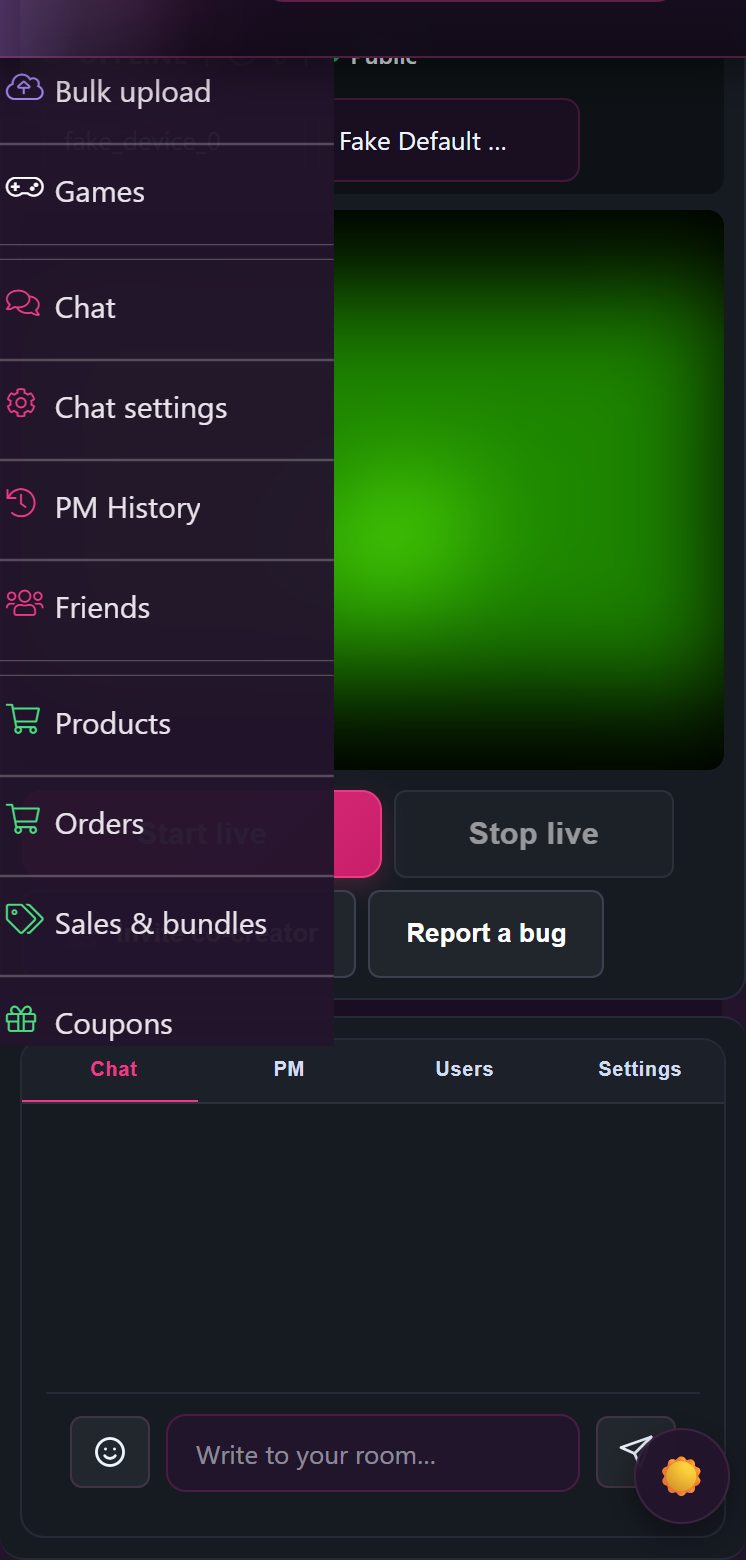
Sign in at /models-login/ on your phone exactly like you do on a desktop, then go to your store dashboard and tap Live. The studio is the same page you use on a laptop — the layout just adapts for a smaller screen.
The studio URL is /store-manager/livestream/{your-store-slug}/. Bookmarking it on your home screen is the fastest way to get back to it.
3. Allow camera and microphone
The first time you tap Enable preview or Start live on a new phone or browser, the browser asks for camera and microphone access. Tap Allow for both.
If you accidentally tapped Block, you’ll see:
“Camera or microphone access was denied.”
The fix is in your phone’s settings, not on Lewdden:
- iPhone (Safari): Settings → Safari → Camera (and Microphone) → Allow. Below that, scroll to Settings for Websites — if lewdden.com is listed, set Camera and Microphone to Allow. Then go back to the studio tab and refresh.
- Android (Chrome): tap the three-dot menu in Chrome → Settings → Site settings → Camera, find lewdden.com and set it to Allow. Repeat for Microphone. Refresh the studio tab.
If you see “No working camera or microphone was found for this browser session.”, your phone’s browser can’t see any camera at all — usually because another app has it open. Close any other camera/video apps (FaceTime, WhatsApp video, Instagram, Zoom, Telegram), then refresh.
If you see “The browser could not open the selected camera or microphone. Another app or tab may still be using it.”, the same fix applies — close every other app or browser tab that uses the camera, then refresh.
4. Pick the right camera (front vs back)
The studio has a Camera dropdown above the preview. On a phone, your front camera and back camera appear in that list under whatever names your browser gave them — usually something like “Front Camera” and “Back Camera” on iPhone, or “camera2 0, facing front / facing back” on Android.
Pick the one you want, then tap Enable preview. The preview pane shows what viewers will see — including how the framing looks in portrait or landscape orientation.
Switching mid-stream: change the dropdown selection. The studio re-acquires the camera; viewers see a brief reload of your video tile, then the new camera picks up.
5. Quality on mobile — what the studio picks for you
The studio detects that you’re on a phone and uses gentler defaults so your battery and data hold up:
- 720p resolution by default (vs 1080p on desktop). 720p looks great on phone screens and uses roughly half the bandwidth.
- 2.5 Mbps target bitrate (vs 4 Mbps on desktop). Smoother on cellular and on weaker wifi.
- 30 fps by default. 60 fps is available in Quality if your phone is recent and your connection is strong, but it doubles the upload load.
You can override any of these from the Quality setting on the studio. The “auto” option resolves to mobile-friendly values when it sees a phone, so the simplest setup is to leave it on auto.
6. Going live — the flow
- Tap Enable preview. The preview pane shows your camera feed. The status line reads “Local preview is ready. You only go live after pressing Start live.” — you’re not broadcasting yet.
- Set the room mode (Public / Premium / Subscribers only) and tip menu the same way you would on desktop.
- Tap Start live. Status changes to “Starting live room…” then “Live room is running.” — at that point fans can see and join.
- To end, tap Stop. Status changes to “Stopping…” then “Live room ended.”.
7. Phone-specific tips for a clean show
- Lock the orientation in your phone settings before you start. iOS: Control Centre → tap the rotation lock icon. Android: Quick Settings → Auto-rotate off. This stops the picture flipping if you reach for something.
- Prop the phone, don’t hold it. A small tripod or a stack of books beats a shaky hand for a 30-minute show.
- Disable screen-sleep. If your phone goes to sleep, the browser stops broadcasting. iPhone: Settings → Display & Brightness → Auto-Lock → Never (set it back later). Android: Settings → Display → Screen timeout → 30 min or never.
- Silence notifications. Banners and ringtones interrupt the stream and viewers can hear them. Use Do Not Disturb / Focus mode for the duration of the show.
- Headphones with a mic. Wired earbuds with the small inline mic give noticeably cleaner audio than the phone’s built-in mic, especially if you move around.
- Check the upload speed first. Open a speed test (fast.com or speedtest.net) on the same network. Anything above 3 Mbps upload is comfortable for 720p; 1.5 Mbps is the floor before you’ll see the picture quality drop.
8. Known limits on a phone
- Cam2cam from the host side works on phones in exclusive private shows the same way it does on desktop — viewers’ cameras show up in the studio.
- Multi-creator collabs work from a phone too, but the smaller screen makes it harder to see the guest’s tile clearly. If you’re co-hosting often, a tablet or laptop is more comfortable.
- The Lovense Cam Extension is a desktop browser extension — it cannot pair from a phone. If you use Lovense, run those streams from a laptop or desktop.
- Background tabs / locked screen. If you switch to another app or your phone locks itself, broadcasting stops within a few seconds. Stay on the studio tab with the screen on.
9. The LIVE indicator and what happens if the room drops
While you’re broadcasting, the green Start live button changes to a red, blinking ● LIVE indicator. It’s not clickable while you’re live — to end the show, tap the separate Stop live button next to it.
If the connection drops, the red ● LIVE indicator changes to Reconnect live room. Tap it once and the studio rejoins where it left off — fans see a few seconds of “Connecting…” then the picture comes back. There’s a built-in delay before any go-live notification fires for fans, so a brief restart in the first few minutes won’t spam your audience with duplicate alerts.
For the full troubleshooting walkthrough of broadcasting failures, see Fixing stream issues (in this Help Center, creator section).
If you hit a bug that doesn’t match anything on that page, the studio toolbar has a Report a bug button — tap it and describe what you saw. The report goes straight to Lewdden support with your stream context attached.
10. FAQ
Q: Is there a Lewdden broadcaster app for iPhone or Android?
No — broadcasting runs entirely in the browser. That keeps the setup simple: any modern phone with Safari or Chrome can go live, no install, no permissions other than camera and microphone.
Q: Can I use OBS or Streamlabs from my phone?
No. The studio doesn’t accept an external broadcast feed; it captures directly from the phone’s camera and microphone via the browser.
Q: Does the picture get rotated if I switch from portrait to landscape?
The video follows whichever orientation the phone was in when you tapped Enable preview. If you want to switch orientation mid-show, stop, rotate the phone, and tap Enable preview again — then Start live.
Q: Will my phone overheat during a long show?
Phones throttle the camera and slow the broadcast if they get too hot. To stretch a long show: take the case off, prop the phone where air can move around it, and set the studio to 720p / 30 fps (the mobile defaults). If the room temperature is high, plan for shorter sessions or take a break every 45–60 minutes.
Q: My phone disconnected — am I still going to get paid for the time I was live?
Yes. Tips, ticket sales, and per-minute private/exclusive billing are tracked while the room was running. A drop in the middle doesn’t roll back any earnings already counted.
See also: How to go live — pre-flight checklist · Audio and video troubleshooting (fan side) · Pairing your Lovense toy (desktop only).







