
The Lovense Cam Extension is a free browser extension that pairs your Lovense (or any other Bluetooth) toy with your Lewdden live stream. When fans tip in chat, the extension reads the tip amount, looks up the action you’ve configured for that amount, and triggers your toy automatically — patterns, intensities, special modes, all hands-free while you’re on cam.
Setup is two-sided. On the Lovense side: install the extension + the Lovense Connect bridge. On the Lewdden side: nothing — the studio detects the extension automatically when you go live and exposes a Lovense column on every tip-menu row so you can map specific tip amounts to specific actions.
This guide walks both sides end-to-end.
1. What you need before you start
- A Lovense toy (Lush, Hush, Edge, Domi, Max, Nora, Ferri, Ambi, Gush, or any other model). The extension also supports several non-Lovense Bluetooth toys — see the Lovense Cam Extension page for the current compatibility list.
- A desktop or laptop computer with Google Chrome (or any Chromium-based browser like Edge or Brave).
- Either a phone OR a USB Bluetooth adapter for bridging the toy to your computer:
- Phone option: install the Lovense Connect app on your phone (iOS or Android, free); your phone bridges Bluetooth between toy and computer over the same Wi-Fi.
- USB option: a Lovense USB Bluetooth adapter plugged into your computer; toy connects directly without the phone.
You need a free Lovense account for the Cam Extension — the popup asks you to log in on first open (you can register in a minute from the login screen). You don’t need to upload anything to Lewdden either; the connection happens entirely browser-side on every stream.
2. Installing the Lovense Cam Extension
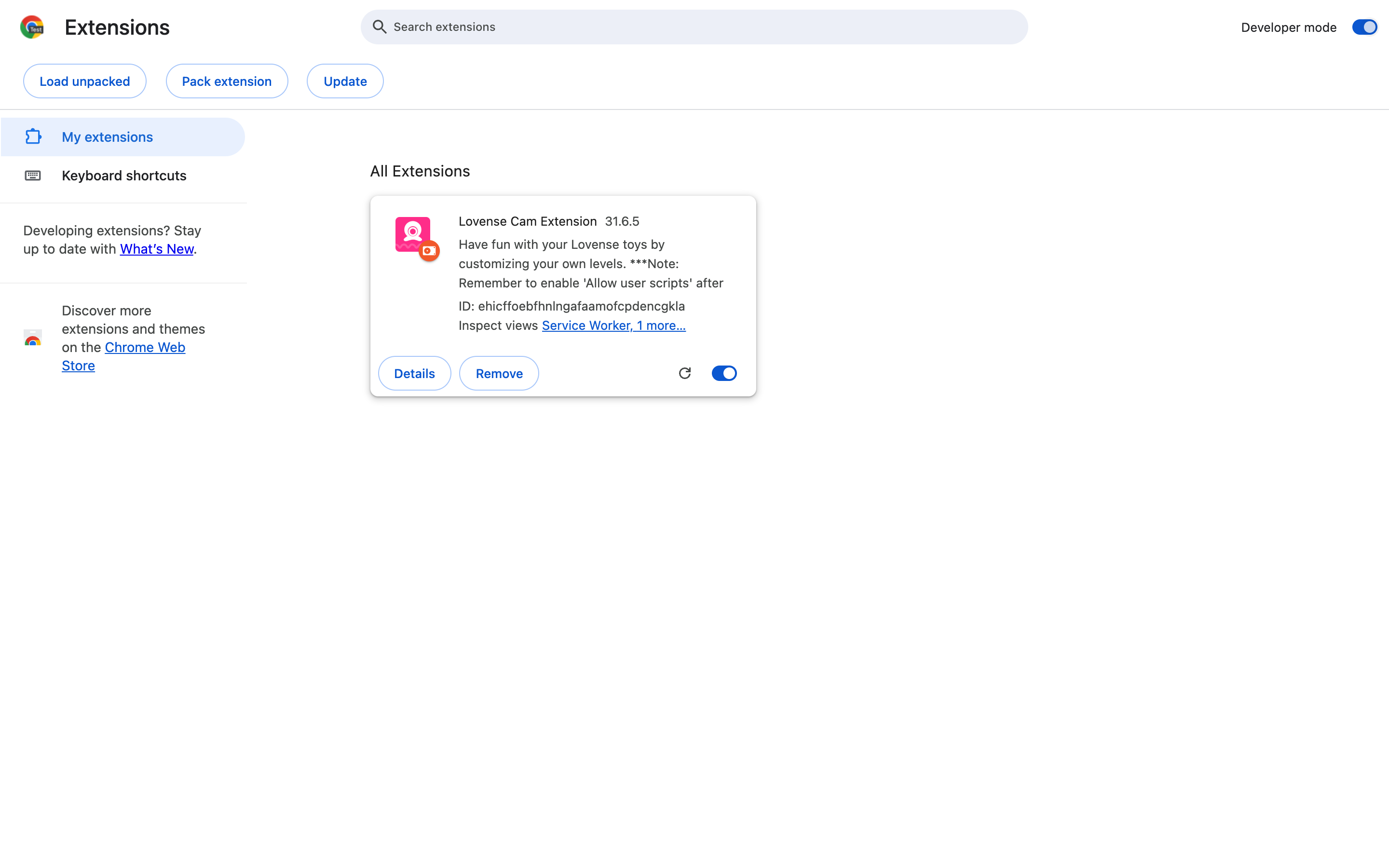
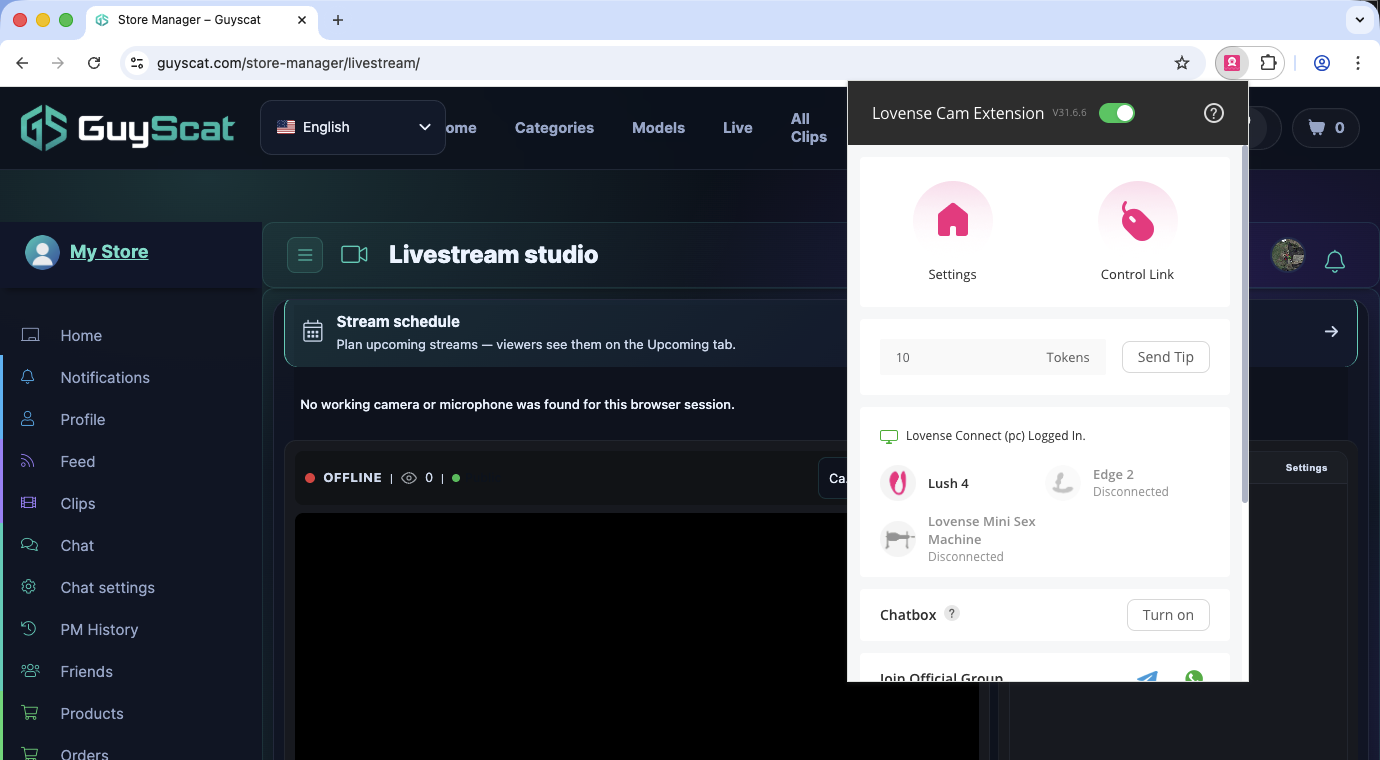
The Lovense extension installs as an “unpacked” Chrome extension (it’s not on the Chrome Web Store). The official setup page at lovense.com/cam-model/extension walks through the install — here’s the abbreviated version:
- Download — open lovense.com/cam-model/extension and click the STEP 1 download button. You’ll get a
lovense_cam.zipfile in your Downloads folder. - Unpack — right-click the zip in Downloads and extract it. You’ll see a
lovense_camfolder appear next to it. - Enable Developer mode in Chrome — open
chrome://extensions/in a new tab, then flip the Developer mode toggle in the top-right corner. - Load the unpacked extension — click Load unpacked (top-left) and pick the
lovense_camfolder you just extracted. The extension appears in your extensions list. - Pin it to the toolbar — click the puzzle-piece icon in Chrome’s toolbar, find Lovense Cam Extension, and click the pin icon next to it. This makes the extension’s button always visible while you’re streaming.
3. Connecting your toy
The extension talks to your toy through Lovense Connect, a separate companion app that handles the Bluetooth bridge.
Phone bridge (most common)
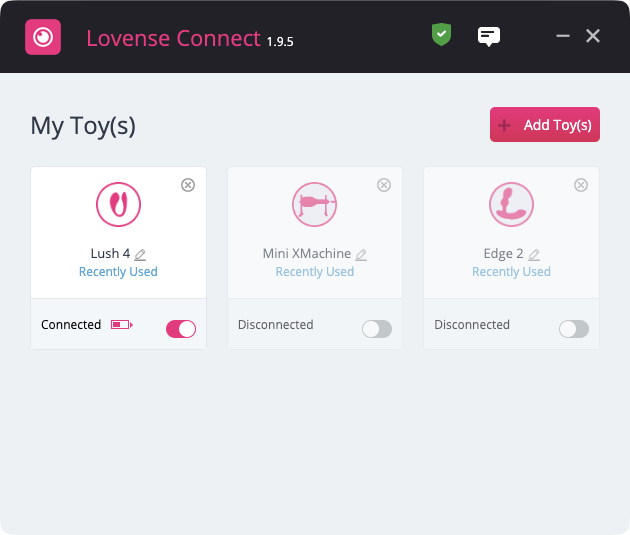
- Install Lovense Connect on your phone from the iOS App Store or Google Play.
- Pair your toy with the phone over Bluetooth (long-press the toy’s button until it blinks; the phone’s Connect app picks it up).
- In the Connect app, tap Connect by Phone — a QR code appears.
- Open the Lovense Cam Extension popup in Chrome and click Connect. Scan the QR code with your phone’s Connect app.
The toy now shows up as connected in the extension. Your phone needs to stay on the same Wi-Fi network as your computer while you’re streaming — if the phone disconnects (locked too long, network drops), the toy disconnects too.
USB Bluetooth adapter (alternative)
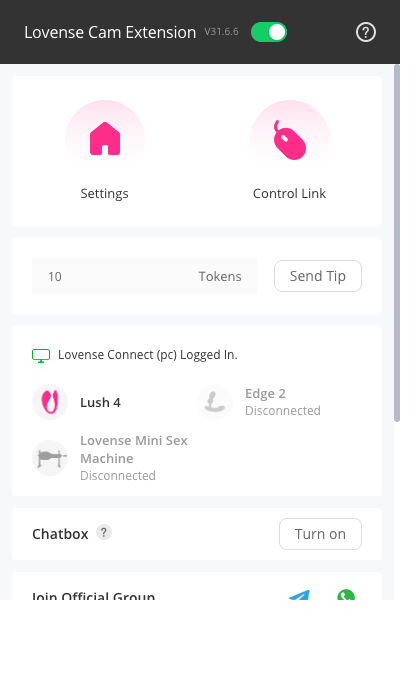
If you’ve bought the Lovense USB Bluetooth Adapter, plug it into your computer, click Connect by Computer in the extension, and pair your toy directly. No phone needed.
4. Configuring your tip levels in the extension
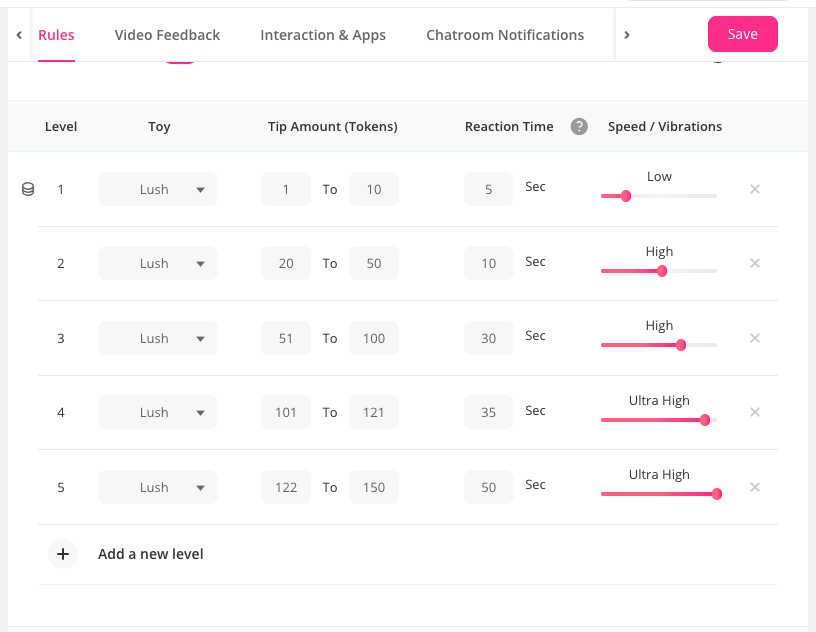
Open the Settings tab in the extension popup. You’ll see a list of tip levels you can configure:
- Levels 1 to 10 — each level has: a label (your text, like “Soft tease”), a token threshold (e.g. 5 tokens), a vibration pattern, and a duration (e.g. 10 seconds).
- Specials — pre-built modes that aren’t tip-amount-driven: Ultra High, Pulse, Wave, Fireworks, Earthquake, Random, Random time, Give control, Pause, Clear.
Set the levels and specials however you like. The thresholds you pick here are what the Lewdden studio will reference when fans tip. Save your settings inside the extension before moving to Lewdden.
5. Linking the extension to Lewdden
The Lovense extension supports any streaming site by name — Lewdden is included as a recognised platform. The first time the extension runs on a Lewdden stream, the SDK identifies the site automatically using the platform name Lewdden. You don’t need to add anything as a custom site.
If your extension shows Lewdden as unsupported (older extension version, custom-site-only setup), open the extension’s Site dropdown and add Lewdden (with capital G) as a custom platform name.
6. The Lewdden studio side — going live with Lovense
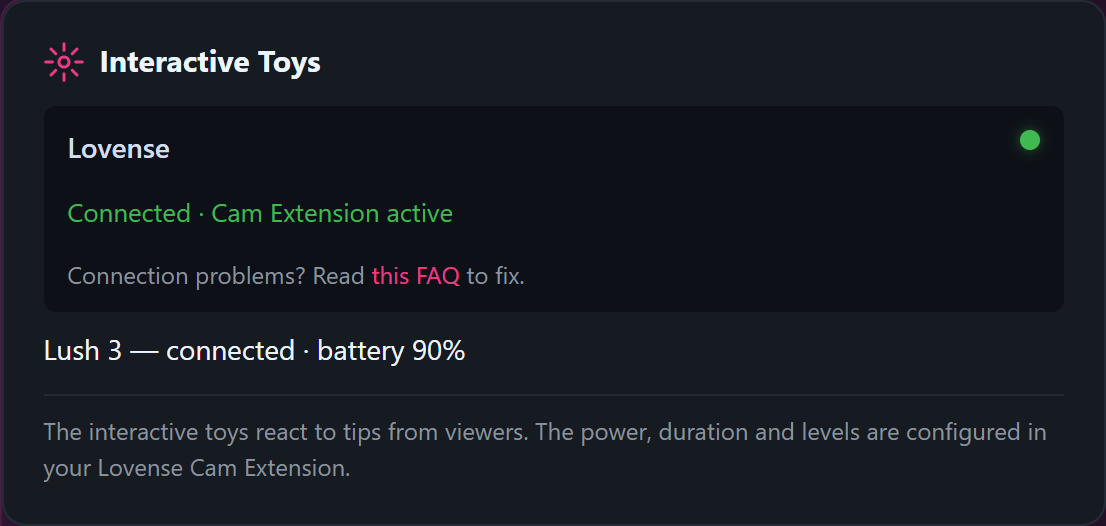
Open the streaming studio at lewdden.com/store-manager/livestream/. You’re going to see a Lovense status panel in the studio sidebar.
Status states
- “Connecting Lovense Cam Extension…” — the studio detected the extension and is initialising the connection. Should switch to ready within a couple of seconds.
- “Lovense Cam Extension is ready for this room.” — green status dot. Tips in chat will now trigger your toy.
- “Lovense could not be initialized for this room.” — initialisation failed. Refresh the page; if it persists, see §9.
- “Cam Extension not detected. Install or open the Lovense Cam Extension to enable toy controls.” — the extension isn’t installed, isn’t pinned, or isn’t enabled in Chrome. Click the puzzle-piece icon, find the extension, click it once to wake it.
Connected toys
The status panel lists every toy currently paired in the extension — you’ll see at least one entry per active toy. If the list is empty but status is green, your phone-bridge probably disconnected — re-open Lovense Connect on your phone and rescan the QR.
Action log
Below the toys list is a scrolling log of recent toy actions. Every tip that triggers a Lovense action shows up here with the timestamp + the action that fired. Use it to verify your tip-menu mapping is doing what you expect.
7. Mapping tips to toy actions — the tip-menu Lovense column
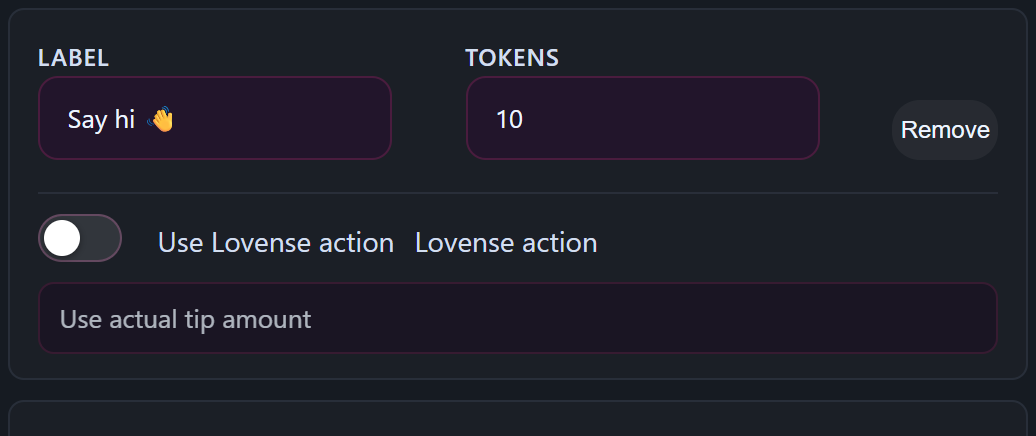
The studio’s Tip menu section (where you set up specific tip amounts as menu items fans can choose from) has a Lovense column on every row. For each menu item, pick which toy action that tip should trigger:
- Use actual tip amount — the default. The extension uses the raw tip number to interpolate which level fires (e.g. 5 tokens = Level 1, 50 tokens = Level 5).
- Level 1 to Level 10 — fire one of your configured levels. If your extension is connected and synced, the dropdown shows your custom labels + token thresholds (e.g. “Soft tease (5 tokens)” instead of generic “Level 1”).
- Specials — Ultra High, Pulse, Wave, Fireworks, Earthquake, Random, Random time, Give control, Pause, Clear.
Each row also has a Cooldown (seconds) field — set how long after this action fires before the same one can fire again. Maximum 600 seconds. Useful for high-volume rooms where fans rapid-fire small tips and you don’t want the toy to never stop.
You can also leave the Lovense column on Use actual tip amount for every row and let the extension do the math — that’s the simplest setup and works fine for most creators starting out.
8. Going live + what fans see
When you click Go Live:
- The studio re-initialises Lovense for this room — status pings “Connecting…” then “ready”.
- Every fan tip in chat triggers the action you configured for that tip amount or that menu item.
- The action log records each fire with timestamp + action.
- The fan sees their tip animation in chat as normal — they don’t need to know your toy is connected.
You don’t need to tell fans you have a Lovense toy connected, but most creators do (and many fans tip more when they know they’re driving a real-time response). Some creators put a “Tipping triggers my toy 🌹” line in their stream title or chat welcome message.
9. Troubleshooting
The studio shows “Cam Extension not detected”.
- Pin the extension to the toolbar (Chrome puzzle-piece icon → Lovense Cam Extension → pin).
- Click the extension icon once to wake it (some Chrome installs put extensions to sleep until first use per session).
- Refresh the studio page.
Extension is detected but the toys list is empty.
- The phone bridge dropped. Re-open Lovense Connect on your phone, tap Connect by Phone, and re-scan the QR code in the Cam Extension.
- Confirm phone + computer are on the same Wi-Fi (5GHz vs 2.4GHz on the same router counts as “same Wi-Fi”).
- Toy battery — if low, the toy disconnects unexpectedly. Charge before streaming.
Tips fire but the toy doesn’t vibrate.
- Open Lovense Connect on your phone — does it show the toy as paired? Tap the toy in the app and try a manual buzz; if that doesn’t work, it’s a phone-toy Bluetooth issue, not a Lewdden issue.
- If the manual buzz works but stream tips still don’t trigger: in the Cam Extension, open Settings → Test, and click Test under each level to confirm the extension can drive the toy directly.
A specific tip amount triggers the wrong level.
- Open the extension Settings, check the token thresholds — if Level 2 starts at 10 tokens but Level 3 starts at 9, the levels overlap and the lower-numbered level wins. Re-order the thresholds so they ascend cleanly.
Multiple tips arrive in seconds and the toy never stops.
- That’s the cooldown setting doing its job — or not. In your tip-menu Lovense column, raise the Cooldown (seconds) on the action that’s getting hammered. 60 seconds is a reasonable starting cooldown for “Pulse” or “Wave”-style modes; smaller for level-based modes that you want to layer.
The toy buzzes once at the start of every stream then stops.
- That’s the “extension test buzz” the Cam Extension does on connect to verify the toy is reachable. Disable it in the extension’s Settings if it’s annoying.
I’m streaming on multiple browsers / devices and the toy responds twice.
- Only have ONE browser instance running with the extension active per stream. The extension keeps a persistent connection to your toy and a second instance creates duplicate-trigger events.
Common questions
Q: Is the Lovense Cam Extension free?
Yes. The Lovense Cam Extension, the Lovense Connect app, and the Lewdden-side integration are all free to use. The toy hardware is the only paid part.
Q: Does Lewdden take a cut of tips that trigger Lovense actions?
The standard 65/35 commission applies to tips on your stream — see How creator payouts work. The Lovense integration doesn’t change the cut; it just makes the toy vibrate when the tip happens.
Q: Can I use the Lovense extension on multiple platforms at once?
The extension can be configured for several platforms, but only one stream session can drive the toy at any moment. If you accidentally have two browser tabs streaming on different sites, the toy responds to whichever sent the most recent action.
Q: What’s the difference between “Use actual tip amount” and a fixed level?
Tip-amount mode interpolates a level based on the raw tip number — small tips drive lower levels, big tips drive higher. Fixed-level mode fires the same level regardless of tip size. Use fixed-level for tip-menu items where you want a specific intensity (e.g. “Wave for 30 seconds” no matter the tip), and tip-amount for general tipping where you want the response to scale.
Q: Can I give a fan control of my toy?
Yes — set a tip-menu row’s Lovense action to Give control. The fan who hits that tip threshold gets remote-control access to your toy for whatever duration you’ve set in the extension. Use sparingly; it’s a fun premium-show feature but it removes your control of the buzz timing.
Q: Does the extension see my fans’ tip messages or just the tip amounts?
Just the amount. The extension doesn’t read chat content — it only listens for tip events in the platform-specific format and triggers the configured action.
Q: What happens to the toy on stream end?
Stream end → extension sends a “Clear” action which stops any in-progress vibration. The connection stays alive until you close the browser or unpair in the extension.
Q: Can I run a private show with Lovense control different from public?
Yes — see Public, ticketed and 1:1 private shows for the show-mode breakdown. The tip-menu Lovense mappings are stream-mode-aware: you can set a different cooldown on the same action for public vs private.
Q: What if a fan tips in the middle of a Lovense action that’s still running?
The cooldown setting for that action determines what happens. If the cooldown hasn’t expired yet, the studio logs “Lovense action skipped because the cooldown is still active” and ignores the new tip’s toy trigger (the tip itself still counts and you still earn). If the cooldown has expired, the action re-fires.
Q: Can I use a non-Lovense toy?
The extension supports several non-Lovense Bluetooth toys (Kiiroo, We-Vibe, others) — see the Lovense Cam Extension page for the current list. Setup flow is similar: Lovense Connect bridges the toy → extension reads it.
Q: Is there a way to test my Lovense setup without going live?
Open the studio, but instead of clicking Go Live, scroll to the Lovense status panel. The status should turn green when the extension connects. Use the extension’s own Test button (in its Settings tab) to manually drive each level, confirming the toy reacts. Then go live for real.
Q: How do I update the extension when Lovense releases a new version?
Download the new lovense_cam.zip, unpack it overwriting the old lovense_cam folder, then go to chrome://extensions/ and click the reload icon (circular arrow) under the Lovense extension. New version live; settings are preserved.







