
Video guide
Prefer to watch? This video walks through building your tip menu — rows, prices, Lovense actions and saving.
Your tip menu is a list of priced actions viewers can trigger from your live room — labels like “Rub cock” or “Show feet”, each with a token amount next to it. When a viewer pays the listed amount, the action runs (and, if you’ve paired a Lovense toy, it can fire a specific reaction at the same time). This guide walks through where to set it up, what each field does, what viewers see, and how it differs from a tip goal.
1. Where to find the tip-menu editor
- Sign in.
- Open /store-manager/livestream/ — the Livestream studio.
- Switch to the Settings tab.
- Scroll to the Tip Menu card.
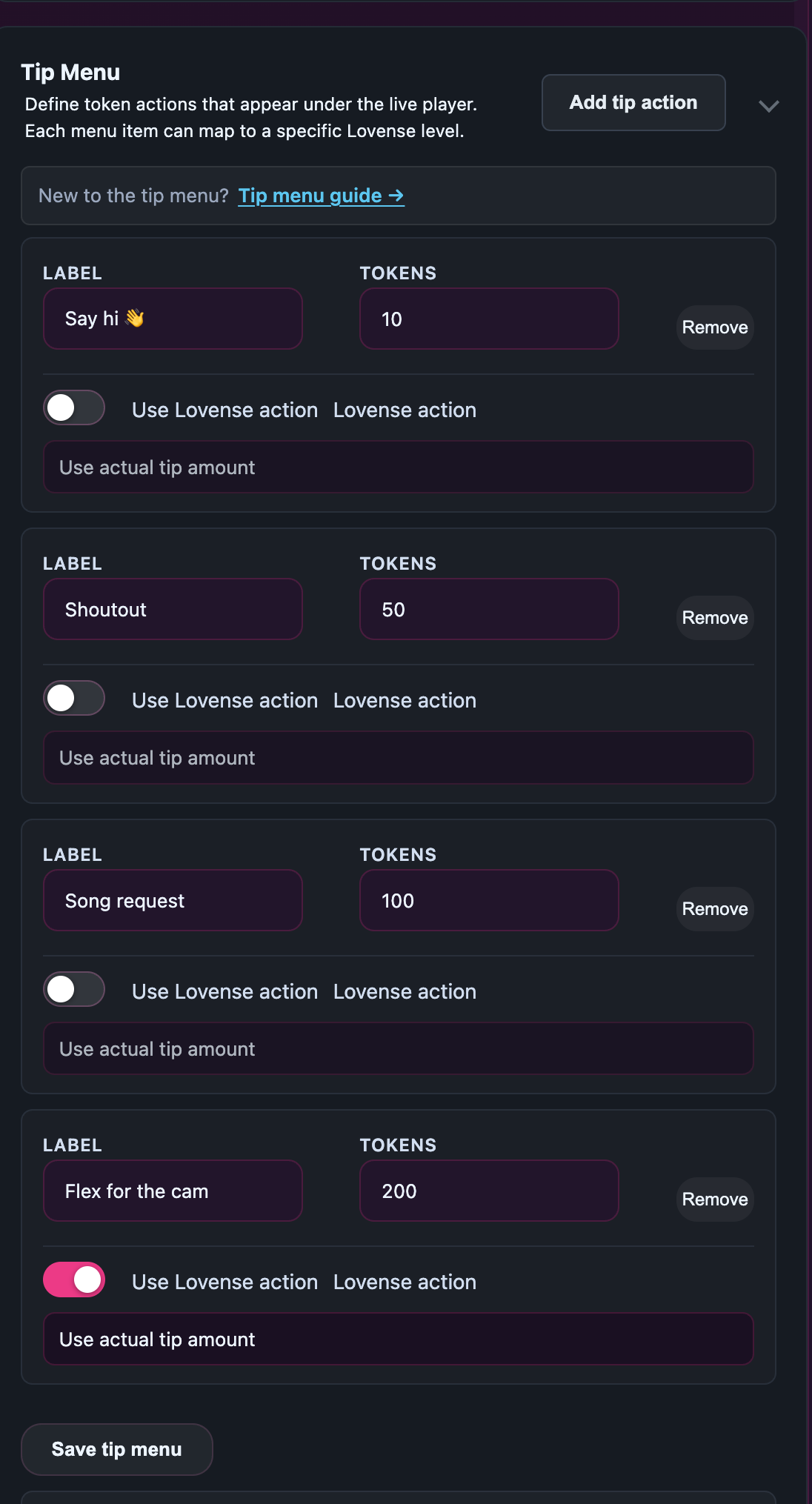
The card carries a one-line subhead — “Define token actions that appear under the live player. Each menu item can map to a specific Lovense level.” — and starts with three empty rows the first time you open it.
2. The fields, row by row
Each row in the menu has the same three fields:
| Field | What you put in it |
|---|---|
| Label | The short name viewers see in the menu — e.g. “Rub cock”, “Flash ass”, “Show feet”, “Pose nude”. Up to 120 characters; keep it short so the table reads cleanly. |
| Tokens | The price viewers pay to trigger the action. Whole numbers only, minimum 1 token. A single tip from a viewer caps at 50,000 tokens. |
| Remove | Deletes that row. The deletion only sticks once you click Save tip menu at the bottom. |
If you’ve paired a Lovense toy, each row gets two extra controls in a panel to the right:
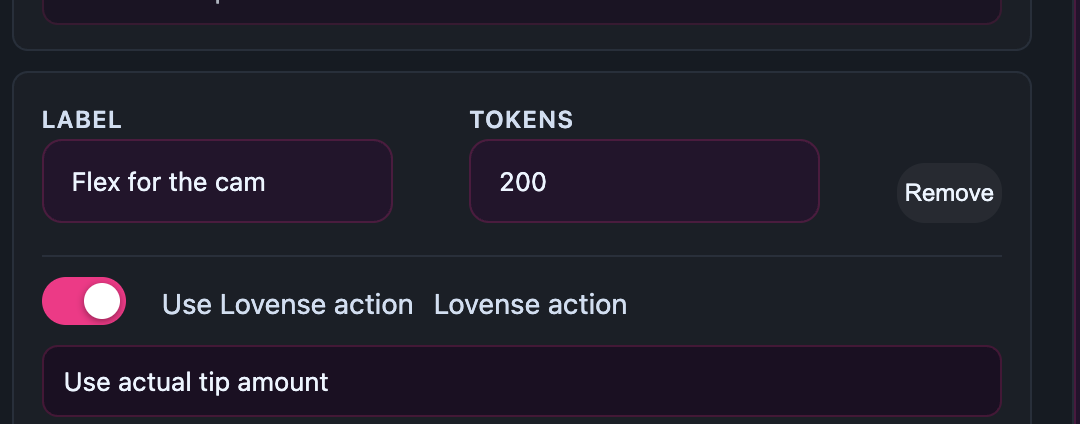
- Use Lovense action — checkbox. Tick it to link the row to a toy reaction.
- Lovense action — dropdown. Pick the level or special pattern that fires when this row is tipped.
If your toy isn’t paired, the Lovense panel is greyed out — the menu still works, it just won’t trigger toy reactions until you pair. See Pairing your Lovense toy for that one-time setup.
3. Adding and removing rows
To add a new row, click Add tip action in the top-right corner of the card. Add as many as you want — there’s no cap in the editor.
To remove one, click Remove on the row you don’t want. Both edits save when you click Save tip menu.
How many rows is sensible? Five to seven well-priced actions usually beats a long list. Viewers scan the menu top-to-bottom; a long menu with weak rows hides your good ones. Trim aggressively — every row should be one a real viewer would actually click.
4. What viewers see in the live room
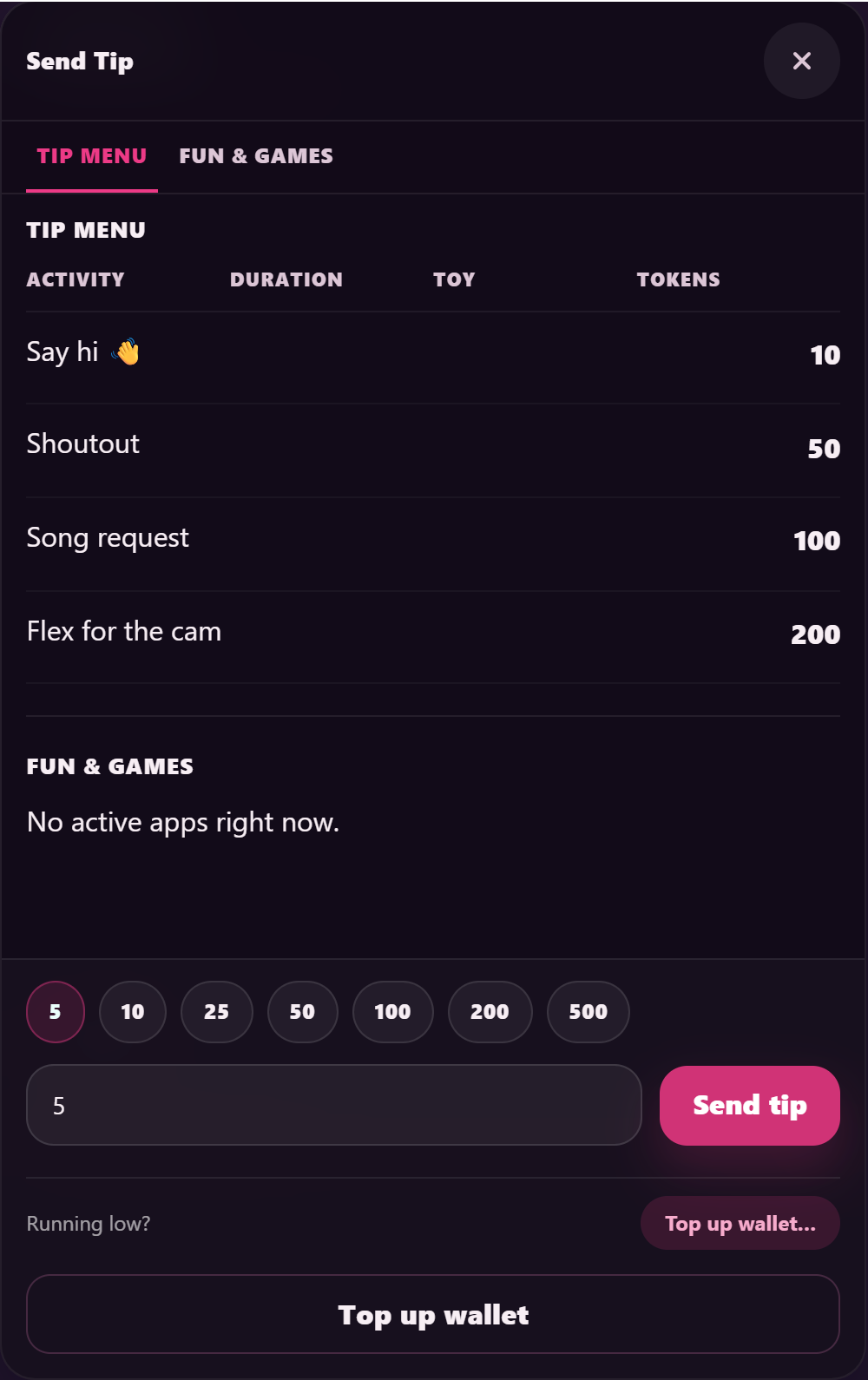
Anyone watching your room sees a Send Tip button in the chat actions bar. Clicking it opens a small overlay titled Send Tip with up to three tabs:
- Tip Menu — your saved menu (this is the default tab).
- Sex Toy — only appears if you’ve paired a Lovense toy.
- Fun & Games — built-in interactive add-ons.
The Tip Menu tab renders your menu as a table with four columns:
| Column | Shows |
|---|---|
| Activity | Your Label for the row. |
| Duration | How long the toy reaction lasts (in seconds), if the row has a Lovense action attached. |
| Toy | Small icon for the toy that reacts, again only if a Lovense action is set. |
| Tokens | The price you set in the editor. |
Viewers tap a row, confirm the amount, and the tip lands. Their username and the tip amount appear in chat the moment it goes through. If the row has a Lovense action, the toy fires at the same time.
If you save an empty row by accident — no label, or zero tokens — viewers don’t see it. The list silently skips incomplete rows so it stays clean.
If you haven’t saved any rows yet, viewers see a one-line note in the menu tab: “The creator has not set a public tip menu yet. You can still send a custom tip below.” They can still tip you a free-form amount.
5. Saving while you’re live
You can edit and save the tip menu mid-stream — no need to end and restart the room. The card carries a small note under the save button: “Tip menu changes can be saved live without restarting the room.”
That means you can react to the room: if a row isn’t getting clicks, swap the label or tweak the price; if viewers are asking for a specific action, add it on the fly.
6. Tip menu vs tip goal — which is which
They’re two separate cards on the Settings tab and they do different things:
- The Tip Menu is a list of priced actions. A viewer pays the listed amount and the specific action runs straight away. Each tip-menu trigger is its own one-off transaction.
- A Tip Goal is a single target amount for the whole room. Every tip — free-form, tip-menu, or Lovense — adds to the same progress bar. When the bar fills, you’ve agreed to do whatever the goal title says.
You can run both at once and most creators do — the menu funds the small reactions during the show, the goal funds the bigger thing you’ve promised when the room hits the target.
7. Tips that don’t need a menu
Viewers can always tip you a free-form amount — they don’t need a menu row to do it. The Send Tip overlay has a custom-amount field below the menu table for exactly that. So even an empty tip menu doesn’t block tipping; it just means viewers won’t see your priced actions.
The smallest single tip a viewer can send is 1 token. The largest is 50,000 tokens. Both limits apply to free-form tips and tip-menu items alike.
8. Tips for a menu that gets used
- Keep labels short and concrete. “Rub cock” reads better than “Slow rub for the camera”. The viewer sees the label in a narrow table cell.
- Spread the prices. A mix of low (1–10 tokens), middle (20–50 tokens) and a couple of higher rows (100+ tokens) gives every viewer a row in their budget.
- Match the prices to the effort. Big actions deserve a higher tag — viewers learn quickly which prices buy what.
- Use the Lovense column. If you’ve paired a toy, link your popular rows to a toy level. Viewers can see the duration and the toy icon in the table, which makes the row much more clickable.
- Test it from the viewer side. Open your room in another tab while a friend (or a second account) tips a small amount — make sure the action you set actually fires when you expect it to.
9. Common questions
Q: I changed a row’s tokens but viewers are still seeing the old price.
You probably forgot to click Save tip menu at the bottom of the card. Edits aren’t live until you save. Save and ask the viewer to refresh the room.
Q: How many rows is sensible?
Five to seven well-priced actions usually beats a long list. The editor lets you add as many as you want, but viewers scan top-to-bottom — a cluttered menu hides your good rows.
Q: What’s the smallest tip I can list?
1 token. The editor won’t let you save a row with zero tokens (and even if you did, the row would be hidden from viewers).
Q: Can viewers tip without using the menu?
Yes — the same overlay has a custom-amount field. The menu is a convenience, not a gate.
Q: My Lovense toy isn’t paired — does the menu still work?
Yes. The Label and Tokens fields work on their own; the Lovense controls just sit greyed out until you pair the toy. Viewers see the menu rows with no Toy icon, and tipping still pays out the same way.
Q: I removed a row but viewers still see it.
Click Save tip menu. Remove only stages the change — it isn’t applied until you save.
Related guides
- How to go live — pre-flight checklist — everything to set up before your first stream, including where the tip menu fits in.
- Pairing your Lovense toy — one-time setup so tip-menu rows can trigger toy reactions.
- Public, ticketed and 1:1 private shows — the show types your tip menu shows up in.







