
Video guide
Prefer to watch? This short guide covers paid messages — sending PPV media inside a thread, broadcasts, voice notes, and setting a per-thread price.
The messaging system is one of the bigger revenue surfaces on Lewdden. There are four things you’ll do here that earn (or save) money: send a pay-per-view (PPV) message to a single fan with an attached image, short video, or voice note + an unlock price; broadcast one update to many fans at once (Followers, previous Buyers, Subscribers, or all three) with optional PPV media or a clip reference; configure your defaults for what new fan chats allow; and override per-thread for VIPs, whales, or fans you’d rather treat differently than your global defaults.
Subscribers can be exempted from per-text charges via a single toggle on your subscription settings — most creators turn that on to make subscribership feel additive rather than double-dipped. This guide walks through every part of that — where each surface lives, what fields you actually fill in, and what fans see on the other side.
1. Where messaging lives
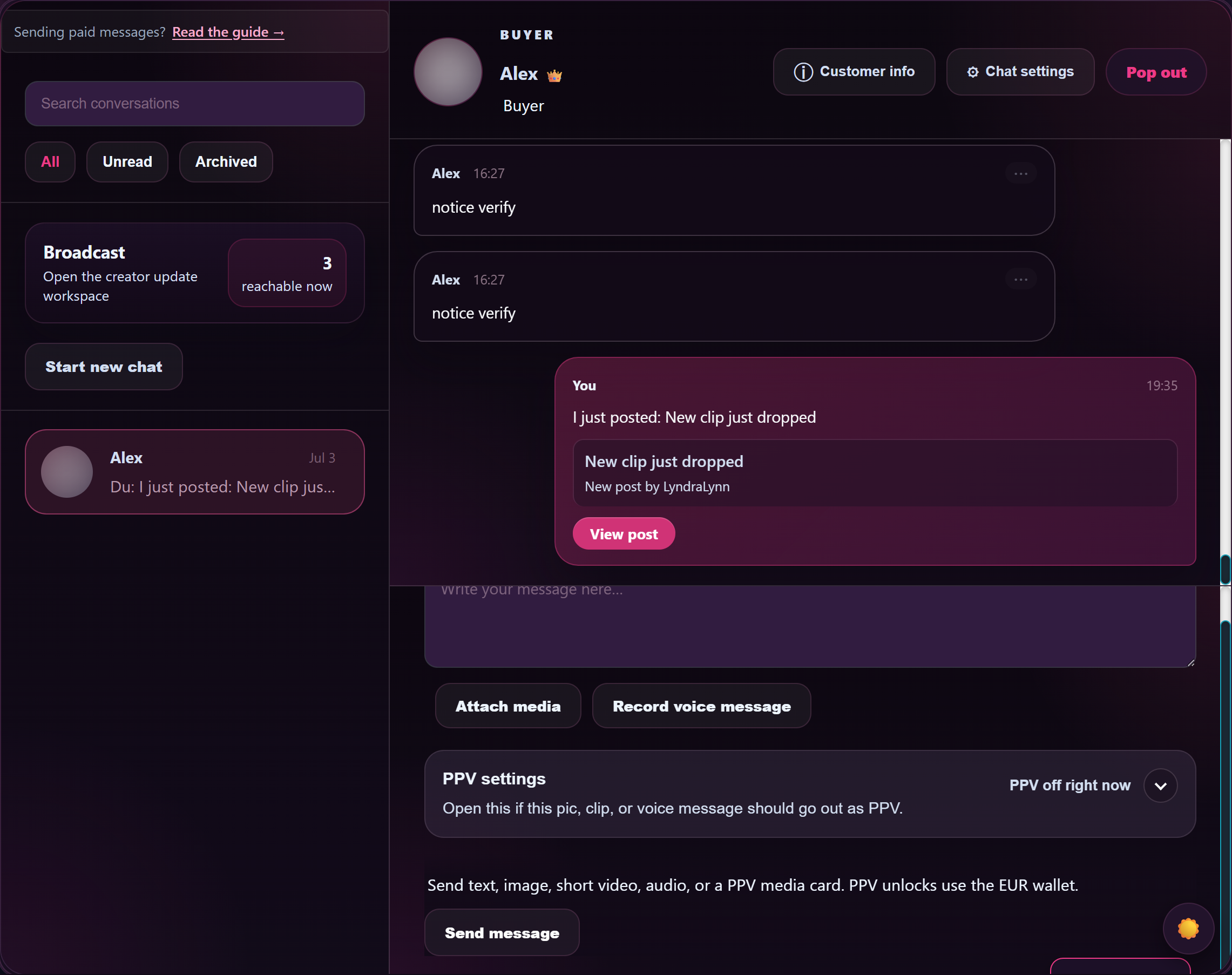
Two URLs, each with a different purpose:
- /store-manager/messages/ — your creator messaging dashboard. Left rail shows conversations with badges and a search field; right pane shows the open thread with its compose box. A Broadcast launcher tile sits above the rail and opens the broadcast workspace (see §3).
- /store-manager/my-profile/ — your profile page, with the How new fan chats start section (see §4) controlling what’s allowed by default in any new thread fans open with you.
Each thread you open has its own Chat settings drawer (gear icon in the panel header) that overrides the global defaults for that one chat — useful for VIPs you want to give free messaging, or one-offs where you want to crank prices for a specific fan.
2. Sending a pay-per-view (PPV) message
PPV is how you sell a single piece of content to a single fan over chat — a custom voice note, a one-off photo, a short clip you’re not adding to the public catalogue. (For broad-catalogue selling, list the clip on your storefront — see Pricing your clips.)
The compose box at the bottom of an open thread has four tools:
- Attach media — file picker for image, short video, or audio.
- Record voice message — capture a voice note directly in the chat (the browser asks for microphone permission the first time; controls are Record / Stop / Re-record / Discard).
- PPV settings — opens the unlock-price panel (see below).
- Send message — submits whatever you’ve composed.
How to send PPV media
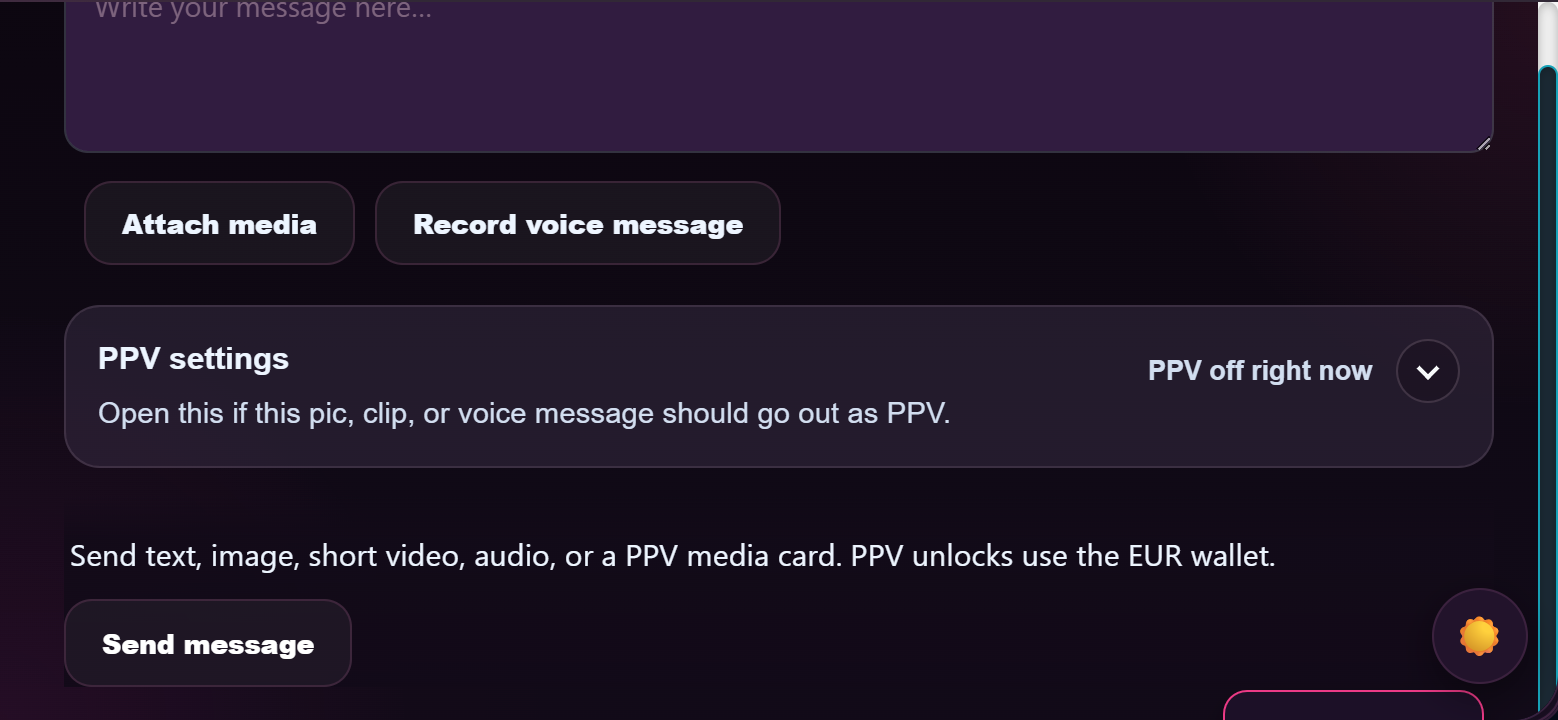
- Open the conversation with the fan.
- Optionally type a caption in the message body field (“Voice note for you, full audio inside.”).
- Either click Attach media and pick a file, OR click Record voice message and capture a voice note.
- Click PPV settings. The panel slides open.
- Tick Use PPV for this message.
- Type an unlock price in EUR in Unlock price (EUR) (e.g.
4.99). - Click Send message.
The fan sees a locked tile in their thread with your caption, the price, and an Unlock button. They tap Unlock; their wallet is debited; the file becomes viewable in their thread. The unlock is permanent for that fan — once paid, the tile shows the file from then on. A PPV message unlocked. system message gets posted in the thread to confirm the unlock.
Allowed file types
- Image — JPG, PNG, WebP, GIF (the file picker filters to
image/*). - Short video — MP4, MOV, WebM (filtered to
video/*). - Audio — MP3, M4A, AAC, OGG (filtered to
audio/*). Voice notes recorded inside the chat are also classed as audio.
Single file per message. For full-length content, list it on your storefront and price it there — DM PPV is best for one-off sells to a specific fan.
Pricing rules
- Price is in EUR, minimum 1 cent (no €4.99 storefront-floor in DMs — that floor only applies to clips listed on your public catalogue).
- No platform-wide upper cap, but fans tend to baulk above clip-equivalent prices.
- Each PPV message has its own price; changing the price field on a future message in the same thread doesn’t affect already-unlocked messages.
What’s not allowed in PPV
Same content rules apply as everywhere else — no real-name reveals, no off-platform contact for paid services, no prohibited content. See Prohibited content — what you cannot publish for the full list. PPV moderation is review-on-report rather than pre-publish; a violation in DMs is treated the same as one on your storefront.
3. Broadcasts — one update, many recipients
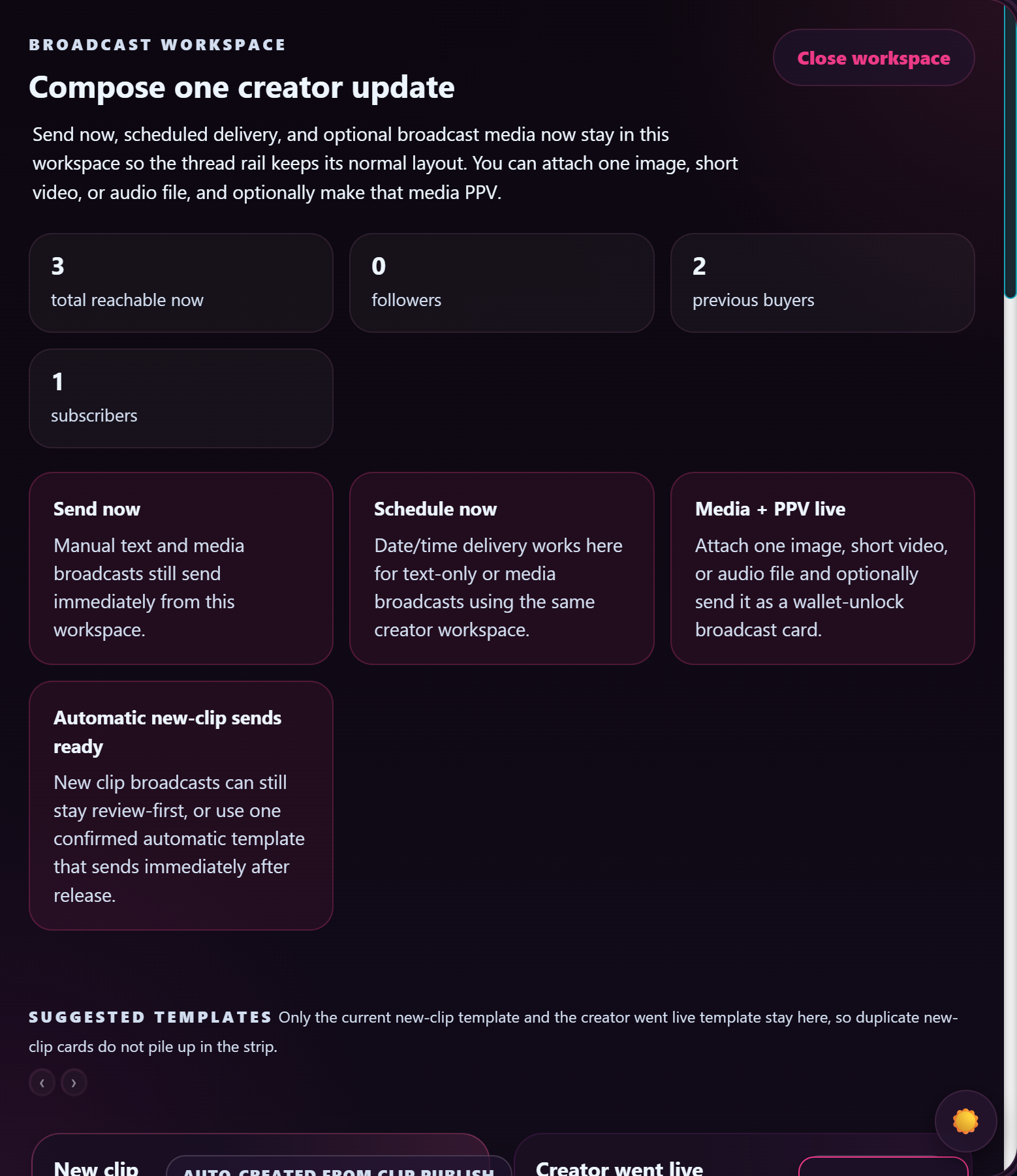
Open /store-manager/messages/ and click the Broadcast launcher tile to open the Broadcast workspace. This lets you compose one message that drops into the existing direct thread of every recipient in the audience you pick.
Audience options
Four mutually-exclusive choices, with live counts of how many fans are reachable in each:
- Followers + previous buyers + subscribers — everyone you can reach.
- Followers only — fans who follow your store but haven’t purchased.
- Previous buyers only — fans who’ve ever bought from you.
- Subscribers only — current active subscribers.
The workspace shows you the count per audience as you select (e.g. “20 reachable now / 12 followers / 9 previous buyers / 6 subscribers”), so you can size the send before you commit.
Send modes
- Send now — broadcast goes out immediately to every recipient’s existing thread with you, or opens a new thread for fans you haven’t messaged before.
- Schedule send — pick a date and time and the broadcast sends then. The schedule row shows your local timezone next to the field (e.g. “Use +02:00 for the scheduled send time”) — leave the date and time blank if you want to send right now instead.
- Save draft — keep the broadcast in progress without sending. The draft persists on the workspace’s right-hand side and you can come back to it from any messages page.
Body text is capped at 3,000 characters. Anything past that is trimmed when you save or send.
What you can include
- Text body — works on its own (text-only broadcast) or alongside media.
- One media file — image, short video, or audio (the same allowed types as PPV). One file max per broadcast.
- PPV-as-broadcast — tick Send attached media as PPV + set an Unlock price (EUR). Recipients see a locked tile they unlock individually for that price. Each unlock pays you 50% of the unlock amount, same commission as a 1:1 PPV.
- Clip reference — optionally attach one approved clip from your store. Recipients get a clip card in their thread that opens the normal clip page when tapped.
Recipients see your broadcast as an unread, broadcast-tagged message inside their existing direct thread with you. From their side it looks like a normal message, just labelled “BROADCAST · Followers + previous buyers” (or whichever audience you picked).
Recent broadcasts panel
The aside on the right of the workspace is your Recent broadcasts view — it lists your drafts, scheduled sends, and recent deliveries. While you have nothing in flight it reads “No broadcast history yet — your drafts, scheduled sends, and latest deliveries will appear here after the first.”
Click any draft, scheduled, or failed broadcast in this panel to reload it into the composer, edit the body / audience / media / PPV settings, and re-save or send. Already-delivered broadcasts are read-only — you can review them but not re-edit. Use this if you change your mind on a scheduled send before it goes out, or want to recover a draft you started earlier.
Suggested templates
The workspace ships with two template tiles to save you typing:
- New clip published — auto-created from your most recent clip publish. Includes a clip card linking to the clip. Use this manually when you want to push a specific clip; or — if you’ve enabled the automatic option — every new approved clip kicks off this broadcast on its own.
- Creator went live — live-alert message + audience defaulted to Followers only. One click and your followers know you’re streaming.
The auto-broadcast on clip publish is opt-in — if you don’t want every clip to ping every fan, leave the auto template off and use the manual button when you want a particular clip pushed.
Two extra buttons sit alongside the template editor:
- Save auto template only — store your customised template body without queuing a broadcast. Useful for tweaking the canned wording your auto-sends will use without firing one off mid-edit.
- Turn auto-send off — disables the automatic broadcast on the matching event (e.g. “every new clip pings every fan”) while keeping the template body so you can flip it back on later.
- For the full walkthrough of the auto-template form (audience picker, the {{clip_title}} token, what fires when, common pitfalls), see Auto-templates for new-clip broadcasts.
4. Configuring chat defaults — what fans pay to send to you
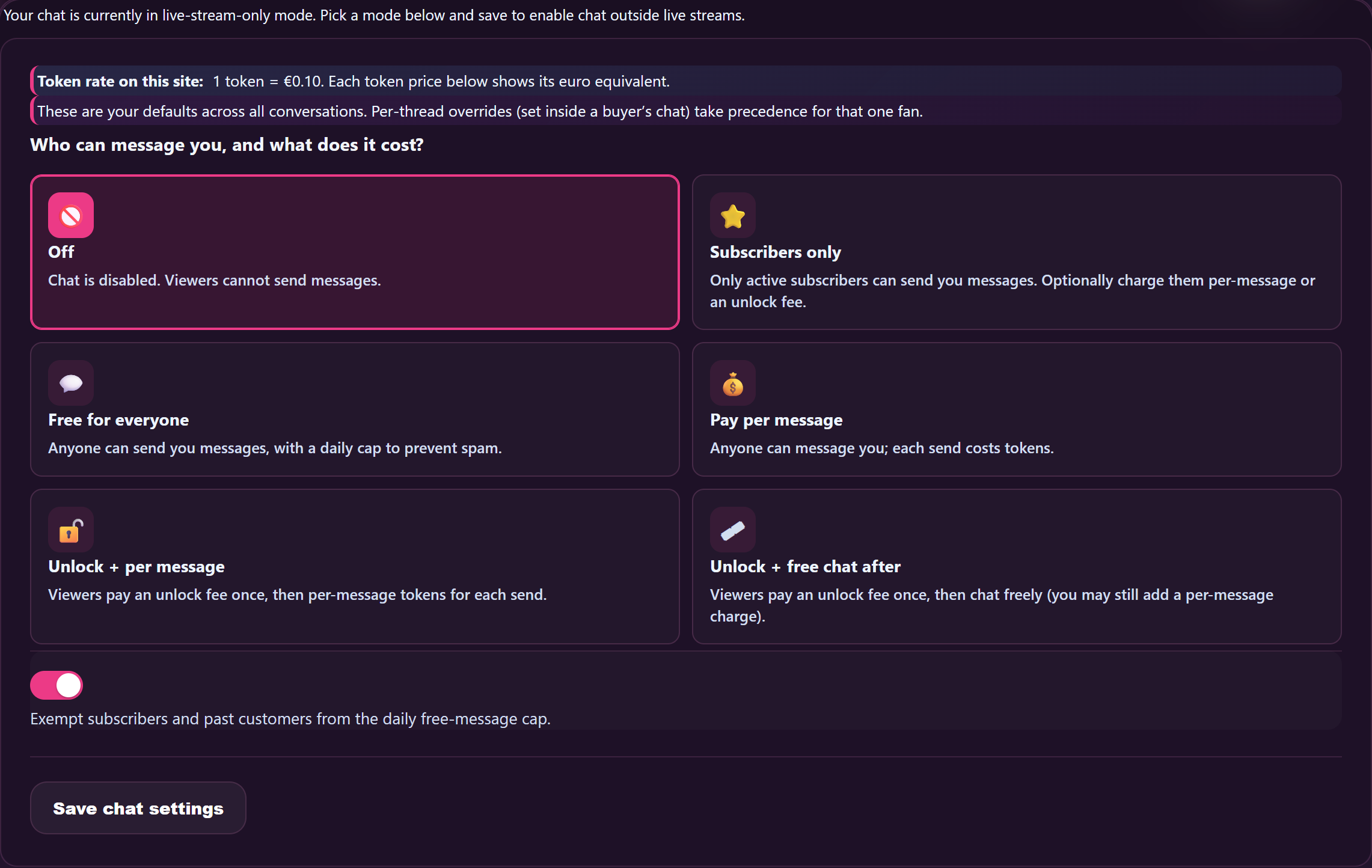
The How new fan chats start section at /store-manager/my-profile/ controls what fans can do in a brand-new chat with you. Scroll to the How new fan chats start heading between Social links and Store appearance. It has three groups of fields:
Free message types (no charge to the fan)
Four toggles, one per content type:
- Fans can send text — if on, fans can text you in a brand-new chat for free.
- Fans can send images — if on, fans can attach images for free.
- Fans can send voice messages — if on, fans can attach voice / audio for free. (Fans don’t have a record-button — they can only attach an existing audio file from their device.)
- Fans can send short videos — if on, fans can attach short videos for free.
Default for most creators: text on, all media off (so spammy first-message attachments don’t flood the inbox).
Per-text charge (the fan pays you per message)
Two fields:
- Charge for each fan text — toggle on to charge the fan per text message they send. Turning this on is mutually exclusive with “Fans can send text” being on — pick one model or the other for new chats.
- Price per fan text (EUR) — what the fan’s wallet is charged each time they hit Send.
When per-text is on, fans see a banner in the chat that says “Free text is off here. Text replies cost €X each in this chat and your wallet gets charged when you hit send.“
Paid unlock for fan media replies
A single one-off-payment offer instead of charging per message. Five fields:
- Paid unlock for fan media replies — the master toggle.
- Unlock includes fan images — adds image replies to the unlock.
- Unlock includes fan voice messages — adds voice / audio.
- Unlock includes fan short videos — adds video.
- Price for paid-media-access offer (EUR) — what the fan pays once to unlock those media types in the chat.
If the fan pays the offer, they get to attach the unlocked types from then on; if they don’t, the attach button stays disabled with a tooltip pointing to the offer.
Per-thread overrides (gear icon)
Open any thread, click the ⚙ Chat settings in the panel header. The drawer that opens has the same three groups (permissions / text pricing / paid media access) but scoped to that one thread. Settings you change here override whatever is in your global defaults for that one fan only.
There’s also a Pop out option in the panel header that detaches the thread into a popup window — useful when you want to keep an eye on a chat while doing something else in the dashboard.
5. Subscribers and the free-text waiver
If you’ve enabled creator subscriptions (see Setting up your subscription tier), there’s a toggle in the subscription settings called Subscribers can send text for free. When on:
- Active subscribers bypass the per-text charge entirely. Their text messages cost them nothing.
- Active subscribers do not bypass PPV unlocks (you sending them paid media) or paid-media-access offers. Subscriptions are a free-text pass, not a free-everything pass.
- The waiver applies for as long as the subscription is active; if the fan cancels and the period ends, your standard per-text price kicks back in.
Most creators turn this on as part of the subscriber benefit bundle — subscribers are paying you a recurring fee anyway, and per-text on top tends to feel double-dipped.
6. What you earn + when you’re paid
The standard creator commission applies to every paid-message transaction:
- 50% to you, 50% to the platform, calculated on the gross amount the fan paid (not on a pre-discount figure). See How creator payouts work for the formal definition.
- PPV unlock for €4.99 → you earn €2.50 (50%), platform takes €2.49.
- Per-text charge of €0.50 → you earn €0.32, platform takes €0.18.
- Broadcast PPV at €10 to 12 unlockers → 12 × €6.50 = €78 to you, 12 × €3.50 = €42 to the platform.
Earnings from messaging are paid out on the same payout cycle as your storefront earnings — they show up alongside clip sales, subscription fees, and stream tips on your Payouts page. See How creator payouts work for the cycle and bank-detail flow.
Common questions
Q: Can I broadcast a free text-only message to all my subscribers?
Yes. Open the Broadcast workspace from /store-manager/messages/, pick Subscribers only as the audience, type your message, leave the media + PPV toggles off, and Send now. Recipients see the message as a broadcast-tagged update inside their existing thread with you.
Q: Can I broadcast a PPV media file?
Yes. In the Broadcast workspace, attach an image / short video / audio file, tick Send attached media as PPV, set the Unlock price, and send. Each recipient unlocks individually from their wallet. Earnings are 65/35 like any PPV.
Q: How is a broadcast different from a 1:1 PPV?
Same wallet-unlock mechanic on the fan side. Difference is that one broadcast creates one message that drops into many threads at once; a 1:1 PPV creates one message in one thread. Use broadcast for “anyone interested” reach; use 1:1 PPV for content you’ve made for a specific fan.
Q: Will every fan I broadcast to get the same price?
Yes. Broadcast PPV uses one price for everyone in the chosen audience. If you want different prices for different fans, send 1:1 PPVs in each thread instead.
Q: I want a new clip I publish to auto-ping my fans. Is that a thing?
Yes. The Broadcast workspace has a “New clip published” suggested template that’s auto-created from each clip publish. You can either review-then-send each one manually, or — if you’ve turned on the automatic option — every newly approved clip fires the broadcast on its own. Recipients see a clip card in their thread that opens the clip’s product page.
Q: What happens if a fan unlocks a PPV and the file is removed later?
The unlock stays valid as long as the thread exists. If the file is removed for a content-rules violation, the platform reverses the charge automatically and the fan’s wallet is credited back. If you delete the file yourself, the fan keeps access (we keep an immutable copy for unlock-receipts).
Q: Can I reverse a PPV unlock as a goodwill gesture?
Yes — open the thread, find the unlocked message, and use the goodwill-reverse option in the message’s overflow menu. The fan’s wallet is credited the full unlock amount and the file becomes locked again on their side. This also reverses your earnings; net is zero.
Q: A fan is sending too many texts. Can I block them mid-conversation?
Yes. Open the thread, click the gear icon, and pick Block this fan. They can’t send more messages in this thread or start new ones to you. Existing PPV unlocks they’ve paid for stay viewable; they’re just locked out of further communication.
Q: I changed my per-text price in the global defaults. Does it apply to existing chats?
Defaults only apply to brand-new chats. Existing chats keep whatever was set when they were opened. To update an existing chat to your new price, open the thread and override the per-text setting in ⚙ Chat settings.
Q: Can fans tip me inside a chat?
Yes. Tipping is on by default in every thread — fans see a Send tip button in their compose box. Tips are 65/35 like other paid-message transactions. The compose box on your side doesn’t show the tip button (you wouldn’t tip yourself).
Q: What’s a “live PM” and why do some threads say “This live PM is now read-only”?
Live private messages are a separate thread type that opens automatically between you and a fan during a live stream — kept separate from your regular DMs so post-stream conversation doesn’t tangle with show-time chat. Once the stream ends, the live PM thread becomes read-only; both sides can re-open a regular DM if they want to keep talking.
Q: Can fans record a voice note to send me?
No. Fans can only attach an existing audio file from their device (and only when “Fans can send voice messages” is on for that thread). The microphone-capture button is creator-side only — fans don’t have one.
Q: What if a fan tries to send media in a chat where free media is off?
Their attach button is disabled with a tooltip pointing to your paid-media-access offer (if you have one set). If you want one specific fan to send you photos, either turn on free images in that thread’s overrides or send them a paid-media-access offer card.
Q: Can I disable messaging entirely?
Yes. In the How new fan chats start panel, set every “Fans can send…” toggle off and don’t enable any paid alternatives. Fans get a “This creator isn’t accepting messages right now” notice when they try to start a chat. Note: this also blocks subscribers from messaging you, which usually causes complaints — most creators leave at least subscriber free-text on.
Q: Does the PPV price field accept any minimum?
PPV in DMs accepts any price from €0.01 upward. There’s no €4.99 storefront-floor on DM messages — that floor only applies to clips listed on your public catalogue. See Pricing your clips.
Q: Can a fan share my unlocked PPV file with another fan?
The unlock is per-fan and the file is delivered through the platform’s normal media-streaming flow on the fan side. Screenshot / screen-recording protections aren’t perfect — we use the standard browser content controls, which determined fans can defeat. If you find your DM content circulating outside the platform, open a support ticket on the contact page (category Abuse) and we’ll pursue takedowns.
Q: Is there a custom-orders flow that’s different from PPV?
Yes — custom orders have a request form, an explicit deadline, and a payment-on-delivery flow rather than pay-on-unlock. Use custom orders when a fan wants something made-to-order; use PPV when you have a piece of content already.







