
If you’ve forgotten your password, you can reset it yourself in a couple of minutes. Enter your username or the email tied to your account, click a link in the email we send you, choose a new password, and you’re back in. There’s no support ticket needed for the standard case — only if the email never arrives or you no longer have access to the address you signed up with.
This article covers fans (customers). If you’re a creator and you can’t get into your store, the same flow works on the Models Login page — but creators with payouts depending on their identity verification should also see Age verification — why we ask, what we keep if anything around the account looks unusual.
1. Where to start
There are two ways to land on the password-reset form:
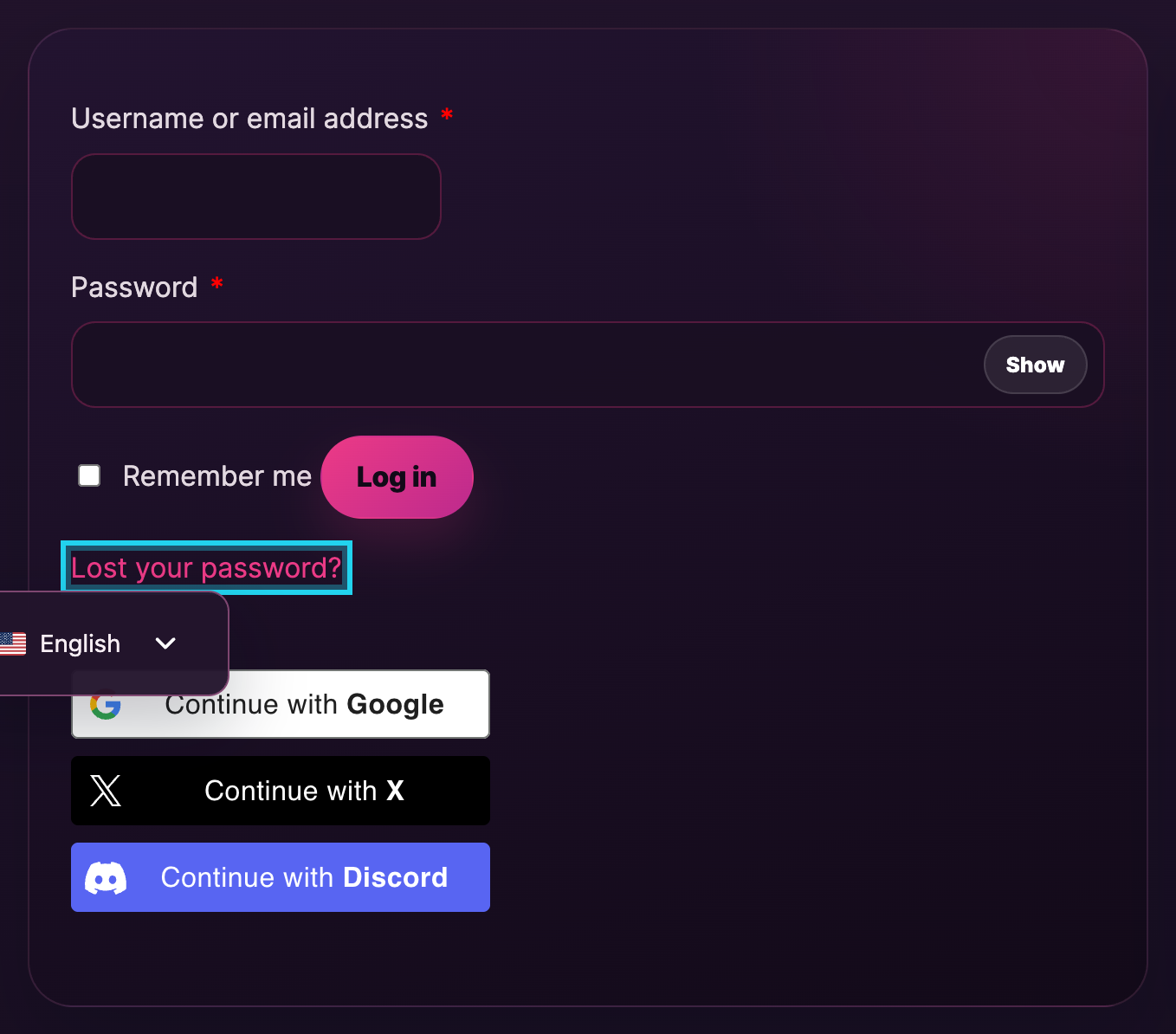
- From the My Account page. Open lewdden.com/my-account/ and look at the Login form. Below the password field there’s a Lost your password? link — click it.
- Directly at lewdden.com/my-account/lost-password/. Same form, same flow.
You don’t need to be signed in — the whole point of this page is that you can’t sign in.
2. What you need
Just one of these:
- The email address you signed up with, or
- Your Lewdden username.
The form accepts either. If you used social login (Continue with X or Continue with Discord) when you signed up, you don’t have a Lewdden password yet — but the flow on this page still works: enter the email tied to your X or Discord account and the platform will send a link to set a Lewdden-side password. After that you can sign in either way (social or email + password). See Signing up as a fan §4 for context on the social-login pairing.
You don’t need:
- Your old password. This is the whole point of the page — you’ve forgotten it.
- A support ticket. The reset is fully self-service for the standard case.
- A second factor. Two-factor authentication isn’t part of fan signup right now.
3. Requesting the reset email
- Type your username or email in the single text field on the form.
- Click Reset password.
A confirmation message appears on the page telling you to check your email. The email arrives within a minute or two from the platform’s no-reply address.
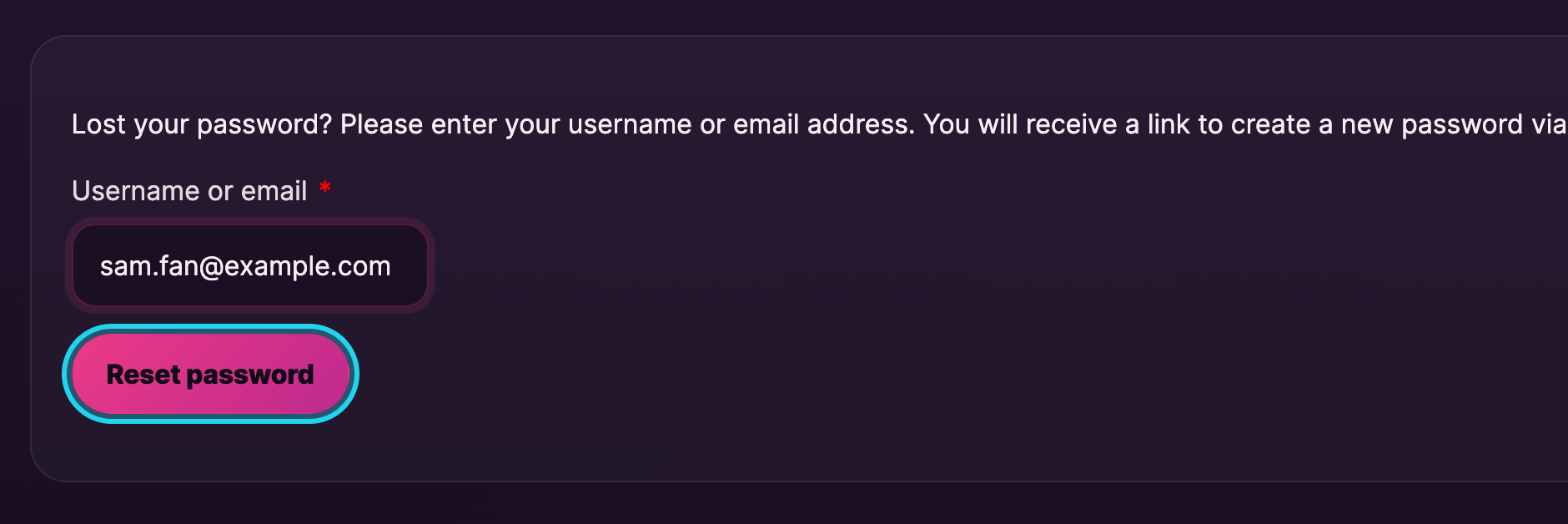
If you mistype the username or email, the form may still show the same confirmation message (the platform deliberately doesn’t reveal whether an account exists for a given input — that’s an anti-enumeration measure). If you don’t get the email after a few minutes, the most likely cause is a typo or the wrong address — see §5.
4. Setting a new password
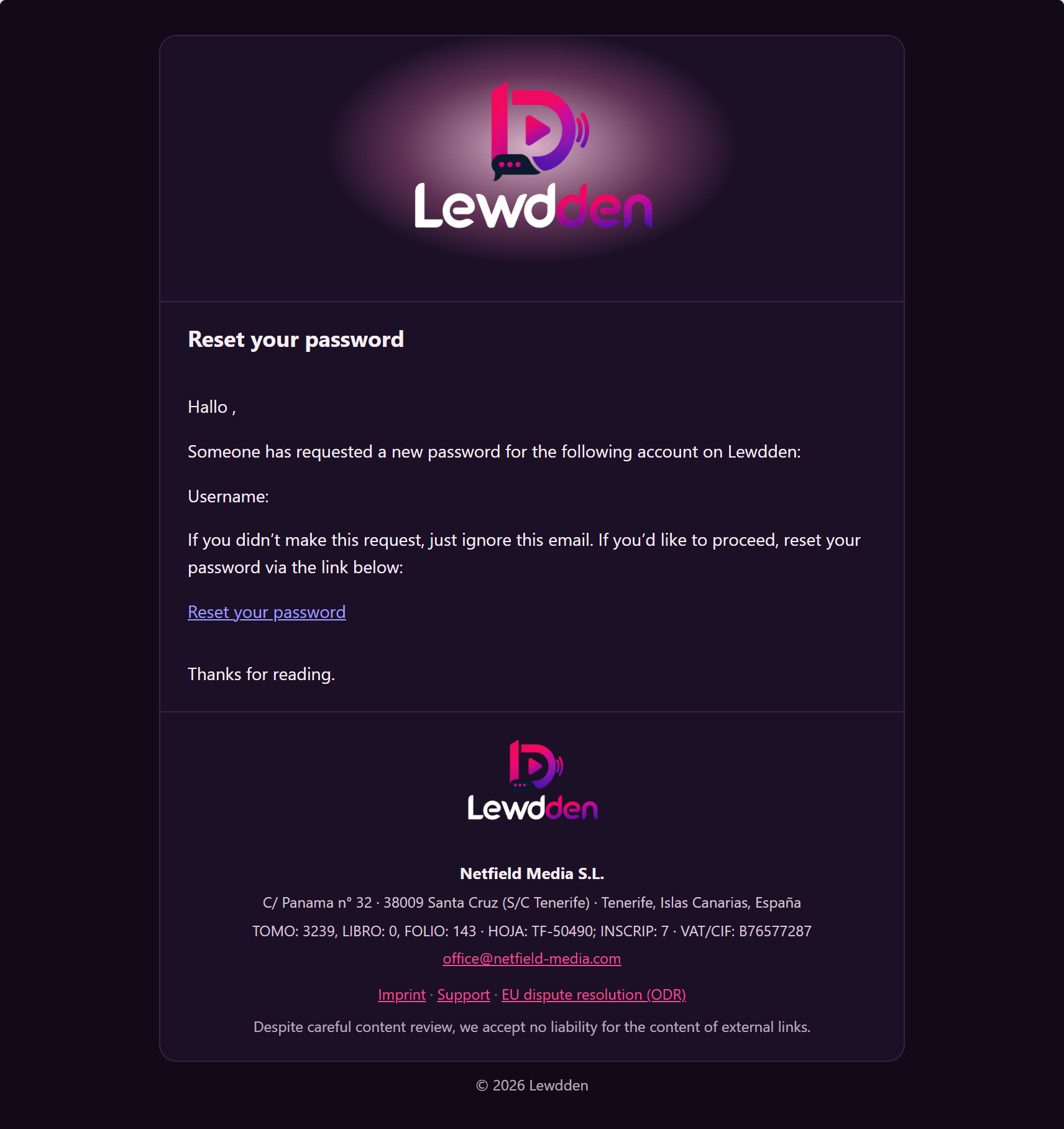
- Open the email titled Password Reset Request for Lewdden in your inbox.
- Click the Click here to reset your password link inside.
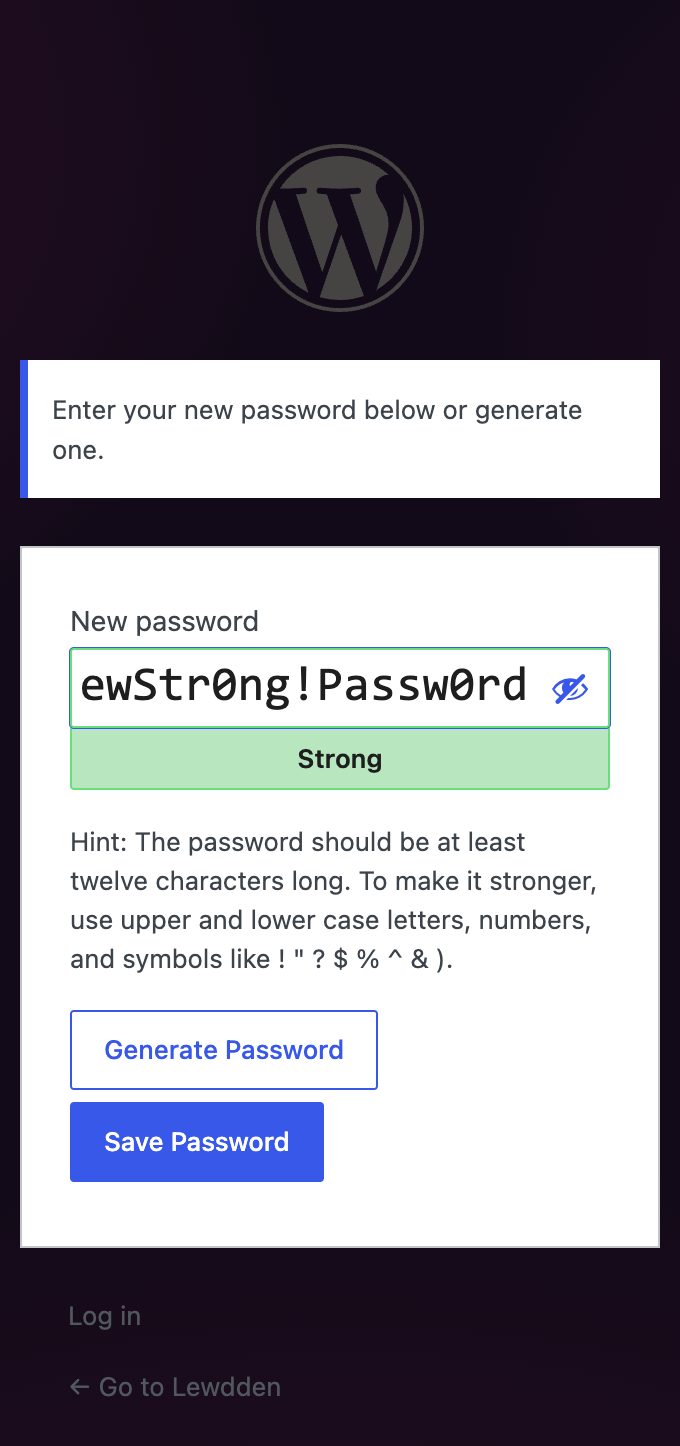
- The link opens a page on lewdden.com with two password fields. Type your new password twice — at least 8 characters, mix of letters and numbers is a good rule. The form shows a strength indicator as you type.
- Click Save.
- You’re now signed in with the new password.
The link in the email is single-use and time-limited — once you’ve set the password (or after 24 hours, whichever comes first), the link stops working. If the link expires before you click it, just go back to Lost password and request a fresh one.
5. If the email doesn’t arrive
Run through this list before opening a support ticket — most missed emails are explained by one of the first three.
- Check your spam / junk folder. Reset emails routinely land there on first use, especially with stricter mailbox providers (Hotmail, Outlook, corporate mail).
- Check the email address you used. A typo or a different address than the one you signed up with means the email was sent to that wrong address (or to nobody if it’s not a real account). Try again with each email you might have used.
- Wait 5 minutes. Most reset emails arrive within 60 seconds, but greylisting at the receiving mailbox can delay the first email by a couple of minutes.
- Try with your username instead. If you’ve forgotten which email you signed up with but you remember your username, type the username in the form — same flow.
- Add the platform’s send address to your contacts so subsequent emails (this one and ticket replies) don’t get flagged. The address is shown at the top of any platform email you’ve already received.
If after all of that the email still hasn’t arrived, open a support ticket on the platform’s contact page with category Account & login and include:
- The username or email you’re trying to recover.
- Roughly when you signed up (a month is fine).
- Whether you used email + password signup or social login (Continue with X / Continue with Discord).
A support agent will identify the account and either send a reset manually or, if the email address on file is no longer accessible to you, walk you through verifying the account a different way.
6. Special cases
I signed up with X or Discord — what does “reset password” mean for me?
You don’t have a Lewdden password yet. But you can use Lost password to create one: enter the email address tied to your X or Discord account, get the email, click the link, and choose a Lewdden-side password. After that you can sign in either way — social login keeps working, and you can also sign in directly via email + password.
I no longer have access to the email I signed up with.
The standard reset-by-email flow won’t help you. Open a support ticket on the platform’s contact page, category Account & login, and explain the situation. Include details that prove the account is yours: rough signup date, your username, any subscription / purchase history you remember. Support will help you verify ownership and update the email address on the account.
I’m pretty sure my account was hacked.
Reset the password immediately using this flow, then open a support ticket with category Account & login so we can review the account for unauthorized changes (subscriptions you didn’t start, purchases you didn’t make, email or payout-detail changes). The platform’s logs will tell us when the password was last changed and from where.
I want to change my password but I’m already signed in.
You don’t need this article. Open My Account → Account details and use the change-password form — old password, new password, confirm new password, save.
Common questions
Q: How long does the reset link stay valid?
24 hours from when it’s sent, or until you’ve used it once — whichever comes first. If it expires, request a new one from the Lost password page.
Q: I clicked the link but the page says it’s expired or invalid.
Either the link is older than 24 hours, you’ve already used it, or you’ve requested a newer reset that invalidated this one. Go back to Lost password and request a fresh email — the most recent link is the only valid one.
Q: The form said it sent me an email but nothing arrived.
Most often this is a typo, a different email than you signed up with, or the email going to spam. The form intentionally shows the same confirmation regardless of whether the account exists — that prevents people from probing the platform for valid email addresses. Try with each address you might have used, or use your username instead. If still nothing after 5+ minutes across all the addresses you remember, see §5.
Q: Can I reset my password without an email at all?
No — there’s no SMS reset and no security-questions reset. The reset link in the email is the only self-service path. If you can’t access the email on file, see §6 (“I no longer have access to the email I signed up with”).
Q: Will resetting my password log me out of other devices?
Yes. Resetting the password ends every signed-in session on every device tied to your account. You’ll need to sign in again wherever you use Lewdden.
Q: I reset my password but it still says invalid login.
Double-check that you’re typing the new password (not the old one). Browsers sometimes auto-fill the old password from saved logins — clear the field, then type the new one manually. If it still doesn’t work, request another reset from Lost password and try once more.
Q: How do I make sure my new password is strong?
Use at least 12 characters, mix uppercase + lowercase + numbers + at least one symbol, and don’t reuse a password from another site. The strength indicator on the set-password page is a quick gut-check, but a password manager (Bitwarden, 1Password, the one built into your browser) is the easiest way to keep unique strong passwords for every account.
Q: Can I set up two-factor authentication too?
Two-factor authentication isn’t part of fan signup right now. The most important things you can do to keep your account safe are: a strong password not reused anywhere else, and an email address you actively control with its own strong password. If you suspect any account compromise, reset immediately + open a support ticket (see §6).
Q: I’m a creator, not a fan — does this still work for me?
Yes. The Lost-password form on the Models Login page works the same way. Enter the email or username on your creator account, get the email, set a new password.







