
Physical items are anything a creator ships to you — worn clothing, props from their videos, signed prints, custom soaps or candles, polaroids. Each item is set up by the creator on their store, with their own shipping rules, prices, and any optional extras you can add at checkout. This article walks you through the whole flow: finding an item, picking the right size, adding extras, paying, and what to expect after the order goes through.
For what happens between the order going through and the package arriving — when it ships, how to track, what to do if something goes wrong — see Shipping times and tracking.
1. Finding items on a creator’s store
Open the creator’s storefront and look for the items tab. Most creators show their best item on their main banner; the rest live in the items grid below. Each item card shows a cover photo, the name, the price, and (if the creator added one) a “New” or “Best Value” badge.
You can also find items through the platform-wide search by name, or by browsing categories like “Worn clothing”, “Prints”, “Props”, and so on. The categories the creator picked when they listed the item determine which lists it shows up in.
If you’re already a subscriber to the creator, items still cost what the creator priced them at — there’s no automatic subscriber discount on physical items the way there is on clips. (See Subscribing to a creator for what subscription does and doesn’t include.)
2. The item page — what you’re looking at
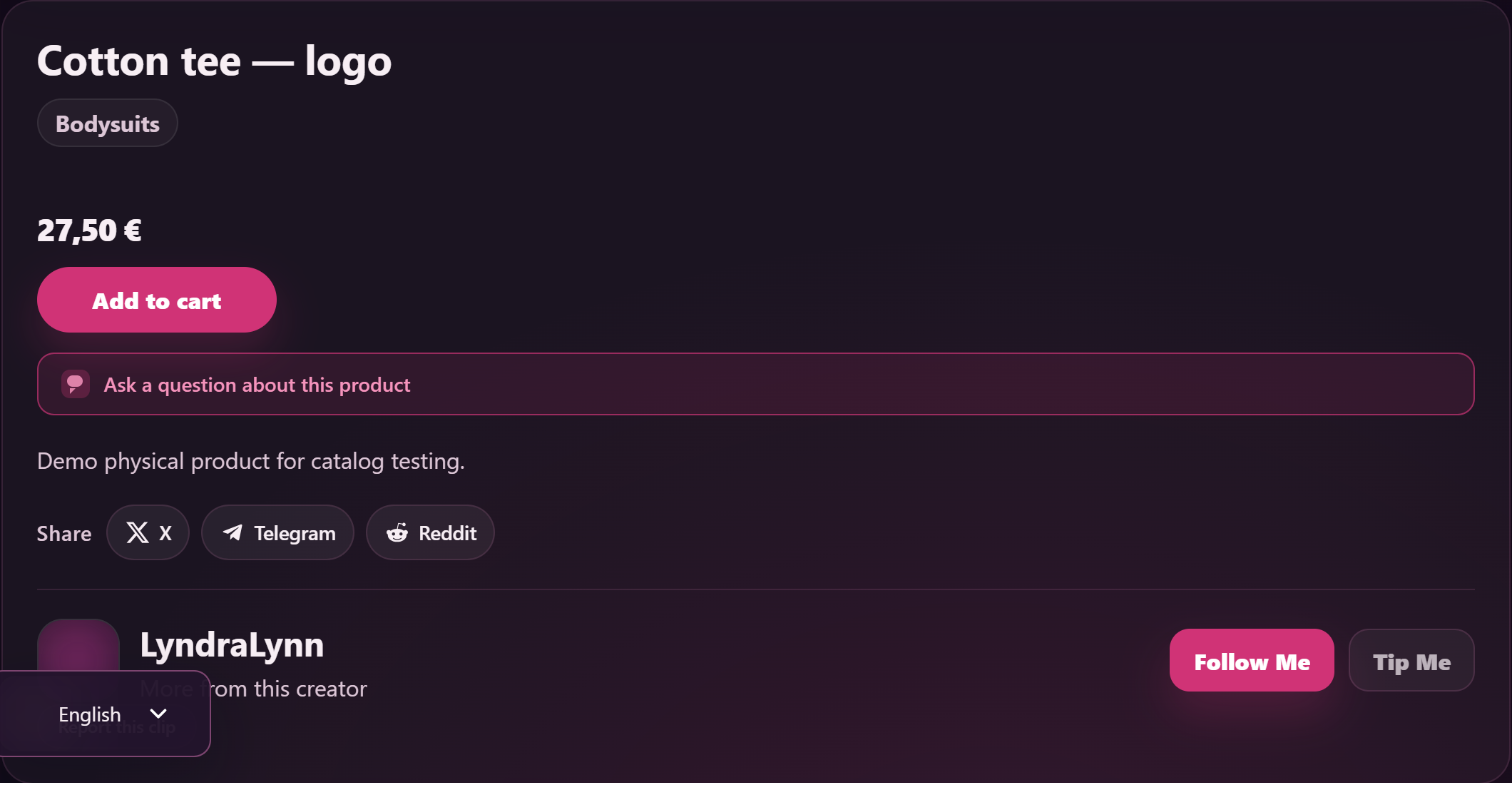
Click an item to open its product page. From top to bottom you’ll see:
- Photos — one cover photo plus up to three gallery shots. Click them to enlarge.
- Item name and price — the regular price; if the creator is running a sale, you’ll also see the strike-through original next to the sale price.
- Description — the creator’s own words about the item: condition, fabric, what makes it interesting, how long they wore it, anything specific to that listing. Read this before you order — most refund requests come from buyers who didn’t read the description carefully.
- Condition — tags like New, Worn, Used, Vintage, depending on the category.
- Sizes — if the item is a sized one (clothing, lingerie, footwear), there’s a size picker. Only the sizes the creator has in stock appear; the rest are missing or greyed out.
- Quantity — usually 1 for unique items. If the creator has multiple copies, you can pick a higher number.
- Add extras — see the next section.
- Add to cart button — once you’ve picked your size, quantity, and extras.
If the item is out of stock, the cart button is replaced with a small “Out of stock” notice. You can still see the listing, but you can’t order it. Some creators re-stock; others don’t — message them if it’s a recurring item you’re after.
3. Add extras — the optional add-ons
Most physical items have an Add extras section just above the cart button. Each extra is a checkbox with a name, a price (shown as +€X), and a short description of what it gets you.
The four extras you’ll see most often, when the creator has enabled them:
- Scented — “Item arrives freshly worn with natural scent preserved.”
- Worn an extra day — “Item will be worn one additional full day before shipping.”
- Personalized signed note — “Handwritten, signed note included with your order.”
- Custom video clip — “Short custom video about your item, emailed after it ships.”
The exact prices are set by each creator — there’s no platform-wide rate. Only the extras the creator has ticked appear; if a category like “Scented” doesn’t make sense for the item (signed prints, candles, food), the creator usually just leaves it off.
Tick whichever extras you want and they’ll be added to your total. Each extra appears as its own line at checkout — so a single item with two extras shows up as three cart lines, and the totals add up cleanly.
4. Add to cart and check out
Click Add to cart. You’ll either be taken straight to the cart, or get a small confirmation; from there click through to checkout when you’re ready.
At checkout you’ll see:
- Your cart contents — the item, any extras you ticked, and the subtotal.
- A Billing address form — name, email, phone, address. All standard.
- A Shipping address — required whenever your cart has a physical item in it. If your shipping address is the same as your billing, you can tick “ship to billing address” to copy it across.
- A Lewdden Shipping line in the order totals — the calculated shipping cost for the destination country you entered, based on the creator’s per-region rates and any per-country override they may have set.
- The order total — items + extras + shipping.
- Payment method — your wallet balance, or pay directly with a card or one of the other supported methods (see Section 6 below for the full list). Whichever you pick handles the full total in one go.
If you change your shipping country, the Lewdden Shipping line updates automatically without having to reload the page.
5. What if the creator doesn’t ship to my country?
If you enter an address in a country the creator’s settings don’t allow, the Lewdden Shipping line disappears and you’ll see a “no shipping options available” notice. You can’t check out until you either:
- Pick a different country/address that’s in scope.
- Remove the item from your cart.
This usually happens for one of three reasons:
- The creator set the item to Domestic only — they only ship inside their own country.
- The creator set the item to EU / EEA — they only ship inside Europe.
- The creator added a per-country override blocking your specific country.
If you really want this item and the creator doesn’t ship to you, message them — sometimes they’re willing to add a per-country override for the right buyer. They might also charge a custom rate that reflects the actual postage cost.
6. Paying
You’ve got two paths at checkout:
- Your wallet balance. If you’ve topped up your wallet (see Topping up your wallet), the order total is debited from your balance in one step. Fastest option.
- Pay directly at checkout. If you’d rather not top up the wallet first, the secure payment picker lets you pay the order total in one go. The available methods depend on your country, but typically include:
- Credit or debit card (Visa, Mastercard, and others)
- SEPA bank transfer
- Sofort online banking
- Giropay (Germany)
- iDEAL (Netherlands)
- EPS (Austria)
- CashtoCode voucher
- Bitcoin
- Prepayment (bank-transfer-first)
Pick a method, follow the prompts, and you’re back on Lewdden once the payment is confirmed. The creator never sees your payment details — only that the order was paid.
If your wallet doesn’t have enough to cover the total, you’ll be prompted to top up first — or you can switch to the direct-payment picker.
Once payment goes through, the order moves to Processing status and shows up in My Account → Orders. The creator gets notified and starts preparing your package.
7. After ordering — what to expect
Three things happen after you pay:
- You get a confirmation email with the order number and a summary of what you bought.
- The order appears in My Account → Orders with status Processing. You can click into it to see the line items, the shipping address, and the payment receipt.
- The creator sees the order in their queue and packs your item.
Most creators ship within their stated turnaround — that varies by creator, so read the listing and the creator’s storefront for typical times. Once they post the package, the order’s status flips to Completed and you’ll get a second email.
For the full picture of when packages ship, how to track, and what to do if something goes wrong en route, see Shipping times and tracking.
Frequently asked questions
Q: Why is the same item priced differently from what I saw last week?
The creator may have flipped a sale on or off, or changed the regular price. The price you pay is whatever’s on the listing at the moment you click Add to cart. If you spot a sale price you want to grab, don’t sit on it — sales end whenever the creator says.
Q: Can I order one item and ship it to someone else as a gift?
Yes — fill in the recipient’s address as the shipping address at checkout. Your billing address can stay yours. We don’t print the recipient’s name or address on the order receipt visible to the creator beyond what’s needed to ship; the creator only sees what they need to post the package.
Q: Do I have to be subscribed to the creator to buy a physical item?
No. Physical items are available to anyone with an account. Subscribing gets you the creator’s feed, subscriber-only clips, and clip discounts — none of which apply to physical items.
Q: Can I bundle multiple items from the same creator into one shipment?
Yes — add them all to your cart in one go. At checkout the platform combines the shipping lines into a single Lewdden Shipping charge. The total is calculated per item (so a heavier item with a higher rate doesn’t get the cheap rate of a lighter one), but you get one combined number to pay.
Q: Can I bundle items from two different creators into one order?
Each creator ships their own items separately, so even if you check out with multiple creators in one go, the platform will calculate shipping for each creator’s portion separately and the items will arrive in different packages. There’s no way around this — different items, different addresses, different post offices.
Q: I added extras but the cart shows them as separate lines. Did I get charged double?
No — that’s the normal cart layout. Each extra you tick becomes its own line so the price breakdown is honest, but the totals add up correctly. Look at the order total at the bottom; that’s what you pay.
Q: Can I cancel an order after I pay?
Before the creator marks it as shipped: ask the creator via DM. Most creators are fine cancelling before they post and will refund you. After it’s marked shipped: the package is on its way and refund is case-by-case — see Shipping times and tracking for the post-shipment scenarios.
Q: What’s the difference between a physical item and a clip I can download?
A clip is a digital video file you stream or download from your library. A physical item is something the creator actually posts to your address — clothing, prints, props, signed objects. Both live on the creator’s storefront, but they go into different parts of My Account: physical orders sit under Orders, while clips sit under My Library. (See Buying a clip for the digital side.)
Q: I bought an item but the description doesn’t quite match what arrived. What do I do?
Message the creator first — most issues are resolved that way (they’ll send you a replacement, an extra, or refund the difference). If the creator won’t help and the item is genuinely not what was described, open a support ticket and pick the Physical items category. Include the order number and what was wrong.
Q: Where do I find my receipt or invoice for this order?
Open My Account → Orders and click into the order. The order page is your receipt — it shows the line items, shipping, total, payment method, and the date. You can print it from there. If you need a formal VAT invoice for tax purposes, message support and we can issue one for the order.
Need more help?
If you can’t check out, the shipping line shows a different number than you expected, or you’re unsure whether a creator ships to your country, open a support ticket from your account and pick the Physical items category. Include the item URL and the country you’re trying to ship to and we’ll work it out.







