
Video guide
Prefer to watch? This video walks through the whole profile — country and languages, bio, activity tags, logo and banner with the crop tool, and connecting X.
Your store is what fans see when they land on lewdden.com/store/<your-store-name>/. The look (logo, banner, the short paragraph at the top) plus the fields fans use to find you in search and the discovery filters (country, languages, body type, ethnicity, artist attributes, public-show activities, capabilities like VR or cam2cam) all live in one long page in the store manager. This guide walks through every section, what each field is for, and where it shows up to fans afterwards.
You’ll want to fill in as much as you can on day one — sparse profiles get fewer storefront views from filtered discovery searches. None of these fields block payouts, but a complete profile is the single biggest thing you control to get found by the right viewers.
1. Where to start
After identity verification is approved (see Creator onboarding — from sign-up to your first payout for the full pre-launch checklist), open the store manager and click Profile in the left side nav, or go directly to lewdden.com/store-manager/profile/.

The page is one long form with collapsible sections and a sticky Save changes bar at the bottom. You can fill it in over multiple sittings — each save commits whatever you’ve changed so far; nothing is “draft” or held back.
If the page redirects you to My Account (login), it means you’re not signed in or your verification isn’t approved yet. Verification needs to clear before the store manager opens; that’s covered in the onboarding guide.
2. Your store appearance — logo, banner, and description
This is what fans see at the top of your /store/<your-store-name>/ page. It lives in the Store appearance section near the bottom of the form.
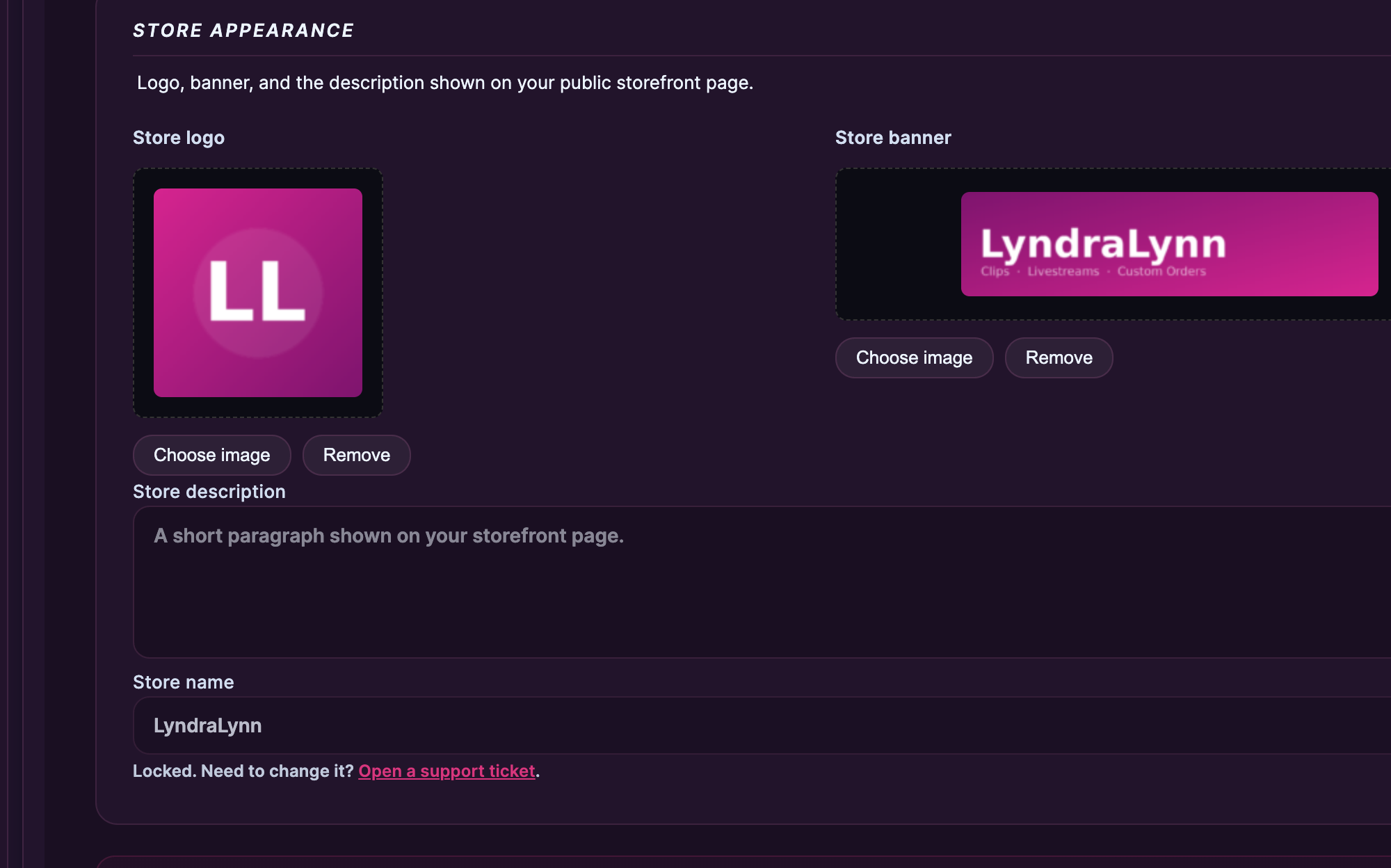
Store logo
Your circular avatar — appears on every clip card, every storefront tile, every comment you post in chat, every notification fans get from you. Most creators upload a high-contrast headshot or a stylised character logo.
- Click Choose image to pick a file from your computer.
- Allowed formats: JPG, PNG, WebP, GIF.
- Max file size: 8 MB.
- Square crop is what shows publicly — anything wider than square will be centre-cropped. Aim for a square image at upload time so you control the framing.
- Click Remove to clear the current logo.
Store banner
The wide image that runs across the top of your storefront page. Used for branding (your stage name, a hero shot, a vibe cue).
- Same allowed formats and 8 MB cap as the logo.
- Aim for a wide aspect ratio (roughly 3:1 or wider — think a header image, not a square photo) so the crop doesn’t lose key elements.
- Click Remove to clear; storefronts without a banner show a neutral placeholder.
Store description
A short paragraph shown directly under your store name on the public storefront. This is the first thing fans read — keep it punchy.
- Plain text only (no formatting).
- Aim for 1-3 sentences. Long blocks of text get scrolled past.
- Use it for what you specialise in, your tone, what fans should expect from your content. Save the longer version for the Bio section (§3) and the per-clip descriptions.
Store name
Your store name — the URL fragment in /store/<store-name>/ and the heading on the storefront — is fixed after creation and not editable on this page. The field appears greyed out for that reason. If you need to change it (a typo at signup, a rebrand, etc.) open a support ticket on the contact page using the Store name change category. The full URL is shown on the field itself when you hover the help text.
3. Your bio + public-facing attributes
The Identity, Where you’re from, About you, Artist attributes, and Tell viewers about yourself (bio) sections describe who you are. Fans use these directly (the bio shows on your storefront), but more importantly the platform’s discovery filters use them to surface you to fans browsing for what you offer.
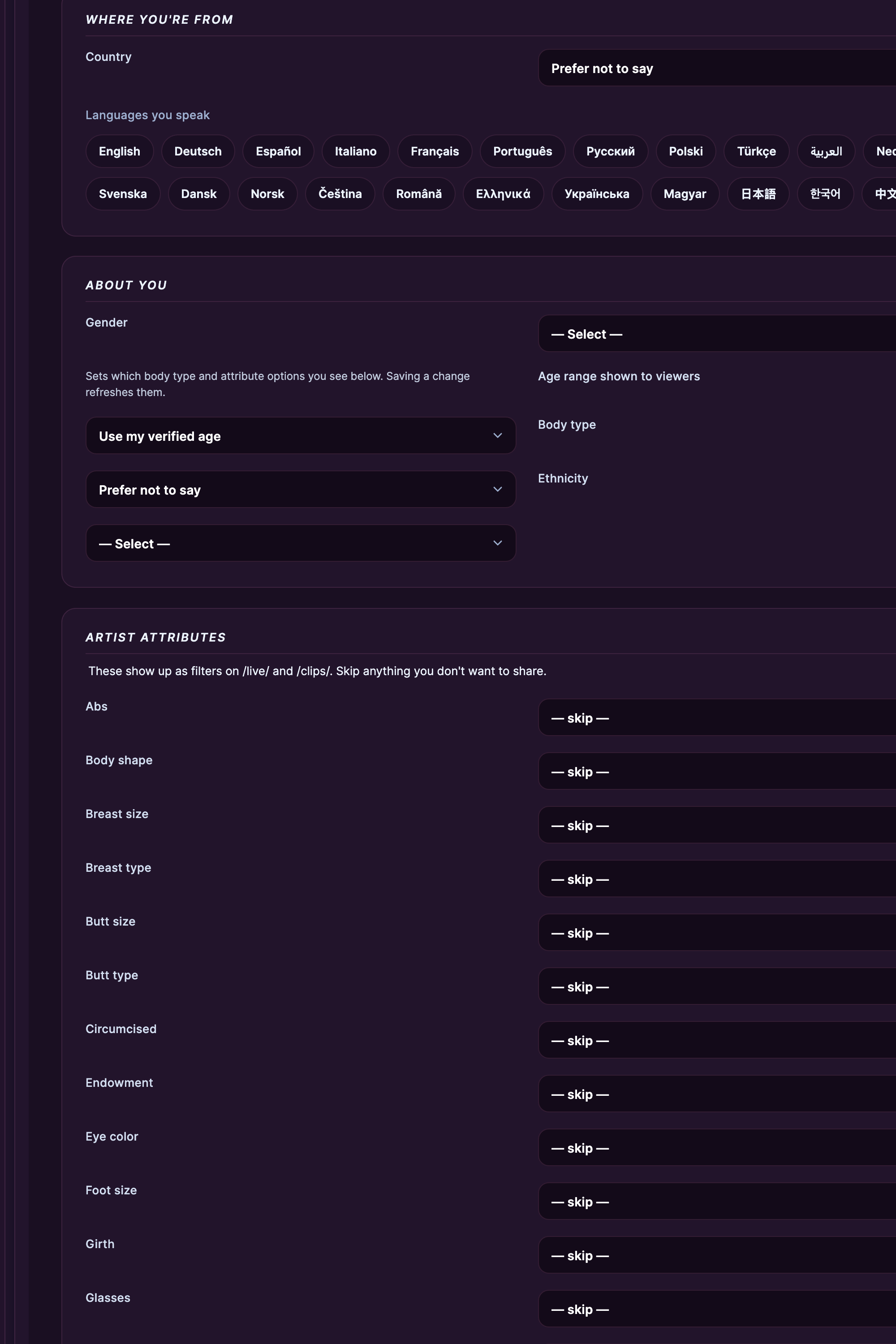
Bio — Tell viewers about yourself (up to 800 characters)
The longer-form story than the storefront description — what you do on stream, what you make clips about, your kinks, your style, anything you’d want a new fan to know in 60 seconds of reading. Hard limit is 800 characters; the form shows a live counter as you type.
Plain text only. Don’t paste links to off-platform contact methods (chat apps, payment apps, escort sites) — see Prohibited content — what you cannot publish for the full list of what’s off-limits.
Country + languages
- Country — single select. The flag emoji shows on your storefront and on every chat message.
- Languages — multi-select. Pick every language you can comfortably stream and chat in. Fans filter by language on the discovery page; if you’re bilingual, ticking both gets you traffic from both audiences.
About you — age bucket + body type + ethnicity
- Age bucket — usually pulled from your verification document automatically. The manual override is there for edge cases (the verification value is wrong, or you want to display a different bucket); the manual value is what fans see if it’s set.
- Body type — single select from the platform’s standard list.
- Ethnicity — single select from the platform’s standard list.
These are visible on your storefront below the bio and feed into the discovery filters.
Artist attributes (15 groups)
The platform organises physical-attribute tags into 15 groups: Abs, Body shape, Circumcised, Endowment, Eye color, Foot size, Girth, Glasses, Hair color, Hair length, Height, Piercings, Pubic hair, Subculture, Tattoos. Each group is a single dropdown with options like “None”, “Some”, “Lots” (or a list specific to that attribute). Pick the value that fits or leave it on “skip” if none apply. These power the deeper discovery filters fans use to find specific looks or specialisations.
4. What you stream — activities + cam2cam
Public show activities (up to 30 tags)
The Public show activities section is a multi-select grid. Click a tag to toggle it on. These are the activities fans should expect from your public streams — there’s a separate set for private + exclusive shows that you set inside the streaming studio (/store-manager/livestream/), so don’t worry about private activities here.
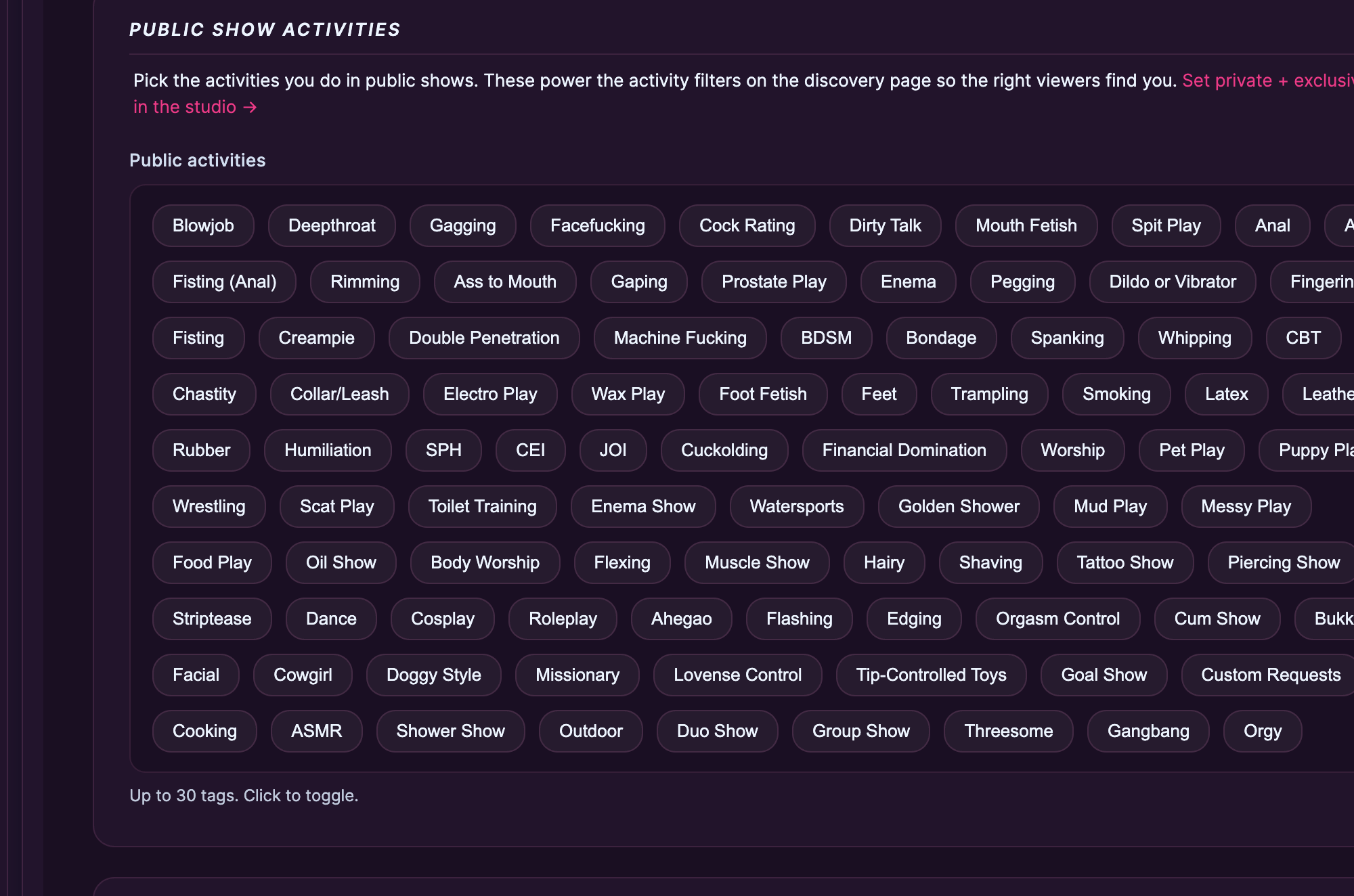
Up to 30 tags. The activity filters on the discovery / live page use this list — every tag you tick is a search axis fans can find you on.
Cam2Cam toggle
- I offer Cam2Cam — turns on the cam2cam slot in 1:1 private exclusive shows. Fans see a “Cam2cam available” badge on your storefront and the booking modal. See Public, ticketed and 1:1 private shows §4 for the full private-show-types breakdown.
This toggle is on/off only; the platform handles the rest of the wiring.
5. Personal information — name, email, password, social links
The Personal information section contains your account-level info, which is separate from the public profile. Fans never see your real first/last name or your email. These are for the platform side (payouts, support, login).
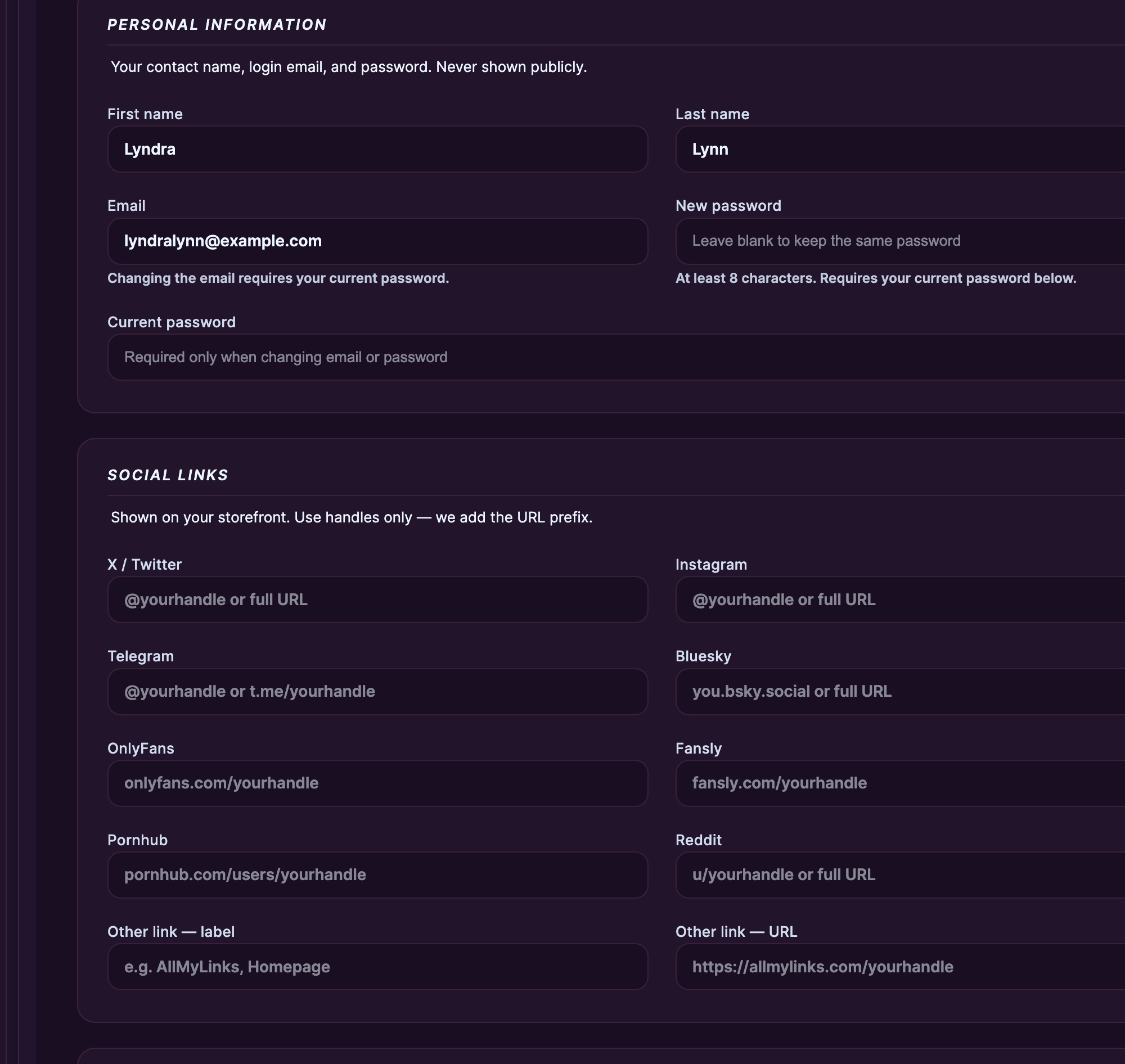
First name, last name
Used internally for payouts and on tax documents (where applicable). Not shown publicly.
The email tied to your account. Used for support replies, payout-cycle notifications, and the password reset flow (Resetting your password). Changing the email requires you to type your current password in the field at the bottom of the panel — that’s a security gate, not optional.
Password
To change your password, type a new one in the New password field and your current password in the field below it. Leave the new-password field blank to keep your current password. Same current-password gate as the email change.
Social links (8 platforms)
The Social links section has eight optional fields for your off-platform social presence, in this order on the form:
- Twitter / X
- TikTok
- YouTube
- Snapchat
Paste the full URL or just your handle — both work. Whatever you fill in shows as small clickable icons on your storefront so fans can follow you elsewhere.
Don’t put off-platform contact-for-pay links here (escort directories, payment apps, chat apps where you’d take payments). Those break our content rules and removal of the link is the minimum response. See Prohibited content for the full list.
6. Saving + when changes go live
Click the Save changes button on the sticky bar at the bottom of the form. The platform confirms with a green toast and the updated profile is live on your storefront within seconds — there’s no review queue for profile edits (unlike clip moderation or bio edits during a live stream).
If you’ve uploaded a new logo or banner, it may take a minute for our content delivery to refresh — if you don’t see it on your storefront after a minute, hard-refresh (Ctrl/Cmd + Shift + R).
If a save fails, the form shows the error inline next to the field. The most common errors are:
- Bio over 800 characters — trim it; the counter under the textarea tells you how far over you are.
- Image upload too large — over 8 MB; resize before re-uploading.
- Image format not allowed — must be JPG, PNG, WebP, or GIF.
- Email change without current password — type your current password in the gate field.
Common questions
Q: I want to change my store name. The field is locked.
Open a support ticket on the platform’s contact page and pick the Store name change category. Include the new name you want. Approval is manual — the team checks the new name doesn’t conflict with another store and meets the platform’s naming rules. Most requests are resolved in 1-2 business days. Note: changing the store name changes your /store/<name>/ URL, so any external links you’ve shared (social posts, bookmarks) will redirect or 404 until they’re updated.
Q: What size should my logo and banner be?
There’s no required size — the platform resizes whatever you upload. For best results: logo at least 400×400 pixels (square), banner at least 1500×500 (3:1 ratio or wider). 8 MB max either way; JPG, PNG, WebP, or GIF.
Q: Do my real name and email show up to fans?
No. Your real first/last name and your email are platform-side only — used for payouts, support, and account login. Fans only see your store name, store description, bio, country flag, languages, attributes, public activities, social links, and any clips/feed posts you publish.
Q: Can I leave the bio blank?
Yes, technically — the field isn’t required. But empty bios get fewer subscribes and fewer profile-page-to-purchase conversions; even one or two sentences makes a big difference.
Q: I can’t find the field for {X}.
The page is one long form with collapsible sections. Personal info, social links, and Store appearance (logo / banner / description) live near the bottom — scroll down or click any collapsed section header to expand it.
Q: My banner shows a different image than the file I uploaded.
Browser cache. Hard-refresh (Ctrl/Cmd + Shift + R) and check again. Our content delivery may also need a minute to push the new image. If it still shows the old image after 5 minutes, open a support ticket with category Account admin and include your store name + the file you uploaded.
Q: Can I have a video as my banner?
No — banners are static images only (JPG, PNG, WebP, GIF including animated GIF). Animated GIFs do play on the storefront but are heavy on data; use sparingly.
Q: I changed my email but the new address never got the confirmation.
Check spam first. If it’s not there after a few minutes, the Lost your password? link on the Models Login page can resend a verification using either email. If still nothing, open a support ticket with category Account admin and include both the old and new email addresses you tried.
Q: Can I change my display name without changing the store name?
Display name and store name are tied together on creator accounts — what shows in chat, on tip notifications, and on your storefront heading is the same string. Use the store-name-change category in support to update both at once.
Q: What happens if I uncheck a language I’d previously had on?
Fans filtering for that language stop seeing your storefront in that filter immediately on save. Existing subscribers and existing fan messages are unaffected.
Q: Do I need to fill in artist attributes if I don’t fit any of the standard options?
Leave any group blank rather than pick something that doesn’t fit. Blank entries don’t penalise you in discovery — they just remove you from filters that need that field.
Q: Can I customise the colour scheme or layout of my storefront?
No — the storefront layout is fixed across the platform for consistency. The customisation surface is what’s documented here: logo, banner, store description, bio, attributes, social links. Within those, you can establish a strong visual identity.
Q: I’m seeing a “complete your profile — N/17 filled” nudge on my dashboard. What’s that about?
That’s a hint card showing how many of the public-profile fields you’ve filled in. It’s purely informational — there’s no penalty for not filling everything, but each field you complete gives discovery another axis to surface you on. Filling the obvious ones (country, languages, body type, age bucket, a couple of artist attributes, a bio, a logo, a banner, a few public activities) gets you to ~12/17 in 5 minutes.







