
Video guide
Prefer to watch? This short guide walks through your subscriber list — who’s subscribed, what each status means, and what you can and can’t see about your subscribers.
Your active subscribers live on a table at the bottom of the Subscription Settings page in your store-manager. The table shows every fan whose subscription is currently in one of the three “active enough” states (Active, Pending Cancel, or On Hold), plus the start date, the next renewal date, and the internal subscription number. This guide explains what each column means, how to read the three statuses, what you can and can’t do from the table, and how subscribers behave when they upgrade, downgrade, cancel, or fail a renewal.
1. Where the list lives
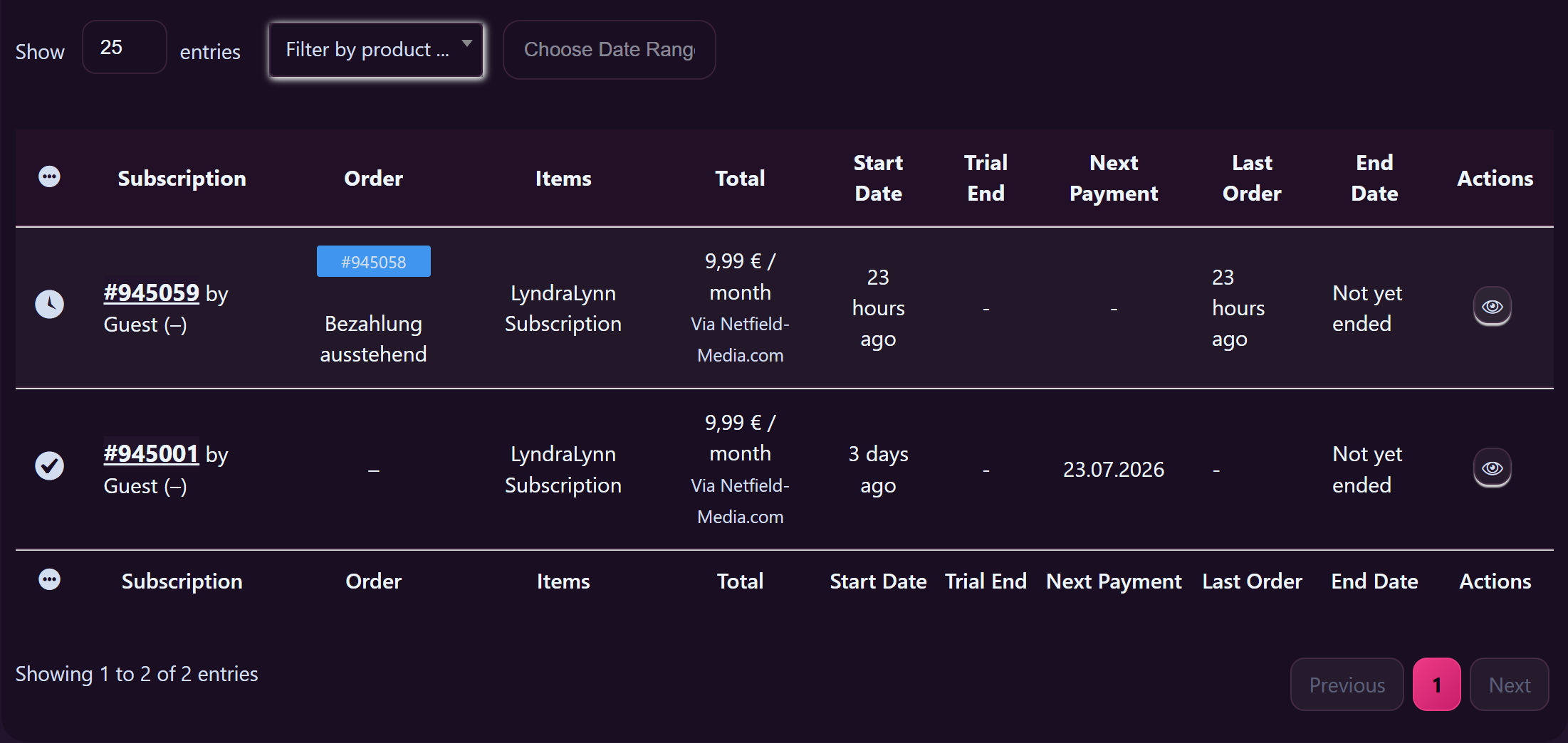
Sign in and open /store-manager/creator-subscriptions/ — the page header reads Subscription Settings. The page has three main sections, stacked top-to-bottom:
- The stat strip — active subscribers count + included clips now + the helper-product name. A quick at-a-glance health check.
- The settings form — price, plan options, the Subscribers get free text in messaging toggle, the Subscriber clip discount (%) field, per-clip subscriber-price overrides.
- The Subscribers table — the list of fans currently subscribed to your storefront.
Scroll past the settings to find the table. If you’ve never had a subscriber, the table area reads “No active subscribers yet.”.
2. The columns on the table
Each row is one subscriber. Columns from left to right:
- Subscriber — the fan’s display name (their public Lewdden name, not their email).
- Status — coloured pill: Active, Pending Cancel, or On Hold. See §3.
- Started — the date their current subscription period began. If they cancelled and resubscribed, this is the date of the most recent subscription start.
- Next payment — the date their next renewal will charge. Blank if they’ve cancelled (i.e. Pending Cancel).
- Subscription — a short reference number like #1234. Useful when filing a support ticket about a specific subscriber.
The table doesn’t show: the subscriber’s email, their other subscriptions, their total spend on you, or any chat history. Those live in other places — the chat Customer info ⓘ panel (per-subscriber, on the message thread itself) covers spend and tips.
3. The three statuses, what they mean, and what they cost you
Active
The standard healthy state. The fan paid for the current period and is paying for renewals on schedule. They have full subscriber access — included clips, subscriber-only feed posts, the messaging perks you’ve set, and the subscriber audience filter in your broadcasts.
Most of your table should be in this state at any given moment.
Pending Cancel
The fan asked to cancel, but their current period hasn’t ended yet. We don’t charge them again — the Next payment column is blank — but they keep access until the period they already paid for ends. After that date the row disappears from the table (the subscription becomes “Expired” internally, which isn’t shown here).
This isn’t a problem for you to fix. It’s the platform doing the right thing: subscribers paid for the time and they get the time.
On Hold
The renewal payment failed on the renewal date (expired card, insufficient funds, bank decline) but the fan hasn’t actively cancelled. We retry the charge automatically for a short window. During that window the subscription is On Hold:
- The fan does not have current subscriber access (any subscriber-only content they had unlocked stays unlocked, but new subscriber-only items are blocked).
- We retry the charge on a schedule — usually within a few days of the failed attempt.
- If the retry succeeds, the subscription moves back to Active automatically.
- If the retry sequence is exhausted, the subscription moves to Cancelled (and disappears from the table).
This isn’t a fix-it-yourself state either — there’s no button you’d press on the table. The fan needs to update their payment method on their /my-account/ side for the next retry to clear.
4. What you can do from the table — and what you can’t
The table is read-only by design. There are no per-row action buttons (no “Cancel this subscription”, no “Refund last payment”, no “Resend invoice”). The platform handles the lifecycle.
For what you can do that affects subscribers:
- Message them. Open your messages inbox and pick the subscriber. The thread shows the Customer info ⓘ panel with their subscription duration, renewal status, and spend on you. See Chat best practices.
- Send them a broadcast. Open the broadcast workspace, pick the Subscribers audience filter. They become a dedicated audience separate from your followers + previous-buyers list. See your inbox’s Broadcast button.
- Add clips or feed posts to their access. The “included clips” list on this page controls what subscribers unlock. Add a clip — every active subscriber gets it next time they open the storefront. Remove a clip — they lose access to that specific clip but everything else stays. See Setting up your subscription.
- Offer them a discount on individual clips. The Subscriber clip discount (%) field plus per-clip overrides. The discount applies automatically when a subscriber views your store. See Offering clip discounts to your subscribers.
For what you can’t do (and why):
- You can’t cancel a subscriber for them. Only the subscriber can cancel their own subscription. If they’re asking you for help, point them at Cancelling a subscription.
- You can’t refund a renewal from this table. Refunds go through support. Open a ticket with the subscriber’s display name + the subscription number from the table.
- You can’t see the email of a subscriber. Same privacy reason as elsewhere — emails are not shared with creators. Communicate via the in-app messages inbox.
- You can’t see what they bought from other creators. Per-creator scope. See Hiding your purchases from your subscriptions for the fan-side view of this same property.
5. How the list changes over time
A subscriber appears on the list within a few seconds of completing their first payment. From there:
- Successful renewals are silent. The row stays Active; the Next payment date advances to the next due date. You don’t see a separate notification per renewal (that would be a lot of bell pings); the running balance shows up in your Sales report instead.
- A subscriber cancels. Their row’s Status flips from Active to Pending Cancel and the Next payment column blanks out. The row stays visible until the period they paid for ends.
- A renewal payment fails. Status flips from Active to On Hold. Next payment shows the retry date if scheduled. If retries succeed, status flips back to Active. If retries fail, the row disappears.
- A subscriber upgrades or downgrades their plan (e.g. from monthly to annual). The row’s Subscription number changes — the old subscription is closed and a new one is created. Started resets to the new start date; Next payment uses the new cadence.
- A subscriber resubscribes after a gap. They appear as a new row with a fresh Subscription number. The Started date is the new start, not the original first-subscribed date. There’s no “returning subscriber” badge.
6. Counting things — the stat strip vs the table
The active subscribers stat at the top of the page is a count of rows in the table. So if the table shows 12 rows in Active state, 3 rows in Pending Cancel, and 1 row in On Hold, the strip reads 16 active subscribers. We include Pending Cancel and On Hold in this count deliberately — those fans are still subscribers, just in transition states.
If you want a stricter “paying right now” count, count only Active rows by eye. The 5000-subscriber cap on the underlying query is more than enough for any individual creator; we’ll lift it if anyone ever approaches it.
7. Sorting, filtering, exporting
Today the table is unsorted-by-default (most-recent first). There are no column-sort affordances and no built-in CSV export. If you need a structured export — for tax records, analytics in a spreadsheet, or any other reason — open a support ticket with the subject “Subscriber export — last N months” and we’ll send you a CSV with the columns above plus aggregate metrics. We don’t surface this as a self-serve button because the export usage is rare and we want to know when creators are asking for it.
If you’re regularly working from this table at scale (hundreds of subscribers), let us know via Contacting support with category Feature request — that’s the path to get search + sort + export added.
8. The subscriber list elsewhere on Lewdden
The Subscription Settings page is the canonical list, but a few other surfaces show subscriber data in slightly different shapes:
- The chat Customer info ⓘ panel — when you open a message thread with a specific subscriber, the ⓘ panel shows their subscription duration, renewal state, total spent on you, clips bought, and tips. Per-pair scope. See Chat best practices.
- The broadcast audience filter — when composing a broadcast, the Subscribers radio uses the same list internally. The number next to the label is the count of subscribers your broadcast will land with.
- The Sales report at /store-manager/reports-sales-by-product/ — subscription renewals show up as Sales rows with the subscription number; the per-clip Sales view doesn’t surface subscribers as a group.
9. Common questions
“Why is someone in On Hold? They told me their card works fine.” The card may have been blocked specifically for the renewal charge (some banks block recurring charges as a fraud rule). They should update their card on /my-account/payment-methods/, even if it’s the same number — the act of re-saving sometimes clears the bank-side block. Once the next retry runs, the row will flip back to Active.
“Can I see how long someone has been a subscriber if they cancelled and resubscribed?” Not from this table directly. The Customer info ⓘ panel on the chat thread shows the most recent Subscriber since date. For the full history (every previous subscription, cancel date, resubscribe date), open a support ticket — we have the audit log on our side.
“Do I see a subscriber in the list if they cancelled but the period hasn’t ended?” Yes — they appear with Status Pending Cancel and a blank Next payment. Once the paid period ends they leave the list.
“What’s the maximum number of subscribers I can have?” The table query returns up to 5,000 — more than any single creator currently has on the platform. If you’re approaching that, send us a note and we’ll bump the cap before it becomes a problem.
“Can I see whether my subscriber count is growing or shrinking week-over-week?” Not on this page yet. The Sales report at /store-manager/reports-sales-by-product/ has revenue-over-time charts that include subscription renewals; subscriber-count-over-time is on the roadmap but not built. If you need this for now, snapshot the active-subscribers stat on a Monday morning each week.
Related
- Setting up your subscription — the settings above this table.
- Offering clip discounts to your subscribers — the per-clip and global subscriber-discount controls.
- Cancelling a subscription — the fan-side cancel flow you’d point a subscriber to.
- Chat best practices — the chat-side surfaces that complement the subscriber list.
- Hiding your purchases from your subscriptions — the fan-side privacy view of the same per-pair scope you see on this table.







