
Video guide
Prefer to watch? This short guide walks your Notification preferences page — the feed digest and how often it arrives, alerts for new content from creators you follow, per-stream reminders, marketing emails, and how to save your choices.
Every email Lewdden sends you is controlled in one place: /my-account/notification-preferences/. This guide walks through every toggle on that page, what each one actually does, what defaults you start with, what’s transactional (always sent), and how to fully unsubscribe if you want.
1. Where the settings live
Sign in, then either:
- Open /my-account/notification-preferences/ directly, or
- Open /my-account/ and click the Notifications item in the sidebar (it’s near the bottom, just above Logout).
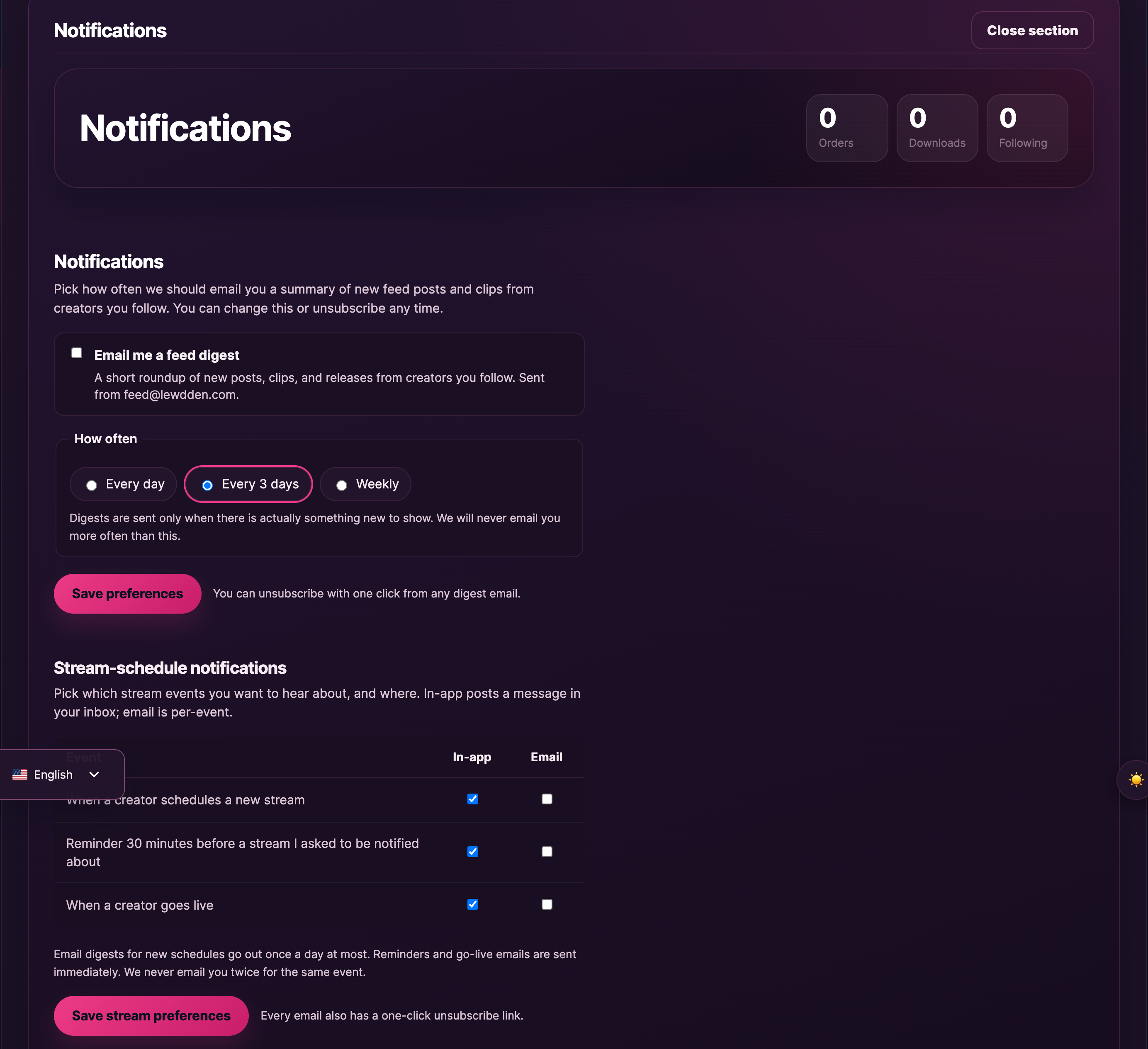
The page has two sections — Feed digest at the top, Stream-schedule notifications below it. Both are independent: changing one doesn’t affect the other.
2. The feed digest
The first card is titled “Email me a feed digest”. Tick it on and we’ll send you a roundup of new feed posts and clips from creators you follow.
Frequency. Three options as radio buttons:
- Every day
- Every 3 days (the platform default if you’ve never changed it)
- Weekly
The frequency is a maximum, not a guarantee — the digest only goes out when there’s actually something new from creators you follow. So picking “Every day” doesn’t guarantee a daily email; it just means we won’t send more often than daily. If a creator you follow doesn’t post for a week, you won’t get an empty digest.
Sender address: the digest comes from [email protected]. If your inbox is filtering it out, allow-list that address.
Default state: off. The feed digest is opt-in — you’ll never receive one unless you tick it on. Press Save preferences after changing the setting; you’ll see a green confirmation banner (“Your notification preferences were saved.”) at the top of the section.
3. Stream-schedule notifications
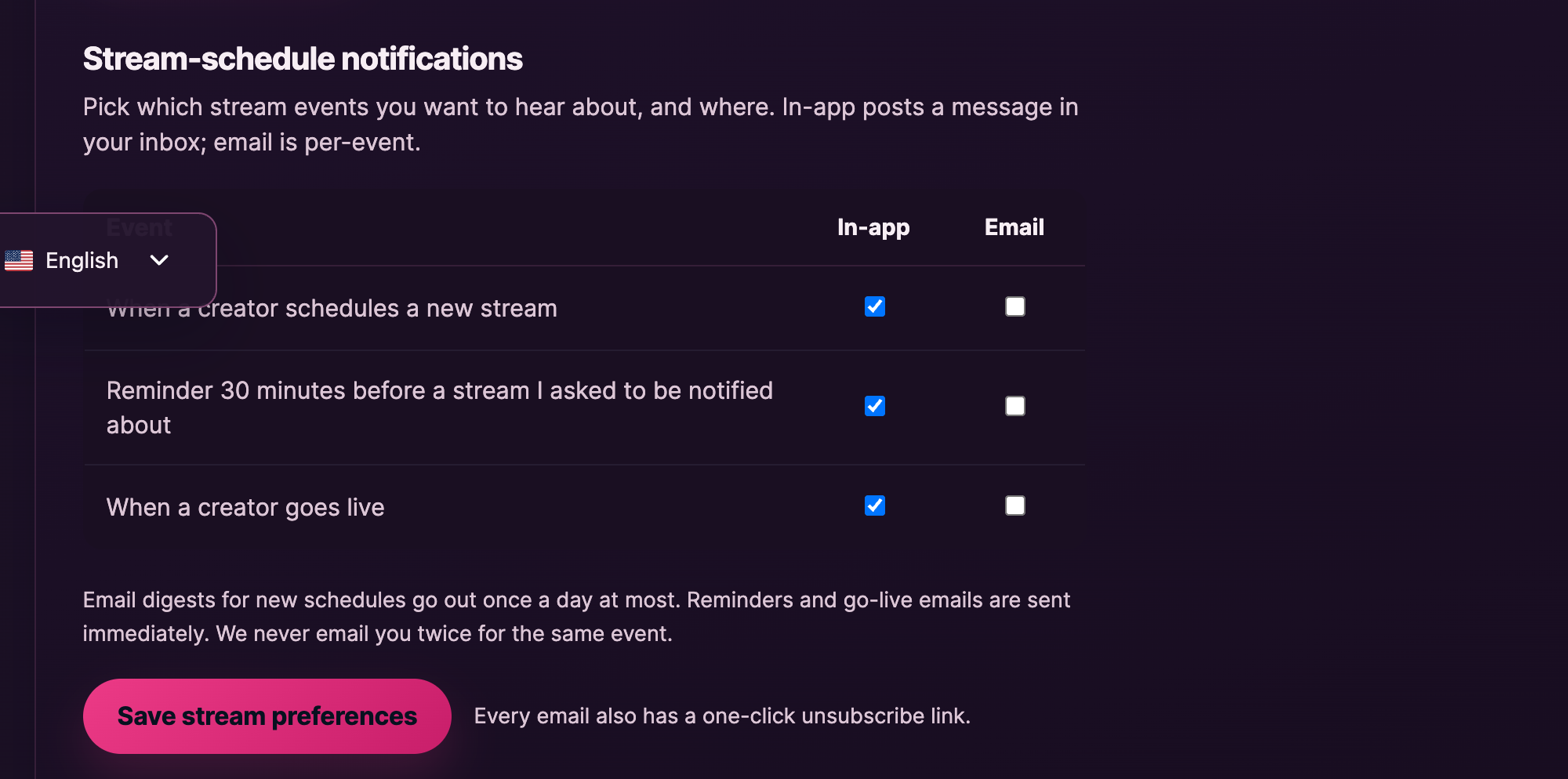
The second section, headed “Stream-schedule notifications”, controls notifications about livestreams. A short explainer at the top reminds you that the section is for picking which stream events you want to hear about, and where they’ll be delivered.
It’s laid out as a table with three rows (one per event) and two columns of checkboxes (In-app and Email):
| Event | In-app default | Email default |
|---|---|---|
| When a creator schedules a new stream | On | Off |
| Reminder 30 minutes before a stream I asked to be notified about | On | Off |
| When a creator goes live | On | Off |
Email sends a real email to your account address. In-app posts the alert into your messages inbox at /my-account/chat/ — it appears as a system note in the conversation with the creator the alert is about (or in a new conversation if you don’t have one yet). You can mix the two columns however you like.
You can mix and match. Common combinations fans pick:
- No emails (the default) — every Email box left unchecked. You’ll only learn about a stream when you visit the site or check the creator’s profile.
- Email me when a creator goes live — perfect for catching streams in real time. Tick the Email checkbox on the “When a creator goes live” row.
- Email reminders only — handy if you want a 30-minute heads-up email before a stream you asked to be notified about (you ask by clicking Notify me on the stream’s schedule card). Tick the Email checkbox on the “Reminder” row and leave the others alone.
Frequency notes (from the explainer at the bottom of the section): “Email digests for new schedules go out once a day at most. Reminders and go-live emails are sent immediately. We never email you twice for the same event.” So if a creator schedules three streams in one day and you’ve enabled “When a creator schedules a new stream” by email, you’ll get one email that day with all three, not three separate emails.
Press Save stream preferences after changing anything. The success banner reads “Stream-notification preferences saved.”
4. The auto-pause if your emails bounce
If we send a few stream-related emails to your address and they all bounce (a closed account, a misconfigured filter, etc.), the platform auto-pauses stream emails for you to avoid bothering you further. You’ll see a notice at the top of the section: “We’ve auto-paused stream emails because the last few bounced. Re-save below to resume.”
To get them flowing again: fix whatever’s wrong with the inbox (or update your address on your account page), come back here, and hit Save stream preferences with your existing settings — the auto-pause clears on save.
5. Emails you can’t turn off
A small handful of emails are transactional — sent because something happened that you need to know about. These don’t appear on the notification-preferences page because there’s nothing to toggle:
- Order receipts — when a payment processes, completes, or is refunded, the matching receipt email is sent.
- Subscription emails tied to actual events: renewal payment processing, renewal payment complete, renewal on hold, subscription switch complete, renewal invoice, trial-ending notice, subscription expired, and the auto-renewal advance notice that’s required by EU strong-customer-authentication rules.
- Password reset email — sent only when you (or someone with your email) clicks “Lost your password?” on the sign-in page.
- New account welcome — sent once, when your account is first created.
- Manual invoice / payment link — sent if a creator or admin generates a payment link for you (rare).
- Customer note added to your order — if a creator adds a public note to one of your orders, you get a copy.
- Shipment tracking — for physical items: when a creator marks your order as shipped and adds a tracking number, you get an email with the link.
- Gift-subscription flows — if you receive a gift subscription, you’ll get the welcome email + later renewal emails.
These are kept on regardless of preferences because they’re effectively part of the transaction itself — you need the receipt for your records, you need the password reset to get back in, you need the SCA notice for your card to authorise the next charge.
6. Other emails worth knowing about
A few less-obvious emails you may receive but don’t manage from the notification-preferences page:
- Support tickets you raised: when you open a ticket via Contacting support, you get the confirmation, any agent reply, and the resolution email. There’s no toggle for these — if you opened a ticket, the email thread is the conversation.
- “Waiting for your reply” nudge: if a support agent is waiting on you and you haven’t replied for a while, we’ll send a single nudge to bump it back to your inbox.
- “New product from a creator you follow”: if a creator you follow publishes a new physical item for sale (rare on Lewdden — most creators sell clips and subscriptions), the platform sends a one-off email. This isn’t a digest; it’s per-product.
7. The one-click unsubscribe link
Every digest email and every stream-schedule email has a one-click unsubscribe link in the footer. Clicking it switches that specific category off without you needing to sign in. Useful when you’re on mobile and just want the emails to stop.
Note that the one-click link unsubscribes that category, not all email everywhere. If you click unsubscribe on a feed digest, you’ll stop getting feed digests; you’ll still get receipt emails and password-reset emails, because those aren’t categories you can opt out of (see §5). To turn off the other category as well, hit the unsubscribe in one of those emails too, or open /my-account/notification-preferences/ and untick everything.
8. The “I want zero email from Lewdden” path
You can’t fully unsubscribe from transactional emails (receipts, password resets, etc.) because they’re attached to actions you take. But for everything that is optional:
- Open /my-account/notification-preferences/.
- Untick Email me a feed digest. Save.
- In the stream-schedule table, untick every checkbox in the Email column (leaving In-app whatever you prefer). Save.
From that point you’ll only ever get emails when something happens that needs your attention (a payment processed, a subscription renewed, a password reset, a shipment dispatched, a support agent replied). The platform won’t email you proactively.
If you want to stop hearing about us entirely, the closest equivalent is closing your account — see Contacting support for the account-deletion request. (Account closure also automatically unsubscribes you from everything, including transactional, because there’s no account left to send to.)
9. FAQ
Q: My feed digest emails stopped coming. What happened?
First check /my-account/notification-preferences/ to make sure the toggle is still on. If it is, the most likely reason is that creators you follow haven’t published anything new in your selected interval — the digest only goes out when there’s something to send. If you follow a lot of creators and you’re sure they’re posting, check your inbox spam folder and allow-list [email protected].
Q: Where do I see in-app notifications?
They show up at /my-account/chat/, posted as a system note inside the conversation with the creator the notification is about. If you’re not already chatting with that creator, the platform opens a new conversation for the alert. These notes are tagged as system events so they’re visually distinct from normal direct messages, and the creator doesn’t see your inbox — it’s just where the alert lands for you.
Q: I asked to be notified about a specific stream. Where’s that setting?
That’s a per-stream “Notify me” button on the stream’s schedule card, not a global setting. The reminder you receive 30 minutes before that specific stream is controlled by the Reminder 30 minutes before a stream I asked to be notified about row. So enabling that row only matters once you’ve actually asked to be notified about a stream — otherwise there’s nothing to remind you about.
Q: I unsubscribed from one email and now I’m worried I’ve turned off everything.
The one-click unsubscribe in any email only switches off that specific category — feed digests, or stream-schedule emails. Transactional emails (receipts, password reset, subscription renewal notices) are unaffected. If you want to confirm the state of your settings, open /my-account/notification-preferences/ — the page shows exactly what’s on and off.
Q: Can I get notifications by SMS or push instead of email?
Not currently. Email is the only notification channel that reaches you. SMS and push aren’t supported.
Q: I’m getting notification emails for someone else’s account. What’s going on?
Most likely the other person typed your email address by accident when signing up. Click the unsubscribe link in any of the emails to turn off the digest categories, then forward one of the emails to support so we can investigate the account on the other end.
Q: I changed my email address — do my preferences carry over?
Yes. The preferences are tied to your account, not to your email address. Updating the email on your account page just routes the same emails to the new inbox.
Q: Why don’t I see a settings option for transactional emails?
By design — those emails are tied to actions on your account (a payment, a renewal, a password reset). There’s nothing to toggle because we send them whenever the action they describe happens. The only way to fully stop them is to close the account.
Related guides
- Topping up your wallet — what triggers the wallet-related receipt emails.
- Subscribing to a creator — what triggers the subscription-renewal email family.
- Contacting support — for ticket-related email questions, account closure requests, or anything not covered above.
- Watching a live stream — where the per-stream “Notify me” button lives.







