
Video guide
Prefer to watch? This short guide sets up a new-clip auto-template in the broadcast workspace — the audience picker, the message body with the {{clip_title}} token, the optional clip-reference card, and the two controls that make it fire automatically: the Enable auto-send checkbox and Save auto template only.
Auto-templates send a saved broadcast message to every relevant fan automatically when you publish a new clip — no extra step, no manual broadcast button. Set up the template once, decide who it goes to (followers, previous buyers, subscribers, or all three), and from then on every clip you publish triggers the same kind of message in everyone’s DMs. This guide covers the template form, what fires when, the kill switch, and why the live-started variant isn’t covered here.
1. The one event that auto-templates currently fire on
The auto-template system today supports one trigger: when you publish a new clip, an auto-broadcast can fire that puts a saved message in everyone’s DM thread with you. The internal name for this event is “New clip published”.
The original idea included a second trigger — when you start a livestream, fire a “Creator went live” auto-broadcast. That second trigger isn’t actually wired up today. The handler exists in the code but the event that should fire it is intentionally disabled. Practically, every “automatic” broadcast in your messaging workspace is the new-clip-published one. We’ll mention the live-started variant only to be clear it isn’t shipped.
If a future release wires up the live-started trigger, we’ll update this article and you’ll see it appear in the broadcast workspace alongside the existing one.
2. Where the form lives
The auto-template form is part of the broadcast workspace inside Store Manager → Messages — the same screen you use for one-off broadcast sends.
To open the auto-template editor specifically, you can either:
- Hit the entry-point banner labelled Automatic new-clip sends ready. The hint underneath reads “New clip broadcasts can still stay review-first, or use one confirmed automatic template that sends immediately after release.”
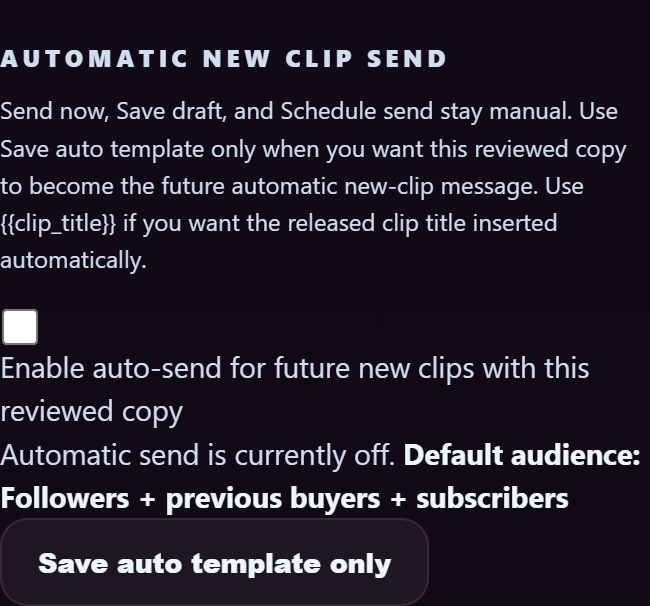
- Or open the workspace and pick the “Automatic new clip send” section. The hint inside reads “Send now, Save draft, and Schedule send stay manual. Use Save auto template only when you want this reviewed copy to become the future automatic new-clip message. Use {{clip_title}} if you want the released clip title inserted automatically.”
You write the broadcast as you would any one-off broadcast (audience, body, optional clip-reference card), then save it as the auto-template instead of sending it now.
3. The form, field by field
Audience
Same audience picker as a manual broadcast (covered in Sending paid messages §3). The four available audiences (the labels are the live ones rendered on the broadcast pill / dropdown):
- Followers + previous buyers + subscribers — the default for new-clip auto-templates. Everyone who has any signal of interest in you.
- Followers — people who follow your account but haven’t bought or subscribed.
- Previous buyers — anyone who’s bought a clip from you in the past.
- Subscribers — your active subscribers only.
Once saved, the auto-template’s audience is shown as a label in the workspace — for example “Default audience: Followers + previous buyers + subscribers”.
Body
The same 3000-character body field as one-off broadcasts. Plus one templating helper:
- {{clip_title}} — when the auto-template fires, this token is replaced with the title of the clip you just published. Useful for messages like “New clip is up: {{clip_title}}. Watch it here →”.
If you don’t include {{clip_title}}, the body sends as-is (no clip title appended). Most creators include the token so each automatic message is at least a bit personalised.
Clip reference card (optional)
You can pin a clip-reference card to the auto-template so each automatic message includes a clickable preview of the released clip. The reference is dynamic: when the auto-template fires, the card updates to point at the clip that just published, not at whichever clip you originally referenced when saving.
The Enable auto-send checkbox
The single checkbox that controls whether the auto-template actually fires. Its full label reads “Enable auto-send for future new clips with this reviewed copy”.
- Off — the saved template body is stored but doesn’t fire. New clips publish without an auto-message; you’d send broadcasts manually.
- On — every clip you publish from this point on triggers an auto-broadcast using this template body and audience.
The two action buttons
- Save auto template only — saves your edits to the template body and audience without sending a broadcast right now. Use this when you’re tweaking the wording or first setting up the auto-template.
- Turn auto-send off — disables the auto-send while keeping the template body intact. The next clip you publish won’t fire a broadcast; you can flip it back on later by re-saving with the checkbox enabled.
Note that Send now, Save draft, and Schedule send are still available on the broadcast workspace — but those are for one-off manual broadcasts, not for changing the auto-template. The auto-template flow is specifically the two buttons above.
4. What “publish a new clip” actually means
The auto-broadcast fires when:
- A clip moves from any non-published state into the published state (Draft → Approved/Published, Pending → Approved/Published, Scheduled → Approved/Published).
- The clip’s audience is appropriate for the auto-template’s audience (e.g. a subscribers-only-clip auto-message goes to your subscribers).
- You haven’t disabled the auto-send checkbox.
It does not fire when:
- You edit an already-published clip (no re-fire on edit).
- A clip is auto-disabled by moderation (the Disabled state isn’t a publish event).
- A scheduled clip moves from Scheduled → Future to Scheduled → Approved (no — that flip from scheduled to live IS a publish event, so it does fire). The fire is on the moment the clip becomes visible to fans, regardless of scheduling.
If you’re not sure whether your auto-template fired for a particular clip, check the broadcast history inside Store Manager → Messages — every fired auto-broadcast shows up there with a “BROADCAST” tag and a timestamp matching the clip publish.
5. What fans see — the broadcast bubble in their DM
An auto-broadcast lands in each fan’s DM thread with you the same way a manual broadcast does:
- The message appears in their existing thread with you (no separate channel, no popup).
- A small Broadcast pill appears at the top of the bubble showing the audience the message went to (e.g. Followers + previous buyers + subscribers).
- The body, the clip-reference card (if attached), and any media render the same as a one-off broadcast.
- Fans can reply to the broadcast — replies go to you in a normal 1:1 DM (your reply is just to that one fan, not back to all of them).
For fan-side details on broadcasts in DMs, see Messaging a creator §6.
6. Common pitfalls
- Forgetting to tick the auto-send checkbox. Just hitting Save auto template only stores the template body but doesn’t enable auto-send. The next clip publish won’t trigger anything until you re-open the form, tick the checkbox, and save.
- Sending one-off and auto-message together. If you send a manual broadcast from the workspace just before a clip publish, every fan receives both the manual broadcast and the auto-broadcast — two messages back-to-back. If you mean to do that intentionally (manual lead-in + auto-message with link), great. If you don’t, expect annoyed fans.
- Forgetting {{clip_title}}. Without the token, every auto-message reads exactly the same — fans on your DM list start to ignore them. Include {{clip_title}} so each message at least references the new clip.
- Audience mismatch. A subscribers-only clip with an auto-template targeted at “Followers” will still fire — followers get the message but they can’t unlock the clip. This isn’t a bug; it’s just an awkward UX. Match the auto-template audience to the audience your clips are for: if most of your output is subscribers-only, default the auto-template to Subscribers.
7. Patterns that work
- Short, with the clip title. “New clip is up: {{clip_title}}. Watch it now →.” Three short messages outperform one long one in re-engagement.
- Different audiences for different cadences. If you publish a flagship clip once a month and a smaller drop weekly, use Subscribers for the weekly auto-broadcast and a one-off manual broadcast (with a teaser) for the flagship.
- Turn it off during slow periods. If you take a break and publish a backlog of older content all at once, disable the auto-send checkbox temporarily — otherwise fans get five auto-messages in five minutes.
- Lead with value in the first line. The DM bubble’s first line is what fans see in their inbox preview. “New clip out 🔥” performs worse than “I shot something raw and weird this morning. Here it is →”.
8. FAQ
Q: Why doesn’t the live-started auto-template work?
The handler is in the code but the trigger that should fire it is intentionally disabled. Practically, the “Creator went live” auto-broadcast option doesn’t appear in the active workspace, and live-stream notifications go through the regular per-fan in-app push (no DM auto-broadcast). When the trigger is wired up in a future release, this article will be updated.
Q: Can I have multiple auto-templates with different audiences?
Currently no. There’s one auto-template slot for new-clip-published, and its audience is whatever you saved with the template. If you want different messages for different clip types (e.g. one for free clips, one for subscriber-only), you’d manually broadcast those instead.
Q: Does the auto-template fire on every clip, or only the first one I publish?
Every clip publish event fires it (as long as the auto-send checkbox is on). The system isn’t first-clip-only.
Q: I disabled auto-send. Will the saved template body still be there if I re-enable it later?
Yes. Turn auto-send off stops the firing but keeps the template body and audience saved. To re-enable, open the form, tick the auto-send checkbox, and use Save auto template only.
Q: Can fans opt out of my auto-broadcasts?
Each fan’s notification preferences include broadcast-from-creator messaging. A fan who’s blocked you or muted broadcasts from you won’t see the message. There’s no per-message opt-out — it’s all-or-nothing at the fan-creator pair level.
Q: How do I see which clips an auto-template has fired for?
Inside Store Manager → Messages the broadcast history lists every fired broadcast with timestamp + audience + recipient count. Auto-fired broadcasts are tagged just like manual ones.
Q: My auto-template went out but the recipient count looks low. Why?
The recipient set is computed at the moment the auto-broadcast fires — only fans who match the audience tag at that moment receive it. If you have inactive followers or expired subscriptions in your list, they’re skipped. The count reflects the active matching audience, not your historical follower / sub count.
Q: Can I set the auto-template to skip certain clips (e.g. test uploads)?
Not via the auto-template form. The closest workaround: set the clip to Draft instead of Publish, finish it, then either flip to Publish (auto-fires) or Discard. There’s no per-clip “don’t auto-broadcast” toggle.
Need more help
For broadcast workspace basics see Sending paid messages. For broken-feature reports open a ticket from Contacting support under Feed with the broadcast ID and the clip ID where relevant.







