
Video guide
Prefer to watch? This video walks through the whole Shipping card — origin country, mode, the three regional rates, free-shipping threshold, handling surcharge, and per-country overrides.
Shipping on Lewdden is configured per item, not in a global zone. Every physical item you sell carries its own origin country, ship-to mode, regional rates, and any per-country exceptions you want to add. The buyer sees a single shipping line on checkout that’s calculated from the item’s own settings — so two items in one cart with different settings still produce a sensible combined total. This article walks through every field on the Shipping card of the item form.
The listing-side fields (photos, name, price, stock, extras) are covered in Selling physical items. What happens after a buyer pays — entering tracking, marking the order shipped — lives in Fulfilling physical orders.
1. Where the Shipping card lives
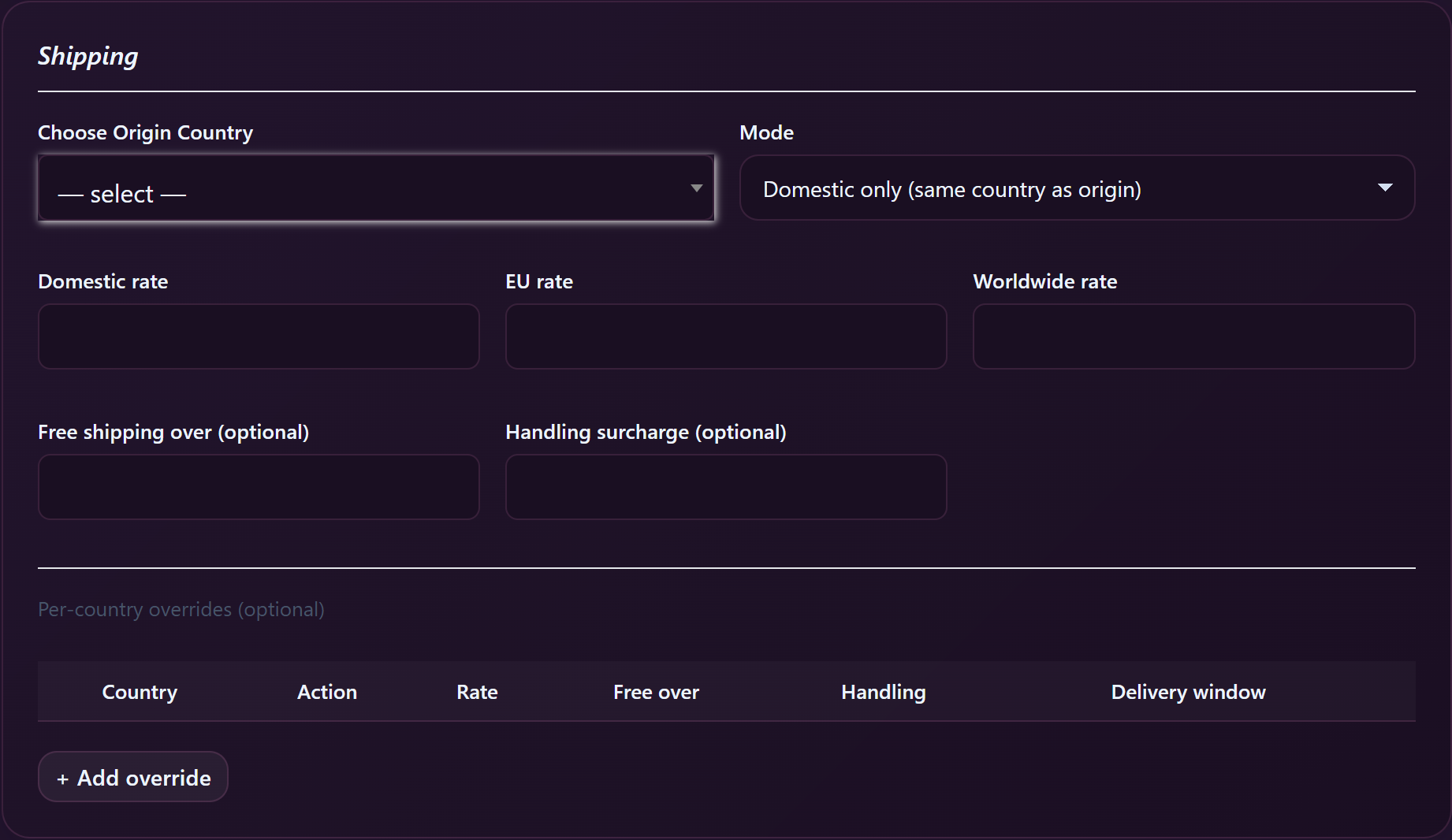
Open Store Manager → Products, click the item you’re configuring (or Add new product for a fresh listing). Scroll past Basics, Category, Sizes, Item Price, Inventory, and Marketing — the Shipping card is between Marketing and Add extras.
Every physical item needs Shipping configured, even if you only ship to one country. If the rates aren’t valid for the buyer’s destination they can’t check out, so don’t skip this card.
2. Origin country
The first field is a dropdown labelled Choose Origin Country (placeholder “— select —”). Pick the country you actually ship from — the country the package physically leaves your hand in.
This matters for two reasons:
- It defines what counts as “domestic” for this item — domestic = same country as origin, EU = an EU/EEA member state, Worldwide = anywhere else.
- It tells buyers up-front where the package is coming from, which sets honest expectations on transit time and any potential customs charges on their side.
If you move countries or ship from a friend’s address one month, change this field accordingly — the buyer’s checkout uses the value at purchase time.
3. Mode — who can buy this item
The Mode dropdown decides which destinations the item is offered to:
- Domestic only — buyers in the same country as your origin can purchase. Everyone else sees it as not shippable to their country.
- EU / EEA — domestic + every EU and EEA country. Sensible default for German, Dutch, Italian, French, Belgian, etc. creators who want a wider reach without dealing with customs into the UK or US.
- Worldwide — domestic + EU/EEA + every other country Lewdden supports.
Pick the broadest mode you actually want to fulfil. You can narrow it back down with per-country overrides (see §6) if there are specific countries you want to block while keeping the rest of EU or worldwide open.
4. Regional rates
Three rate fields appear depending on your Mode:
- Domestic rate — what shipping costs to a buyer in your origin country. Always shown.
- EU rate — what shipping costs to an EU/EEA buyer outside your country. Shown when Mode is EU/EEA or Worldwide.
- Worldwide rate — what shipping costs to a buyer outside the EU/EEA. Shown when Mode is Worldwide.
Enter values in your store currency (usually €). Set a rate to 0 to offer free shipping for that region — but think first about whether you actually want that, especially for worldwide where postage often runs €15–€30 depending on country.
Tip: walk to the post office once with a typical package, weigh it, and write down the going price for a tracked, padded mailer in each region. Use those numbers (slightly rounded up) as your rates. Don’t undercharge — shipping costs are separate from your earnings on the item itself, so an underpriced rate just eats into your profit.
5. Free over and Handling surcharge
Two optional fields below the regional rates:
- Free shipping over (optional) — a basket-subtotal threshold above which shipping becomes free. e.g. set this to 75 to offer free shipping when the buyer spends €75+ on this item alone (per-item; not across the whole cart). Leave blank to never offer free shipping.
- Handling surcharge (optional) — a flat fee added on top of the regional rate. Use this to cover packaging materials, fuel costs, or padding. Buyers see one combined shipping line at checkout, not the rate + surcharge separately, so be honest with the rate field above and reserve handling for genuine extra costs.
The free-over threshold and the handling surcharge stack with overrides — overrides can change the rate for a specific country but the free-over and handling stay applied unless the override sets the action to Free.
6. Per-country overrides
Below the regional rates is a small table titled Per-country overrides (optional) with columns:
- Country — pick from the full list (placeholder “— select —”).
- Action — three options: Flat (use a custom rate just for this country), Free (free shipping to this country), Do not ship (block the country entirely).
- Rate — only used with the Flat action. Your custom price.
- Free over — a country-specific free-over threshold; overrides the global one for this destination.
- Handling — country-specific handling surcharge; overrides the global one.
- Delivery window — a free-text field like “3–5 days” shown to buyers from that country. Optional.
Click + Add override at the bottom of the table to add a new row, the × button to remove one. Overrides are checked from top to bottom — the first matching country wins.
Common patterns:
- Block one specific country. Set Action = Do not ship. Useful for places where postage is unreliable or customs are a headache.
- Cheaper to a neighbour. Origin = Germany, Mode = EU/EEA, EU rate = €12, override Austria → Action Flat, Rate €7. Austrian buyers see €7; everyone else in EU sees €12.
- Free to a domestic exception. Origin = Netherlands, Domestic rate = €5, override Belgium → Action Free. (Useful if you have a Belgian fanbase you want to reward.)
- Realistic transit. Set Delivery window to “5–10 days” for far-away countries — buyers don’t message you to ask if they have an estimate up front.
7. What buyers see at checkout
On the buyer’s checkout page, the shipping line shows as “Lewdden Shipping” with the calculated total for the destination they chose. They don’t see the breakdown (rate + handling + free-over rules) — they see one number.
If a buyer can’t ship to their country (because Mode is Domestic only and they’re abroad, or because you set a Do not ship override), they get a checkout error telling them this item doesn’t ship to their country. They have to remove it or change address.
8. Multiple items, one cart
If a buyer adds two of your items to the same cart and both have shipping configured, the platform combines them into a single shipping line at checkout. The total is calculated from each item’s own settings — the per-item-shipping system means a heavier item with a higher rate doesn’t get the cheap rate of a light item.
For your own pricing, this means: don’t try to make one item cheap on shipping by relying on another item to subsidise it. Each line item’s shipping is calculated independently and added together.
9. Saving and going live
Shipping settings save with the rest of the listing — there’s no separate Save button on the Shipping card. Once you click Publish (or Update) at the bottom of the form, the new shipping config is live and any future buyer sees the updated rates.
Existing pending orders aren’t recalculated — they keep the rate they had at the moment of purchase. This is by design so a creator updating rates mid-month doesn’t accidentally re-charge or refund existing buyers.
Frequently asked questions
Q: Do I have to set up shipping zones somewhere else?
No. Lewdden uses a per-item shipping system. Everything you need is on the item’s Shipping card. The platform-wide shipping method shows up to buyers as “Lewdden Shipping” regardless of your settings.
Q: A buyer asked why my €12 EU rate is lower than the €15 they paid. Did the system overcharge them?
Almost certainly no — the difference is the handling surcharge you set or a per-country override. Open the item’s Shipping card and walk through what would apply for that specific country. If the maths still doesn’t add up, screenshot the item form and the buyer’s order and open a support ticket.
Q: Can I make shipping free for one country only?
Yes — add a per-country override with Action = Free. The buyer in that country sees €0 shipping; everyone else pays the regional rate.
Q: Where do I see what I actually got paid for shipping?
On your sales report. Each order line shows the item subtotal and the shipping line separately. The shipping you charged is yours — minus the platform’s standard commission share.
Q: My item isn’t showing up to a buyer in country X. Why?
Three things to check, in order: (1) Mode — is country X in scope for the Mode you picked? (2) Per-country overrides — is there a Do not ship row for X? (3) Stock — is the item in stock? If all three look right, the item should be available; if it still isn’t, open a ticket with the item URL and the destination country.
Q: Should I include duties and customs in my rate?
No. Customs and duties are paid by the buyer when the package arrives in their country, not collected at checkout. Don’t try to absorb them — buyers from non-EU countries shipping to the EU (or vice versa) understand customs is on their end.
Q: Can I update shipping rates without re-publishing every item?
You have to update each item separately — there’s no global “rates” page. If you sell a lot of items and want to change all of them at once, open a ticket and we can do a bulk update for you.
Q: How precise should my Delivery window be?
A two-number range works best — “3–5 days”, “7–14 days”, “10–21 days”. Buyers compare windows when deciding to purchase, and a single number (“5 days”) tends to feel like a promise. The window field is plain text, so you can write whatever you want — keep it short.
From the buyer’s side
To preview how shipping looks to a buyer at checkout, including the per-country messaging when you’ve set Do not ship overrides, see Shipping times and tracking. It also covers what they see (and don’t see) for tracking after dispatch.
Need more help?
If a buyer can’t check out and you can’t see why, or rates are showing up that don’t match what you’ve configured, open a support ticket from your store manager and pick the Physical items category. Include the item URL, the buyer’s country, and a screenshot of the Shipping card and we’ll work it out.







