
Video guide
Prefer to watch? This short guide walks the edit page of a clip that’s already live: what stays editable (title, price, description, tags, categories, schedule), why the main clip and trailer files lock after the first approval, the re-review loop when you save with Update clip and resubmit, and what deleting a clip does to people who already bought it.
A clip on Lewdden moves through a small set of states from Draft to Live. Once it’s live, you can still update most of the listing — price, description, tags, categories, schedule, performers — and a quick re-review queues it back up. Two things become locked the moment a clip is approved for the first time: the main clip file and the trailer file. This guide walks through what you can edit at each state, what’s locked and why, how the re-review behaviour works, what unpublishing or deleting a clip does to existing buyers, and how to make a graceful change without ruining anyone’s purchase.
For the upload side of the same flow (creating a clip from scratch), see How to add a clip — from upload to publishing.
1. The clip statuses you’ll see
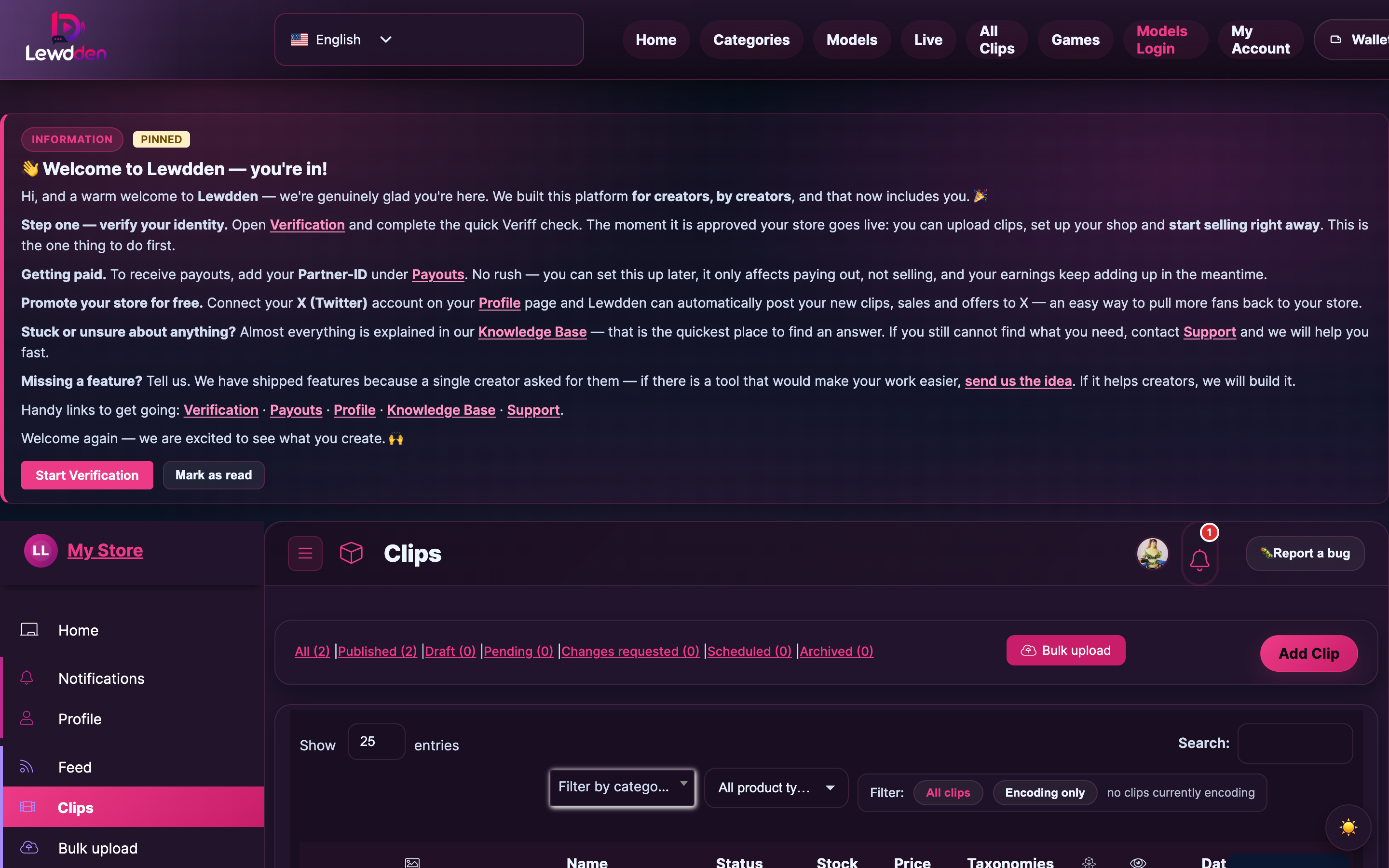
Every clip you create goes through one of these states. The status badge appears next to the clip on /clips-manage/ and at the top of the clip’s edit page.
- Draft — saved but not submitted. No fan can see it. Edit anything, no review needed.
- Pending — you submitted it; a moderator is reviewing. You can still edit the metadata, but a save sends it back to the bottom of the queue.
- Approved — passed review. Either live now, or scheduled for a future release.
- Scheduled — approved + held until a release time you set. Goes live automatically at that time.
- Changes requested — moderator wants edits before they’ll approve. The clip is not live; you can fix and resubmit.
- Disabled — the moderation team or an admin has taken the clip down. The clip is not viewable by fans. Existing buyers lose access.
- Suspended — your store is suspended; clips on it inherit that state. Returns to its previous status when the suspension is cleared.
The states form a graph rather than a strict line — a Pending clip can be approved, changes-requested, or rejected; an Approved clip can be later disabled if a violation is found; a Changes-requested clip becomes Pending again the moment you save.
2. What you can edit at each state
The short answer: almost all the metadata is always editable. The platform holds the original main video file and trailer file as the canonical “what was approved” — those become locked after the first approval (see §3). Everything else stays open.
Editable in every state (Draft, Pending, Approved, Scheduled, Changes requested, Disabled — even Suspended):
- Title and description.
- Price (regular price, sale price, sale schedule).
- Tags and categories.
- Performers linked to the clip.
- Subscriber inclusion — toggle whether the clip is included as part of your subscription bundle.
- Subscriber clip discount — per-clip override of your global discount percentage (see Offering clip discounts to your subscribers).
- Scheduled release time — push the release date back or pull it forward; un-schedule entirely to release as soon as approval clears.
- Thumbnail — pick a different frame from the trailer or upload a custom one.
A save while the clip is Approved or Changes-requested sends it back into the moderation queue with a Pending badge until a moderator confirms the change. The publish status (live, scheduled) is preserved on either side of the re-review — if your edit is approved, it’s live again; if changes are requested, the same fix-and-save loop runs.
3. The two things you can’t change after first approval — main clip file and trailer file
Once a clip has been approved at least once, two specific files become locked:
- Main clip file. The video buyers actually pay for and watch.
- Trailer file. The free preview on your storefront.
Try to upload a replacement and the form shows the error:
“Main clip replacements are locked after a clip has already been approved once.”
or, for the trailer:
“Trailer replacements are locked after a clip has already been approved once.”
The reason is straightforward: the moderator approved a specific file, and existing buyers paid for that file. Letting you swap it after the fact would mean either (a) buyers receive a different clip than the one moderation approved, or (b) the moderation queue has to re-check every edit against the original — neither is workable at scale.
A yellow notice at the top of the edit form tells you when a clip is in this locked state, with a label like “Main clip and trailer replacements are locked.” You’ll see this every time you open an Approved clip’s edit page.
If you really need to swap the video (e.g., you uploaded the wrong cut, the file has a real defect, or you want a higher-quality re-encode of the same content), don’t try to work around the lock — open a support ticket under category Account admin with the clip URL and the reason. Support can either:
- Replace the file directly if the new version is materially the same content; or
- Walk you through deleting the existing clip and re-uploading a fresh one if the new version is materially different.
4. The re-review loop — what happens after each save
Saving an edit on an Approved or Changes-requested clip moves it back into the moderation queue. The status badge flips to Pending, the clip stays live in the storefront (Approved → Pending edits keep the existing version visible to fans), and a moderator re-checks the changed fields.
The button at the bottom of the edit form is labelled Update clip and resubmit for an existing clip, and Submit clip for review for a brand-new one — either way, clicking it commits the edit and queues it.
Three outcomes from re-review:
- Approved again. The new version replaces the previous version in the storefront. Existing buyers see the updated metadata next time they reload their library.
- Changes requested. The moderator wants further edits. A purple feedback panel appears at the top of the edit page with their note. Saving again starts the loop over.
- Disabled. The moderator has taken the clip down. A red panel appears with the reason. The clip is not viewable by fans, including those who already bought it. See §6 for what happens to those buyers.
Most metadata-only edits are approved within a few minutes — moderators don’t need to re-watch the whole file just to confirm a price change.
5. The moderator feedback panel on the edit page
When a moderator leaves a note, it appears at the top of the clip’s edit form as a coloured panel with the title “Latest moderator message” and the timestamp it was saved. You’ll see the message, and an indicator if it was also emailed to your account.
The colour tells you at a glance what action the moderator took:
- Purple panel — Changes requested. Read the note, fix the listed issues, save to resubmit.
- Green panel — Approved. The clip is live (or scheduled). The note may be empty or contain a brief approval comment.
- Blue panel (default) — A neutral moderation update — usually informational, no action required.
If the moderator marked your clip Disabled, you’ll see a red banner alongside the panel. See Why was my clip rejected for the full rejection / appeal flow.
Older moderator notes for the clip live in an admin notes log below the panel — useful when a clip has gone through several rounds of edits.
6. Deleting a clip — what happens to existing buyers
The Delete clip button is at the bottom of the clip’s edit page. Clicking it asks for a confirmation; once you confirm, the clip is moved to trash and:
- Fans who already bought the clip lose access to it. It disappears from their My Library → Clips tab.
- The order itself is preserved in the buyer’s
/my-account/orders/history (and yours via the dashboard) as a record of the purchase. - No automatic refund. Clip purchases are digital goods and final on delivery. Deleting a sold clip means buyers paid for something that’s no longer there, but the platform’s standard policy is no refund — see Buying a clip §5 for the customer-side language.
- Subscribers who had access via inclusion lose that access too. The clip just stops appearing in their Subscribed tab.
- Tags, categories, performer associations are removed from the clip but stay in the taxonomy for other clips that use them.
Think hard before you delete a sold clip — if the issue is that you want to fix something about the listing, edit it instead (§2). If the issue is that the file itself is wrong, contact support to swap the file rather than deleting (§3). Delete is the right move only when you genuinely want the clip off your storefront permanently.
7. Unpublishing without deleting — three softer alternatives
If “remove from the storefront” is what you want but “lose existing buyers” isn’t, you have softer options:
- Lock the clip to subscribers only. Toggle subscriber inclusion on, set the public price high (or remove from the public catalogue) and the clip becomes free-to-stream for current subscribers and unavailable to non-subscribers. Existing one-off buyers keep access; new fans need to subscribe to see it.
- Schedule into the future. Set the scheduled release date to a far-future date. The clip is hidden from the storefront in the meantime. Existing buyers keep access. You can pull it back into the present any time.
- Delete just the listing, not the file. Not actually a built-in option — the closest is opening a support ticket and asking the team to mark the clip “private to existing buyers only,” which keeps purchased copies viewable for fans who already paid but removes the clip from search and storefront listings going forward.
If you’ve decided to leave the platform, see Pausing or closing your store (a separate creator article — coming soon) for the bulk-cleanup flow.
8. Common questions
Q: I edited a clip and the badge changed from Approved to Pending. Did the clip stop being available?
No. The clip stays viewable in the storefront in its previous-approved state until the new edit is approved. The Pending badge is just telling you that the new version is in the moderation queue — it doesn’t pull the old version offline. Once the edit is approved, the new version replaces the old one in the storefront. If the moderator requests changes, the previous-approved version remains live until you fix and resubmit.
Q: Can I undo a delete?
If the clip was deleted recently (within about 30 days), yes — open a support ticket with the clip title and the team can restore it. After that window passes, the clip is gone permanently and the only way to bring it back is to upload it again as a new clip (it’ll get a new product ID).
Q: I want to change the price for a sale, then change it back. Will every fan get re-charged?
No. Price changes don’t re-charge anyone. Existing buyers paid the price they paid; the new price applies only to new purchases. Use the regular price + sale price fields rather than overwriting the regular price — the storefront shows the strike-through original + sale price, and rolling back is a single field change.
Q: I changed the title and tags on a clip. Will buyers’ library entries update?
Yes. Title, description, tags, and categories propagate to existing buyers’ library entries — they see the new metadata next time they load their library. The file itself (which buyers paid for) is unchanged because the file is locked (§3).
Q: My clip badge says Suspended. What does that mean?
Your store is suspended (likely a moderation hold or an account-status action), and individual clips inherit that state automatically. Fans can’t buy or watch them while the suspension is active. Open a support ticket under category Account admin with your store URL — the team will tell you why and what’s needed to lift the suspension. Once cleared, your clips return to whatever state they were in before (Approved, Scheduled, etc.).
Q: I uploaded the wrong file. The clip is now Approved. How do I fix this?
Open a support ticket under category Account admin with the clip URL and “uploaded wrong file” as the reason. Support can replace the file directly. Don’t try to work around the file lock by deleting the clip and re-uploading — you’d lose existing buyers’ access (§6) when a quick file-swap can keep them.
Q: Is the trailer locked even if no fan ever bought the clip?
Yes. The trailer is what the storefront has been showing as the free preview, and the platform treats the approved version as the canonical preview from that point on. Same fix path — support can swap a trailer for a tightly-scoped reason. If you’ve never had a buyer and just want to redo the trailer because you don’t like it, you can also delete the clip and re-upload from scratch — there’s no buyer-loss cost.
Q: I requested changes are made, but I don’t see a moderator note. Where is it?
Open the clip’s edit page and scroll to the top — the moderator feedback panel sits there. If it’s empty or missing, the moderator may have flagged the change without a note (rare but possible), or the email notification is on its way and hasn’t synced to the panel yet. Refresh the edit page; if it’s still blank after a few minutes, open a support ticket with the clip URL.
Q: Can I bulk-edit prices, tags, or categories across many clips?
Not from the clip manager itself — each clip is edited individually. For very large catalogues, a support ticket is the practical path: provide a CSV with the clips and the changes you want, and the team can run a bulk update on your behalf.
Need more help?
- How to add a clip — from upload to publishing
- Why was my clip rejected — the moderation flow when a clip can’t go live as-is
- Pricing your clips
- Offering clip discounts to your subscribers
- Prohibited content — the rules a moderator checks against
- Contacting support







