
Cam2cam lets the paying viewer in a 1:1 private show share their camera and microphone with you. On Lewdden it’s only available in Exclusive Private shows — your highest-tier 1:1 — and only the viewer who paid for the private can switch it on. This guide explains where the toggle lives, what each side of the show sees, and what to do when something goes wrong.
If you haven’t run a private show before, read Public, ticketed and 1:1 private shows first — that article covers the difference between the two private modes (regular Private and Exclusive Private). This one zooms in on the cam2cam piece.
1. Where cam2cam is available
Lewdden has two private show modes:
- Private — regular 1:1, default 24 tokens/min. No cam2cam. The viewer watches and types in chat; only your camera streams.
- Exclusive Private — premium 1:1, default 60 tokens/min plus an optional one-time entry fee, no voyeurs allowed. Cam2cam is the headline feature here — the viewer can publish their own camera and microphone into the room so the show is two-way.
The pre-show pricing panel makes this explicit. The Premium room mode tooltip reads:
“Free = anyone can watch. Premium = pay-per-minute (cam2cam on join).”
And the cam2cam tooltip itself:
“Allow viewers to share their camera during exclusive private shows.”
If cam2cam is something you want to offer at all, you have to enable Exclusive shows in the first place. The “Exclusive rate” pricing field is gated behind an On / Off toggle in your studio settings (the tooltip there reads “When off, Exclusive rate is disabled — you won’t offer exclusive private shows.”). Flip that on, set your Exclusive rate, then move on to the cam2cam toggle.
2. Setting the default before you go live
In your studio’s pre-show settings panel, find the field labelled:
Cam2Cam allowed (Allow viewers to share their camera during exclusive private shows)
It’s a simple On / Off dropdown.
- On (default) — every Exclusive Private show you accept will let the viewer publish their camera and mic.
- Off — Exclusive Private shows still cost the higher rate and still block voyeurs, but the viewer can’t switch their camera on. Only your video streams.
This is a creator-wide default, not a per-show pick. If you want it different for a specific show, change the toggle before that show starts. Once a private session is in progress, the cam2cam state for that room is locked in by what the toggle said when the show began.
One more pre-show field worth knowing: “In exclusive private shows I also do” — a multi-select where you can advertise which extras you offer in exclusive privates only. That’s separate from cam2cam, but a viewer browsing your profile sees both signals together, so it’s worth aligning them.
3. What the viewer sees and does
From the viewer’s side:
- They request an Exclusive Private from your live room (the request lands in your studio’s Private requests inbox).
- You accept. The Exclusive Private starts; only the paying viewer is in the room.
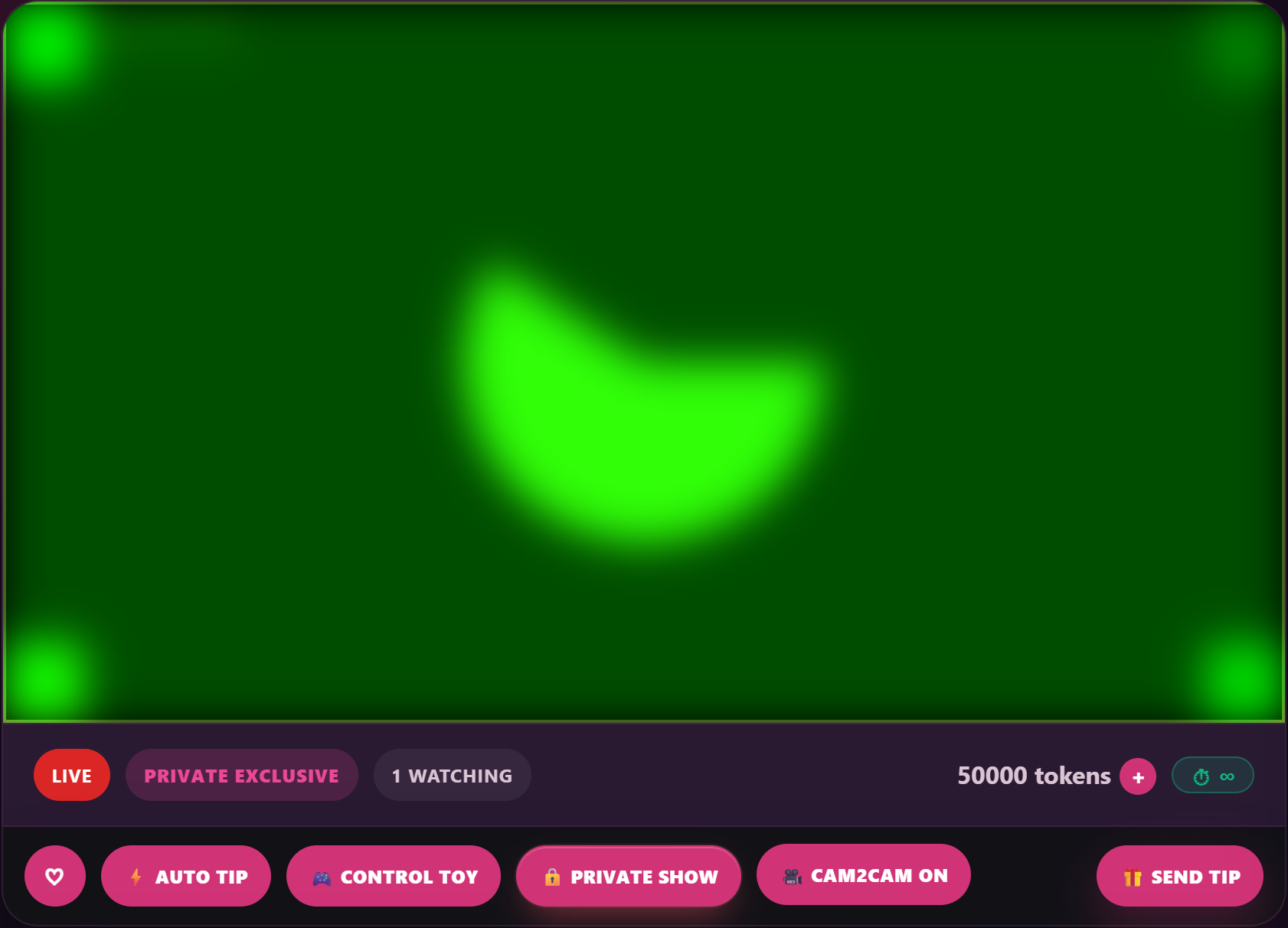
- If you have Cam2Cam allowed set to On, the viewer sees a button in their player that lets them turn on their own camera and microphone. Their browser will ask for camera/mic permission the first time.
- While their cam2cam is active, you see their video and hear their audio in a small picture-in-picture window inside your studio (Section 4).
- The viewer can switch their camera on and off at will during the show. The per-minute meter keeps running either way — cam2cam doesn’t change billing.
The system messages the viewer might see:
- Success on enable: “Cam2cam enabled. You can now publish your camera and microphone.”
- Success on disable: “Cam2cam disabled. Your camera and microphone have been stopped.”
4. What you see and control
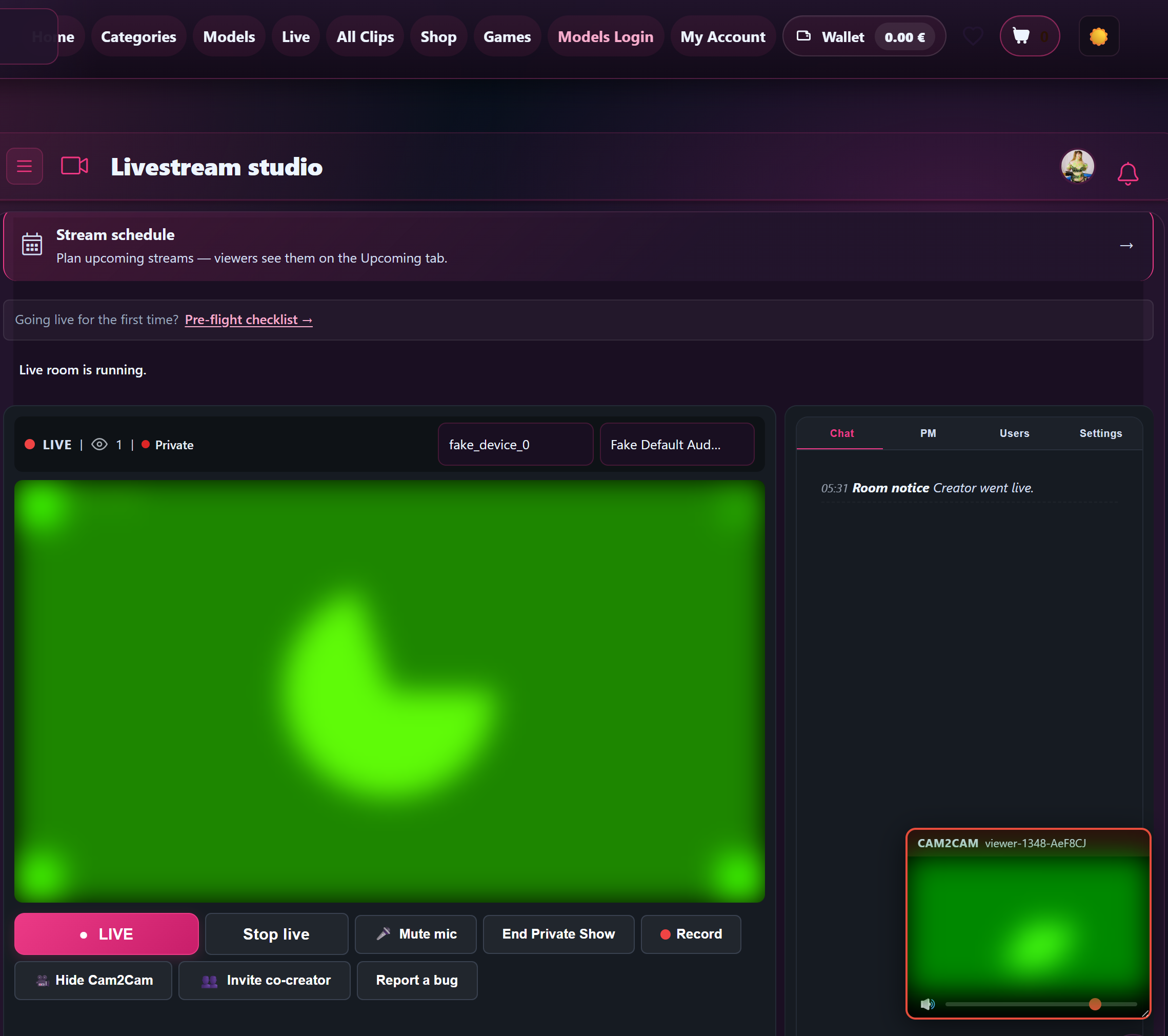
When the viewer turns their camera on, a small floating window appears inside your studio labelled Cam2Cam, with the viewer’s name next to it. It contains:
- The viewer’s video.
- The viewer’s audio.
- A volume slider (the tooltip reads “Viewer volume”) so you can balance their voice against your own audio without touching your headphones.
- A draggable header — grab and move the window anywhere on screen if it’s covering something you need to see.
You also get a button on your studio toolbar:
Show Cam2Cam (toggles to Hide Cam2Cam when the window is open)
Hiding the window doesn’t disconnect the viewer’s camera — their feed keeps publishing — it just removes the window from your screen. Click Show Cam2Cam again to bring it back.
You don’t have a “stop the viewer’s camera” control on your side — the viewer is the only one who can turn their own cam2cam on or off. If you want them to stop, ask them in chat. If they don’t, you can always end the private show.
5. Common errors and what they mean
If the viewer tries to enable cam2cam but it doesn’t work, these are the messages they (or their browser console) will see:
| Message | What it means | Fix |
|---|---|---|
| “Cam2cam is only available in Exclusive Private shows.” | The room is in regular Private mode (or some other mode), not Exclusive. | Cam2cam is by design Exclusive-only. End the current private and start a new one in Exclusive mode if both sides want it. |
| “Only the paying user can enable cam2cam.” | Someone other than the requesting viewer hit the cam2cam button. (This shouldn’t normally be possible, since only the requesting viewer can be in the room.) | Refresh and rejoin the show; if it persists, end and re-request the private. |
| “Cam2cam is not enabled for this show.” | You had Cam2Cam allowed set to Off when this Exclusive Private started. | End the show, flip Cam2Cam allowed to On, and start a new one. The setting can’t be flipped mid-show — it’s locked at room-start. |
Browser-level errors (camera blocked by site permissions, no working webcam, mic taken by another app) come from the viewer’s browser, not from Lewdden. The fix in those cases is on the viewer’s machine — reload, re-grant camera permissions, close the other app holding the mic.
6. Recording and privacy
Cam2cam video and audio from the viewer are not recorded by Lewdden. Only your outbound stream goes into your VOD library at the end of the session — the viewer’s camera feed exists only for the duration of the live show.
This matters for two reasons:
- Reassurance for the viewer. If a viewer asks “is my camera being saved?”, the answer is no. Their feed is ephemeral.
- You can’t go back. If the viewer did or said something memorable on cam2cam, you have only the live show — there’s no recording to revisit.
Your own outbound video is recorded into a private VOD as usual (assuming you have Record privates enabled in your studio settings). For full detail on how recordings work, see Recording your livestreams.
7. Pricing cam2cam shows
Cam2cam itself doesn’t have a separate price. The viewer pays your Exclusive rate per minute (default 60 tokens/min, configurable in studio Settings → Pricing) plus, optionally, your Exclusive upfront entry fee (default 0). Cam2cam is part of what they’re paying that higher rate for.
If you offer subscriber pricing for Exclusive Privates, the panel exposes a Subscriber exclusive upfront override field — your subscribers pay that upfront amount instead of the standard one. The per-minute rate is the same. (Discounted rates are out of scope for cam2cam itself; see Subscriber clip discounts and your subscription tier setup for the broader subscriber-pricing picture.)
8. FAQ
Q: Can I see the viewer before they enable cam2cam?
No. The cam2cam window only opens once the viewer turns their camera on. You won’t see them at all in regular Private shows, and not until they tap their cam2cam button in Exclusive ones.
Q: Can the viewer hear me on regular Private (no cam2cam)?
Yes — your audio always streams to whichever viewer is in the private. Cam2cam is about the viewer’s outbound camera and mic, not yours.
Q: Can I block a specific viewer from using cam2cam?
Not directly. The toggle is all-or-nothing: cam2cam is allowed for every Exclusive Private viewer or none of them. If you want to keep someone out, decline their private request — that’s the right place to gate it.
Q: Does cam2cam work on mobile?
The viewer’s mobile browser needs camera and microphone access. Most modern phones can do this, but reliability varies; if a viewer can’t get cam2cam working on their phone, suggest they hop on a laptop instead. Your studio side runs in a desktop browser as usual.
Q: What about voyeurs — can they see cam2cam?
Exclusive Private shows have no voyeurs by design — the room is fully shuttered to anyone except the requesting viewer. So nobody else ever sees the cam2cam feed. (Voyeurs are allowed in regular Private shows, but regular Private has no cam2cam, so this question doesn’t come up.)
Q: Can I enable cam2cam mid-show after the toggle was off?
No. Cam2Cam allowed is read at room-start and locked for that show. End the current show, flip it on, start a new one.
Q: If the viewer’s camera drops, do they get refunded?
The per-minute meter keeps running based on the show being connected, not on cam2cam being active. Cam2cam dropping is a viewer-side issue and doesn’t pause the meter. If you want to comp them, you can end the show early — they only pay for time used.
Need more help?
If a viewer reports cam2cam isn’t working and the messages above don’t fit, ask them what their browser said and contact support with the show date/time and the viewer’s username — we can pull the audit log (we record cam2cam enable/disable events with timestamps) and figure out what went wrong.







