
Most questions about Lewdden have an answer somewhere in this help centre — that’s why it exists. But some things genuinely need a human: a payout that didn’t arrive, an account locked out, a clip rejected for a reason that doesn’t fit the published rules, a fan you need blocked, a transaction you didn’t recognise. For all of those, the support form opens a ticket with the right team.
This article covers where the form lives, which category routes to which team, what to include in the message so the response is useful on the first reply, and roughly how long different ticket types take to resolve.
1. Where to find the form
Both fans and creators reach the support page from their own account dashboard:
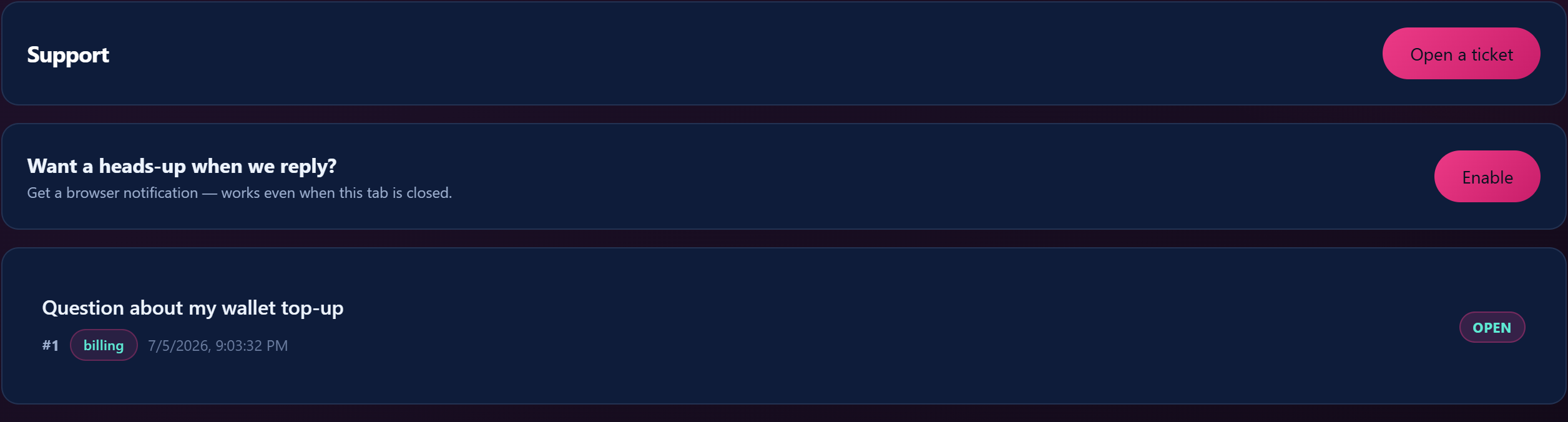
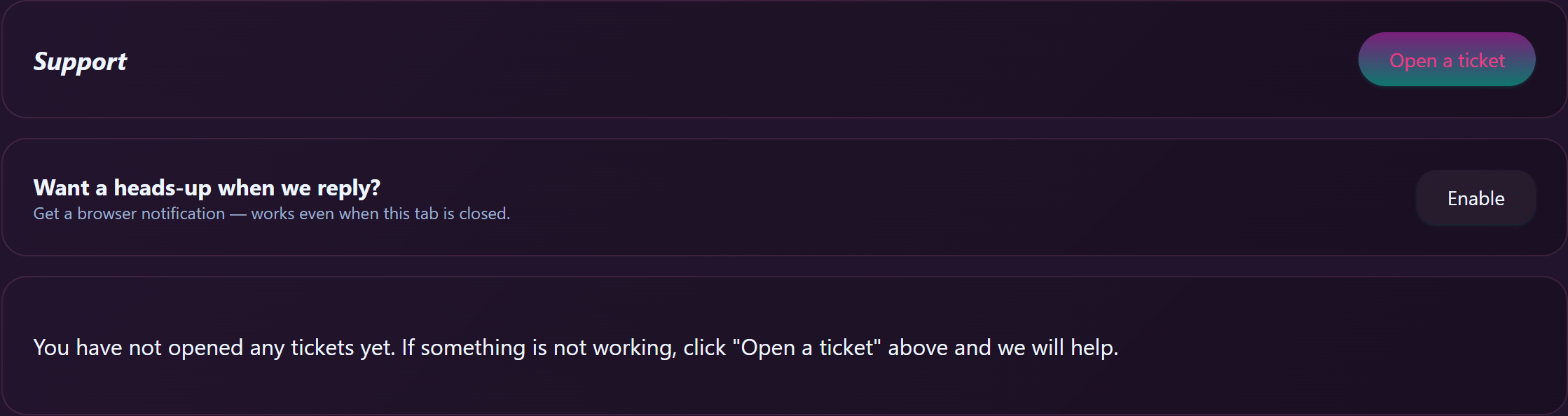
- Fans (customers) — open lewdden.com/my-account/support/. The page lists your existing tickets and shows an Open a ticket button.
- Creators — open lewdden.com/store-manager/support/ from the store manager left nav. Same layout; the category dropdown shows the creator-side categories instead of the customer ones.
Click Open a ticket and a compose form appears with four fields: Category (dropdown), Subject (text), How can we help? (your message), and Attach files (optional). There’s an anti-bot check at the bottom of the form, then a Send to support submit button.
If you’re not signed in, the form sends a one-click magic link to the email tied to your account so you can open a ticket without typing your password again. The magic link is single-use and time-limited.
You can also enable browser notifications from the support page so you get a heads-up when an agent replies, even when the tab is closed — there’s an Enable button below the tickets list.
Some KB articles link directly to a pre-filled compose URL — for example, Customising your store FAQ has a “request a store name change” link that opens the form with the Store name change category already selected. Those direct links work the same way as visiting the page and picking the category yourself.
2. Customer categories (the dropdown for fans)
Pick the category that fits — wrong category routes the ticket to the wrong queue and slows the response. If nothing fits cleanly, Account & login is a safe catch-all and the agent will re-route as needed. There are nine customer categories:
Account & login (slug: account)
Anything to do with signing in, signing up, the email tied to your account, password problems that the Resetting your password self-service flow can’t solve, deleting your account, suspected unauthorised access, or any other account-admin question that doesn’t fit elsewhere.
Wallet & payments (slug: wallet)
Wallet top-ups that didn’t credit, payment-method declines, double-charges, refund-status questions, currency / VAT receipts, or any payment-side issue that’s about your money moving in or out. Don’t use this for content access (use the relevant content category instead).
Subscriptions (slug: subscription)
Anything about a creator subscription you’ve started, are about to start, or want to cancel — including renewal questions, the “I subscribed but I can’t see the subscriber-only content” troubleshooting, and disputes about what was supposed to be included.
Streaming playback (slug: playback)
The stream won’t play, the audio is broken, the chat isn’t loading, the tip menu doesn’t open, the video stalls, the stream ended without a recording — anything that’s about watching a stream not working as expected.
Product question (slug: product)
For physical product orders only — signed prints, custom merch, used-item sales. Covers shipping, tracking, “where is my package”, customs / returns. Not for clips, subscriptions, or stream tickets (those are wallet / subscription / streaming categories).
Abuse / report a creator (slug: abuse)
For reporting another user — a creator who broke the rules, content that doesn’t belong on the platform, harassment in chat, suspected underage content, doxxing, or any safety / trust issue. See Reporting a creator or content for the full reporting flow. Tickets in this category are routed to the Trust & Safety queue.
Feature request (slug: feature_request)
For suggesting a new feature, a UI improvement, or a flow you’d like to see on the platform. Not a bug; not urgent. We track feature requests separately from operational tickets.
Bug report (slug: bug_report)
For reproducible product bugs that aren’t blocking your account. (For account-blocking bugs, Account & login routes faster.) Include the URL where you saw the bug, the steps to reproduce, and what you expected vs. what happened.
Other (slug: other)
For genuinely-doesn’t-fit-elsewhere questions. The agent triaging the ticket will read it and re-route to the right queue if there’s a better fit.
3. Creator categories (the dropdown for creators)
There are ten creator categories:
Store name change request (slug: store_name_change)
The dedicated category for changing your store’s URL slug + heading. The store name field on the profile form is locked precisely because changes go through this category for review (collision check + naming-rule check). Most requests resolve in 1-2 business days.
Payouts & earnings (slug: payouts)
A payout that didn’t arrive, a discrepancy on your earnings dashboard, a question about commission or the gross-to-net calculation, switching your payout method, IBAN / Paxum / Wise / Payoneer issues. See How creator payouts work before opening — most “where is my payout” questions are answered by the cycle / threshold rules there.
Verification & onboarding
Identity-verification problems before you can launch — verification rejected, verification stuck, document-upload errors, age-bucket discrepancies. New-creator onboarding questions also fit here.
Streaming (camera, mic, toys, collabs) (slug: streaming)
Studio-side issues — camera or microphone not detected by the streaming page, Lovense or other toys not pairing, multi-creator collab invites failing, stream cutting out mid-show. Not for fan-side playback issues (that’s the customer Streaming-playback category).
Products & shipping (slug: products)
For creators selling physical merch — fulfilment questions, marking shipped, tracking integration, returns from buyers, customs or DSA / OSS compliance questions.
Feed, clips & recordings (slug: feed)
Anything about the content surfaces you publish — clip moderation rejections you want to appeal, feed-post visibility, VOD / stream-recording management, custom-orders questions, paid messaging questions, scheduling. The most common “why was my clip rejected?” tickets land here.
Account admin (slug: account)
Account-level changes that aren’t covered elsewhere: changing your email, suspected unauthorised access, deleting your creator account, two-factor questions. (For your storefront fields — avatar, banner, bio — see Customising your store first; most of those don’t need a ticket.)
Feature request (slug: feature_request)
For suggesting a new feature, a UI improvement, or a workflow change. Tracked separately from operational tickets so they don’t get lost in the regular queue.
Bug report (slug: bug_report)
For reproducible product bugs that aren’t blocking your account. (For payout-blocking or verification-blocking bugs, those categories route faster.) Include URL, steps to reproduce, expected vs. actual.
Other (slug: other)
For questions that genuinely don’t fit elsewhere. Triaged + re-routed if there’s a better fit.
4. What to include in the message
A well-formed ticket gets a useful reply on the first response. A vague one bounces back asking for the same information you could have included in the open. The basic checklist:
- A clear subject line. “Wallet top-up didn’t credit” beats “Help”.
- The relevant date and time. Particularly for transactional issues — “I topped up €20 yesterday around 14:00 CEST and it shows as failed” gives the agent something to look up.
- The user / creator names involved. If you’re reporting a creator, include their store name. If you’re reporting a fan, include their username from chat.
- The order or transaction ID. For any payment / wallet / payout question, the ID from your Orders page (fans) or Payouts page (creators) is the fastest path to identification.
- Screenshots. Attach screenshots of error messages, broken pages, or the relevant order / chat / clip. The form supports images, PDFs, plain-text logs, and MP4 video attachments.
- What you’ve already tried. “I refreshed, cleared cache, tried in another browser, still broken” saves a back-and-forth.
5. What happens after you submit
The ticket is assigned to an agent in the right queue (customer team or creator team, plus Trust & Safety as a separate queue for abuse / safety reports). You’ll receive an email confirmation with the ticket ID and a link back to the ticket thread on the platform.
Response time targets (typical, not contractual):
- Urgent (Trust & Safety incidents — suspected underage content, doxxing, threats, account hacks): under 4 hours during business hours, 24/7 monitoring for the highest severity.
- High (payout problems, verification stuck, payment disputes): same business day.
- Standard (general questions, content moderation appeals, product / shipping): 1-2 business days.
- Low (informational / educational questions, feature requests): 2-3 business days.
Some keywords in the message body auto-escalate the ticket priority — for example, anything that mentions a child-safety concern, a self-harm thread, a doxxing incident, an account hack, or a legal / GDPR matter is routed to the right team at urgent priority regardless of which category you picked. You don’t need to game the category to get attention; the auto-routing is there to catch important things if a panicked user picks the wrong category.
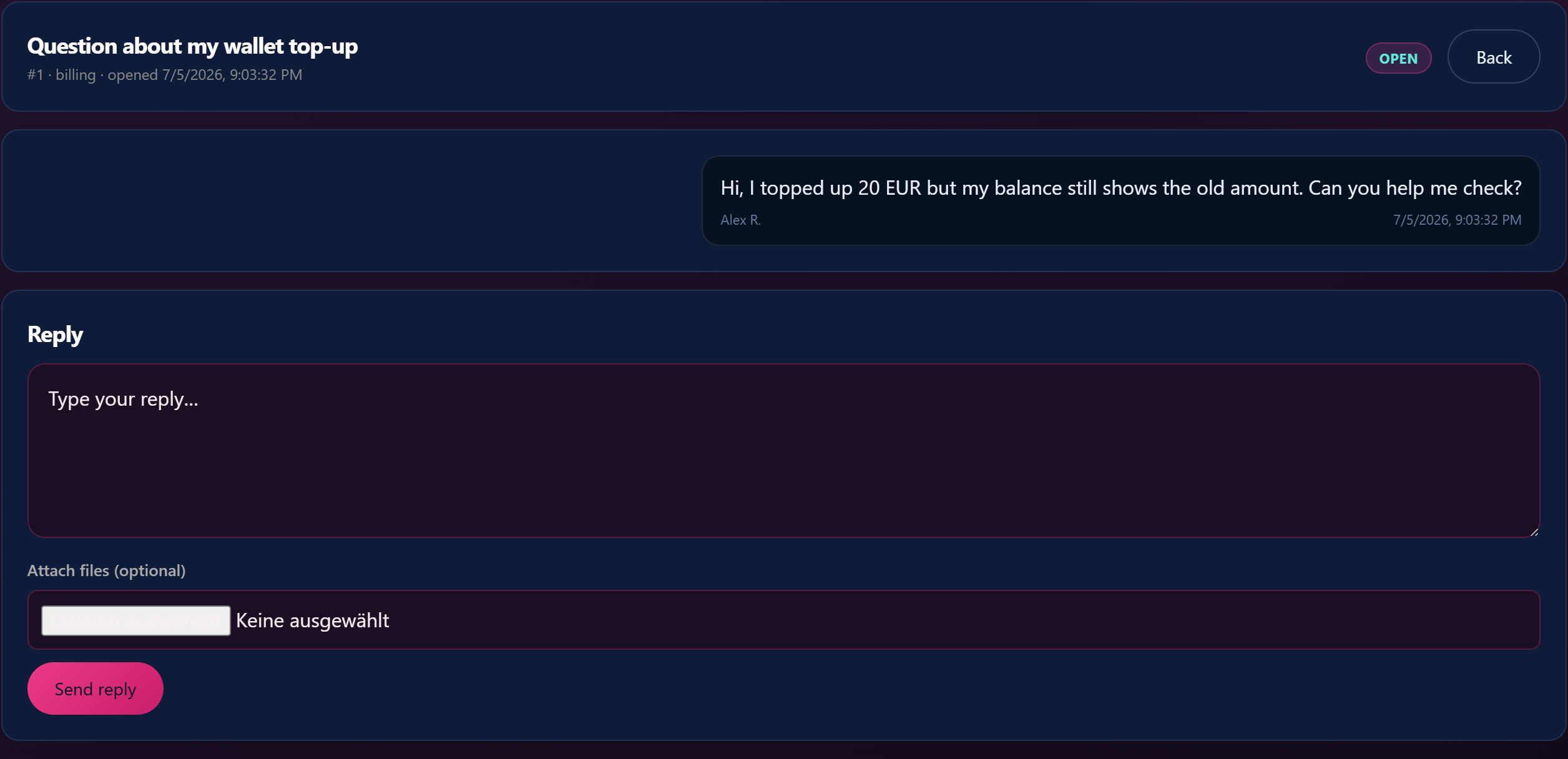
You’ll get email notifications when the agent replies. You can also reply to the email directly — the platform threads your reply back into the ticket. Or open the ticket page on the platform and reply there with attachments. Plus, if you’ve enabled the browser-notifications opt-in mentioned in §1, you’ll get a desktop ping when a reply arrives.
Common questions
Q: I’m not signed in and I forgot my password — how do I open a ticket?
The contact form has a magic-link mode for unsigned-in users. Enter the email tied to your account, the platform sends a single-use sign-in link to that email, and clicking the link signs you in long enough to open the ticket. If you can’t access that email any more, see Resetting your password §6 for the no-email-access flow.
Q: How do I check the status of an existing ticket?
The support page at /my-account/support/ (customers) or /store-manager/support/ (creators) shows all your tickets in a list at the top, with status pills (Open / Awaiting reply / Resolved / Closed). Click any ticket to open the conversation.
Q: Can I attach a screenshot or other file?
Yes. The compose form and every reply have an Attach files (optional) field. Allowed types: images (JPG, PNG, WebP, GIF), PDFs for receipts / invoices, plain-text files for logs, and MP4 videos for bug reports. Single-file size cap and a per-ticket total cap apply — the form shows the limits inline.
Q: I picked the wrong category — can I change it after submitting?
The agent can re-route, and they’ll do it automatically if the message is clearly in scope of a different queue. You don’t need to re-open the ticket; just describe the actual issue in the body and the agent will move it.
Q: How long should I wait before following up?
Use the response-time targets in §5 as a guide. Following up earlier than the target time doesn’t speed things up — the queue is the queue. After the target time has passed without a reply, a polite “any update?” is fine.
Q: My ticket has been “Awaiting reply” for a long time. What do I do?
“Awaiting reply” means the ball is in your court — the agent is waiting for information from you (probably asked a question you missed). Open the ticket and reply with whatever was asked.
Q: Can I ask multiple unrelated questions in one ticket?
Better to open separate tickets — different categories route to different agents, and bundled tickets get split apart anyway, which slows everything down. Quick rule: one issue per ticket.
Q: I got a rude response from an agent. Where do I report that?
Open a fresh ticket with the Account & login category (customer) or Account admin (creator) and include the original ticket ID. We’ll review the conversation. CSAT (customer satisfaction) prompts also appear after a ticket closes; thumbs-down feedback is read.
Q: Will my ticket be visible to anyone besides the agent and me?
Tickets are visible to the assigned agent, the agent’s team supervisor, and the platform’s automated routing system. They are NOT visible to other users. Trust & Safety tickets may be reviewed by a separate compliance team if the keyword auto-escalation flagged them.
Q: What if the issue is urgent and I haven’t heard back?
For genuine emergencies (active hack, current safety threat, ongoing fraud), reply to the ticket with URGENT in the subject line and a brief description of what’s escalating. The keyword auto-routing picks that up and bumps the priority. For non-emergencies, the response-time targets in §5 are realistic expectations.
Q: Can I call instead of opening a ticket?
There’s no phone support — the contact form is the only path. Email-based response means everything is on a paper trail, which protects you and the platform if the issue ever needs to be reviewed later.
Q: I’m under 18 and I think I shouldn’t have an account here.
Open the Account & login (customer) or Account admin (creator) category, mention you’re under 18, and request account closure. The team will close the account and refund any active subscription period that hasn’t yet been delivered against. Don’t try to keep the account open by any means — see Age verification — why we ask, what we keep for why this is enforced strictly.







