
Video guide
Prefer to watch? This short guide walks your Notification preferences page — the Sales, Payouts, Moderation and Account sections, the required emails that always send, and how to save your choices.
As a creator, you’ll get emails when a fan buys a clip, sends you a message, asks an enquiry, follows your store and a new product is published, when a payout moves through, and when a moderator has feedback on something you submitted. Most of these can be turned off individually on the Notification preferences page inside your store-manager (under the notifications bell). A small set of essential emails — security and legal notices — stay on regardless. There’s also a notification bell at the top of your storefront for announcements from the Lewdden team, and the messages inbox is where direct messages from fans land.
This guide is for creators managing what email they get from Lewdden. The fan-side equivalent is Email notification settings (customer).
1. Where to find your settings
Sign in and go to /store-manager/notifications/ (the bell icon in the left sidebar of your store dashboard). Click the Notification preferences link in the top-right of the inbox — or jump straight to /store-manager/notifications/preferences/. The intro reads:
“Choose which emails you want to receive from Lewdden. You can opt out of any non-required email — required emails stay on so you do not miss security or legal notices.”
Below that, the page is grouped into sections. Each section shows the events that can fire an email, with a checkbox per event. Tick = you’ll get the email. Untick = you won’t. When you’re done, click Save preferences. A green banner reads “Your email preferences have been saved.”
2. The sections you’ll see (creator-side)
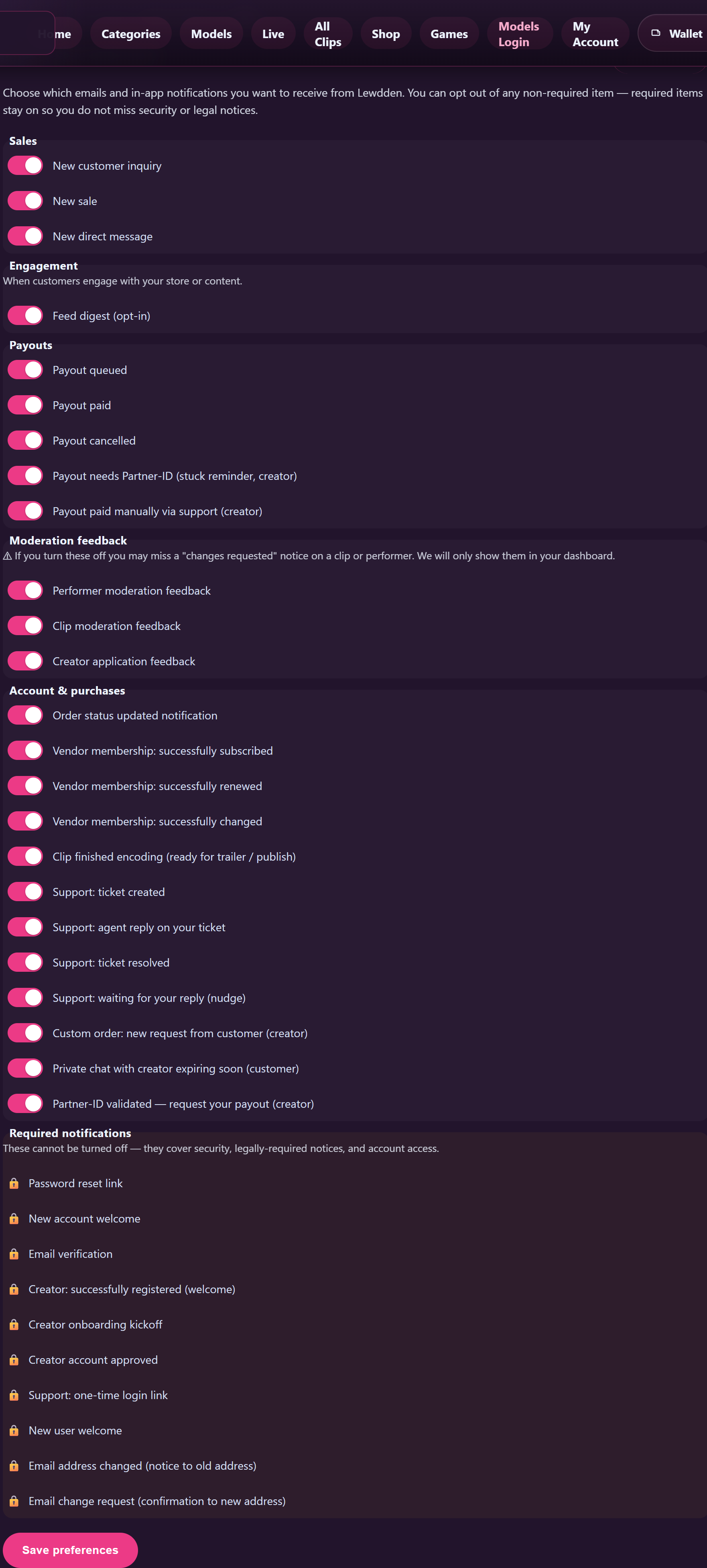
Each event listed below has its own checkbox.
Sales
- New sale — sent every time a fan buys something from your storefront (clip, subscription, custom video, physical item, ticket).
- New direct message — sent when a fan sends you a direct message in the inbox.
- New enquiry on a product — sent when a fan submits the enquiry form on a product page.
Engagement
Section note: “When customers engage with your store or content.”
- New product from a creator you follow — sent when a creator you follow publishes a new product. (You’re a fan as well as a creator if you follow other creators.)
- Feed digest (opt-in) — a periodic summary of new feed posts from creators you follow.
Payouts
- Payout queued — your payout has been prepared and is waiting to be sent to your bank.
- Payout paid — your payout has been sent. Funds usually reach your bank between the 4th and the 7th of the month (the 7th at the latest).
- Payout cancelled — a queued payout was cancelled before it left. You’ll see the reason in the email.
Most creators leave all three of these on. Missing a payout email and missing the bank arrival is annoying — having both makes reconciliation easy.
Moderation feedback
Section note: “⚠ If you turn these off you may miss a ‘changes requested’ notice on a clip or performer. We will only show them in your dashboard.”
- Performer moderation feedback — a moderator has asked you to update a performer entry.
- Clip moderation feedback — a moderator has asked you to fix something on a clip you uploaded (title, tags, content, etc.) before it can publish.
- Creator application feedback — a moderator has asked you to update your creator application.
Highly recommended to leave these on — without them, your only notification of a changes-requested clip is checking your storefront dashboard manually.
Account & purchases
Order, subscription, refund, payment-failed and shipment-tracking emails — these only fire if you yourself bought something on Lewdden (most creators do at some point).
Support emails also live here:
- Support: ticket created — confirms we received your support request.
- Support: agent reply on your ticket — a support agent has answered.
- Support: ticket resolved — your ticket is closed.
- Support: waiting for your reply (nudge) — a follow-up if a ticket has been waiting on your reply for a few days.
Required notifications (cannot be turned off)
Section note: “These cannot be turned off — they cover security, legally-required notices, and account access.”
- Password reset link
- New account welcome
- Email verification (creator signup)
- Creator onboarding kickoff
- Creator account approved
- Auto-renewal advance notice (SCA — required) — only relevant if you have a subscription as a customer.
- New user welcome (account-creation confirmation)
These are shown with a 🔒 icon on the page. There’s no checkbox next to them — they will always send.
3. The bell at the top of your storefront
When you’re inside /store-manager/, the header has a small bell icon (top-right area, next to the storefront panel). The label is Notifications. This is for announcements from the Lewdden team — feature launches, scheduled maintenance, content-policy updates, action-required notices, and the occasional tip on a feature you might not be using yet.
The bell shows a small unread count when there’s something new. Click it to open the notification panel and read the messages. Each notice has a priority — informational tips and feature announcements appear smaller, while warnings and critical notices have a coloured ring around the bell so they’re hard to miss.
The bell is for staff-to-creator broadcasts only. Fan messages do not fire the bell — those land in your inbox (see below).
4. Direct messages from fans — your inbox
Fans messaging you directly land in your messages inbox at /store-manager/messages/ (or the same content at /store-manager/chat/ — both URLs show the same threads). Each new message increments the unread count on the inbox tab.
If New direct message is enabled in your email preferences, you’ll also get an email per direct message. If you turn it off, you’ll only see them in your inbox.
For the full feature walkthrough of the inbox, see Sending paid messages — PPV media, broadcasts, voice notes, and per-thread pricing and the upcoming Chat best practices guide.
5. What kind of fan actions do NOT trigger an email by default
To keep your inbox readable, several common fan actions don’t generate per-event emails. You’ll see them on your storefront dashboard or in the messages inbox instead:
- A fan tipped you — visible on the live tip feed and the analytics page; no per-tip email.
- A fan started a subscription — visible in your subscriber list and your sales dashboard; the “New sale” email covers this.
- A fan started a private show — visible in real time in the live studio and in session logs; no per-private email.
- A fan followed your storefront — visible in your follower count and storefront analytics; no per-follow email.
- A fan added a clip to favourites — visible on the clip’s stats page; no per-favourite email.
If you want per-event visibility for any of these, the Reports tab in your storefront and the live studio’s stats panel are the right places to look.
6. Suggested setup for a typical creator
If you’re not sure where to start, this works well for most creators:
- Sales — leave all three on. New sale + new direct message + new enquiry are how you find out fans are spending and reaching out.
- Engagement — turn the new-product email off if you follow lots of creators (it can get noisy). Leave the feed digest on if you like the periodic round-up.
- Payouts — leave all three on.
- Moderation feedback — leave all three on. The cost of missing one is your clip not publishing.
- Account & purchases — leave the support emails on. Order/subscription emails only matter if you buy from other creators.
7. Troubleshooting
- I’m not getting an email I expected. Check your spam/junk folder first. If the email address on file is wrong, update it under Account details. If your provider blocks our sender domain, allow-list lewdden.com.
- I turned everything off and now I’m getting nothing. Required notifications still fire. If you also miss those, check your spam folder and your address-on-file.
- I’m getting too many “New sale” emails during a busy hour. Either turn that one off and rely on the dashboard, or set up a filter in your email client to fold them into a folder you check daily.
- The Save preferences button does nothing. Refresh the page and try again. If still stuck, sign out and back in — your session may have expired.
- The bell shows old notifications I’ve already read. Click into each one to mark it read. If the count stays stuck after you’ve read them all, refresh the page.
8. FAQ
Q: Can I get push notifications on my phone instead of email?
Not today. The two notification channels for creators are email and the storefront bell. The messages inbox is the third surface, but it doesn’t push outside the page — you have to open the inbox to see new messages.
Q: Can I have my emails go to a different address than my account login?
No — emails go to whichever address is on your account. If you want a different address, change it under Account details; that becomes both your sign-in email and the recipient for every email above.
Q: Will fans see when I open or read a message?
No. There’s no read-receipt for direct messages on either side.
Q: I disabled “Performer moderation feedback” but a clip got rejected and I missed it. Where do I look?
Your storefront dashboard shows clips in Pending review / Changes requested / Published states. The clip card has a “Why was this rejected?” link that explains. See Why was my clip rejected for the full flow.
Q: A payout email said “Payout cancelled” — what now?
The email body lists the reason. The most common ones are an outdated IBAN or a missing Partner-ID. Update the relevant field on your Payouts page and the next scheduled payout will pick it up. See Changing your IBAN or bank account if you need to fix banking details.
See also: Email notification settings (customer) · Sending paid messages · Contacting support · How creator payouts work.







