
You can send your live show in VR180 3D. Viewers with a headset watch you from inside the VR hub as if they were in the room; phones and desktops still get the normal player. It works with the external encoder you may already use — OBS or a hardware encoder — plus one switch in your studio: VR180 broadcast.
This guide is for creators streaming through an external encoder (RTMP). If you stream from your browser webcam, VR180 is not available — a webcam sends a flat picture, not a stereo 180° one.
In plain words — what VR180 broadcast does
A normal live stream is a flat picture. A VR180 stream is recorded with two lenses next to each other, like your two eyes — so a fan wearing a headset sees you in 3D and can look around, as if they were standing in front of you. That is all “VR180” means: a 180-degree, 3D picture.
Three things make it work:
- A VR180 camera. Any camera with two side-by-side lenses that records or outputs “VR180” (see the camera section below for models).
- Your streaming software (usually OBS) sends the camera picture to us — exactly like a normal stream, only with a bigger picture (the two eyes next to each other).
- One switch on our side. Under Store Manager → VR → VR180 broadcast you tell us which shape your camera sends (your camera manual says “equirectangular” or “fisheye” and a lens angle). We convert it so it looks right in the headset.
Fans with a headset watch you in the VR hub. Everyone else — phones, laptops — keeps seeing your normal 2D stream automatically; nobody is left out. The sections below give the exact settings, step by step.
1. What you need
- A VR180 camera that delivers a side-by-side stereo picture (left eye on the left, right eye on the right). See section 2 for what the picture must look like.
- An encoder: OBS Studio (free, Windows/Mac/Linux) or a hardware encoder that can send RTMP at 3840×1920.
- Encoder access in your studio (section 3). If you already stream with OBS or a DJI camera, you have it.
- Upload bandwidth of at least 20 Mbit/s, stable. VR180 in 4K needs 12–20 Mbit/s — about four times a normal 1080p stream.
- A headset to check yourself (Meta Quest 2/3/Pro or any headset with a browser). Not required, but you will want to see what your viewers see.
2. What your camera must deliver
The VR hub projects your picture onto a half sphere around the viewer. For that it needs the picture in a specific shape:
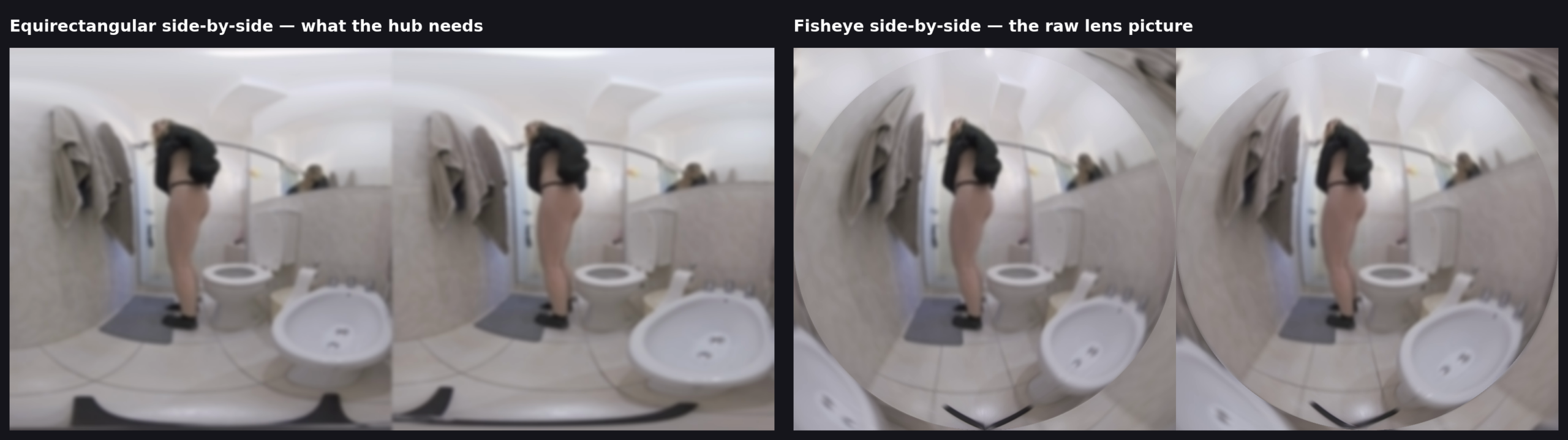
- Side-by-side (SBS): left eye in the left half, right eye in the right half. Not over-under, not a single eye.
- Equirectangular 180°: each eye “unrolled” into a rectangle, so the whole frame is 2:1 — for example 3840×1920, that is 1920×1920 per eye.
- 3840×1920 at 30 fps. That is the resolution and frame rate our ingest is tuned for. Higher input is scaled down; 60 fps is not needed.
- Camera at the viewer’s eye height, fixed. Do not hand-hold or pan a VR camera — in a headset that makes people feel sick.
Which cameras produce this?
- Cameras with built-in stitching (for example the Kandao VR Cam with its Kandao Stream software) send the finished side-by-side equirect picture straight to RTMP. They are the simplest path: the camera is the encoder.
- USB VR180 webcams (for example the VR.cam 02) plug into OBS as a normal camera at 3840×1920 — but they deliver fisheye, not equirect.
- Photo/cinema cameras with a dual-fisheye lens (for example the Canon EOS R5 C with the RF 5.2 mm lens) can stream live through a capture card — again as fisheye.
- Our recommendation up to 1,000 € — with prices and what each camera delivers — is in Recording and selling VR → Which camera?. Both picks there (SLAM XCAM, CALF × VISINSE) stream RTMP on their own; the VR.cam 02 goes through OBS.
Fisheye is supported. At the VR180 switch you pick what your camera sends — equirect, or fisheye with the lens angle (180°, 190° for the Canon dual fisheye, 200°) — and we convert it on our server before it reaches viewers. One rule for fisheye: each eye’s image circle must fill its half of the frame (crop the source in OBS so the circle touches the top and bottom), left eye on the left.
3. Get encoder access (once)
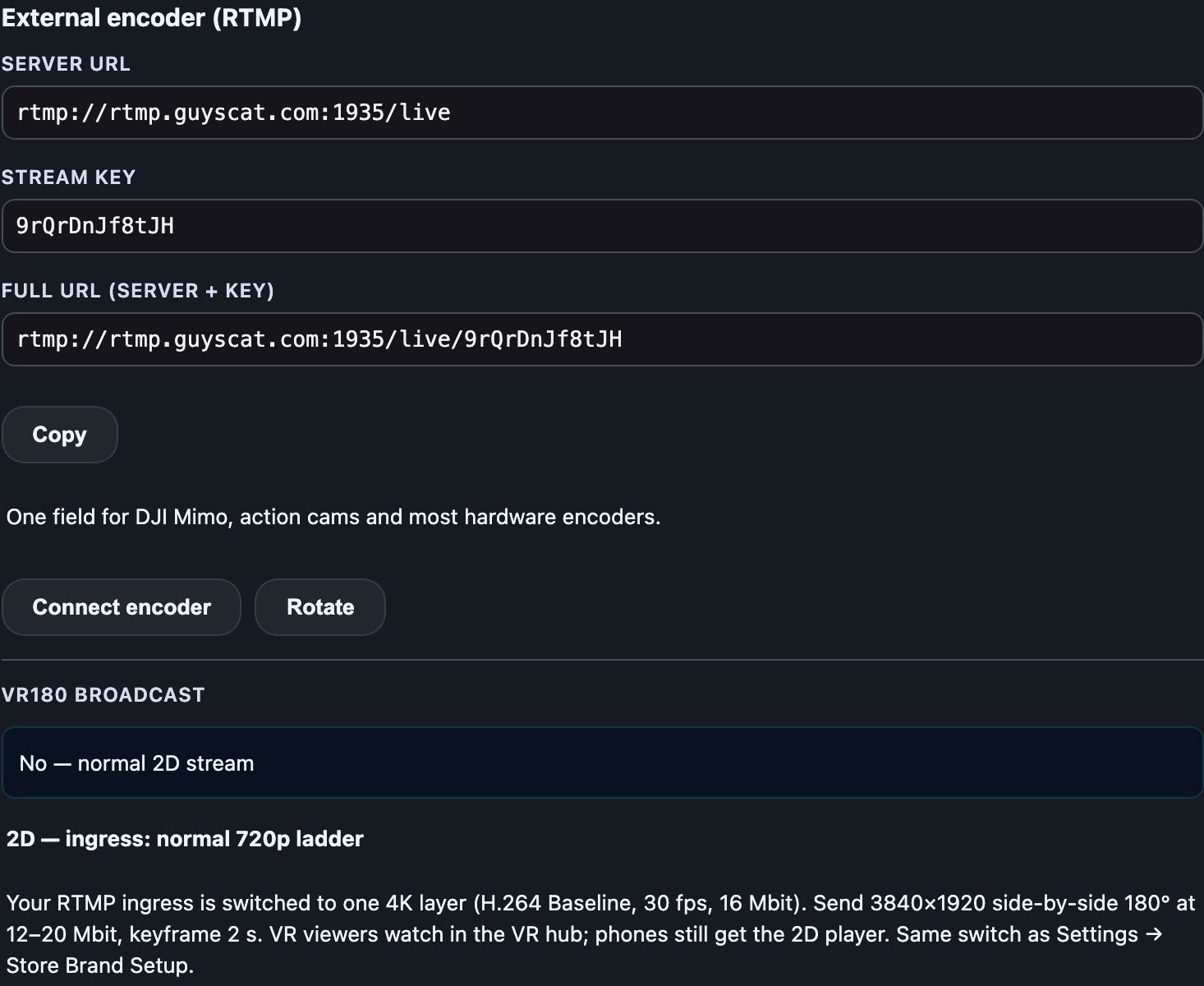
- Open Store Manager → Livestream.
- At the top, switch VIEW from “Webcam” to “External encoder”.
- The first time you will see “Why do you need external-encoder access?” — write one line, send. This opens a support ticket and we enable the encoder for your store.
- After that the panel shows Server URL, Stream key and Full URL (server + key), with Copy, Connect encoder and Rotate.
The stream key is the password for your stream. Treat it like one. Rotate creates a new key and kills the old one — use it if the key ever leaks.
4. Set up OBS Studio
These are the settings that work. They are the same on Windows and Mac; only the encoder name differs.
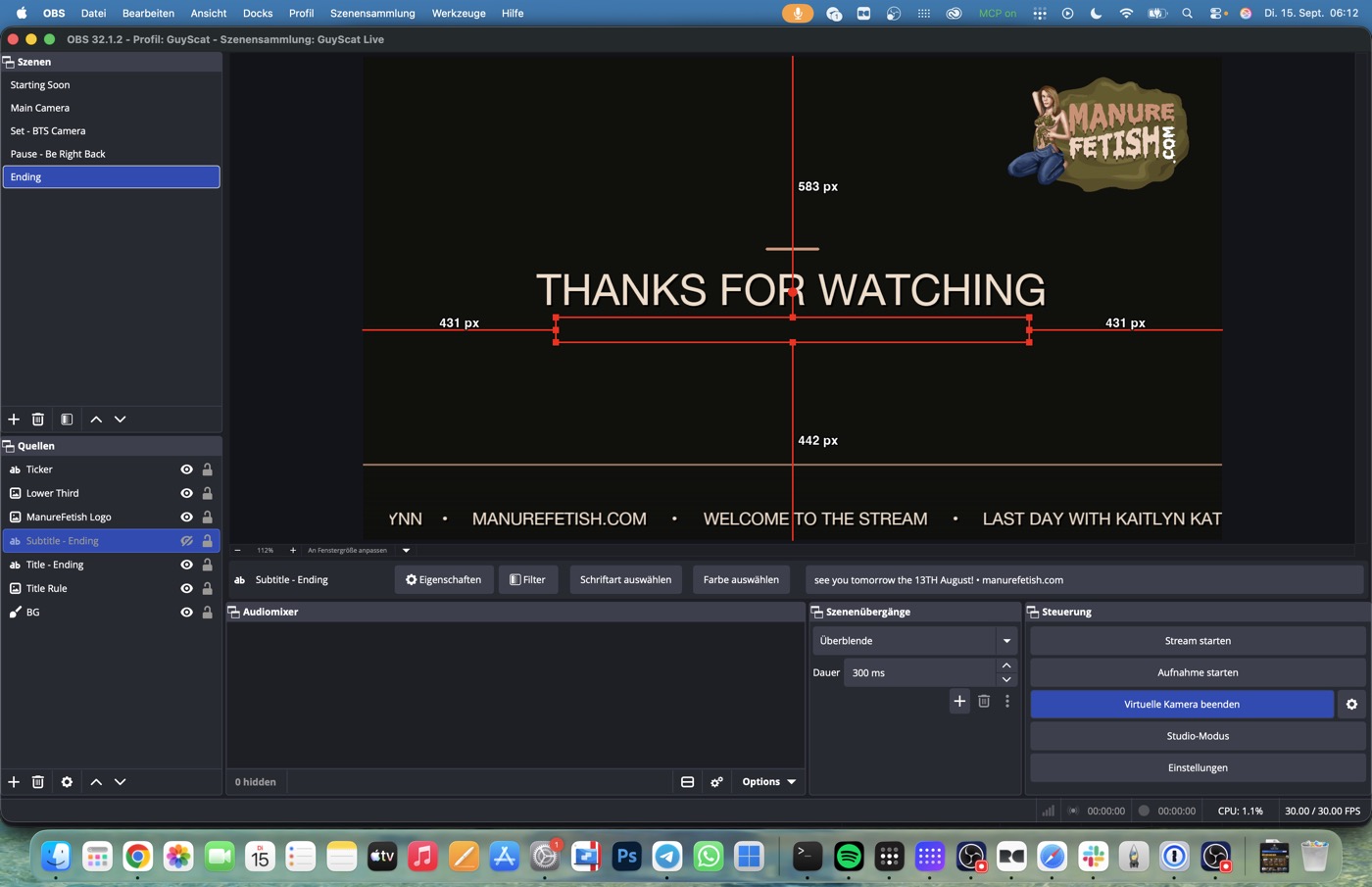
- Settings → Video: Base (Canvas) Resolution 3840×1920, Output (Scaled) Resolution 3840×1920, Common FPS 30.
- Sources → + → Video Capture Device: your VR camera (or the capture card). In its properties set the resolution to 3840×1920 and 30 fps. The picture must fill the whole canvas — no border, no crop — otherwise the two eyes are no longer where the hub expects them.
- Settings → Output → Streaming: Output Mode Simple, Video Bitrate 16000 kbps (12000–20000 is the usable range), Video Encoder Hardware (NVENC H.264 on NVIDIA, Apple VT H264 on Mac, QuickSync on Intel) — software x264 also works if your CPU is fast enough, preset “veryfast”. Audio Bitrate 160. OBS sets a 2-second keyframe interval and the “high” profile on its own in Simple mode; both are correct.
- Settings → Audio: Sample Rate 48 kHz, Channels Stereo.
- Settings → Stream: Service Custom…, Server = the VR180 server URL from your studio (
rtmp://rtmp-vr.lewdden.com:1936/vr, shown once the switch is on — section 5), Stream Key = your Stream key. Click OK. - Do not press “Start Streaming” yet — first the switch (section 5) and “Connect encoder” (section 6).
Hardware encoder or a camera that streams by itself: paste the Full URL (server + key) into its single RTMP field, set 3840×1920, 30 fps, H.264, 12–20 Mbit/s, keyframe 2 s.
5. Turn on “VR180 broadcast”
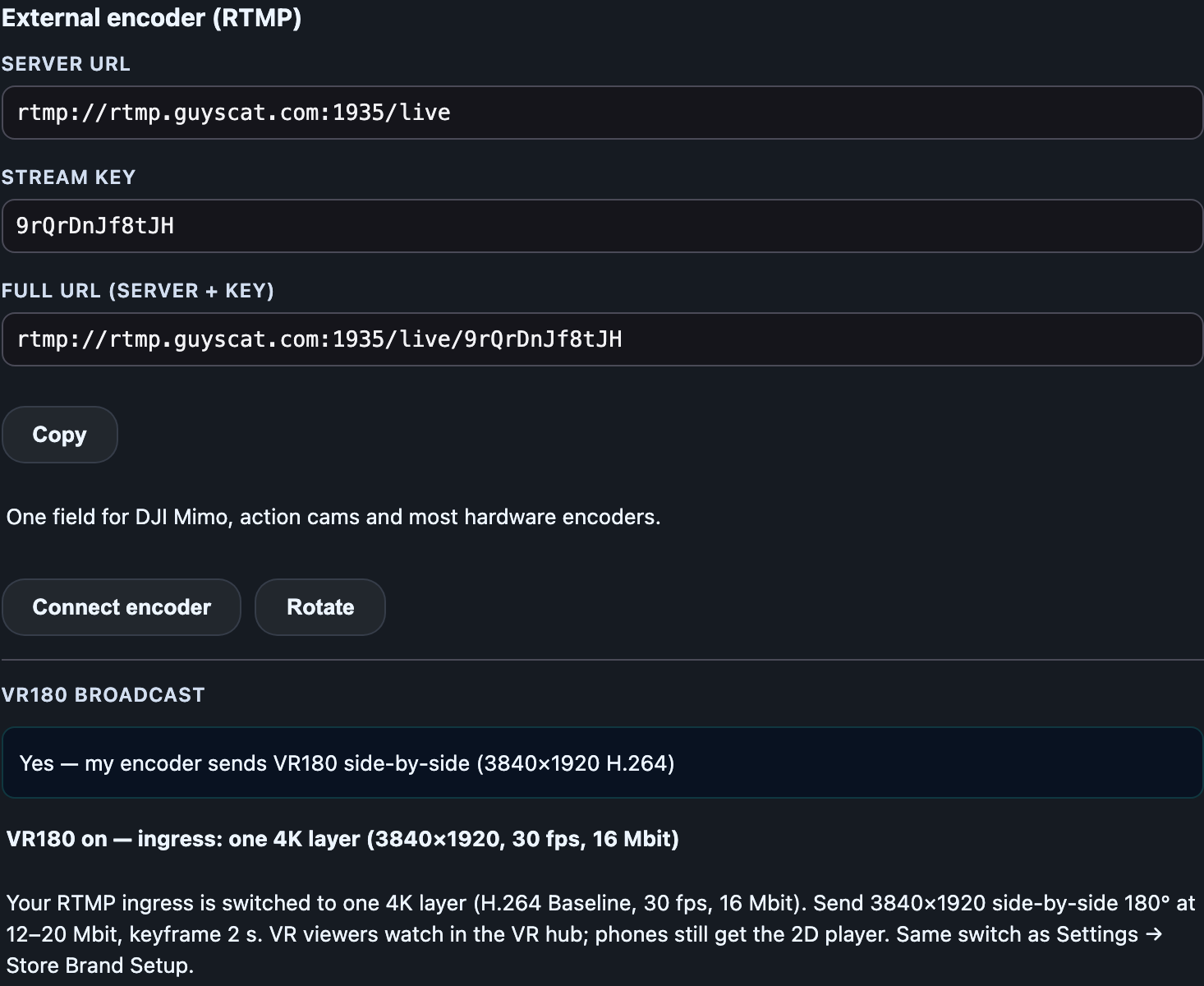
Set it once; it stays until you change it back.
- In the encoder panel, below Connect encoder / Rotate, find VR180 broadcast.
- Choose “Yes — VR180 side-by-side, equirectangular (3840×1920)” — or, if your camera sends fisheye, the fisheye entry that matches your lens (180°, 190° Canon, 200°).
- The line below changes to “VR180 on — ingress: one 4K layer (3840×1920, 30 fps, 16 Mbit)”. That is the confirmation: your ingest now carries one 4K layer instead of the normal 720p ladder.
- A second server line appears: VR180 server URL (same stream key) —
rtmp://rtmp-vr.lewdden.com:1936/vr. Send your stream to this server while VR180 is on. Fisheye must go there (that is where it is converted); equirect can go there too, or to the normal server URL.
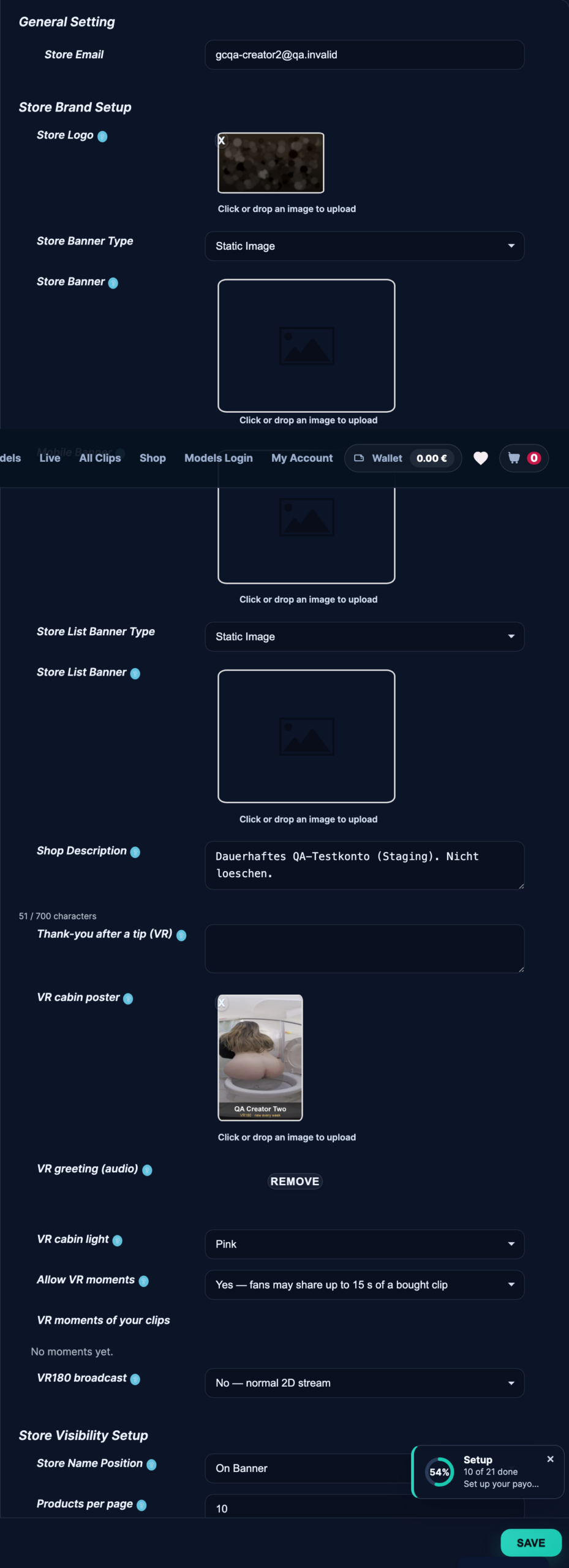
If you set it to “Yes” before your encoder access is granted, the line says so — the 4K layer is applied automatically as soon as the access is enabled. And if you rotate your stream key later, the VR180 setting stays.
When you go back to normal 2D shows, set it to “No — normal 2D stream”. Leaving it on “Yes” while sending a flat 1080p picture gives your 2D viewers a worse stream than they need.
What viewers see on /live. While the switch is on and you are live, your card on the /live overview carries a VR180 · 3D badge and is counted in the VR segment, and your store keeps the small VR mark from then on.
6. Go live
- In the encoder panel click Connect encoder. The studio shows “Waiting for your encoder to connect… start streaming now.”
- In OBS click Start Streaming (or start your hardware encoder).
- After 10–30 seconds your preview appears in the studio together with the button Go live with external encoder. In the preview you see the double picture (both eyes side by side) — that is correct.
- Click Go live. Your show is live: chat, viewer count, tips and Lovense work exactly like in a webcam show.
- To end: click End show in the studio first, then stop OBS.
If you set a tip goal in the studio, viewers in a headset see it too: a bar above the dome controls with the title, the tokens collected so far and the percentage, plus a small board with the top tippers of this show. When the goal is reached, the dome celebrates for a moment — a light pulse, confetti and a short buzz in the controllers.
7. Check it in a headset
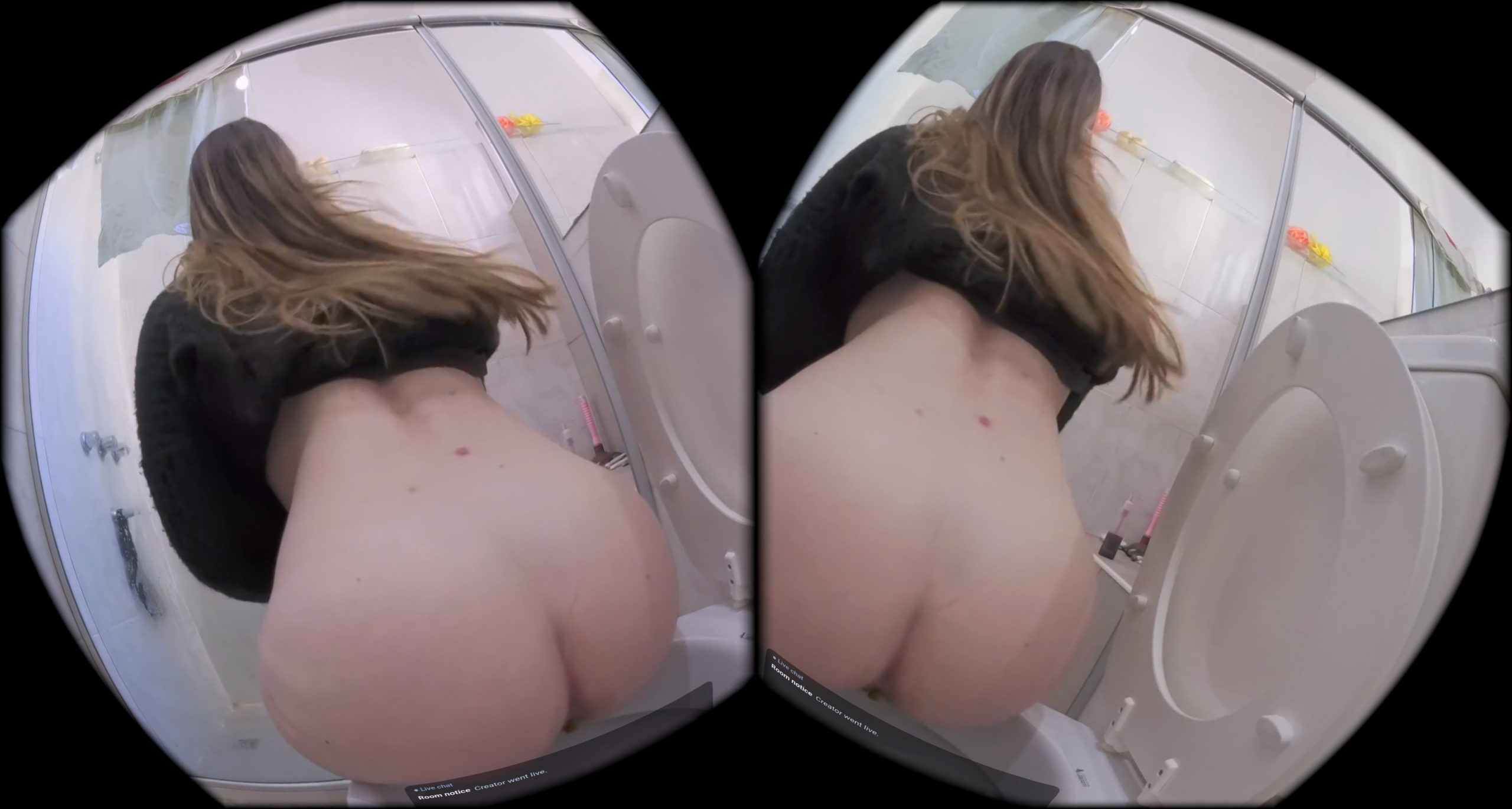
- In the headset browser open lewdden.com/vrfeed and enter VR.
- Open the Live tab. Your show is there with your name, viewer count and a snapshot.
- Open it. You should see depth (not a flat picture), one image (not two side by side), no round fisheye border, and more room to the left and right when you turn your head. Sound plays from the show. The delay is about 2–3 seconds.
Replays. With Record shows switched on in your studio settings, a VR180 show is recorded in full VR resolution (3840×1920). Afterwards it appears under Recordings with the chip “VR180 replay”: press Encode as VR clip, wait until it says ready, then Publish as clip as with any recording. The clip keeps VR180, is marked “Replay” in the hub and sells like every VR clip — it shows up there about two minutes after publishing, once its trailer has been generated.
8. What viewers without a headset see
Phones and desktops get a look-around player: one eye of your picture on a half sphere. Viewers drag with the mouse or a finger to look around; on a phone they can tap Move phone to look around and turn the phone instead. Flat view switches back to the plain picture. Nothing to set up on your side — it appears on your live page as soon as VR180 is on.
9. Troubleshooting
| Symptom | Cause | Fix |
|---|---|---|
| Studio stays at “Waiting for your encoder…” | Wrong key or URL, or the network blocks RTMP | Copy the Full URL again; Rotate the key and paste the new one; make sure outgoing port 1935 is open. |
| Hub picture is warped, round circles visible | The camera sends fisheye but the switch says equirect — or the stream went to the normal server instead of the VR180 server | Set the switch to the fisheye entry matching your lens and send to the VR180 server URL (section 5). |
| Hub picture is flat, or shows two pictures | Not side-by-side, or over-under | Check the OBS scene: left half = left eye, the frame fills the canvas. |
| Hub picture is blurry / 720p | VR180 broadcast is on “No” | Set it to “Yes” — the line must read “one 4K layer”. |
| Stuttering in the headset | Upload too small, or bitrate spikes | CBR at 16000 kbps or less, keyframe 2 s, 30 fps — not 60. |
| No sound | OBS audio track muted or not AAC | Check the audio mixer; AAC 160 kbps, 48 kHz. |
10. FAQ
Can I stream VR180 from my phone? No. The phone studio uses the phone camera and sends a flat picture.
Do I have to change anything for my normal 2D shows? Set VR180 broadcast back to “No”. Everything else stays as it was.
Does VR180 cost me more? Only bandwidth: 12–20 Mbit/s upload instead of 4–6.
Is the show recorded? Only if recording is turned on for that show type under My Recordings — same as for every other show. The recording contains the picture as your encoder sent it, side by side.
Can viewers on other sites see it? The hub lists live VR180 shows on the site you stream on.







