
Video guide
Prefer to watch? This short guide explains the Adjustments card — when our team credits or debits your balance, and how to read each entry.
Occasionally the Lewdden team will need to manually adjust your open balance — to correct an earlier mistake, resolve a dispute, refund a buyer, or apply a goodwill credit. When that happens, the change appears on your Payouts page with the reason. This guide explains what those rows mean and what to do if you disagree.
This article is the companion to How creator payouts work (which explains the monthly schedule) and Reading your Payouts page (which walks the page tile by tile).
1. Where adjustments appear
Sign in and open your storefront sidebar, then click Payouts. Scroll past the partner-ID card and the Open balance / Awaiting payout / Paid blocks. At the bottom you will find Adjustments by the Lewdden team.
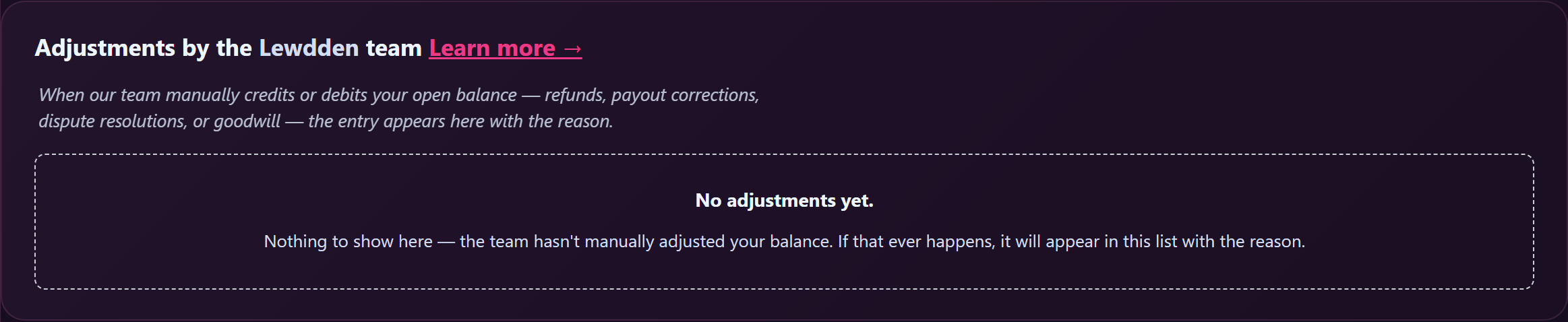
The card is empty until the team makes its first manual adjustment to your account. If you’ve never been adjusted, the card will say “No adjustments yet” with reassuring copy. That is the normal state.
2. What each column tells you
| Column | What it shows |
|---|---|
| Date | When the adjustment was applied. Hover for the full date and time. |
| Direction | A green Credit pill if money was added to your open balance, or a red Debit pill if money was removed. |
| Amount | The change in EUR, with a + or − sign so you can see direction at a glance. |
| Balance after | What your open balance was immediately after the adjustment was applied. Lets you reconstruct what your earnings looked like at that moment. |
| Reason | A coloured category badge (Refund / Goodwill / Correction / Chargeback / Dispute / Adjustment) followed by the user-facing note the team wrote when applying the adjustment. |
3. What each category means for you
- Correction — your open balance is being fixed because an earlier calculation was wrong. The note will explain what was off. Most adjustments are this category.
- Refund — a buyer was refunded for a purchase. The team can choose whether your share is also reversed; the note will say. Default policy is “the house eats the refund”, so most refunds do not debit your open balance.
- Goodwill — a credit added to your open balance as a courtesy. You don’t owe anything in return.
- Chargeback — a buyer’s payment was reversed at the card or bank level. The team may debit a creator share that was already counted, depending on the chargeback reason.
- Dispute — a dispute case (between buyer and creator, or between you and the platform) was resolved. The note will explain which side the resolution went.
- Adjustment — anything that doesn’t fit the categories above. The note should still explain the reason in plain language.
4. How adjustments affect your payouts
Adjustments are applied directly to your open balance. That balance is what gets built into the next monthly export. So:
- A credit increases the payout generated for you on the 1st of next month.
- A debit reduces what you’ll be paid out. If the debit takes your open balance below zero, the negative carries forward and is netted against future earnings — the export run will not send a negative SEPA transfer.
You can re-read the values on your Payouts page anytime — the Open balance tile at the top already reflects every adjustment that has been applied.
5. If an adjustment looks wrong
The team is required to write a user-facing reason for every adjustment. Read the note first — most “why did this change?” questions are answered there. If it still doesn’t make sense, or if you think the adjustment was applied in error:
- Contact creator support at lewdden.com/contact.
- Include in your message: the date of the row, the amount, the category badge, and the reason note as written.
- The team has access to the full internal note (which is more detailed than the user-facing note) and can walk you through the context.
6. What you won’t see
- Who applied the adjustment. The user-facing card shows what was done and why, not which staff member did it. That information is in the internal audit log.
- The internal note. Most adjustments have a short user-facing note and a longer internal note. The internal note is for the audit trail only.
- Email or push notification. Adjustments do not trigger any notifications. You discover them by visiting your Payouts page. (If that ever becomes a problem we can wire an opt-in email — feedback welcome.)
7. Frequently asked questions
Are the amounts in EUR or in tokens?
Creator payouts are always shown in EUR. Tokens are a customer-side concept; on the creator side everything is cents-precise EUR.
Can my open balance go negative?
Yes, briefly. A debit that exceeds your current open balance will take you negative. The negative is then netted against your next month’s earnings before the monthly export builds. You won’t be sent a SEPA transfer for a negative amount.
Will an adjustment appear in my paid history table?
No. Adjustments live in the new Adjustments card. The Paid history table only lists actual SEPA transfers sent through Netfield. The two work together: adjustments shape the open balance, the open balance is exported once a month, the export becomes a paid row.
Is there a CSV export of my adjustments?
Not yet. If you need a copy for bookkeeping, take a screenshot of the rows or copy the table contents. We may add a download later.
Can I dispute an adjustment?
Yes. Contact creator support with the details and we’ll review. Adjustments can only be reversed by the team applying a counter-adjustment, which will show up as a second row in your history.
Last updated: 2026-05-12.







