
Video guide
Prefer to watch? This short video shows how the TV guide works.
Recorded clips in a 24/7 programme like TV channels – how watching, paying per minute, premieres, reminders and the news channel work.
What is Lewdden TV?
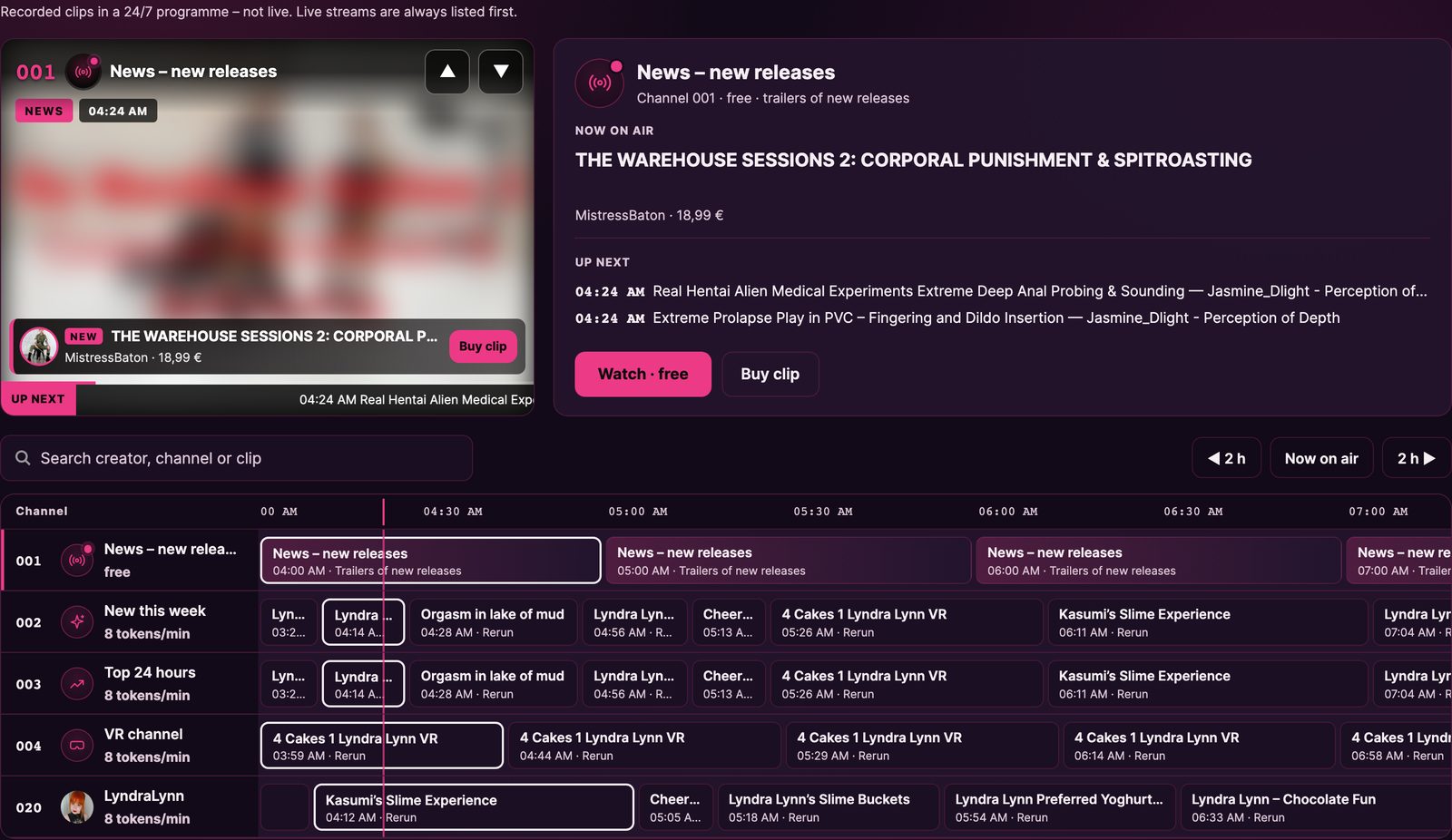
A 24/7 programme of recorded clips, arranged like TV channels. Everyone sees the same moment of the same channel. Everything on Lewdden TV is a rerun or a premiere of a recording – never live. Real livestreams are always listed first under Live.
What does it cost?
Each channel shows its price in tokens per minute. The first 30 seconds per channel and day are free. After that, one minute at a time is paid from your wallet. There is no skipping – you watch at the pace of the programme. Watching on TV does not buy the clip; the clip keeps its normal price.
Switching on starts from the beginning
When you switch on a channel, the clip that is on air starts at 0:00 just for you, and you then follow the programme a little later than the broadcast. A badge in the player shows how many minutes you are time-shifted; “Live time” takes you back to the current broadcast. Premieres always run at their real time.
Preview: trailer, airings and buy now
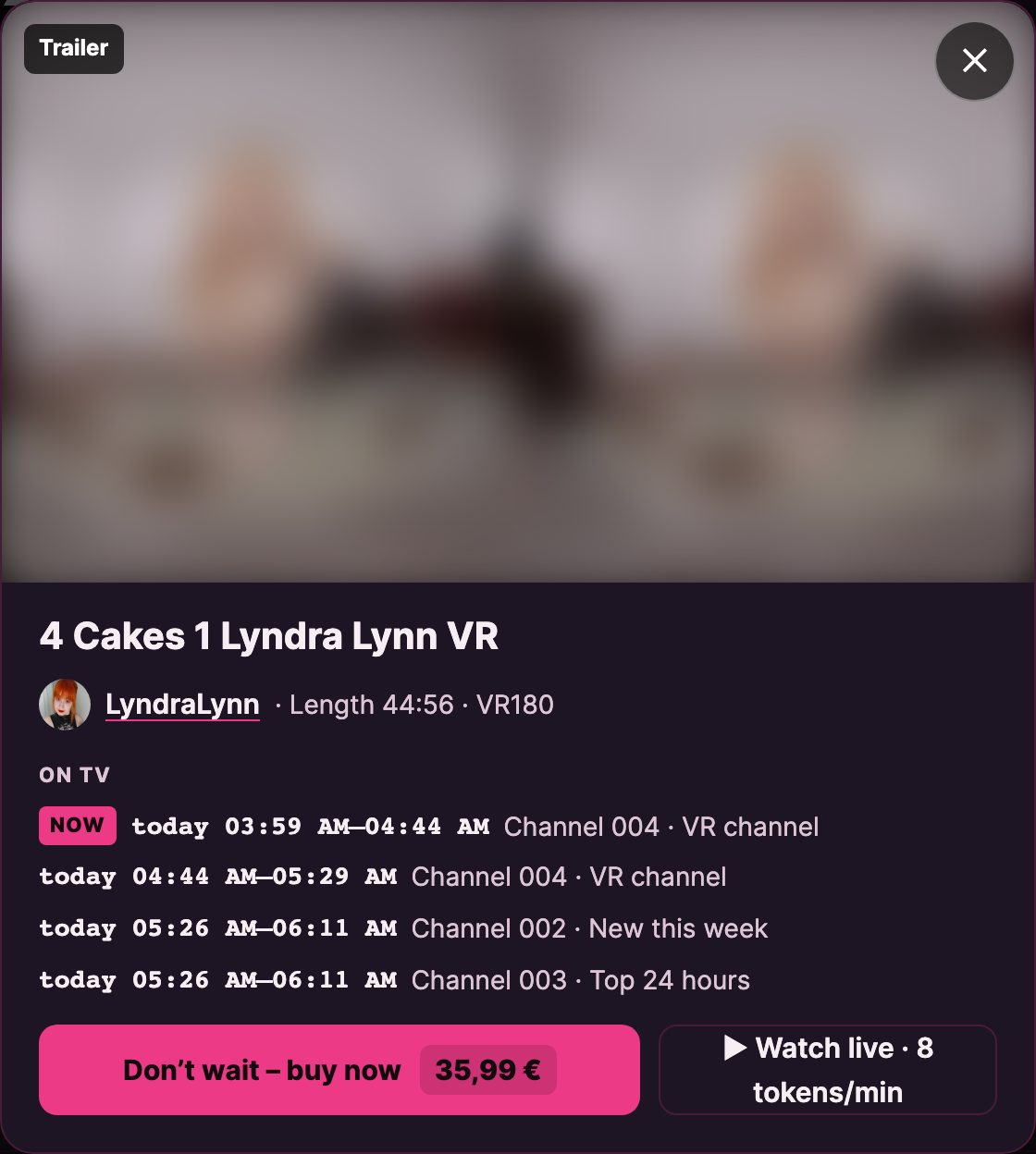
Tap any entry in the guide to open a preview with the trailer, every airing in the next 24 hours and “Don’t wait – buy now” with the clip price. If the clip is on air right now, “Watch live” shows the price per minute and switches you straight in.
The platform channels
Besides the creators’ own channels there are platform channels: “New this week”, “Top 24 hours” with the clips watched and bought most in the last 24 hours, the free news channel and, where there are enough VR clips, a VR channel. On these channels you pay the price per minute that the creator of the clip on air has set, so it can change from clip to clip.
My balance runs out
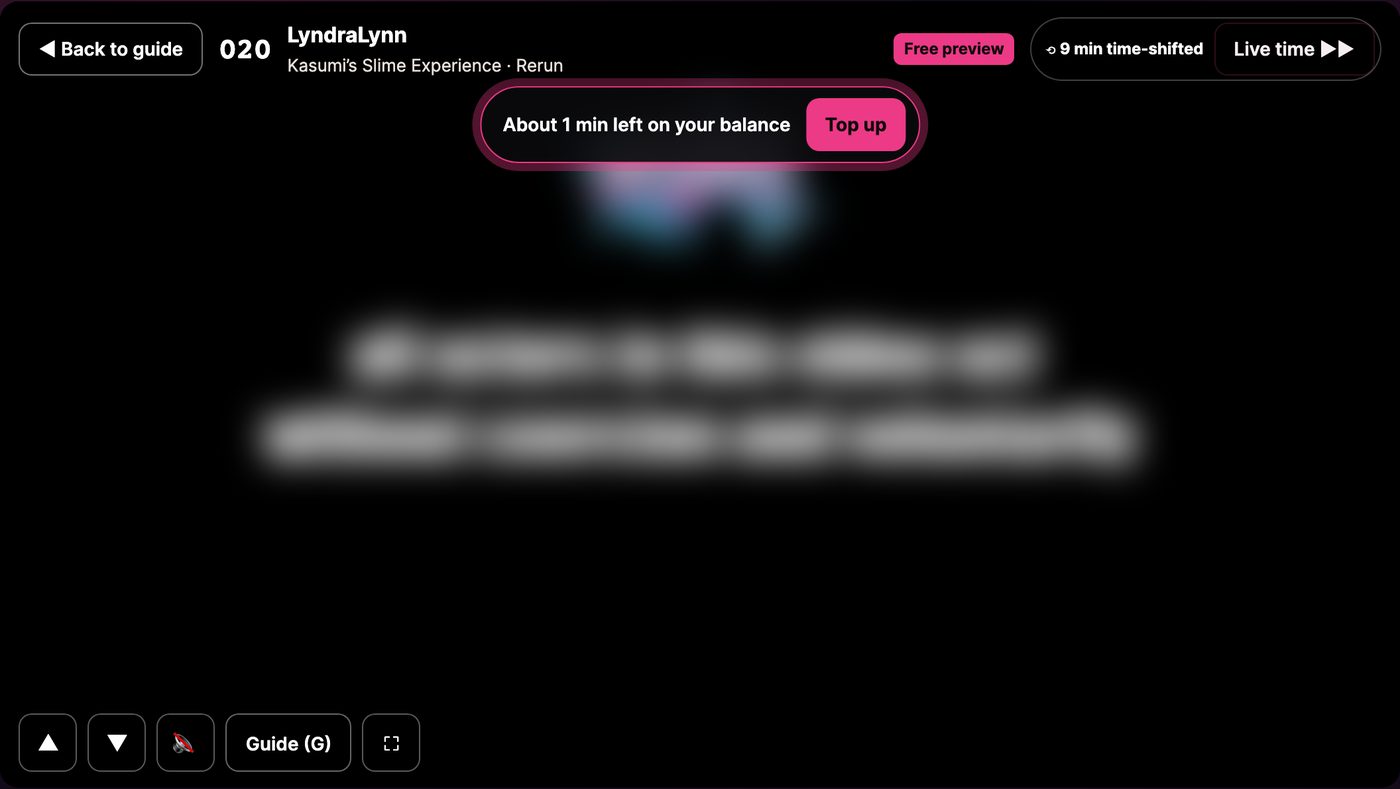
About two minutes before your balance is used up, a bar appears in the player. When it is empty, the picture goes dark and the top-up window opens right there – after topping up, the stream continues automatically at the current point of the programme.
Premieres and chat
A premiere is a new clip shown first at a fixed time. If the creator joins, you can chat with them during the premiere. Tap “Remind me” in the info panel and you get a message in your inbox shortly before it starts.
Search and the guide
Search for a creator, channel or clip: matches light up in the guide and the list shows when and on which channel a clip airs. Scroll the guide sideways (drag, swipe or use ◀ 2 h / Now / 2 h ▶). In the player, press G for the guide and ↑ ↓ to change channel.
News channel 001
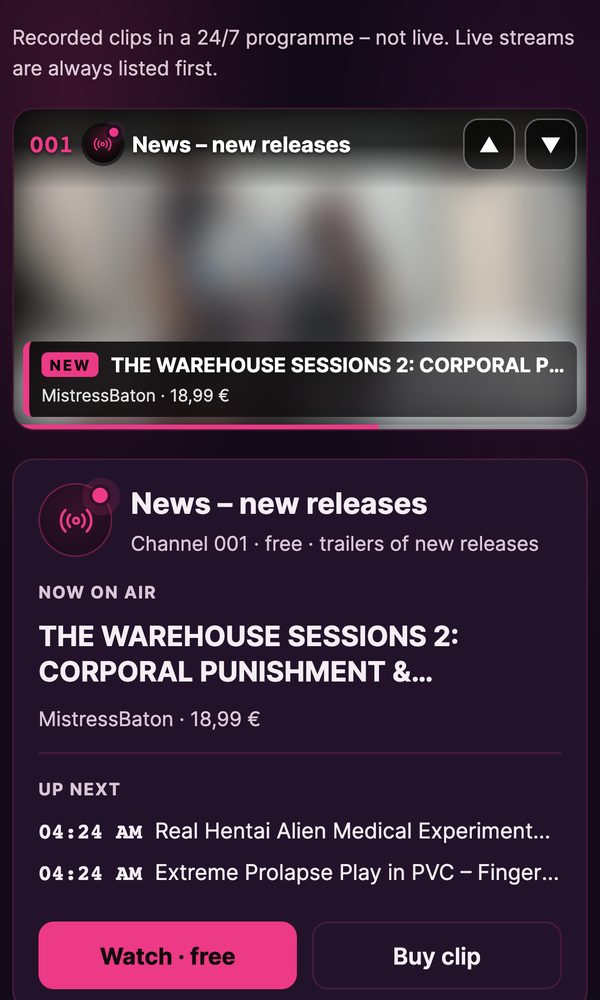
Channel 001 plays the trailers of new releases back to back – free, with a buy button for each clip.
Replay on a clip page
Some clips can also be watched as a stream on their clip page (“Watch as stream”): it starts at 0:00 just for you, is paid per minute, and cannot be paused or skipped. If your balance runs out, your position is held for up to 5 minutes while you top up.
Watching in VR
For VR clips the player shows a “Watch in headset” button. Open the TV guide in the browser of your Meta Quest and tap it to watch in the headset – billing and the programme stay exactly the same.