
🎮 Toy sync: clips that move your toy → 📖 Toy sync guide →
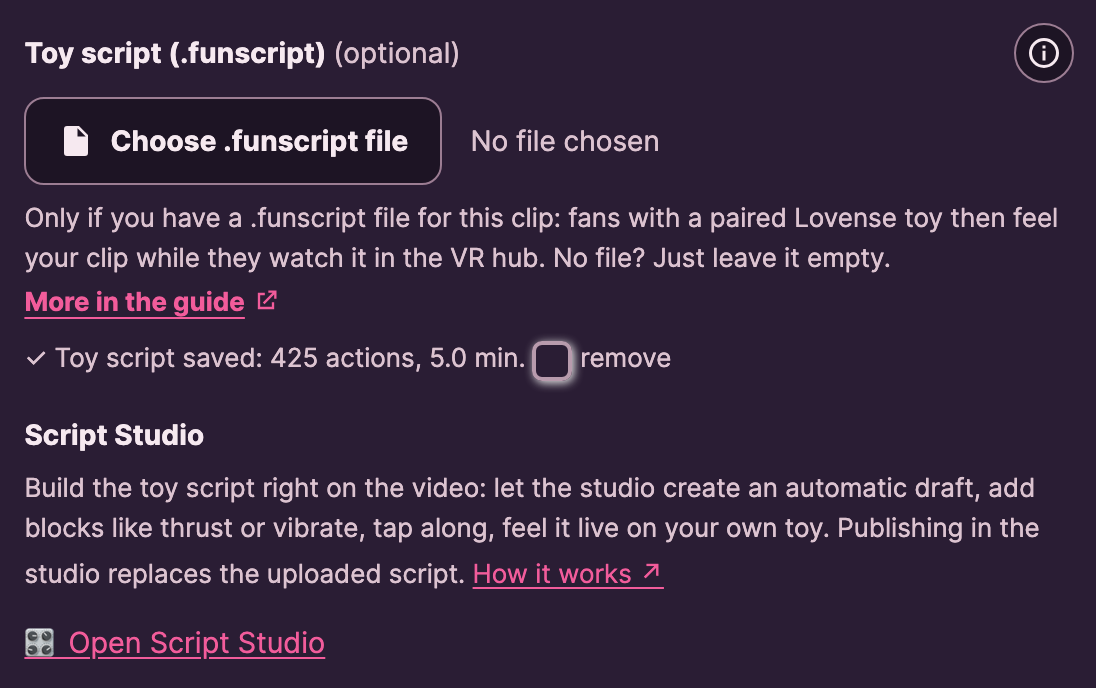
Script Studio is the editor built into the store manager: you see your video frame by frame, let the studio write an automatic first draft, add blocks such as thrust or vibrate, tap along with the T key and feel the result live on your own toy. It works for VR clips and for 2D clips. Two ways in: the 🎛 Open Script Studio button in the clip editor – open your clip under Content → Clips; the button sits right below the toy script upload – or, for a brand-new clip, Save draft & open Script Studio in the “Add clip” form: the clip is saved as a draft first, nothing is lost, and Back to clip in the studio brings you back.
Step 1 — the automatic draft
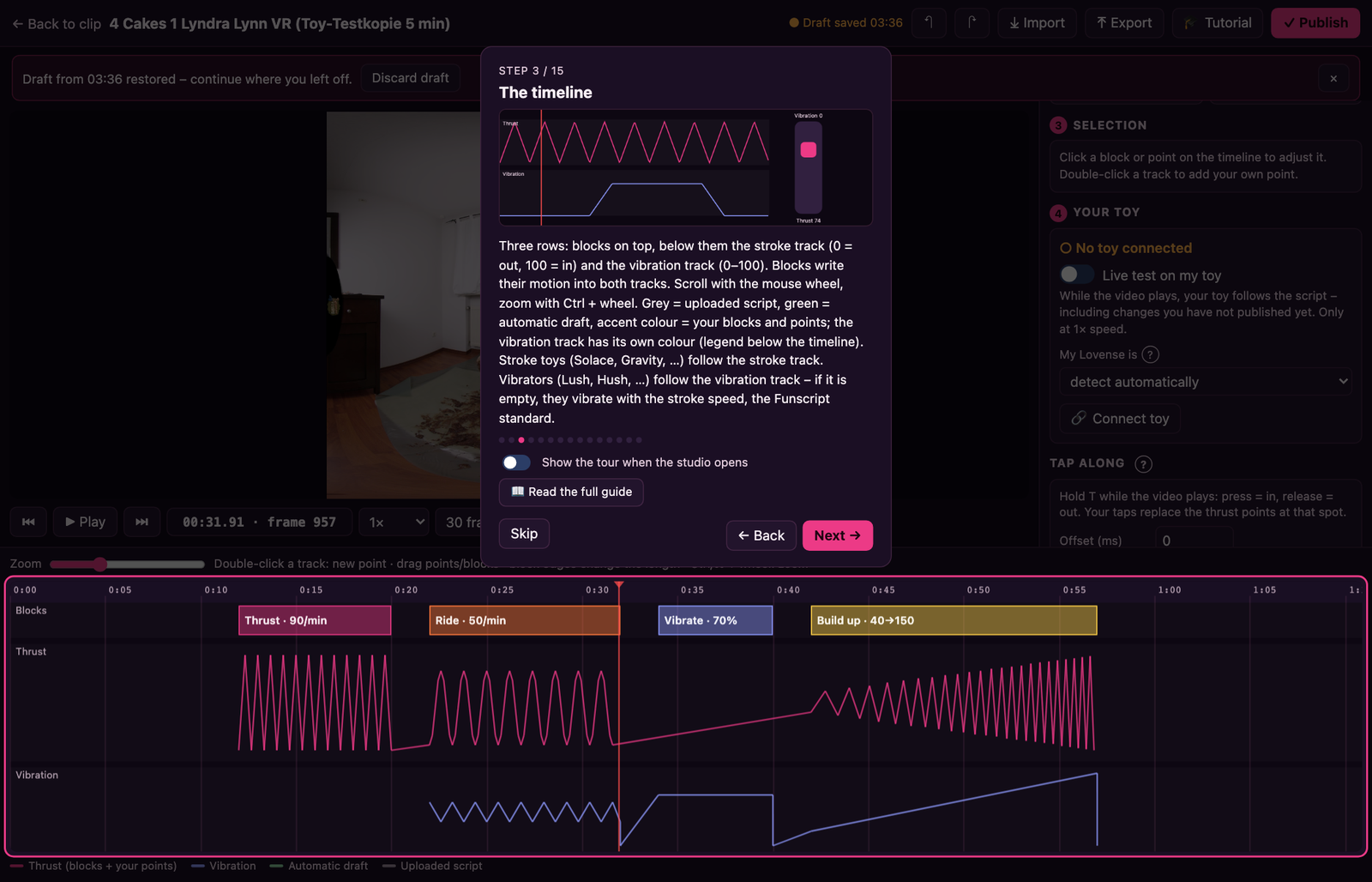
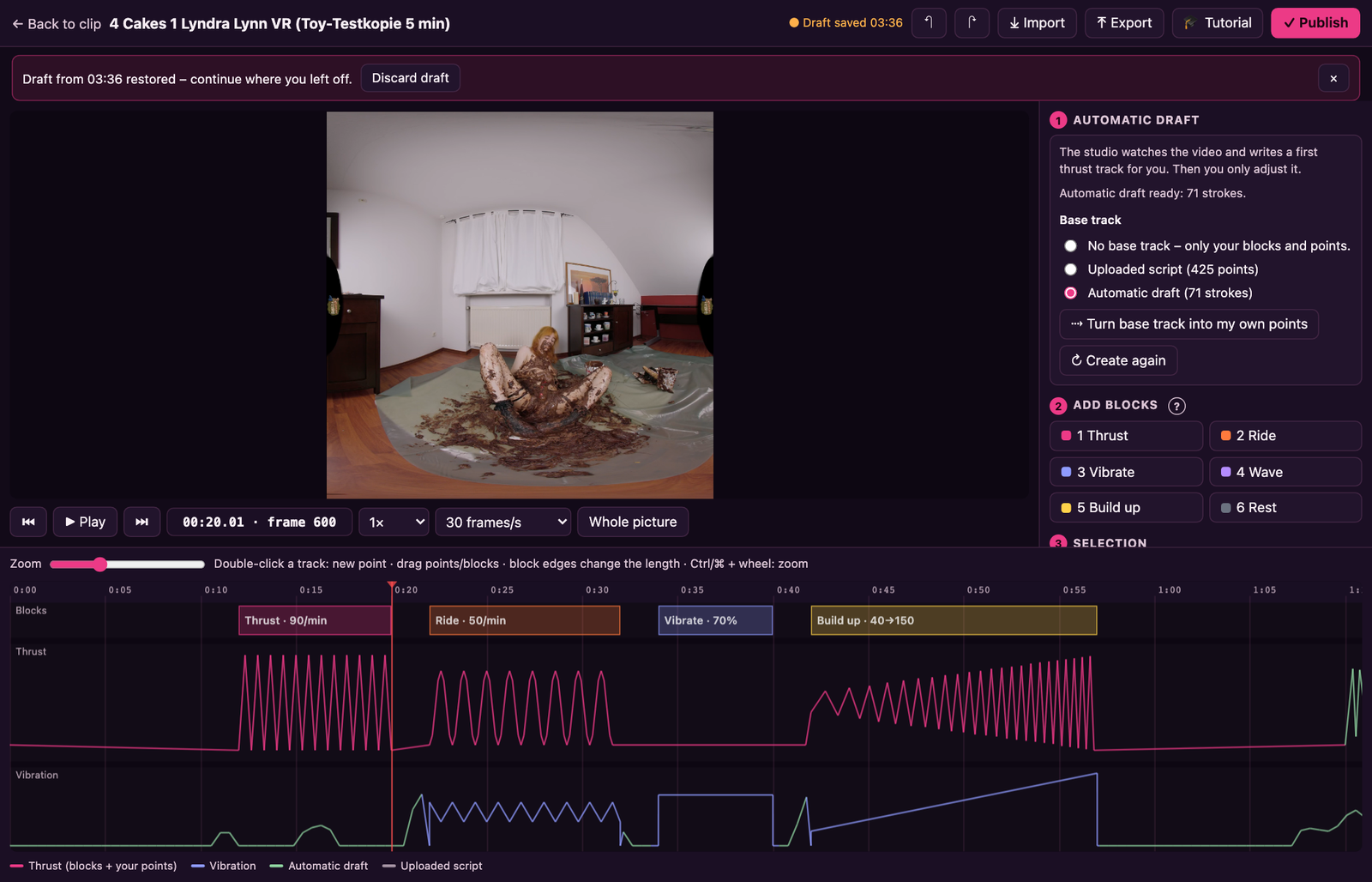
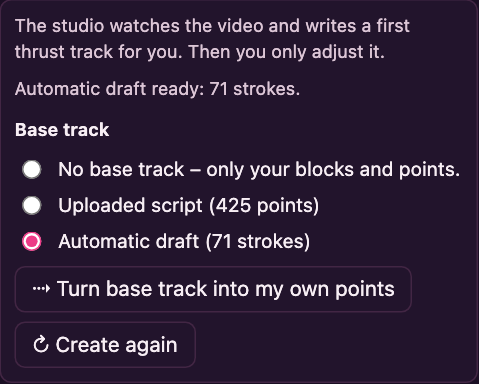
Press Create automatic draft. The studio watches your video on the server and writes a first thrust track from the movement it sees — about one minute per five minutes of video; you can keep working meanwhile. The draft appears as a green curve. Under Base track you choose what lies beneath your blocks and points: nothing, the uploaded script or the automatic draft — only the selected one is shown and played, and your blocks and points always win over it. Turn base track into my own points makes every point of it editable.
Step 2 — blocks
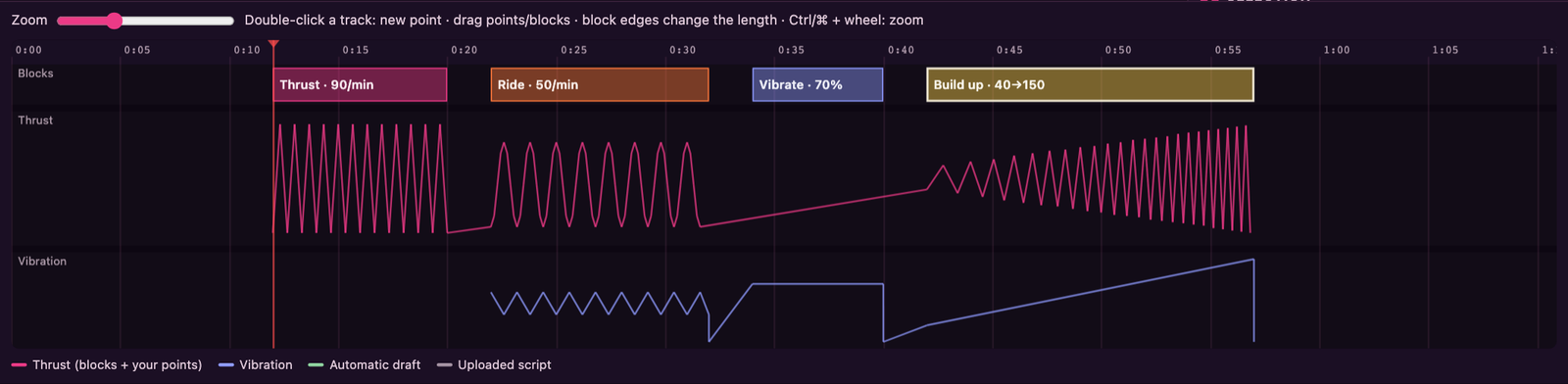
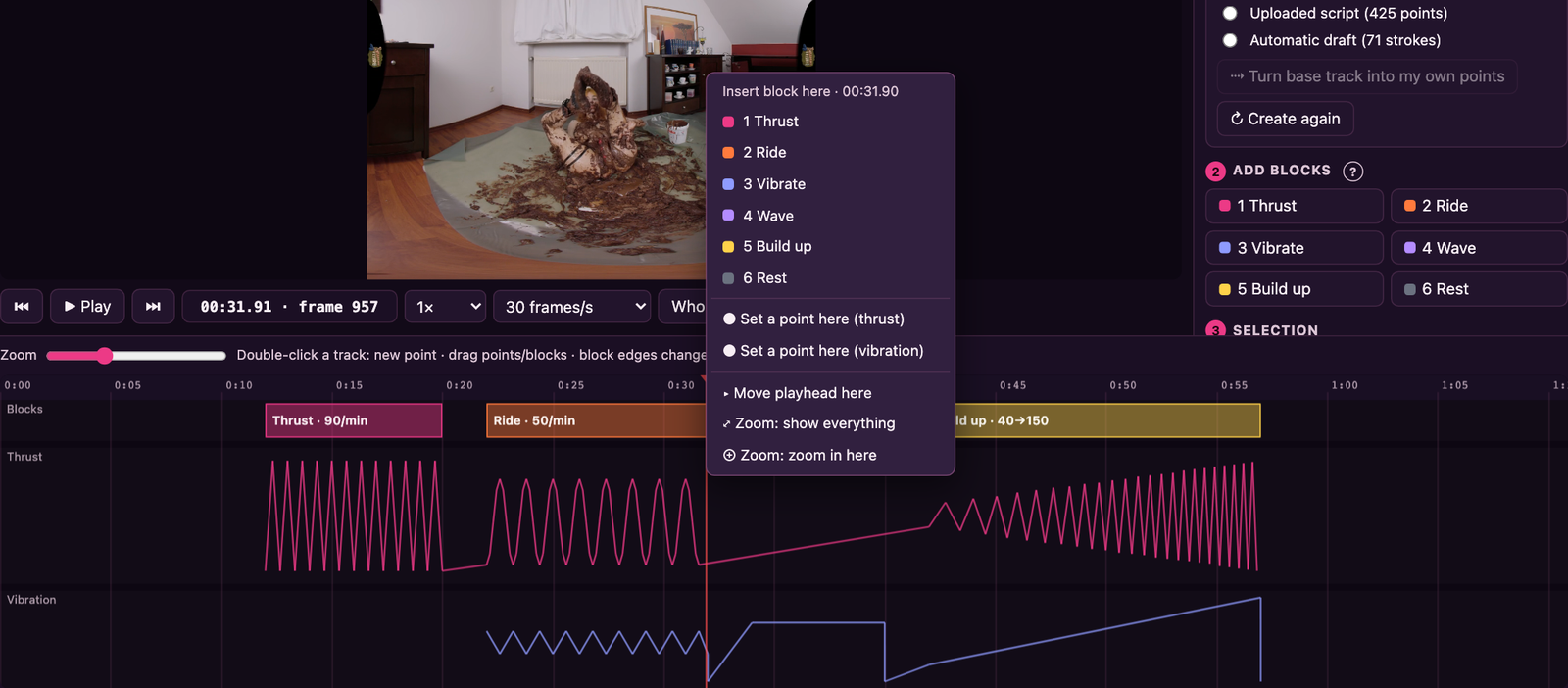
A block is a ready-made movement for a part of the clip. Place the playhead where the action starts and click a block (or press the keys 1–6). On the timeline you can drag a block, pull its edges to change the length, and set its pace and depth with the sliders on the right. A later block cuts an earlier one. Turn into points breaks a block into single points you can fine-tune.
- Thrust — steady up-and-down strokes; set strokes per minute, bottom and top.
- Ride — slower, rounder strokes plus vibration, for riding scenes.
- Vibrate — vibration only, steady or pulsing. Wave — vibration rising and falling like a wave.
- Build up — faster and stronger from start to end, for a build-up to the climax. Rest — nothing happens, the toy rests.
Tap along with the T key
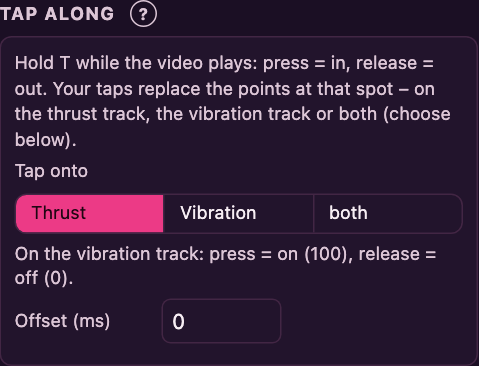
Often the quickest way: play the video and hold T while the movement goes in, release it when it comes out. Every press and release becomes a point and replaces whatever was there. Under Tap onto you choose which track your taps land on – thrust (the default), vibration, or both at once, like picking the active layer in a video editor; on the vibration track a press means on (100) and a release means off (0). If your taps always land a little late, set a negative Offset in milliseconds. You can tap at half speed too — the points still land on the right frames.
Own points and the two tracks
Double-click a track to set a point, drag it to move it, press Delete to remove it; the arrow keys step through the video one frame at a time. The thrust track (0 = out, 100 = in) drives stroking toys such as The Handy, Lovense Solace or the Lovense Sex Machine. Vibrators such as Lush or Hush follow the vibration track; while it is empty they vibrate with the thrust speed — the Funscript standard, so an uploaded script without a vibration track works on vibrators too. So you can simply leave the vibration track empty — or fill it separately whenever a vibrator should do something different from the strokes. Your blocks and points are drawn in the site’s accent colour, the vibration track has its own colour (see the legend below the timeline). When you export, you get name.funscript for thrust and name.vib.funscript for vibration.
Select several points at once
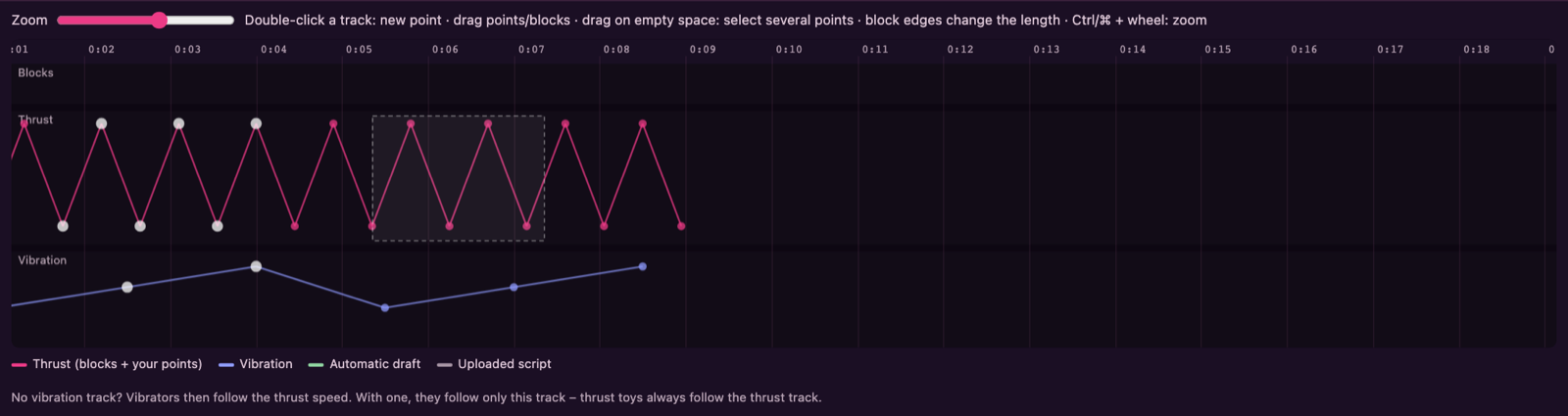
Drag on an empty spot of a track with the left mouse button to draw a selection frame, just like in a video editor: every point inside it is selected — on both tracks if the frame spans them — and Shift adds to the selection. Drag one of the selected points to move them all together, press Delete (or use the right-click menu or the Selection panel) to remove them, and Esc clears the selection. The Selection panel also has sliders that change all selected points together: depth/strength, swing, shift in time and stretch (tempo). A plain click without dragging just moves the playhead.
Step 3 — feel it live on your toy
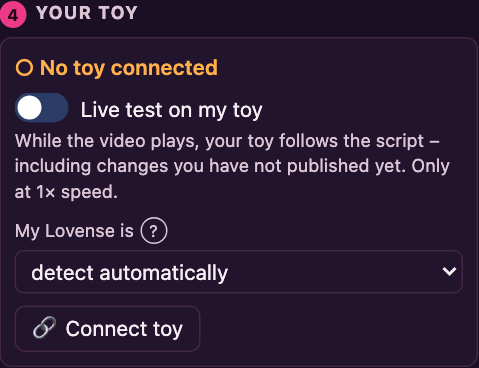
Connect your Lovense toy once on the Toy page, then switch on Live test on my toy in the studio. While the video plays at normal speed, your toy follows the script — including everything you have not published yet. Pause stops the toy. Under Your toy you can also tell the studio whether your Lovense is a vibrator or a stroking toy — Lovense sends one strength to all toys at once, so this is how a Lush follows only the vibration track and a Solace only the thrust track.
Step 4 — drafts and publishing
While you work, the studio saves your draft automatically every few seconds — close the tab and come back later, your work is still there. Fans feel nothing until you press Publish. Publish ties the script firmly to this exact video: it replaces an uploaded script, from then on it plays along in the VR hub and in the library player for buyers and subscribers, buyers can download it as a .funscript next to the video, and the clip gets the 🎮 Toy badge and appears on the toy page. You can keep editing and publish again any time; Discard draft takes you back to the published version.
Import and export
You already have a script from OpenFunscripter, FunGen or a scripter? Import loads it as the base track; a file named *.vib.funscript goes to the vibration track. Export downloads both tracks as files, for example to keep a backup or to edit them in another tool.
Keyboard
Space play/pause · ← → one frame (with Shift: one second) · T tap along · 1–6 add a block · Delete remove the selection · Ctrl Z undo, Ctrl Shift Z redo · Ctrl S publish · Ctrl + mouse wheel zoom the timeline.
Tips for a good script
- Follow the picture: in when the scene goes in, out when it comes out — and keep calm parts calm instead of buzzing all the time.
- Not more than about five strokes per second — faster toys cannot follow and only rattle.
- Use the live test before you publish — what feels right on your own toy is right for your fans.